• Home
  • News
  • Software
  • Knowledge
  • MMO
  • Tips
  • Security
  • Network
  • Office
AnonyViet - English Version
  • Home
  • News
  • Software
  • Knowledge
  • MMO
  • Tips
  • Security
  • Network
  • Office
No Result
View All Result
  • Home
  • News
  • Software
  • Knowledge
  • MMO
  • Tips
  • Security
  • Network
  • Office
No Result
View All Result
AnonyViet - English Version
No Result
View All Result

Lesson 33: How to use Freeze Panes – Fix columns when scrolling in Excel

AnonyViet by AnonyViet
January 26, 2023
in Office
0

If you have a large data table in Excel, it can be very helpful to freeze rows or columns. This way you can keep rows or columns visible while scrolling the sheet. So in this article, I will guide you to do the same using Freeze Panes.

Join the channel Telegram of the AnonyViet 👉 Link 👈

Lesson 33: How to use Freeze Panes – Fix columns when scrolling in Excel

How to use Freeze Panes in Excel

1. On the View tab, in the Windows group, and click Freeze Panes.

Lesson 33: How to use Freeze Panes - Fix columns when scrolling in Excel 26

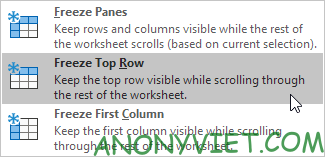
2. Click Freeze Top Row.

Lesson 33: How to use Freeze Panes - Fix columns when scrolling in Excel 27

3. Scroll down the rest of the sheet.

Result: Excel automatically adds a dark gray horizontal line to indicate that the top row is fixed.
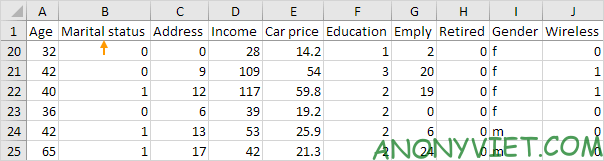
Lesson 33: How to use Freeze Panes - Fix columns when scrolling in Excel 28

Unlock all rows and columns

To unlock all rows and columns, perform the following steps.

1. On the View tab, in the Windows group, select Freeze Panes.

Lesson 33: How to use Freeze Panes - Fix columns when scrolling in Excel 26

2. Click Unfreeze Panes.

Lesson 33: How to use Freeze Panes - Fix columns when scrolling in Excel 30

Fixed first column

To freeze the first column, perform the following steps.

1. On the View tab, in the Windows group, select Freeze Panes.Lesson 33: How to use Freeze Panes - Fix columns when scrolling in Excel 26

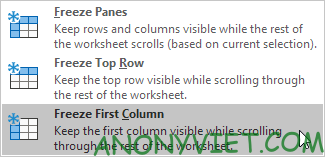
2. Click Freeze First Column.

Lesson 33: How to use Freeze Panes - Fix columns when scrolling in Excel 32

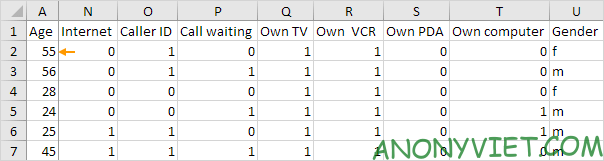
3. You can now scroll to the right of the sheet to see the difference.

Result: Excel automatically adds a dark gray vertical line to let you know that the first column is fixed.
Lesson 33: How to use Freeze Panes - Fix columns when scrolling in Excel 33

Fixed row

To freeze the row, perform the following steps.

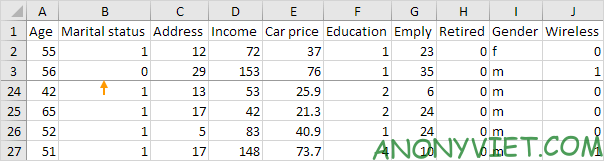
1. In this example, I will select row 4.

2. On the View tab, in the Windows group, select Freeze Panes.

Lesson 33: How to use Freeze Panes - Fix columns when scrolling in Excel 26

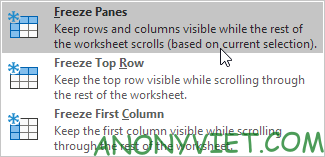
3. Click Freeze Panes.

Lesson 33: How to use Freeze Panes - Fix columns when scrolling in Excel 35

4. Scroll the sheet and see the results.

Result. All rows above row 4 are fixed. Excel automatically adds a dark gray horizontal line to let you know that the first three rows are fixed.
Lesson 33: How to use Freeze Panes - Fix columns when scrolling in Excel 36

Fixed column

To freeze columns, perform the following steps.

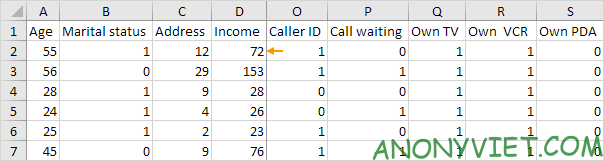
1. In this example, I will select column E.

2. On the View tab, in the Windows group, select Freeze Panes.

Lesson 33: How to use Freeze Panes - Fix columns when scrolling in Excel 26

3. Click Freeze Panes.

Lesson 33: How to use Freeze Panes - Fix columns when scrolling in Excel 35

4. Scroll the sheet and see the results.

Result: All columns to the left of column E are fixed. Excel automatically adds a dark gray vertical line to indicate that the first four columns are fixed.
Lesson 33: How to use Freeze Panes - Fix columns when scrolling in Excel 39

Fixed umbrella

To freeze the cell, perform the following steps.

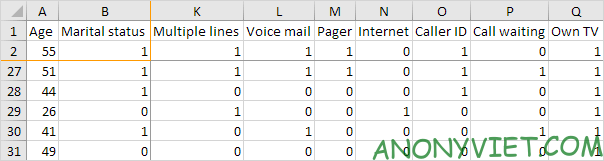
1. In this example, I will select cell C3.

2. On the View tab, in the Windows group, select Freeze Panes.

Lesson 33: How to use Freeze Panes - Fix columns when scrolling in Excel 26

3. Click Freeze Panes.

Lesson 33: How to use Freeze Panes - Fix columns when scrolling in Excel 35

4. Scroll the sheet and see the results.

Result: The orange area above row 3 and to the left of column C was frozen.
Lesson 33: How to use Freeze Panes - Fix columns when scrolling in Excel 42

How to Add Freeze Panes Shortcut to Quick Access

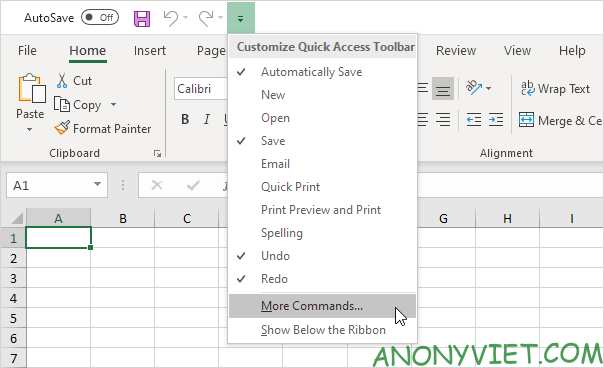
Add a magic Fix button to the Quick Access Toolbar to freeze the top row, first column, rows, columns, or cells with a single click.

1. Tap the down arrow.

2. Select More Commands.
Lesson 33: How to use Freeze Panes - Fix columns when scrolling in Excel 43

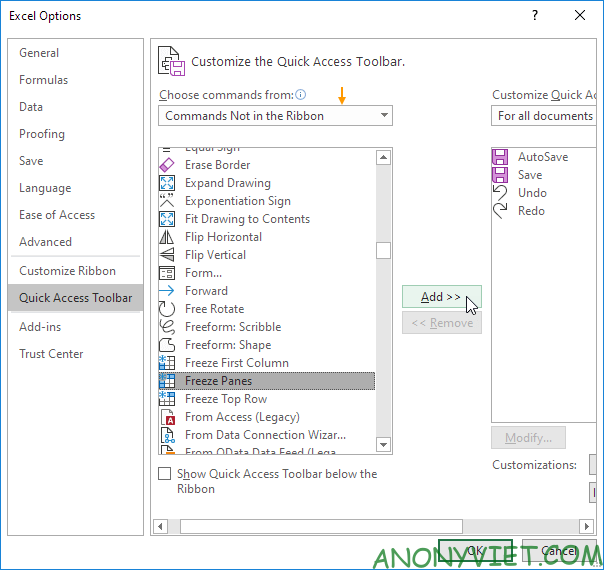
3. In Choose commands from, select Commands Not in the Ribbon.

4. Select Freeze Panes and click Add.
Lesson 33: How to use Freeze Panes - Fix columns when scrolling in Excel 44

5. Press OK

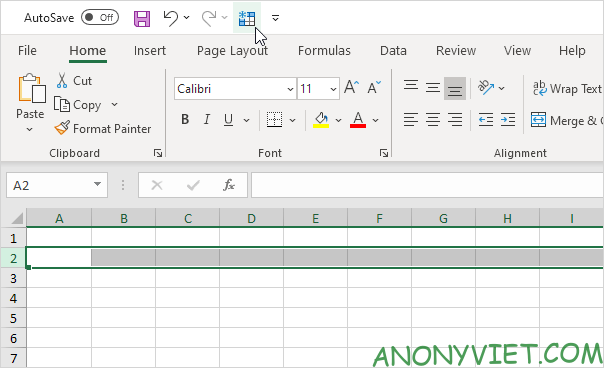
6. To freeze the top row, select row 2 and click the Freeze button.
Lesson 33: How to use Freeze Panes - Fix columns when scrolling in Excel 45

7. Scroll the sheet and see the results.

Result: Excel automatically adds a dark gray horizontal line to let you know that the top row is fixed.

Lesson 33: How to use Freeze Panes - Fix columns when scrolling in Excel 46

Note: to unlock all rows and columns, click the Freeze button again. To freeze the first 4 columns, select column E (the fifth column) and click the Freeze button.

In addition, you can also view many other excel articles here.

The article achieved: 5/5 – (100 votes)

Tags: ColumnsExcelfixFreezeLessonPanesscrolling
Previous Post

How to play Netflix games on Android and iOS

Next Post

Learn What is a Keylogger? 5 ways to protect yourself from Keylogger

AnonyViet

AnonyViet

Related Posts

Instructions on how to hide formulas in Excel to secure data
Office

Instructions on how to hide formulas in Excel to secure data

February 6, 2026
Top who creates the most beautiful presentation slide today
Office

Top who creates the most beautiful presentation slide today

September 23, 2025
Automatically check and correct spelling errors on Google Docs
Office

Automatically check and correct spelling errors on Google Docs

February 23, 2025
Instructions for downloading Google Docs files easily on any device
Office

Instructions for downloading Google Docs files easily on any device

December 18, 2024
Launching AI image creation feature on Google Docs
Office

Launching AI image creation feature on Google Docs

November 20, 2024
Instructions for using Google Docs without internet
Office

Instructions for using Google Docs without internet

November 2, 2024
Next Post
Learn What is a Keylogger?  5 ways to protect yourself from Keylogger

Learn What is a Keylogger? 5 ways to protect yourself from Keylogger

0 0 votes
Article Rating
Subscribe
Login
Notify of
guest

guest

0 Comments
Oldest
Newest Most Voted
Inline Feedbacks
View all comments

Recent News

How to intercept traffic using Burp Suite to analyze HTTP/HTTPS

How to intercept traffic using Burp Suite to analyze HTTP/HTTPS

April 18, 2026
How to avoid Adblock detection on Youtube with 4 good tips

How to avoid Adblock detection on Youtube with 4 good tips

April 17, 2026
How to transfer ChatGPT data to Claude is extremely simple

How to transfer ChatGPT data to Claude is extremely simple

April 16, 2026
How to authenticate the owner’s SIM on VNeID from April 15

How to authenticate the owner’s SIM on VNeID from April 15

April 15, 2026
How to intercept traffic using Burp Suite to analyze HTTP/HTTPS

How to intercept traffic using Burp Suite to analyze HTTP/HTTPS

April 18, 2026
How to avoid Adblock detection on Youtube with 4 good tips

How to avoid Adblock detection on Youtube with 4 good tips

April 17, 2026
How to transfer ChatGPT data to Claude is extremely simple

How to transfer ChatGPT data to Claude is extremely simple

April 16, 2026
AnonyViet - English Version

AnonyViet

AnonyViet is a website share knowledge that you have never learned in school!

We are ready to welcome your comments, as well as your articles sent to AnonyViet.

Follow Us

Contact:

Email: anonyviet.com[@]gmail.com

Main Website: https://anonyviet.com

Recent News

How to intercept traffic using Burp Suite to analyze HTTP/HTTPS

How to intercept traffic using Burp Suite to analyze HTTP/HTTPS

April 18, 2026
How to avoid Adblock detection on Youtube with 4 good tips

How to avoid Adblock detection on Youtube with 4 good tips

April 17, 2026
No Result
View All Result
  • Home
  • News
  • Software
  • Knowledge
  • MMO
  • Tips
  • Security
  • Network
  • Office

wpDiscuz
0
0
Would love your thoughts, please comment.x
()
x
| Reply