• Home
  • News
  • Software
  • Knowledge
  • MMO
  • Tips
  • Security
  • Network
  • Office
AnonyViet - English Version
  • Home
  • News
  • Software
  • Knowledge
  • MMO
  • Tips
  • Security
  • Network
  • Office
No Result
View All Result
  • Home
  • News
  • Software
  • Knowledge
  • MMO
  • Tips
  • Security
  • Network
  • Office
No Result
View All Result
AnonyViet - English Version
No Result
View All Result

Lesson 202: How to count unique values ​​in Excel

AnonyViet by AnonyViet
January 25, 2023
in Office
0

This article will show you how to create an array formula that counts unique values ​​in Excel.

Join the channel Telegram of the AnonyViet 👉 Link 👈

How to count unique values ​​in Excel

1. We use the COUNTIF function. For example, to count the number 5, use the following function.
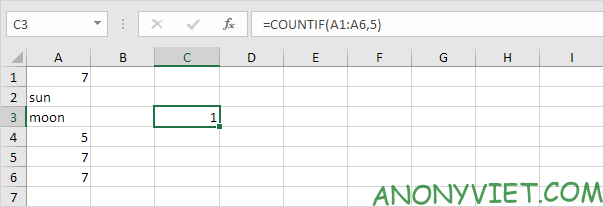
Lesson 202: How to count unique values ​​in Excel 12

2. To count unique values, we add the SUM function, 1/ and replace 5 with A1:A6.
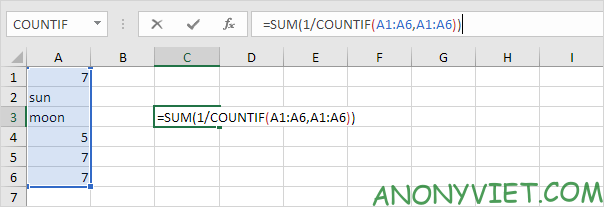
Lesson 202: How to count unique values ​​in Excel 13

3. Finish by pressing CTRL + SHIFT + ENTER.
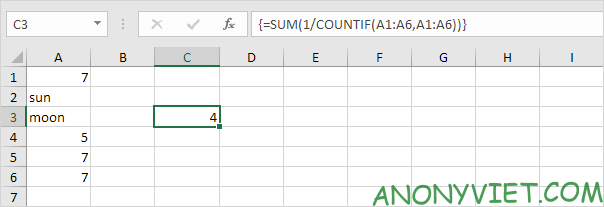
Lesson 202: How to count unique values ​​in Excel 14

Note: The formula bar indicates this is an array formula by enclosing it in curly braces {}. Don’t type these yourself. They will disappear when you edit the formula.

Explanation: The range (array constant) created by the COUNTIF function is stored in Excel’s memory, not in a range. The array constant looks like this:

{3;1;1;1;3;3} – (three numbers 7, 1 sun, 1 moon, one 5, three numbers 7, three numbers 7)

Reduces to: {1/3;1/1;1/1;1/1;1/3;1/3}

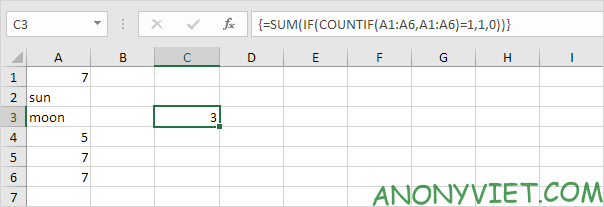
4. The array formula below counts the number of values ​​that appear exactly once.

Lesson 202: How to count unique values ​​in Excel 15

Explanation: the IF function converts the array constant {3; first; first; first; 3; 3} to {0; first; first; first; 0; 0}. This array constant is used as a parameter to the SUM function, which returns 3.

5. If you are using Excel 365, simply use the UNIQUE function to extract the unique values.

Lesson 202: How to count unique values ​​in Excel 16

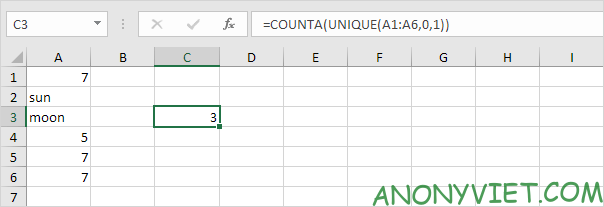
6. Next, add the COUNTA function to count unique values.
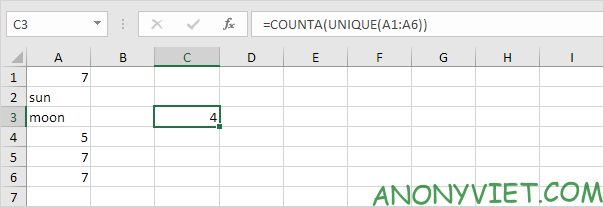
Lesson 202: How to count unique values ​​in Excel 17

7. The formula below counts the number of values ​​that appear exactly once.

Lesson 202: How to count unique values ​​in Excel 18

Note: the UNIQUE function has 2 optional parameters. The default value is 0 (second parameter) for the UNIQUE function to extract values ​​from a vertical array. The value 1 (the third parameter) tells the UNIQUE function to extract values ​​that appear exactly once.

In addition, you can also view many other excel articles here.

The article achieved: 5/5 – (100 votes)

Tags: countExcelLessonUniqueValues
Previous Post

CHAOS – Rat software for remote computers easily

Next Post

How to find recently viewed ads on Facebook

AnonyViet

AnonyViet

Related Posts

Instructions on how to convert text into QR codes in Word
Office

Instructions on how to convert text into QR codes in Word

October 5, 2026
Tool to adjust the format of administrative documents according to Decree 30
Office

Tool to adjust the format of administrative documents according to Decree 30

October 1, 2026
How to add Watermark to Google Docs to protect copyright
Office

How to add Watermark to Google Docs to protect copyright

April 19, 2026
Instructions on how to hide formulas in Excel to secure data
Office

Instructions on how to hide formulas in Excel to secure data

February 6, 2026
Top who creates the most beautiful presentation slide today
Office

Top who creates the most beautiful presentation slide today

September 23, 2025
Automatically check and correct spelling errors on Google Docs
Office

Automatically check and correct spelling errors on Google Docs

February 23, 2025
Next Post
How to find recently viewed ads on Facebook

How to find recently viewed ads on Facebook

0 0 votes
Article Rating
Subscribe
Login
Notify of
guest

guest

0 Comments
Oldest
Newest Most Voted

Recent News

Instructions for registering for OxionAI Pro for 1 year with many powerful AI models

Instructions for registering for OxionAI Pro for 1 year with many powerful AI models

October 24, 2026
How are Windows 11 Pro and Windows 10 Pro different?

How are Windows 11 Pro and Windows 10 Pro different?

October 23, 2026
Instructions for using CleanYourTV: Remove ads on Android TV, Google TV

Instructions for using CleanYourTV: Remove ads on Android TV, Google TV

October 23, 2026
Receive copyright for 3 Halloween software worth 0

Receive copyright for 3 Halloween software worth $150

October 23, 2026
Instructions for registering for OxionAI Pro for 1 year with many powerful AI models

Instructions for registering for OxionAI Pro for 1 year with many powerful AI models

October 24, 2026
How are Windows 11 Pro and Windows 10 Pro different?

How are Windows 11 Pro and Windows 10 Pro different?

October 23, 2026
Instructions for using CleanYourTV: Remove ads on Android TV, Google TV

Instructions for using CleanYourTV: Remove ads on Android TV, Google TV

October 23, 2026
AnonyViet - English Version

AnonyViet

AnonyViet is a website share knowledge that you have never learned in school!

We are ready to welcome your comments, as well as your articles sent to AnonyViet.

Follow Us

Contact:

Email: anonyviet.com[@]gmail.com

Main Website: https://anonyviet.com

Recent News

Instructions for registering for OxionAI Pro for 1 year with many powerful AI models

Instructions for registering for OxionAI Pro for 1 year with many powerful AI models

October 24, 2026
How are Windows 11 Pro and Windows 10 Pro different?

How are Windows 11 Pro and Windows 10 Pro different?

October 23, 2026
  • Home
  • Home 2
  • Home 3
  • Home 4
  • Home 5
  • Home 6
  • Next Dest Page
  • Sample Page

say88 tỷ lệ kèo nhà cái kèo nhà cái 5 febet

No Result
View All Result
  • Home
  • News
  • Software
  • Knowledge
  • MMO
  • Tips
  • Security
  • Network
  • Office

say88 tỷ lệ kèo nhà cái kèo nhà cái 5 febet

wpDiscuz
0
0
Would love your thoughts, please comment.x
()
x
| Reply