• Home
  • News
  • Software
  • Knowledge
  • MMO
  • Tips
  • Security
  • Network
  • Office
AnonyViet - English Version
  • Home
  • News
  • Software
  • Knowledge
  • MMO
  • Tips
  • Security
  • Network
  • Office
No Result
View All Result
  • Home
  • News
  • Software
  • Knowledge
  • MMO
  • Tips
  • Security
  • Network
  • Office
No Result
View All Result
AnonyViet - English Version
No Result
View All Result

Lesson 162: How to use the INDIRECT function in Excel

AnonyViet by AnonyViet
January 25, 2023
in Office
0

Using the INDIRECT function in Excel to convert a text string to a valid reference. You can use the & operator to create text strings.

Join the channel Telegram of the AnonyViet 👉 Link 👈

How to use the INDIRECT function in Excel

1. For example, see the INDIRECT function below.

Lesson 162: How to use the INDIRECT function in Excel

Explanation: =INDIRECT(A1) becomes =INDIRECT(“D1”). The INDIRECT function converts the text string “D1” into a valid cell reference. In other words, =INDIRECT(“D1”) reduces to =D1.

2. The simple INDIRECT function below gives the same result.

Lesson 162: How to use the INDIRECT function in Excel 15

3. If the INDIRECT function is not used, this will be the result.

Lesson 162: How to use the INDIRECT function in Excel 16

4. Use the & operator to concatenate the string “D” with the value in cell A1.

Lesson 162: How to use the INDIRECT function in Excel 17

Scope reference

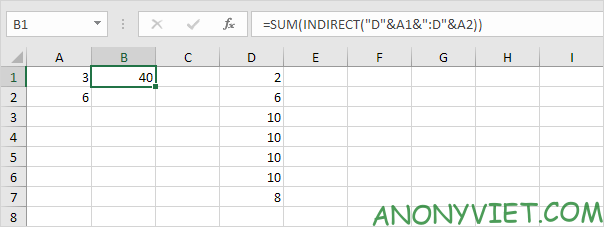
Use the INDIRECT function in Excel to convert a text string into a valid range reference. For example, use SUM and INDIRECT.
Lesson 162: How to use the INDIRECT function in Excel 18

Explanation: the above formula reduces to =SUM(INDIRECT(“D3:D6”)). The INDIRECT function converts the text string “D3:D6” into a valid range reference. In other words, =SUM(INDIRECT(“D3:D6”)) reduces to =SUM(D3:D6).

Area name

Use the INDIRECT function in Excel to convert a text string into a valid named range.

1. For example, the AVERAGE function below uses the Scores region name.

Lesson 162: How to use the INDIRECT function in Excel 19

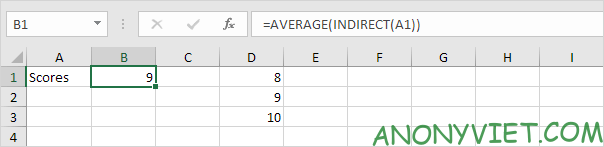
Explanation: the Scores region name refers to the range D1:D3.

2. However, the AVERAGE function below returns an error.

Lesson 162: How to use the INDIRECT function in Excel 20

Explanation: =AVERAGE(“Scores”) returns an error because Excel cannot calculate the average of a text string.

3. The INDIRECT function below will fix that.
Lesson 162: How to use the INDIRECT function in Excel 21

Explanation: =AVERAGE(INDIRECT(“Scores”)) reduces to =AVERAGE(Scores).

Spreadsheet Reference

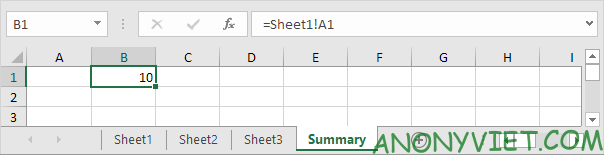
1. This is a simple sheet reference.
Lesson 162: How to use the INDIRECT function in Excel 22

Note: cell A1 on Sheet1 contains the value 10. Cell A1 on Sheet2 contains the value 20. Cell A1 on Sheet3 contains the value 30.

Explanation: the above formula reduces to =INDIRECT(“Sheet1!A1”). The INDIRECT function converts the text string “Sheet1! A1” to a valid sheet reference. In other words, =INDIRECT(“Sheet1!A1”) reduces to =Sheet1!A1.

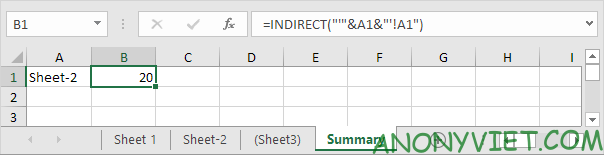
3. If your sheet name contains spaces or other special characters, enclose the sheet name in quotes. Modify the INDIRECT function as shown below.

Lesson 162: How to use the INDIRECT function in Excel 24
In addition, you can also view many other excel articles here.

The article achieved: 5/5 – (100 votes)

Tags: ExcelfunctionINDIRECTLesson
Previous Post

Get Seed4Me’s 6-month VPN License License

Next Post

Let’s find out what is API, REST API and RESTful API?

AnonyViet

AnonyViet

Related Posts

How to add Watermark to Google Docs to protect copyright
Office

How to add Watermark to Google Docs to protect copyright

April 19, 2026
Instructions on how to hide formulas in Excel to secure data
Office

Instructions on how to hide formulas in Excel to secure data

February 6, 2026
Top who creates the most beautiful presentation slide today
Office

Top who creates the most beautiful presentation slide today

September 23, 2025
Automatically check and correct spelling errors on Google Docs
Office

Automatically check and correct spelling errors on Google Docs

February 23, 2025
Instructions for downloading Google Docs files easily on any device
Office

Instructions for downloading Google Docs files easily on any device

December 18, 2024
Launching AI image creation feature on Google Docs
Office

Launching AI image creation feature on Google Docs

November 20, 2024
Next Post
Let’s find out what is API, REST API and RESTful API?

Let's find out what is API, REST API and RESTful API?

0 0 votes
Article Rating
Subscribe
Login
Notify of
guest

guest

0 Comments
Oldest
Newest Most Voted
Inline Feedbacks
View all comments

Recent News

Instructions on how to make money from personal Facebook

Instructions on how to make money from personal Facebook

May 2, 2026
Create an avatar to celebrate April 30 with a beautiful red flag shirt with yellow stars

Create an avatar to celebrate April 30 with a beautiful red flag shirt with yellow stars

April 30, 2026
How to get 2 months of Super Duolingo for free worth 300k

How to get 2 months of Super Duolingo for free worth 300k

April 30, 2026
How to create a Face Sticker Collection using ChatGPT

How to create a Face Sticker Collection using ChatGPT

April 29, 2026
Instructions on how to make money from personal Facebook

Instructions on how to make money from personal Facebook

May 2, 2026
Create an avatar to celebrate April 30 with a beautiful red flag shirt with yellow stars

Create an avatar to celebrate April 30 with a beautiful red flag shirt with yellow stars

April 30, 2026
How to get 2 months of Super Duolingo for free worth 300k

How to get 2 months of Super Duolingo for free worth 300k

April 30, 2026
AnonyViet - English Version

AnonyViet

AnonyViet is a website share knowledge that you have never learned in school!

We are ready to welcome your comments, as well as your articles sent to AnonyViet.

Follow Us

Contact:

Email: anonyviet.com[@]gmail.com

Main Website: https://anonyviet.com

Recent News

Instructions on how to make money from personal Facebook

Instructions on how to make money from personal Facebook

May 2, 2026
Create an avatar to celebrate April 30 with a beautiful red flag shirt with yellow stars

Create an avatar to celebrate April 30 with a beautiful red flag shirt with yellow stars

April 30, 2026
No Result
View All Result
  • Home
  • News
  • Software
  • Knowledge
  • MMO
  • Tips
  • Security
  • Network
  • Office

wpDiscuz
0
0
Would love your thoughts, please comment.x
()
x
| Reply