• Home
  • News
  • Software
  • Knowledge
  • MMO
  • Tips
  • Security
  • Network
  • Office
AnonyViet - English Version
  • Home
  • News
  • Software
  • Knowledge
  • MMO
  • Tips
  • Security
  • Network
  • Office
No Result
View All Result
  • Home
  • News
  • Software
  • Knowledge
  • MMO
  • Tips
  • Security
  • Network
  • Office
No Result
View All Result
AnonyViet - English Version
No Result
View All Result

Learn 4 ways to schedule computer shutdown in Windows 11

AnonyViet by AnonyViet
November 26, 2023
in Tips
0

How to schedule computer shutdown in Windows 11 is one of the useful tips you should know if you want to save energy and protect your computer. You can set a time for the computer to automatically power off. In this article, AnonyViet will show you 4 ways to do this trick simply and quickly.

Join the channel Telegram belong to AnonyViet 👉 Link 👈

Why should you schedule a computer shutdown?

Turning off the computer is necessary to let the computer’s internal components cool down. However, exporting videos or downloading games can force you to leave the computer running, leading to no time to rest. Failure to turn off the computer can be harmful in the long run as it will affect the life of the electronic components and will also affect the performance of the computer.

How to schedule computer shutdown in Windows 11
Why should you schedule a computer shutdown?

Therefore, schedule an automatic shutdown of your computer to let it rest before you start work the next day. There are many ways you can do that, and here are the 4 most popular and easy to do:

4 ways to schedule computer shutdown in Windows 11

Method 1: Use the Run tool

This is the most convenient and fastest way to schedule a computer shutdown. Proceed as follows:

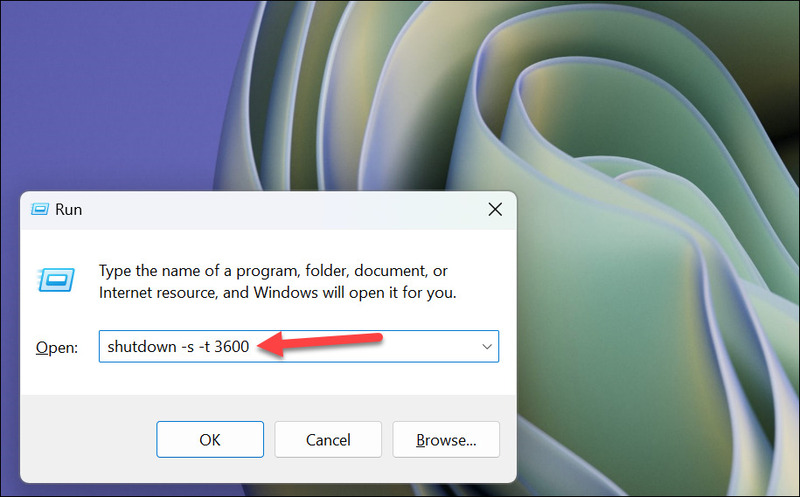
Step 1: Press the Windows + R key on the keyboard to open the Run Command tool on the screen. Then, type or copy the following command into the text box and press Enter.

shutdown -s -t
How to schedule computer shutdown in Windows 11
Copy the following command into the text box and press Enter.

If you enter the number of seconds as 1, the computer will be turned off for 1 second. Other corresponding values ​​that you can refer to include:

  • 3600 (1 hour)
  • 7200 (2 hours)
  • 10800 (3 hours)
  • 14400 (4 hours)

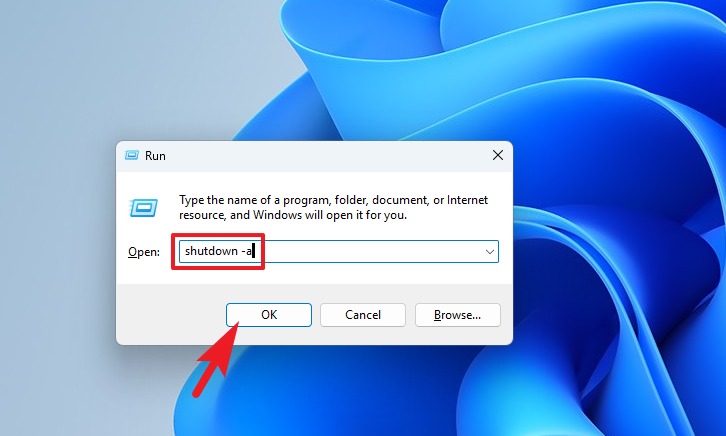
In case you want to cancel the automatic shutdown command, paste the following command and press Enter:

shutdown -a
How to schedule computer shutdown in Windows 11
Paste the following command to cancel the automatic shutdown command

Method 2: Use Terminal

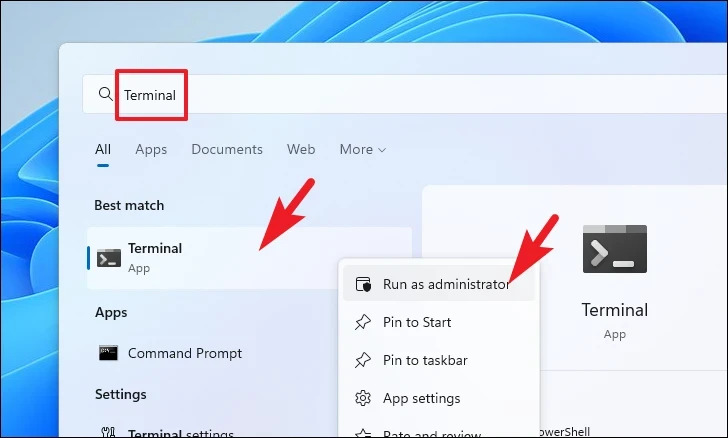
Step 1: First, go to Start Menu and type “Terminal”. Then, from the search results, right-click on the “Terminal” box and select “Run as administrator” to continue.
How to schedule computer shutdown in Windows 11
Right click on the “Terminal” box and select “Run as administrator”

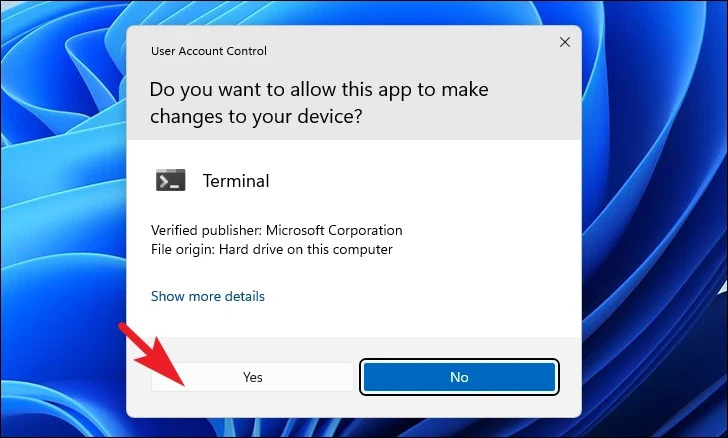
Step 2: A UAC (User Account Control) window will appear on your screen > Click “Yes”
How to schedule computer shutdown in Windows 11
Click “Yes”

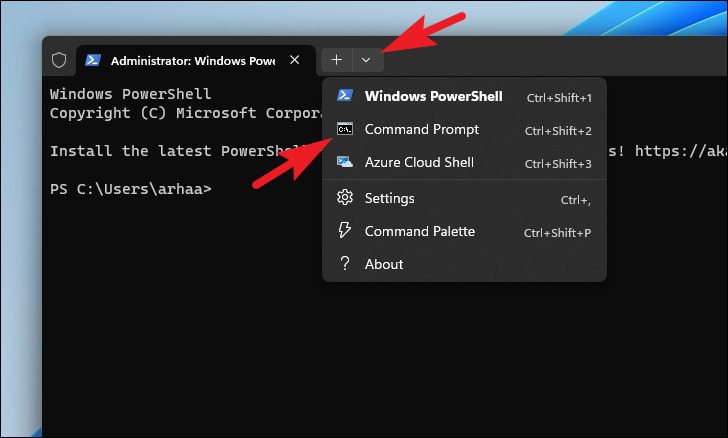
Step 3: Next, click the down arrow icon and select “Command Prompt”
How to schedule computer shutdown in Windows 11
Click the down arrow icon and select “Command Prompt”

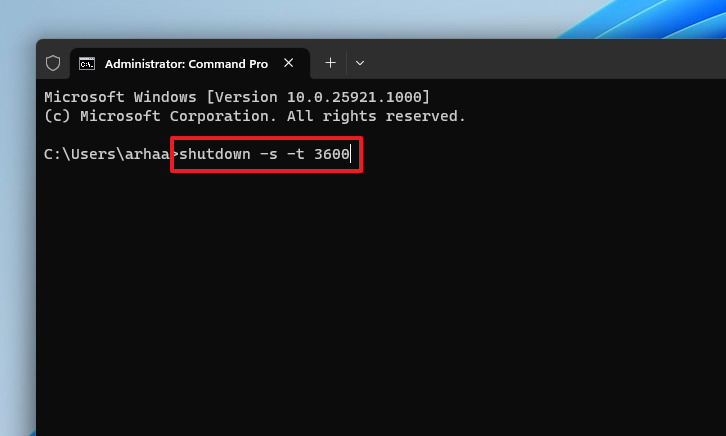
Then, paste the following command and press Enter:

shutdown -s -t
How to schedule computer shutdown in Windows 11
Paste the following command and press Enter

In there, remember to replace with the actual time in seconds to schedule the computer to automatically shut down.

Method 3: Use Task Scheduler

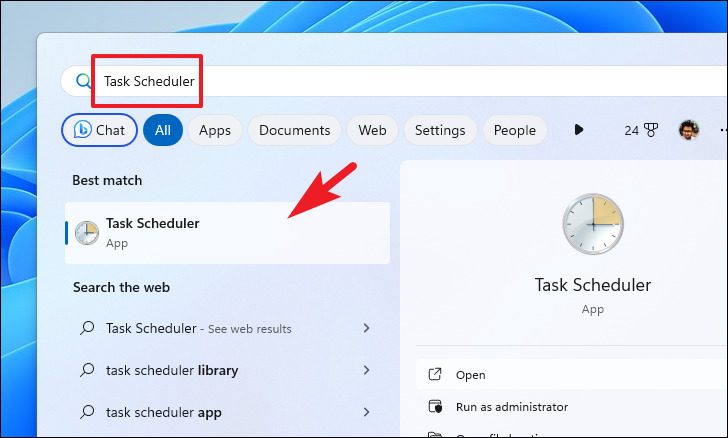
Step 1: First, go to Start Menu and type “Task Scheduler” to search. Then, click on it from the search results.
How to schedule computer shutdown in Windows 11
Click Task Scheduler from the search results.

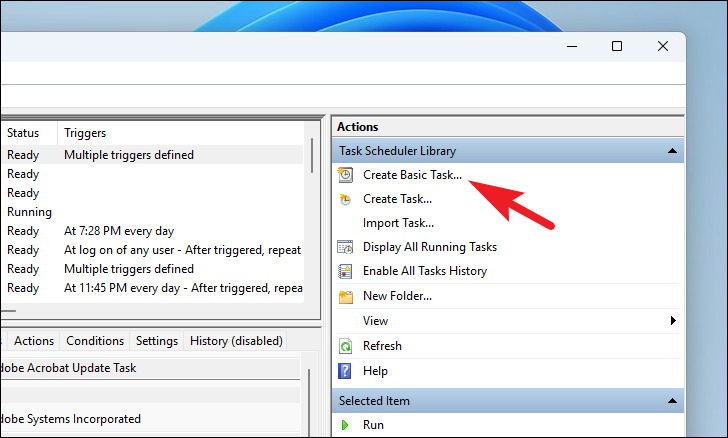
Step 2: Click “Create Basic Task” on the right side of the window.
How to schedule computer shutdown in Windows 11
Click “Create Basic Task”

Step 3: Select the “One time” option > Click Next to continue
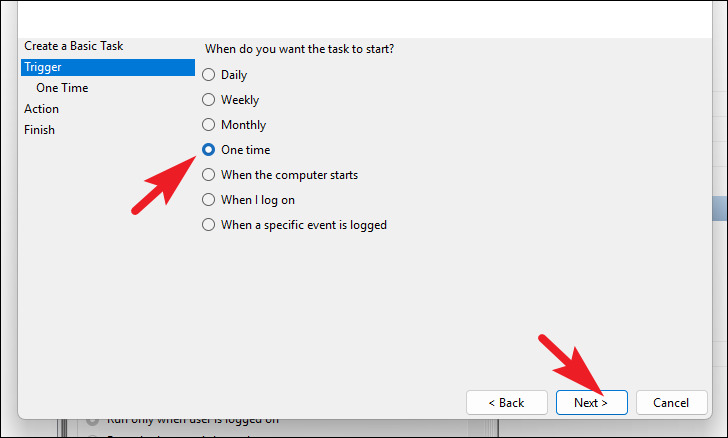
How to schedule computer shutdown in Windows 11
Select “One time”

Step 4: Select a date and time to schedule a shutdown > Click Next
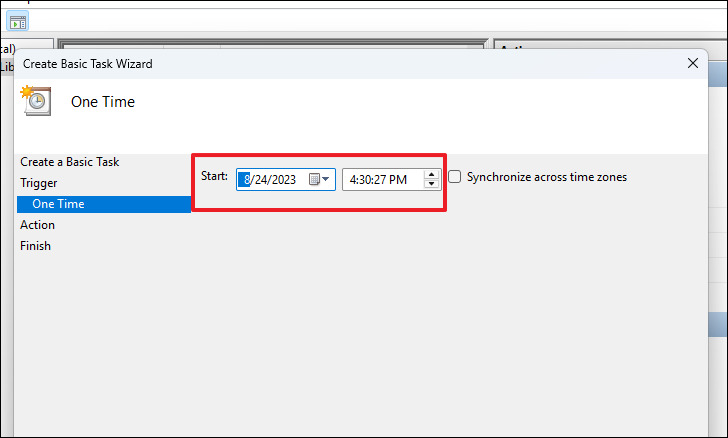
How to schedule computer shutdown in Windows 11
Select a date and time to schedule a shutdown

Step 5: Select “Action” from the left sidebar. Then, select “Start a program” > Click Next
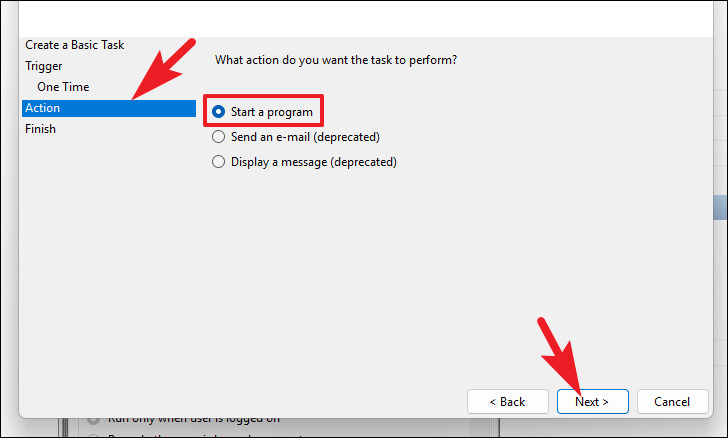
How to schedule computer shutdown in Windows 11
Select “Start a program”

Step 6: Paste the following address and type -s in the Add arguments section > Click Next

C:\Windows\System32\shutdown.exe

Step 7: Give the task a suitable name and then click “Finish” to complete.
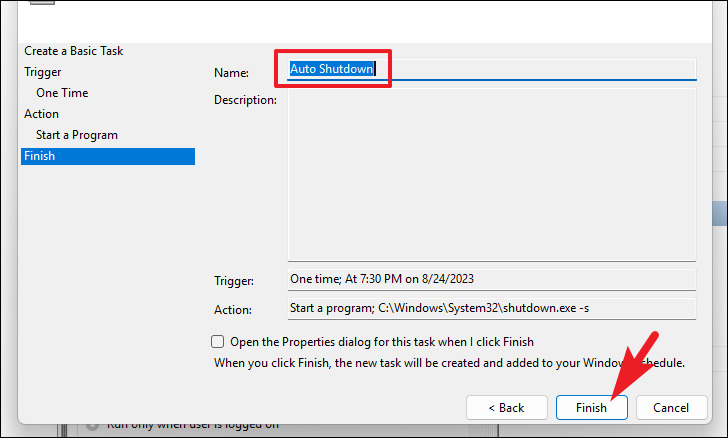
How to schedule computer shutdown in Windows 11
Give the task a suitable name

Method 4: Create shortcut on Desktop

To create one shutdown shortcut automatically, you do the following:

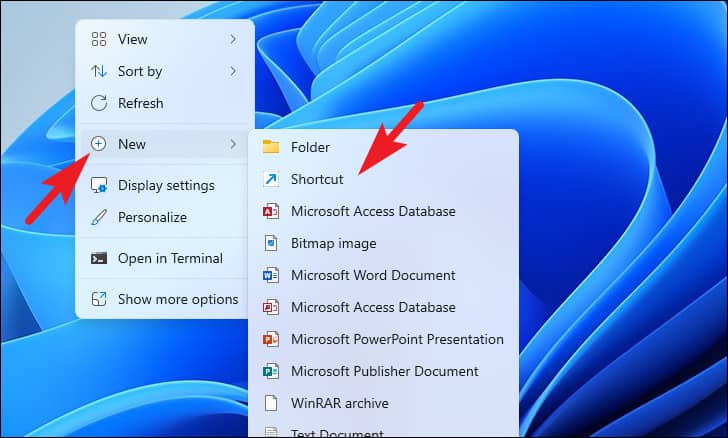
Step 1: Right-click on Desktop and select “New” > Select “Shortcut”.
How to schedule computer shutdown in Windows 11
Select “New” > Select “Shortcut”.

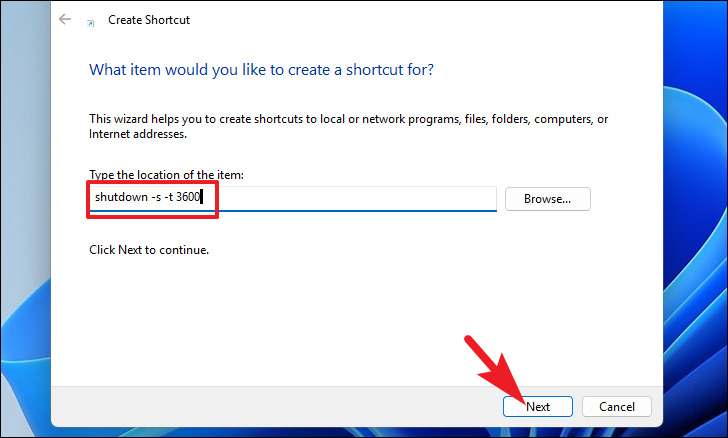
Step 2: Paste the following command and click “Next”

shutdown -s -t xxxx

Note: Replace ‘xxxx’ with the time in seconds, as shown
How to schedule computer shutdown in Windows 11
Paste the following command and click “Next”

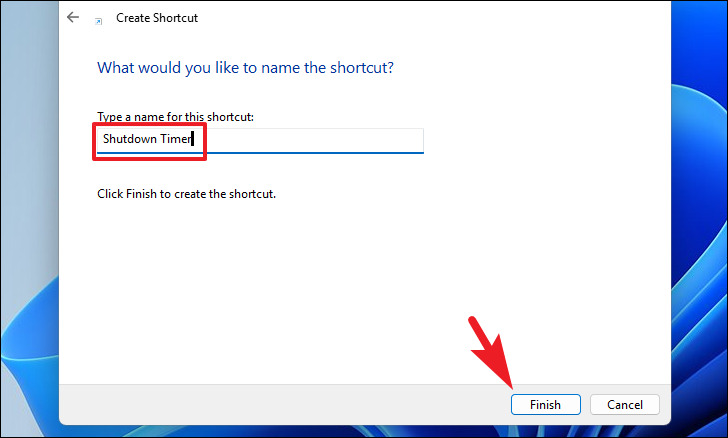
Step 3: Name the shortcut and click “Finish”
How to schedule computer shutdown in Windows 11
Name the shortcut and click “Finish”

Once created, you will see the shortcut on the Desktop. Just click on it to schedule a shutdown.

How to schedule computer shutdown in Windows 11

Epilogue

So I introduced to you 4 How to schedule computer shutdown in Windows 11, including using Run, Terminal, Task Scheduler and creating shortcuts. You can choose which way suits your needs and abilities to do it. Scheduling to turn off your computer will help you save energy, protect your device and increase work efficiency. Wishing you a successful application!


Rate this post

Tags: computerLearnscheduleShutdownwaysWindows
Previous Post

Instructions: Cleaning your computer properly helps it operate more efficiently

Next Post

How to register for free Office 365 for 5 devices for 1 year

AnonyViet

AnonyViet

Related Posts

How to use CMD environment variables in Windows
Tips

How to use CMD environment variables in Windows

January 18, 2026
How to add or remove columns in File Explorer Windows 11
Tips

How to add or remove columns in File Explorer Windows 11

January 17, 2026
Sign up for Pluralsight One for 1 year of free access to Online courses
Tips

Sign up for Pluralsight One for 1 year of free access to Online courses

January 16, 2026
How to schedule a Batch file (CMD) to run on Windows
Tips

How to schedule a Batch file (CMD) to run on Windows

January 15, 2026
Instructions for downloading Facebook Videos with new interface 2021
Tips

Instructions for downloading Facebook Videos with new interface 2021

January 14, 2026
How to get ChatGPT K-12 Teacher for free
Tips

How to get ChatGPT K-12 Teacher for free

January 13, 2026
Next Post
How to register for free Office 365 for 5 devices for 1 year

How to register for free Office 365 for 5 devices for 1 year

0 0 votes
Article Rating
Subscribe
Login
Notify of
guest

guest

0 Comments
Oldest
Newest Most Voted
Inline Feedbacks
View all comments

Recent News

Papercraft paper model download site for free without logging in

Papercraft paper model download site for free without logging in

January 21, 2026
How to post a Zalo story that will be visible for 24 hours is extremely simple

How to post a Zalo story that will be visible for 24 hours is extremely simple

January 21, 2026
Pia S5 Proxy 2026 review: The best residential Socks5 Proxy today

Pia S5 Proxy 2026 review: The best residential Socks5 Proxy today

January 20, 2026
How to use Microsoft 365 for free, no installation required

How to use Microsoft 365 for free, no installation required

January 20, 2026
Papercraft paper model download site for free without logging in

Papercraft paper model download site for free without logging in

January 21, 2026
How to post a Zalo story that will be visible for 24 hours is extremely simple

How to post a Zalo story that will be visible for 24 hours is extremely simple

January 21, 2026
Pia S5 Proxy 2026 review: The best residential Socks5 Proxy today

Pia S5 Proxy 2026 review: The best residential Socks5 Proxy today

January 20, 2026
AnonyViet - English Version

AnonyViet

AnonyViet is a website share knowledge that you have never learned in school!

We are ready to welcome your comments, as well as your articles sent to AnonyViet.

Follow Us

Contact:

Email: anonyviet.com[@]gmail.com

Main Website: https://anonyviet.com

Recent News

Papercraft paper model download site for free without logging in

Papercraft paper model download site for free without logging in

January 21, 2026
How to post a Zalo story that will be visible for 24 hours is extremely simple

How to post a Zalo story that will be visible for 24 hours is extremely simple

January 21, 2026
  • Home
  • Home 2
  • Home 3
  • Home 4
  • Home 5
  • Home 6
  • Next Dest Page
  • Sample Page

https://sun52.network

No Result
View All Result
  • Home
  • News
  • Software
  • Knowledge
  • MMO
  • Tips
  • Security
  • Network
  • Office

https://sun52.network

wpDiscuz
0
0
Would love your thoughts, please comment.x
()
x
| Reply