• Home
  • News
  • Software
  • Knowledge
  • MMO
  • Tips
  • Security
  • Network
  • Office
AnonyViet - English Version
  • Home
  • News
  • Software
  • Knowledge
  • MMO
  • Tips
  • Security
  • Network
  • Office
No Result
View All Result
  • Home
  • News
  • Software
  • Knowledge
  • MMO
  • Tips
  • Security
  • Network
  • Office
No Result
View All Result
AnonyViet - English Version
No Result
View All Result

Instructions to stop updating Windows 11 for 20 years

AnonyViet by AnonyViet
July 15, 2025
in Tips
0

Windows 11 has become the focus of attention with modern interface, optimal performance and smart features. However, not everyone wants to constantly update this operating system. A tip that is causing a stir online is the way Stop updating Windows 11 for 20 yearsthat is 2045. It sounds attractive, but is this the optimal solution?

Join the channel Telegram belong to Anonyviet 👉 Link 👈

Why do many people want to stop updating Windows 11?

Microsoft regularly releases updates to improve security, fix and supplement new features Windows 11. In particular, if you participate in the Windows Insider program, the update frequency is even more dense:

  • Canary channel: Get update after only a few days.
  • DEV channel: Update weekly with testing features.
  • Beta channel: big updates each month, more stable than DEV.
  • Release Preview channel: almost like the official version, the least change.

However, not everyone wants to constantly install these updates. Some common reasons include:

  • You find Windows 11 is working well and does not want to change.
  • Some updates can cause compatibility or slow down the system.
  • Regular updates can interrupt work, especially for continuous computer users.

So how to stop updating Windows 11 for 20 years? Let’s explore details!
Why do many people want to stop updating Windows 11?

Instructions to stop updating Windows 11 for 20 years

By default, Windows 11 allows a maximum of 5 weeks to suspend updates through the system settings. However, with a trick to intervene in Registry, you can extend this time up to 1,042 weeks – equivalent to nearly 20 years. Here are the detailed steps:

Step 1: Press Windows + Stype Registry Editor Go to the search bar and press Enter to open. If asked admin rights, choose Yes To continue.

Step 2: In the Registry Editor, visit the following link:

Computer\HKEY_LOCAL_MACHINE\SOFTWARE\Microsoft\WindowsUpdate\UX\Settings

You can copy this path and paste it into the address bar of the Registry Editor to go faster.

Step 3: In the Settings folder, find the value with the name Flightsettingsmaxpauseays.
If you don’t see this value, right -click on the folder Settingsselect New> Dword (32-bit) Value And named Flightsettingsmaxpauseays.
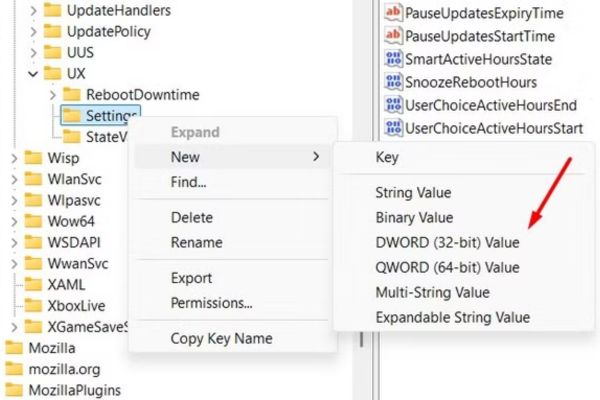
Choose New> Dword (32-bit) Value” width=”600″ height=”400″ title=”Instructions to stop updating Windows 11 for 20 years 11″ srcset=”https://anonyviet.com/wp-content/uploads/2025/06/dung-cap-nhat-windows-11-trong-20-nam-2.jpg 600w, https://anonyviet.com/wp-content/uploads/2025/06/dung-cap-nhat-windows-11-trong-20-nam-2-300×200.jpg 300w” sizes=”auto, (max-width: 600px) 100vw, 600px”/><figcaption id=Choose New> Dword (32-bit) Value

Step 4: Right -click on Flightsettingsmaxpauseays, choose Modify. In Value Data school, enter 00001C84 (corresponding to 1,042 weeks, nearly 20 years). Guarantee selection Hexadecimal In Base section, then click OK.
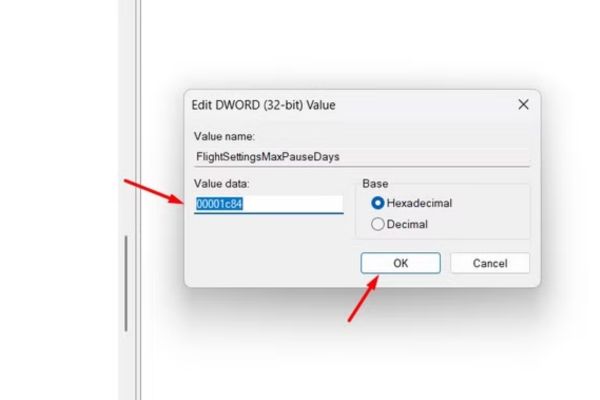
In Value Data school, enter 00001c84

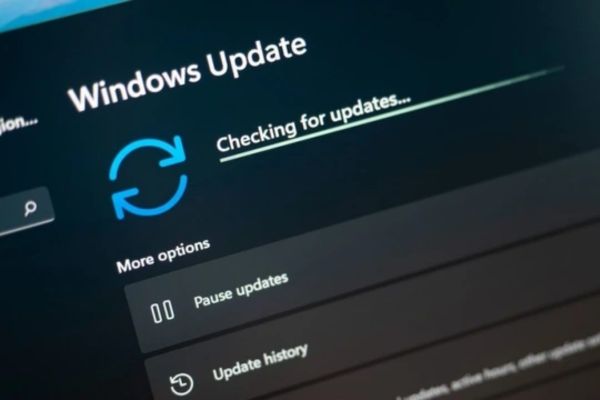
Step 5: Restart the computer to apply changes. After booting, in Settings> Windows Update, click Pause updates and check. You will see the option to suspend updates within 1,042 weeks!
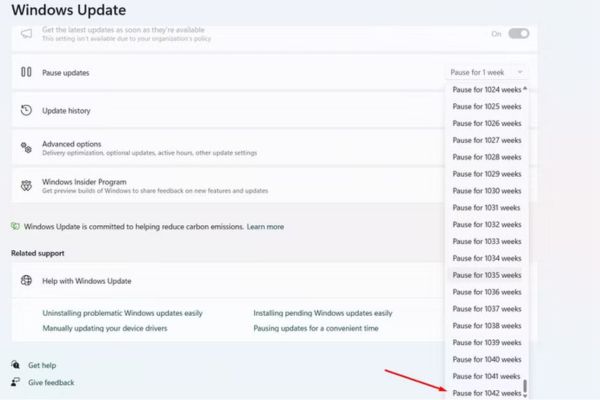
Instructions to stop updating Windows 11 for 20 years

Note: This is a deep intervention to the system, so please back up the important data before done to avoid risks.

Risks when stopping updating Windows 11 for 20 years

Although this tip sounds interesting, stopping updating Windows 11 for 20 years of risks such as:

  • Security gap: updates often patch security holes. No update means that your computer is easily attacked by malware, viruses or hackers.
  • Decreased efficiency: Updates not only fix errors but also optimize performance. A “freezing” operating system can become slow when the hardware and software develop.
  • Poor compatibility: New software and applications often require updated Windows versions for smooth operation. Pause updates can make you unable to use modern tools.
  • Losing support from Microsoft: After a while, Microsoft will stop supporting the old Windows versions, making you not receive technical assistance when having problems.
Risks when stopping updating Windows 11 for 20 years

Alternative solutions for suspension of updates

Instead of completely updated, you can manage them smarter as:

  • Short-term pause: Use the option of pausing 1-5 weeks in Settings> Windows Update> Pause Updates when you need to focus on working without interruption.
  • Adjust the update time: Go to Settings> Windows Update> Advanced Options, select the time to download and set up the update to suit your schedule.
  • Join Windows Insider Selective: If you want to experience the new feature, select Beta or Release Preview to receive more stable updates than DEV or Canary.
  • Use update management tools: Software like Windows Update Blocker allows you to control update without interfering deeply into the system.

Conclude

Tip Stop updating Windows 11 for 20 years It is an interesting way to show off to friends or tested on the auxiliary machine. However, in reality, this is not recommended due to security risks, performance and compatibility. Instead of completely blocking, flexibly manage to enjoy the benefits that Windows 11 brings while keeping the computer safe and stable.


Tags: InstructionsstopUpdatingWindowsyears
Previous Post

How to quickly delete all garbage comments on WordPress

Next Post

Raising “pets” right on the macos dock

AnonyViet

AnonyViet

Related Posts

3 OCR Tools Extract Text from Images without Retyping
Tips

3 OCR Tools Extract Text from Images without Retyping

November 8, 2025
Ways hackers use to hack your Facebook and how to fix it
Tips

Ways hackers use to hack your Facebook and how to fix it

November 7, 2025
Create your own Font using your Handwriting
Tips

Create your own Font using your Handwriting

November 6, 2025
Share White Hat Hacker Course – The Complete Ethical Hacking Course
Tips

Share White Hat Hacker Course – The Complete Ethical Hacking Course

November 5, 2025
Instructions on how to get 1 year of ChatGPT Go for free
Tips

Instructions on how to get 1 year of ChatGPT Go for free

November 4, 2025
Instructions for creating your own Chrome Extension using Scratch
Tips

Instructions for creating your own Chrome Extension using Scratch

November 4, 2025
Next Post
Raising “pets” right on the macos dock

Raising "pets" right on the macos dock

0 0 votes
Article Rating
Subscribe
Login
Notify of
guest

guest

0 Comments
Oldest
Newest Most Voted
Inline Feedbacks
View all comments

Recent News

Download training materials on Applying AI in teaching and learning in 2025

Download training materials on Applying AI in teaching and learning in 2025

November 8, 2025
How to pay health insurance on Momo online right at home

How to pay health insurance on Momo online right at home

November 8, 2025
How to create Flycam videos from photos to sell real estate

How to create Flycam videos from photos to sell real estate

November 8, 2025
3 OCR Tools Extract Text from Images without Retyping

3 OCR Tools Extract Text from Images without Retyping

November 8, 2025
Download training materials on Applying AI in teaching and learning in 2025

Download training materials on Applying AI in teaching and learning in 2025

November 8, 2025
How to pay health insurance on Momo online right at home

How to pay health insurance on Momo online right at home

November 8, 2025
How to create Flycam videos from photos to sell real estate

How to create Flycam videos from photos to sell real estate

November 8, 2025
AnonyViet - English Version

AnonyViet

AnonyViet is a website share knowledge that you have never learned in school!

We are ready to welcome your comments, as well as your articles sent to AnonyViet.

Follow Us

Contact:

Email: anonyviet.com[@]gmail.com

Main Website: https://anonyviet.com

Recent News

Download training materials on Applying AI in teaching and learning in 2025

Download training materials on Applying AI in teaching and learning in 2025

November 8, 2025
How to pay health insurance on Momo online right at home

How to pay health insurance on Momo online right at home

November 8, 2025
  • Home
  • Home 2
  • Home 3
  • Home 4
  • Home 5
  • Home 6
  • Next Dest Page
  • Sample Page

new88 trang chủ shbet trang chủ f168 trang chủ qq88 nhà cái 78win

No Result
View All Result
  • Home
  • News
  • Software
  • Knowledge
  • MMO
  • Tips
  • Security
  • Network
  • Office

new88 trang chủ shbet trang chủ f168 trang chủ qq88 nhà cái 78win

wpDiscuz
0
0
Would love your thoughts, please comment.x
()
x
| Reply