• Home
  • News
  • Software
  • Knowledge
  • MMO
  • Tips
  • Security
  • Network
  • Office
AnonyViet - English Version
  • Home
  • News
  • Software
  • Knowledge
  • MMO
  • Tips
  • Security
  • Network
  • Office
No Result
View All Result
  • Home
  • News
  • Software
  • Knowledge
  • MMO
  • Tips
  • Security
  • Network
  • Office
No Result
View All Result
AnonyViet - English Version
No Result
View All Result

How to quickly delete all garbage comments on WordPress

AnonyViet by AnonyViet
July 14, 2025
in Tips
0

If you have just built a WordPress website without promptly installing spam comment plugins, you will definitely get hundreds of garbage comments every day. Spam status is getting more sophisticated every day and can surpass the Akismet Anti-Spam plugin: Spam protection. I have a satellite website for too long and I am interested in nearly 1500 trash comments, all are still in the pending mode. To quickly delete all garbage comments on WordPress, you can do the following:

Join the channel Telegram belong to Anonyviet 👉 Link 👈

This is the simplest way, suitable for websites with a low or medium number of garbage comments. The administrator only needs to visit the WordPress dashboard, select the “Comments”, then switch to the “Spam” tab or “pending” to filter out invalid comments. Here, you can select all the comments displayed, perform the action “Move to Trash” (transferred to the trash) and confirm.

Each page usually shows about 20 comments, but you can increase this number to 100 or 200 by clicking the “Screen Options” button and adjusting the number of comments displayed on 1 page.

Note If the quantity is too large, it may be hang The website occupies a lot of PHP processing resources.
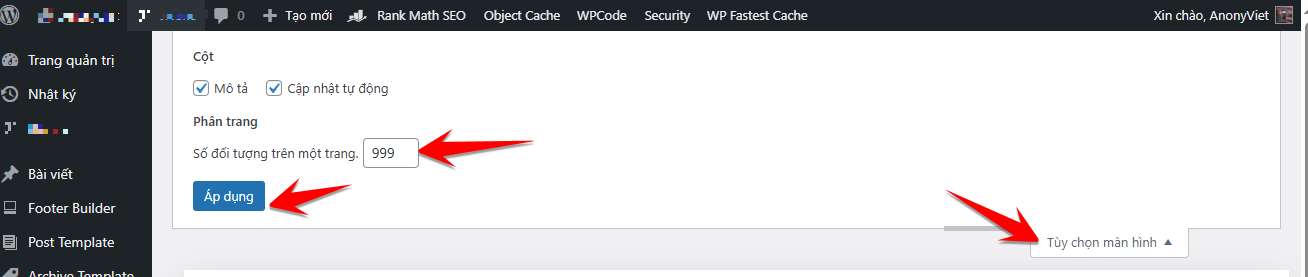
Rub the revenue

Method 2: Delete by SQL or WP-Cli

If you have access to the website’s database via phpmyadmin or use VPS that supports SSH, then deleting garbage comments with SQL commands or WP-Cli tools is the fastest and most compact choice.

With just one SQL command line like DELETE FROM wp_comments WHERE comment_approved = 'spam';all the comments marked as spam will disappear immediately.

If you want to delete the comment is waiting for approval, you just need to change the condition to comment_approved = '0'.
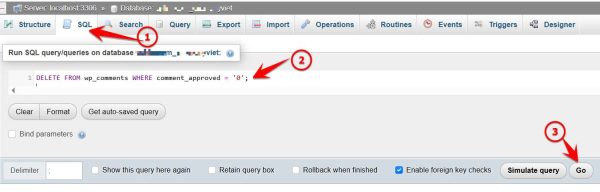
Rub the spam comment

In case of using WP-Cli, you can use the command wp comment delete $(wp comment list --status=spam --format=ids) To delete all comments with 1 Enter button.

Method 3: Use a plugin to delete a series of automatic garbage comments

For websites with large quantities of spam comments, the use of plugins is the optimal solution. Plugin WP Bulk Delete is a popular and easy -to -use option. After installing and activating this plugin, you only need to visit the comment manager in the WP Bulk Delete, select the type of comment to delete such as “spam”, “pending” or “all”, then press the confirmation button to proceed to delete mass.

The implementation time only takes a few minutes and does not require users to manually manipulate many times. Some other plugins like Delete Pending comments you can refer to the trial


Tags: CommentsdeletegarbageQuicklyWordpress
Previous Post

How to block the invitation to join the simple Messenger community channel

Next Post

Instructions to stop updating Windows 11 for 20 years

AnonyViet

AnonyViet

Related Posts

How to add sliders to Facebook Stories to easily rewind videos
Tips

How to add sliders to Facebook Stories to easily rewind videos

April 21, 2026
How to change the default font on Windows 10
Tips

How to change the default font on Windows 10

April 13, 2026
5 tips for using a Browser to replace an App (helps save RAM, time and money)
Tips

5 tips for using a Browser to replace an App (helps save RAM, time and money)

April 13, 2026
How to make funny MeMe photos without Photoshop within 10 seconds
Tips

How to make funny MeMe photos without Photoshop within 10 seconds

April 11, 2026
How to quickly design your own Logo without Photoshop
Tips

How to quickly design your own Logo without Photoshop

April 10, 2026
How to convert Website into App on Windows
Tips

How to convert Website into App on Windows

April 9, 2026
Next Post
Instructions to stop updating Windows 11 for 20 years

Instructions to stop updating Windows 11 for 20 years

0 0 votes
Article Rating
Subscribe
Login
Notify of
guest

guest

0 Comments
Oldest
Newest Most Voted
Inline Feedbacks
View all comments

Recent News

How to turn off password suggestions on iPhone: Prevent Safari from auto-filling passwords

How to turn off password suggestions on iPhone: Prevent Safari from auto-filling passwords

April 27, 2026
Instructions for looking up prescriptions on VNeID instead of paper medical books

Instructions for looking up prescriptions on VNeID instead of paper medical books

April 26, 2026
Tips to completely turn off CAPTCHA codes on iPhone and Mac are super simple

Tips to completely turn off CAPTCHA codes on iPhone and Mac are super simple

April 25, 2026
Compare Poco X8 Pro and Poco X7 Pro: A new step for the “king” of mid-range performance

Compare Poco X8 Pro and Poco X7 Pro: A new step for the “king” of mid-range performance

April 24, 2026
How to turn off password suggestions on iPhone: Prevent Safari from auto-filling passwords

How to turn off password suggestions on iPhone: Prevent Safari from auto-filling passwords

April 27, 2026
Instructions for looking up prescriptions on VNeID instead of paper medical books

Instructions for looking up prescriptions on VNeID instead of paper medical books

April 26, 2026
Tips to completely turn off CAPTCHA codes on iPhone and Mac are super simple

Tips to completely turn off CAPTCHA codes on iPhone and Mac are super simple

April 25, 2026
AnonyViet - English Version

AnonyViet

AnonyViet is a website share knowledge that you have never learned in school!

We are ready to welcome your comments, as well as your articles sent to AnonyViet.

Follow Us

Contact:

Email: anonyviet.com[@]gmail.com

Main Website: https://anonyviet.com

Recent News

How to turn off password suggestions on iPhone: Prevent Safari from auto-filling passwords

How to turn off password suggestions on iPhone: Prevent Safari from auto-filling passwords

April 27, 2026
Instructions for looking up prescriptions on VNeID instead of paper medical books

Instructions for looking up prescriptions on VNeID instead of paper medical books

April 26, 2026
No Result
View All Result
  • Home
  • News
  • Software
  • Knowledge
  • MMO
  • Tips
  • Security
  • Network
  • Office

wpDiscuz
0
0
Would love your thoughts, please comment.x
()
x
| Reply