Microsoft has released the first preview of the Windows 10X emulator. This is a new version of Windows 10 designed for dual screens like the Surface Duo. You can now run a Windows 10X emulator to test out the new features of this operating system.
| Join the channel Telegram belong to AnonyViet 👉 Link 👈 |
Lots of new features, including the Start menu, and parts of the new interface and how apps work in dual-monitor mode. However, if you are interested in Windows 10X, you can experience it on Windows 10 itself. Of course, your computer must be configured enough to use the Windows 10X emulator.
Requirements to emulate Windows 10X
While the Windows 10X emulator is available to anyone, there are some software and hardware requirements to use it.
Software requirements
Required software to run Windows 10X:
- Windows 10 Pro, Enterprise, or Education (x64) version 19555 or later.
- Microsoft Hyper-V with GPU-PV for hardware acceleration.
Hardware requirements
Minimum hardware requirements include:
- CPU: Intel CPU with at least 4 cores with virtualization support (sorry for the red team).
- RAM: 8gb or more
- .Hard Drive: 15GB to 20GB or more (SSD is better).
- GPUs: Discrete graphics card with DirectX 11 support and graphics support WDDM 2.4.
The emulator is only supported on Intel CPUs, you must make sure that hardware-assisted virtualization, Second Level Address Translation (SLAT), and Hardware-based Data Execution Prevention (DEP) are enabled on BIOS or UEFI.
If you are sure that you have met the above conditions, you can skip this step. You can follow the installation instructions Microsoft Emlator and Windows 10X Emulator Image under.
How to install Windows 10X
To install Windows 10X, you must have the latest Windows 10 Insider preview installed, and you need to enable Hyper-VA virtualization feature.
Install Windows 10 Preview
Windows 10X emulator is currently under development, so you must install the latest version from Windows Insider Program.
Important: After the upgrade, you may not be able to roll back (old version) and the installation may also fail. So make sure you system backup before continuing.
To install the preview of Windows 10, follow these steps:
- Open Settings.
- Press Update & Security.
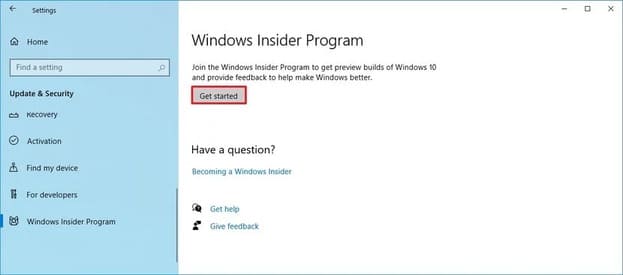
- Press Windows Insider Program.
- Press Get started.
- Press Link an account.
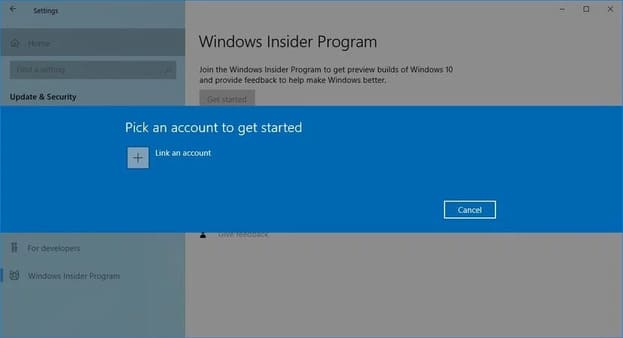
- Choose your Microsoft account or use another account.
- Press Tiếp tục.
- Under “Pick your Insider settings”, select Fast.
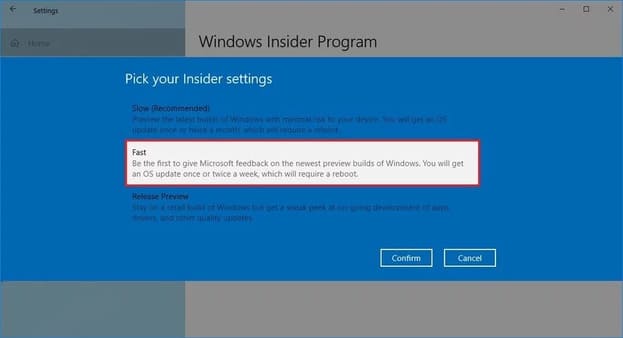
- Press Confirm.
- Press Confirm Again.

- Press Restart.
- After restarting the machine, open Settings.
- Press Update & Security.
- Press Windows Update.
- Press Check for updates.

- Press Restart now
After completing the above steps, the latest Preview in the Fast ring will be installed on your machine, allowing you to install the Windows 10X Emulator Image from the Microsoft Store.
Enable Microsoft Hyper-Drawing
Hyper-DRAW is a virtualization tool available on Windows 10 Pro, Enterprise and Education and it allows you to create virtual machines to install and run different operating systems. It is also the technology that allows you to run Windows 10X.
Check if the system supports Hyper-V?
To confirm that your computer meets the requirements to support Hyper-V, perform the following steps:
- Open Start.
- Import cmd in the search box and click on the first result.
- Enter the command below and press Enter:
systeminfo.exe - In section “Hyper-V Requirements”if it shows Yesthen you can run Hyper-V.

If the result is Noyour hardware does not support this feature.
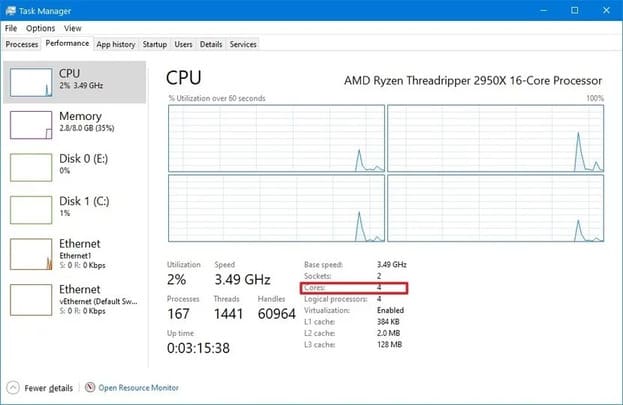
The emulator also requires at least a 4-core processor. Although most modern devices will meet this minimum requirement (my machine now has 2 cores, guys). You can see how many cores CPU has from Task Manager by pressing Ctrl + Shift + ESC and switch to tab Performance.
Enable Hyper-DRAW
- Open Settings.
- Press Apps.
- In the “Related settings” section, press Programs and Features.
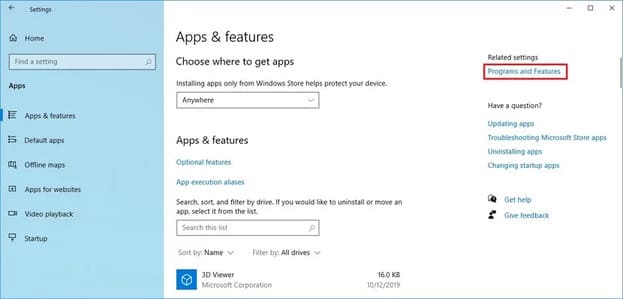
- Press Turn Windows features on or off.

- Check in Hyper-V.
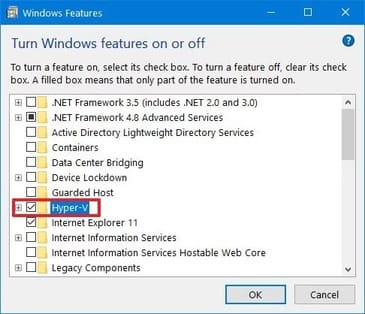
- Press OK.
- Press Restart now.
Once done, you can proceed with the steps to download and install Windows 10X.
Install Microsoft Emulator
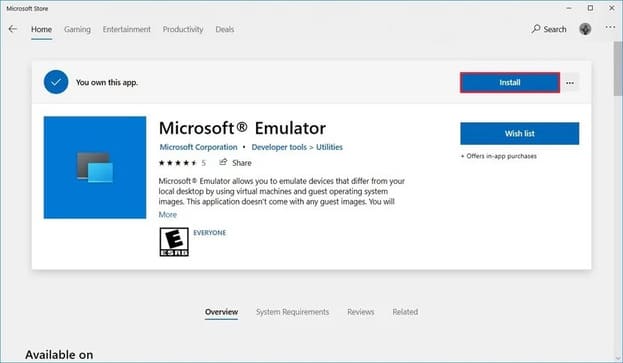
- Open Microsoft Store.
- Search Microsoft Emulator.
- Select the application as shown below.

- Press Get (or Install).
Now the final step is to download the Windows 10X Emulator image.
Install Windows 10X Emulator Image
- Open Microsoft Store.
- Search Windows 10X Emulator Image
- Select the result as shown below.
- Press Get (or Install).
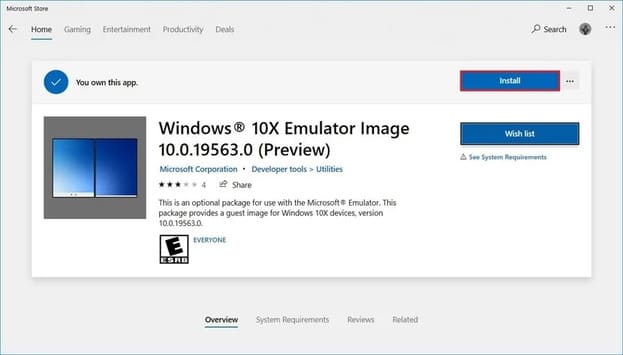
Once completed, Windows 10X Emulator Image has been installed on the machine.
Open Windows 10X Emulator
- Open Start.
- Search Microsoft Emulator and click on the first result.
- Press Start.
 If you get the error “XDE:019, You do not have permission to run the emulator”, click on Retry to continue.
 - Use the right controller to rotate, navigate, take screenshots, control volume, and turn off the emulator.
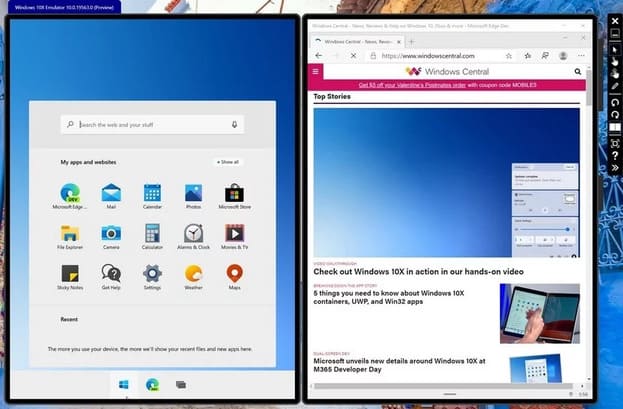
Once you complete the steps, the emulator will launch and you can experience Windows 10X on Windows 10.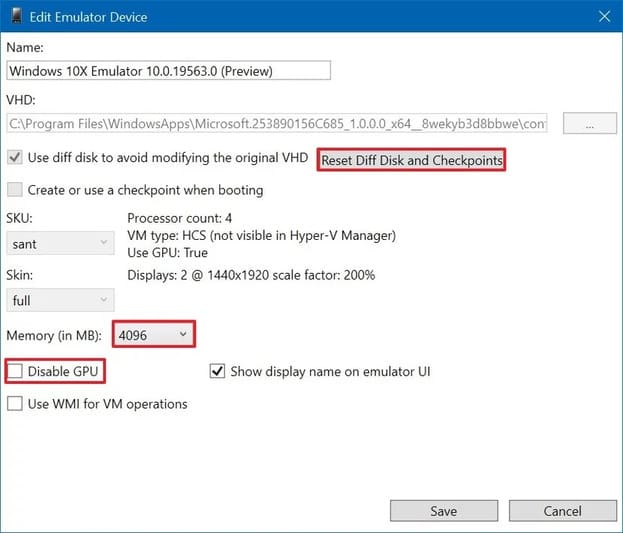
If you get any error, you can press Edit the words Microsoft Emulator, and then you will see “Diff Disk and Checkpoint”, click on it. You can also adjust memory usage and disable the GPU if necessary.
If you want to know more about Windows 10X, you can read Microsoft documents.