• Home
  • News
  • Software
  • Knowledge
  • MMO
  • Tips
  • Security
  • Network
  • Office
AnonyViet - English Version
  • Home
  • News
  • Software
  • Knowledge
  • MMO
  • Tips
  • Security
  • Network
  • Office
No Result
View All Result
  • Home
  • News
  • Software
  • Knowledge
  • MMO
  • Tips
  • Security
  • Network
  • Office
No Result
View All Result
AnonyViet - English Version
No Result
View All Result

Instructions on how to turn on the edge search bar on the desktop

AnonyViet by AnonyViet
September 7, 2025
in Tips
0

Learn about How to turn on Edge search bar on Desktop Is a great tip for you to access information faster than ever. Instead of having to open the browser manually, this compact toolbar will always be on the main screen and ready to serve. Let’s explore the steps to activate and make the most of this convenient but little known feature of Microsoft Edge!

Join the channel Telegram belong to Anonyviet 👉 Link 👈

Why should you try the edge search bar on the Desktop?

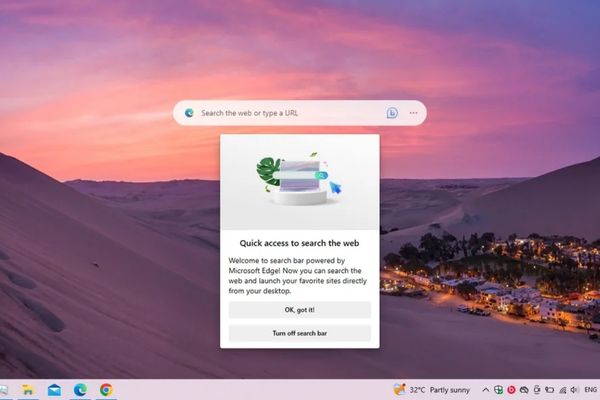
This is a “hidden” feature Microsoft Built -in, bringing incredible convenience. When activated, a floating bar will appear right on your screen. It acts as a quick access port in the web world. You only need to type keywords or website addresses, click Enter, and Edge browser will automatically open with the corresponding results.

This saves time and manipulation, especially useful for those who often need to look up information quickly.
Why should you try the edge search bar on the Desktop?

Instructions on how to turn on the edge search bar on the desktop

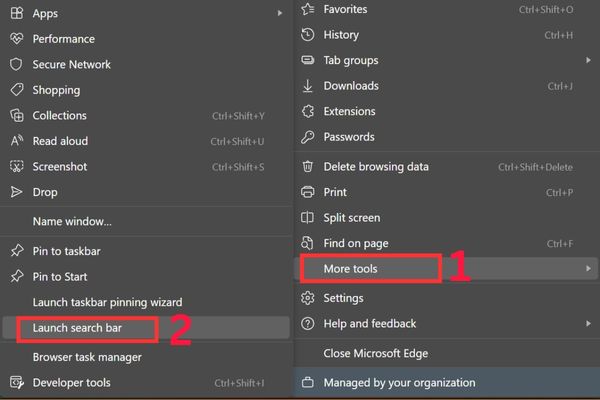
To enable this feature, you only need to perform a few simple steps below:

  • The first step, please visit Microsoft Edge From the computer.
  • Next, click on the menu icon with pictures three horizontal dots (…) Located in the top right corner of the browser window.
  • In the menu just appeared, you cover the line More tools.
  • Finally, a secondary menu will appear, you just need to choose Launch search bar.

Immediately, the search bar will appear on your screen. You can use mice to pull and move it to any position you feel most convenient.
Instructions on how to turn on the edge search bar on the desktop

The customs you should know

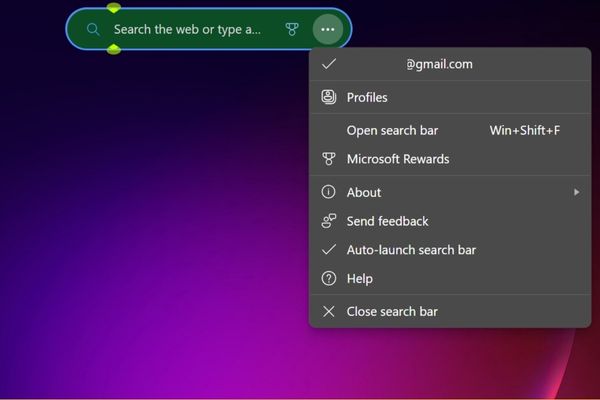
To personalize the experience, you can click the three -dot icon on the right side of the search bar. A small menu will give you a few useful options:

  • Quick access to your Microsoft profile to manage your account, synchronize data and passwords conveniently.
  • Check Microsoft Rewards to track the number of reward points you have accumulated through activities.
  • Activate the option to automatically boot so that the search bar is always open every time you turn on the computer, helping you always in a state of ready.
  • Close the search bar when you no longer need to use to free the space on the screen.
The customs you should know

Conclusion

Now you know How to turn on Edge search bar on Desktop Easy way. This is a small feature but can significantly improve daily performance, especially if Edge is your main browser. Try activating and experience the convenience that it brings, you can completely turn it off at any time if you don’t like it anymore.


Tags: barDesktopEdgeInstructionssearchturn
Previous Post

How to use Facetime on Android phones, no need to download the app

Next Post

How to edit photos with Gemini, keep the face the face

AnonyViet

AnonyViet

Related Posts

How to change the default font on Windows 10
Tips

How to change the default font on Windows 10

April 13, 2026
5 tips for using a Browser to replace an App (helps save RAM, time and money)
Tips

5 tips for using a Browser to replace an App (helps save RAM, time and money)

April 13, 2026
How to make funny MeMe photos without Photoshop within 10 seconds
Tips

How to make funny MeMe photos without Photoshop within 10 seconds

April 11, 2026
How to quickly design your own Logo without Photoshop
Tips

How to quickly design your own Logo without Photoshop

April 10, 2026
How to convert Website into App on Windows
Tips

How to convert Website into App on Windows

April 9, 2026
Instructions for getting 3 months of Adobe Express Pro for free
Tips

Instructions for getting 3 months of Adobe Express Pro for free

April 9, 2026
Next Post
How to edit photos with Gemini, keep the face the face

How to edit photos with Gemini, keep the face the face

0 0 votes
Article Rating
Subscribe
Login
Notify of
guest

guest

0 Comments
Oldest
Newest Most Voted
Inline Feedbacks
View all comments

Recent News

How to add Watermark to Google Docs to protect copyright

How to add Watermark to Google Docs to protect copyright

April 19, 2026
How to intercept traffic using Burp Suite to analyze HTTP/HTTPS

How to intercept traffic using Burp Suite to analyze HTTP/HTTPS

April 18, 2026
How to avoid Adblock detection on Youtube with 4 good tips

How to avoid Adblock detection on Youtube with 4 good tips

April 17, 2026
How to transfer ChatGPT data to Claude is extremely simple

How to transfer ChatGPT data to Claude is extremely simple

April 16, 2026
How to add Watermark to Google Docs to protect copyright

How to add Watermark to Google Docs to protect copyright

April 19, 2026
How to intercept traffic using Burp Suite to analyze HTTP/HTTPS

How to intercept traffic using Burp Suite to analyze HTTP/HTTPS

April 18, 2026
How to avoid Adblock detection on Youtube with 4 good tips

How to avoid Adblock detection on Youtube with 4 good tips

April 17, 2026
AnonyViet - English Version

AnonyViet

AnonyViet is a website share knowledge that you have never learned in school!

We are ready to welcome your comments, as well as your articles sent to AnonyViet.

Follow Us

Contact:

Email: anonyviet.com[@]gmail.com

Main Website: https://anonyviet.com

Recent News

How to add Watermark to Google Docs to protect copyright

How to add Watermark to Google Docs to protect copyright

April 19, 2026
How to intercept traffic using Burp Suite to analyze HTTP/HTTPS

How to intercept traffic using Burp Suite to analyze HTTP/HTTPS

April 18, 2026
No Result
View All Result
  • Home
  • News
  • Software
  • Knowledge
  • MMO
  • Tips
  • Security
  • Network
  • Office

wpDiscuz
0
0
Would love your thoughts, please comment.x
()
x
| Reply