How to draw on Note macOS 27 is a topic that many Apple fans are interested in in the latest Golden Gate update. Now, you no longer have to rely on the touch screen of your iPhone or iPad to sketch out ideas. Instead, every operation can be performed smoothly right on your Mac. Let’s go together AnonyViet Explore this interesting feature in detail!
📢 Join the channel Telegram belong to AnonyViet
Update new articles, cool tools and IT tips fastest
Dramatic changes in Mac’s Notes application
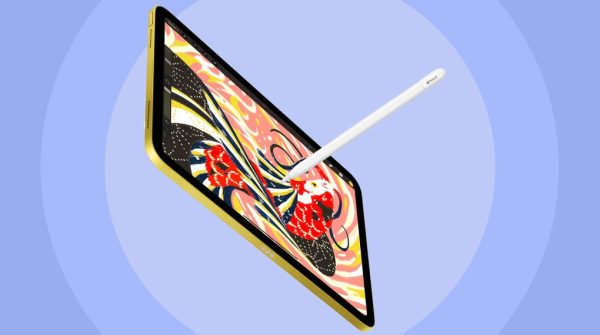
If you have used it Mac For many years, you are surely no stranger to Apple’s extremely magical Continuity feature. This feature once allowed us to open a virtual drawing board on iPhone or iPad to sketch, then the image would automatically fly to the Notes application on Mac. It sounds great, but in reality there are quite a few shortcomings.
- First, you must have at least one shared iOS device Apple Account with that Mac.
- Second, this temporary virtual drawing board is only really convenient when you want to sketch a few basic lines. If you plan to sit and sketch seriously, need a long time or occasionally want to take a break in the middle, then this old way can be quite tiring.
Thanks to that, Apple decided to launch a native drawing tool right inside the Notes application of the Golden Gate update. This seemingly small addition solves countless troubles for users. Many people even speculate that this is the “prelude” to the appearance of a touch-screen MacBook (possibly named MacBook Ultra) which is expected to launch in late 2026 or early 2027.
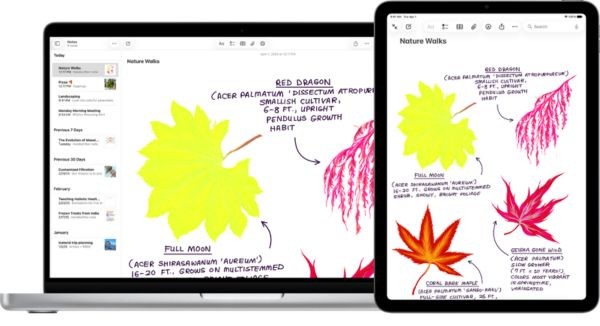
Compare drawing experience before and after update
To make it easier for you to imagine this valuable upgrade, I have made a small comparison table below:
| Criteria | Previously (Using Continuity) | Current (macOS 27 Golden Gate) |
| Equipment required | Mac and iPhone/iPad required | Only need a Mac |
| Convenience | Must unlock and operate on 2 devices | Draw directly on the Mac/Trackpad screen |
| Usage time | Suitable for quick, temporary painting | Feel free to draw for a long time, you can rest |
| Independence | Depends on the connection between devices | Works completely independently on Mac |
Instructions on how to draw on Note macOS 27
Don’t make you wait any longer, below is an extremely simple way to draw on Note macOS 27 that anyone can do. Just follow these steps correctly:
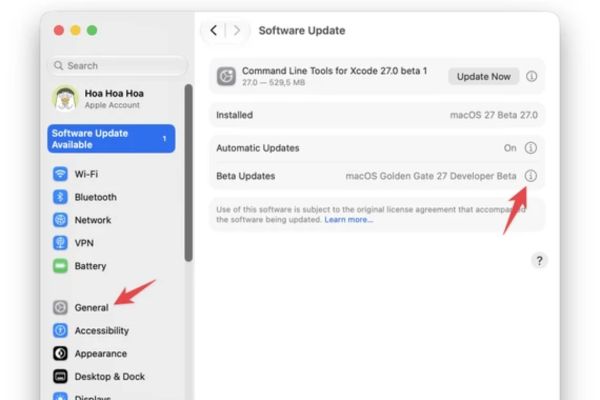
Step 1: Update your Mac to version macOS 27. You can do this by turning on receiving Beta updates in the section System Settings > General > Software Update. If you’re more tech-savvy, you can use a bootable installation USB, or install macOS Golden Gate on a second partition of your computer to try it out safely.
Step 2: Open the Notes application. You can create a completely new note or click on an old note that’s in use. You can even insert a drawing right in the middle of a piece of text that you’re typing normally.
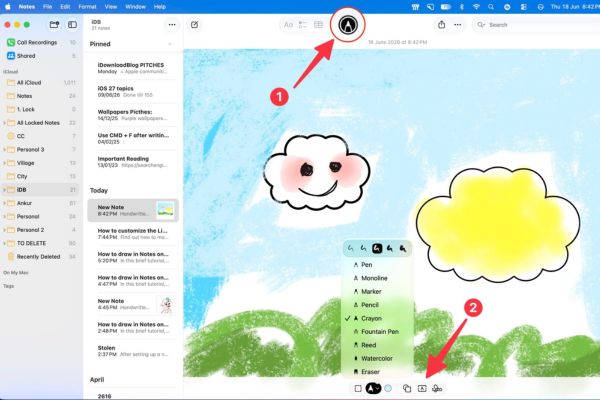
Step 3: Look at the toolbar, find and click on it Markup icon (Tick). This icon usually looks like a small pen. Immediately, the drawing interface will appear for you to unleash your creativity.
Discover a great set of Markup tools
Once you understand how to draw on Note macOS 27, you will find its interface extremely familiar. If you have ever used the Markup feature on iPhone to edit photos, then on Mac you will use it smoothly immediately.
- Selection tool: Helps you localize the drawn image, then enlarge, reduce it or move it elsewhere on the page.
- Drawing tools: You have a whole collection of pens including: Pen, Monoline, Marker, Pencil, Crayon, Fountain Pen, Reed and Watercolor brushes. Don’t forget that after choosing a pen, you can also adjust the thickness of the drawing. Of course, an Eraser is indispensable to erase damaged drawings.
- Color picker: Click on the tiny dot to change the pen color. Or better yet, you can just finish drawing, then use the selection tool to circle that line and change the color later.
- Shapes: Click on the square-circle icon, you will have available shapes such as lines, arrows, squares, rounded squares, circles, chat bubbles, stars and even hexagons.
- Insert text (Text): Click on the letter A icon to type more text into the drawing.
- Signature: You can insert a previously saved signature or create a new signature right here.
After you get tired of drawing, just click again Markup icon again to exit drawing mode. Therefore, everything goes extremely smoothly. Of course, like any other note, your sketches will automatically sync via iCloud and be present on all your other Apple devices. You can absolutely start drawing on Mac, then hold it iPhone Continue coloring.

Some small notes about errors in the beta version
Because this is just a test version, while experiencing how to draw on Note macOS 27, I discovered a rather odd error. Specifically, if you use a drawing tool for too long without a break (for example, you keep pressing your finger on the Trackpad to move the pen continuously without lifting your hand), then boom… the entire drawing line of that session suddenly disappears.
Sometimes, to fix it, you just need to draw another small stroke and then press the key combination Command + Z (Undo) means the old drawing will “reappear” again. However, there are times when this trick completely fails. I guess this is just a small bug in the first developer beta version. Surely Apple will soon release a patch to polish this feature before the official release.
Conclusion
In short, How to draw on Note macOS 27 It’s really a valuable feature that you should experience. Although there are still a few small errors in the beta version, the convenience it brings is undeniable.
Frequently Asked Questions (Q&A)
1. Do I need to use an iPad to draw on Notes in macOS 27?
No need. With the macOS 27 Golden Gate update, Apple has integrated drawing tools directly into the Notes application on Mac, helping you work independently without an iOS device.
2. How to fix the disappearing stroke error on the beta version?
If your drawing suddenly disappears because you haven’t lifted your hand for too long, try drawing another small stroke, then press Command + Z to restore it.
3. Can drawings on Mac sync to iPhone?
Have. Like regular notes, your drawings automatically sync via iCloud. Thanks to that, you can easily view and edit on your iPhone or iPad.