• Home
  • News
  • Software
  • Knowledge
  • MMO
  • Tips
  • Security
  • Network
  • Office
AnonyViet - English Version
  • Home
  • News
  • Software
  • Knowledge
  • MMO
  • Tips
  • Security
  • Network
  • Office
No Result
View All Result
  • Home
  • News
  • Software
  • Knowledge
  • MMO
  • Tips
  • Security
  • Network
  • Office
No Result
View All Result
AnonyViet - English Version
No Result
View All Result

Instructions for turning on Spatial Sound on Windows 11 to enjoy vivid sound

AnonyViet by AnonyViet
May 18, 2024
in Tips
0

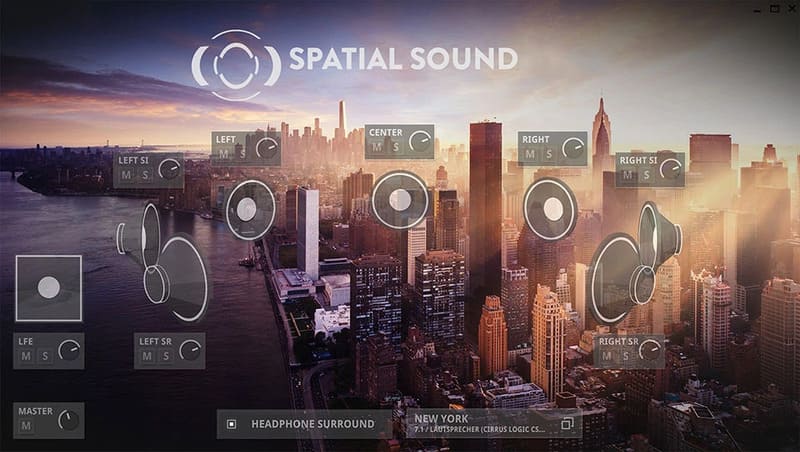
Spatial Sound is an advanced audio feature on Windows 11, allowing you to experience virtual surround sound from common output devices such as headphones or speakers. Spatial Sound helps you feel the space and direction of sound, creating a vivid and realistic feeling.

Join the channel Telegram belong to AnonyViet 👉 Link 👈

What is Spatial Sound?

When Spatial Sound is turned on and connected to a recording device and speaker, you will hear sounds that help you locate your position in 3D space easily. In addition, this application also gives you a unique and outstanding surround sound feeling.
Spatial Sound
Spatial Sound

Spatial Sound surround helps reproduce sound from different directions around you, helping you experience more realistic sound than Stereo sound with only two left and right channels.

When you use headphones and enable Spatial Sound, you will experience virtual spatial sound because this feature mixes the sound. When you listen to music or play games, sound is sent to your headphones to help you know which direction the sound is coming from.

Instructions for turning on Spatial Sound on Windows 11

Step 1: Press the Windows + R key combination to open the Run dialog box > Type Control Panel > Press Enter

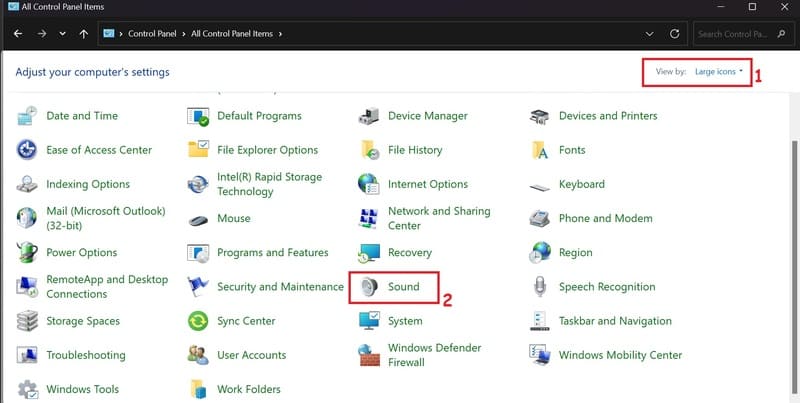
Step 2: Set View by to Large icons > Select Sound.
Spatial Sound
Set View by to Large icons > Select Sound

Step 3: On the Playback tab, select the audio device for which you want to enable Spatial Sound > Click Properties
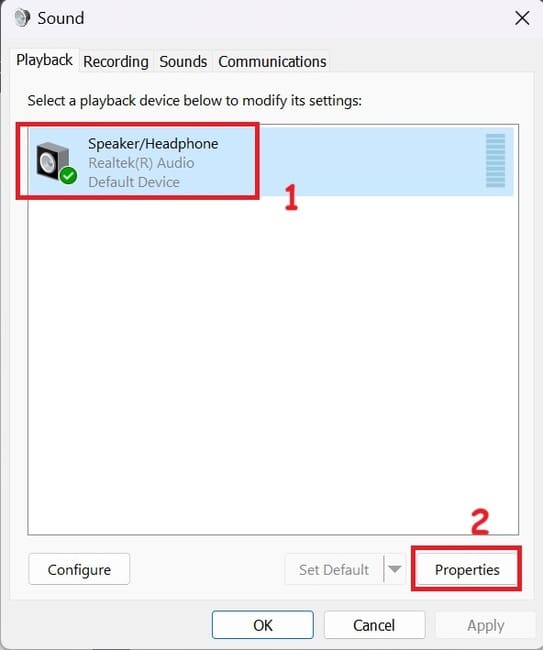
Spatial Sound
Click Properties

Step 4: Switch to the Spatial Sound tab > Click the drop-down menu and select the Spatial Sound format you want to use, for example Windows Sonic for Headphones or Dolby Atmos for Headphones.
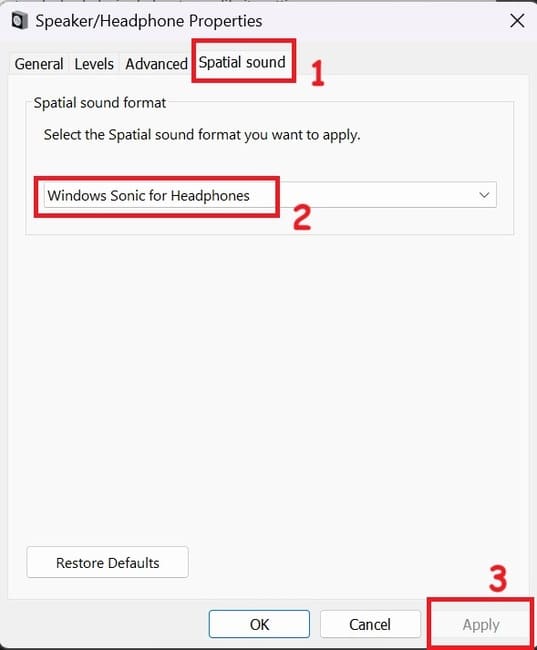
Spatial Sound
Click Windows Sonic for Headphones

Step 5: Click Apply to save the changes, then click OK.

After making the changes, your audio device will use Spatial Sound.

Epilogue

Like any other audio feature, Spatial Sound can greatly enhance your listening experience – and it's easy to enable on your Windows PC. Good luck!


Tags: enjoyInstructionssoundSpatialturningvividWindows
Previous Post

[Lập Trình Game] Lesson 7: Move between levels when completing tasks

Next Post

Instructions for setting Windows screen lock time

AnonyViet

AnonyViet

Related Posts

Instructions on how to create POV product review videos using Flow
Tips

Instructions on how to create POV product review videos using Flow

July 13, 2026
How to fix “This PC can’t run Windows 11” error This PC doesn’t meet the minimum system requirements
Tips

How to fix “This PC can’t run Windows 11” error This PC doesn’t meet the minimum system requirements

July 13, 2026
How to fix Windows 11 error of not being able to install .Net Framework 3.5
Tips

How to fix Windows 11 error of not being able to install .Net Framework 3.5

July 11, 2026
How to encrypt messages with GenZ’s smiley face icon
Tips

How to encrypt messages with GenZ’s smiley face icon

July 10, 2026
Download the Copyright-Free Music app for Cafes now
Tips

Download the Copyright-Free Music app for Cafes now

July 9, 2026
Multcloud – Manage, copy, and move data between Cloud Drives
Tips

Multcloud – Manage, copy, and move data between Cloud Drives

July 9, 2026
Next Post
Instructions for setting Windows screen lock time

Instructions for setting Windows screen lock time

0 0 votes
Article Rating
Subscribe
Login
Notify of
guest

guest

0 Comments
Oldest
Newest Most Voted

Recent News

Instructions on how to create POV product review videos using Flow

Instructions on how to create POV product review videos using Flow

July 13, 2026
How to fix “This PC can’t run Windows 11” error This PC doesn’t meet the minimum system requirements

How to fix “This PC can’t run Windows 11” error This PC doesn’t meet the minimum system requirements

July 13, 2026
Compact design, durable battery, excellent camera: Review of OPPO Reno 16 Pro 5G

Compact design, durable battery, excellent camera: Review of OPPO Reno 16 Pro 5G

July 12, 2026
Download the free 3D Pinball Space Cadet game on the App Store now

Download the free 3D Pinball Space Cadet game on the App Store now

July 12, 2026
Instructions on how to create POV product review videos using Flow

Instructions on how to create POV product review videos using Flow

July 13, 2026
How to fix “This PC can’t run Windows 11” error This PC doesn’t meet the minimum system requirements

How to fix “This PC can’t run Windows 11” error This PC doesn’t meet the minimum system requirements

July 13, 2026
Compact design, durable battery, excellent camera: Review of OPPO Reno 16 Pro 5G

Compact design, durable battery, excellent camera: Review of OPPO Reno 16 Pro 5G

July 12, 2026
AnonyViet - English Version

AnonyViet

AnonyViet is a website share knowledge that you have never learned in school!

We are ready to welcome your comments, as well as your articles sent to AnonyViet.

Follow Us

Contact:

Email: anonyviet.com[@]gmail.com

Main Website: https://anonyviet.com

Recent News

Instructions on how to create POV product review videos using Flow

Instructions on how to create POV product review videos using Flow

July 13, 2026
How to fix “This PC can’t run Windows 11” error This PC doesn’t meet the minimum system requirements

How to fix “This PC can’t run Windows 11” error This PC doesn’t meet the minimum system requirements

July 13, 2026
  • Home
  • Home 2
  • Home 3
  • Home 4
  • Home 5
  • Home 6
  • Next Dest Page
  • Sample Page

say88 tỷ lệ kèo nhà cái kèo nhà cái 5 febet

No Result
View All Result
  • Home
  • News
  • Software
  • Knowledge
  • MMO
  • Tips
  • Security
  • Network
  • Office

say88 tỷ lệ kèo nhà cái kèo nhà cái 5 febet

wpDiscuz
0
0
Would love your thoughts, please comment.x
()
x
| Reply