• Home
  • News
  • Software
  • Knowledge
  • MMO
  • Tips
  • Security
  • Network
  • Office
AnonyViet - English Version
  • Home
  • News
  • Software
  • Knowledge
  • MMO
  • Tips
  • Security
  • Network
  • Office
No Result
View All Result
  • Home
  • News
  • Software
  • Knowledge
  • MMO
  • Tips
  • Security
  • Network
  • Office
No Result
View All Result
AnonyViet - English Version
No Result
View All Result

Instructions for setting Windows screen lock time

AnonyViet by AnonyViet
May 19, 2024
in Tips
0

Set screen lock time Windows will help you secure personal information and important data. This article will provide simple steps for you to do this quickly and easily.

Join the channel Telegram belong to AnonyViet 👉 Link 👈

Advantages of setting screen lock time

Function to set time limit for lock screen Windows 11 operating system is increasingly being improved with many new features. Not only does it help display time and date, users can also choose to activate Cortana along with other Windows tools. Furthermore, the device can be easily turned on or off right from this lock screen.
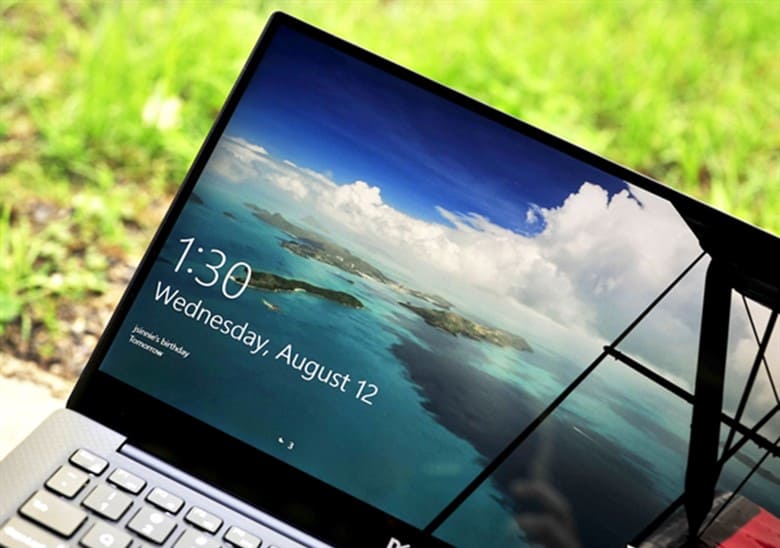
Set screen lock time
Advantages of setting screen lock time

If no activity is performed on the computer for a certain period of time, the system will automatically lock the screen to ensure the safety of personal data.

This function plays an important role in protecting users' personal data when they are not present, and in case someone else tries to log in to the computer, the Windows system will ask for a password. to access.

How to set screen lock time

Step 1: Press the Windows + I key combination to open the Settings window.

Step 2: Select Personalization and then select 'Lock Screen'.
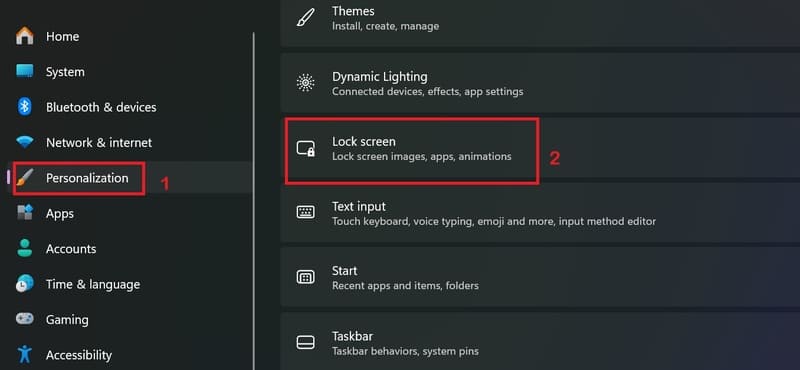
Set screen lock time
Select 'Lock Screen'

Step 3: Scroll down and select 'Screen timeout'.
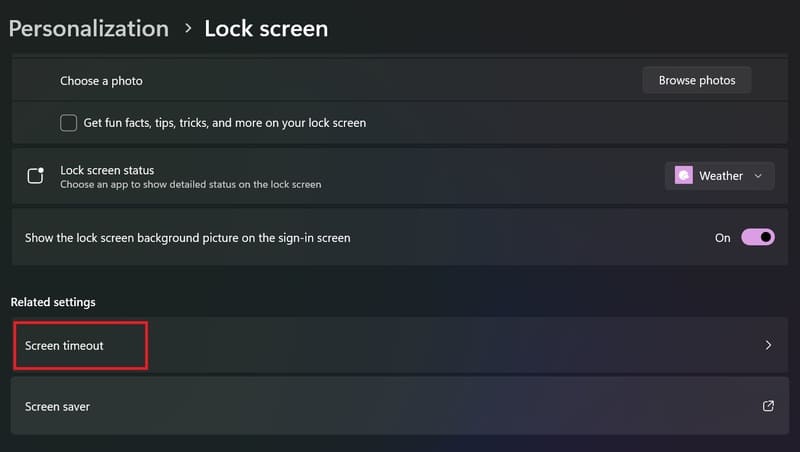
Set screen lock time
Select 'Screen timeout'

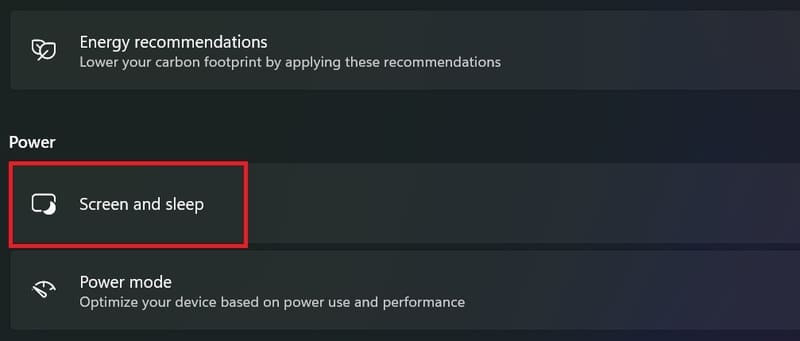
Step 4: Select 'Screen and Sleep'

Set screen lock time
Select 'Screen and Sleep'

Step 5: Set desired timeout
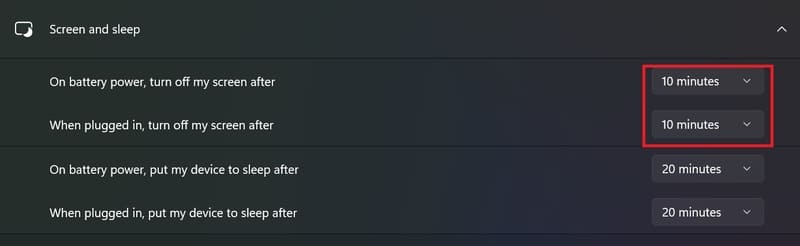
Set screen lock time
Set desired timeout

Note when installing

  • Make sure the Sleep mode timeout is higher than the screen off time to avoid the computer going to sleep mode before locking the screen.
  • Restart the computer after changing the settings to apply.

Epilogue

Job Set screen lock time Helps increase security and save energy for your computer. Please follow and follow the steps above to install it to suit your needs. Good luck!


Tags: InstructionsLockscreensettingtimeWindows
Previous Post

Instructions for turning on Spatial Sound on Windows 11 to enjoy vivid sound

Next Post

Utilities to update the Corona situation in Vietnam fastest

AnonyViet

AnonyViet

Related Posts

How to add sliders to Facebook Stories to easily rewind videos
Tips

How to add sliders to Facebook Stories to easily rewind videos

April 21, 2026
How to change the default font on Windows 10
Tips

How to change the default font on Windows 10

April 13, 2026
5 tips for using a Browser to replace an App (helps save RAM, time and money)
Tips

5 tips for using a Browser to replace an App (helps save RAM, time and money)

April 13, 2026
How to make funny MeMe photos without Photoshop within 10 seconds
Tips

How to make funny MeMe photos without Photoshop within 10 seconds

April 11, 2026
How to quickly design your own Logo without Photoshop
Tips

How to quickly design your own Logo without Photoshop

April 10, 2026
How to convert Website into App on Windows
Tips

How to convert Website into App on Windows

April 9, 2026
Next Post
Utilities to update the Corona situation in Vietnam fastest

Utilities to update the Corona situation in Vietnam fastest

0 0 votes
Article Rating
Subscribe
Login
Notify of
guest

guest

0 Comments
Oldest
Newest Most Voted
Inline Feedbacks
View all comments

Recent News

How to turn off password suggestions on iPhone: Prevent Safari from auto-filling passwords

How to turn off password suggestions on iPhone: Prevent Safari from auto-filling passwords

April 27, 2026
Instructions for looking up prescriptions on VNeID instead of paper medical books

Instructions for looking up prescriptions on VNeID instead of paper medical books

April 26, 2026
Tips to completely turn off CAPTCHA codes on iPhone and Mac are super simple

Tips to completely turn off CAPTCHA codes on iPhone and Mac are super simple

April 25, 2026
Compare Poco X8 Pro and Poco X7 Pro: A new step for the “king” of mid-range performance

Compare Poco X8 Pro and Poco X7 Pro: A new step for the “king” of mid-range performance

April 24, 2026
How to turn off password suggestions on iPhone: Prevent Safari from auto-filling passwords

How to turn off password suggestions on iPhone: Prevent Safari from auto-filling passwords

April 27, 2026
Instructions for looking up prescriptions on VNeID instead of paper medical books

Instructions for looking up prescriptions on VNeID instead of paper medical books

April 26, 2026
Tips to completely turn off CAPTCHA codes on iPhone and Mac are super simple

Tips to completely turn off CAPTCHA codes on iPhone and Mac are super simple

April 25, 2026
AnonyViet - English Version

AnonyViet

AnonyViet is a website share knowledge that you have never learned in school!

We are ready to welcome your comments, as well as your articles sent to AnonyViet.

Follow Us

Contact:

Email: anonyviet.com[@]gmail.com

Main Website: https://anonyviet.com

Recent News

How to turn off password suggestions on iPhone: Prevent Safari from auto-filling passwords

How to turn off password suggestions on iPhone: Prevent Safari from auto-filling passwords

April 27, 2026
Instructions for looking up prescriptions on VNeID instead of paper medical books

Instructions for looking up prescriptions on VNeID instead of paper medical books

April 26, 2026
No Result
View All Result
  • Home
  • News
  • Software
  • Knowledge
  • MMO
  • Tips
  • Security
  • Network
  • Office

wpDiscuz
0
0
Would love your thoughts, please comment.x
()
x
| Reply