• Home
  • News
  • Software
  • Knowledge
  • MMO
  • Tips
  • Security
  • Network
  • Office
AnonyViet - English Version
  • Home
  • News
  • Software
  • Knowledge
  • MMO
  • Tips
  • Security
  • Network
  • Office
No Result
View All Result
  • Home
  • News
  • Software
  • Knowledge
  • MMO
  • Tips
  • Security
  • Network
  • Office
No Result
View All Result
AnonyViet - English Version
No Result
View All Result

Instructions for dividing hard drives on Windows 11 without losing data, without software

AnonyViet by AnonyViet
April 9, 2024
in Tips
0

Split hard drive on Windows 11 is one of the basic operations that you should know when using Microsoft's latest operating system. Splitting your hard drive can help you manage data scientifically, increase work efficiency and protect data from risks. So how to do it? Let's find out with AnonyViet through the following article!

Join the channel Telegram belong to AnonyViet 👉 Link 👈

Benefits of dividing hard drives on Windows 11

Splitting your hard drive on Windows 11 has many benefits, especially when you use your computer for many different purposes, such as:

  • Helps you manage data, folders and files more easily, avoiding confusion or data loss.
  • Helps you increase your computer's performance, minimizing the risk of system errors, viruses, malware or hardware problems.
  • Helps you make the most of your hard drive capacity, avoiding wasting storage space.
  • Helps you easily backup, restore or reinstall your operating system without affecting your important data.
split hard drive on Windows 11
Benefits of dividing hard drives on Windows 11

Steps to split hard drive on Windows 11 without software

To divide the above hard drive Windows 11 No software required, just follow these steps:

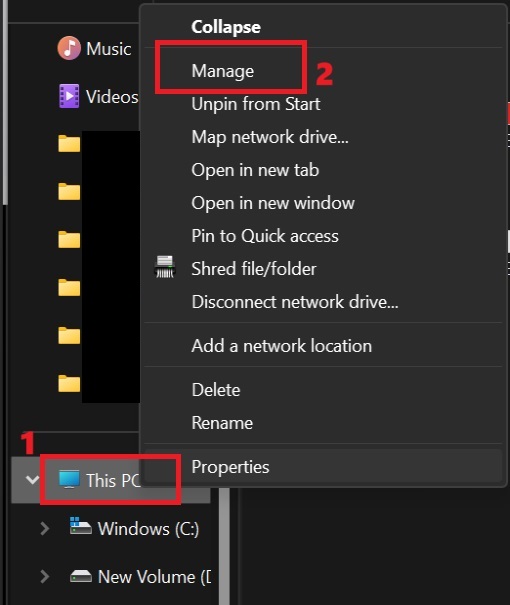
Step 1: Select Manage when right-clicking on the This PC (My Computer) icon
split hard drive on Windows 11
Select Manage

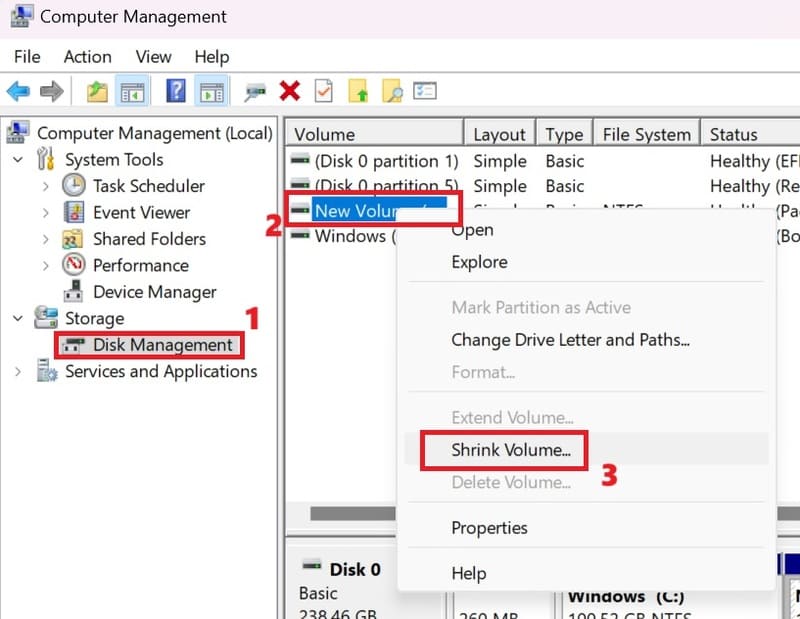
Step 2: Select 'Disk Management' on the Storage tab in the Computer Management panel > Right-click on the drive you want to divide > Select 'Shrink Volume'
split hard drive on Windows 11
Right-click on the drive you want to split > Select 'Shrink Volume'

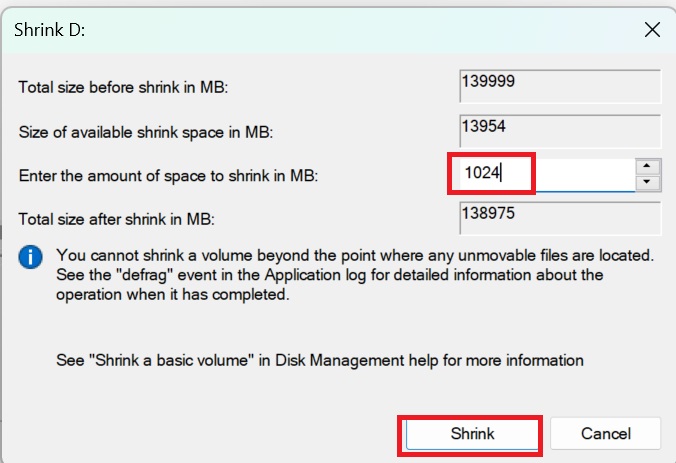
Step 3: Enter the capacity of the new partition in the box 'Enter the amount of space to shrink in MB' in Megabytes (1GB = 1024MB), then select Shrink.
split hard drive on Windows 11
Fill in the new partition capacity

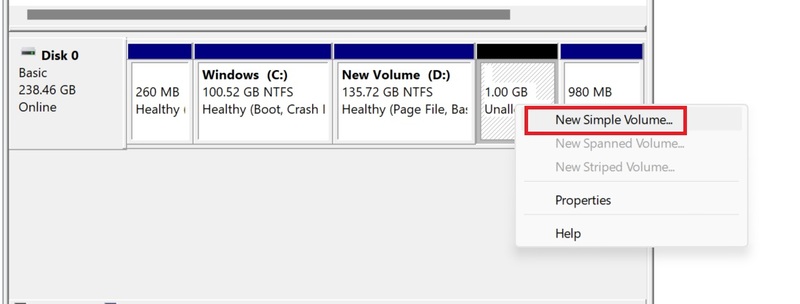
Step 4: Right click on the newly created Unallocated empty partition > Select 'New Simple Volume'
split hard drive on Windows 11
Right click on Unallocated > Select 'New Simple Volume'

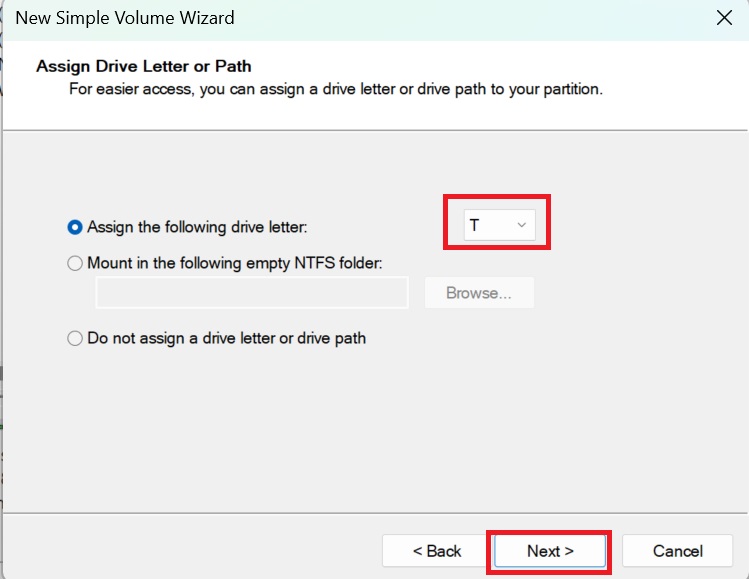
Step 5: Click Next > Next > Assign the partition symbol name in 'Assign the following drive letter' (For example, name T) > select Next.
split hard drive on Windows 11
Assign a symbolic name to the new partition

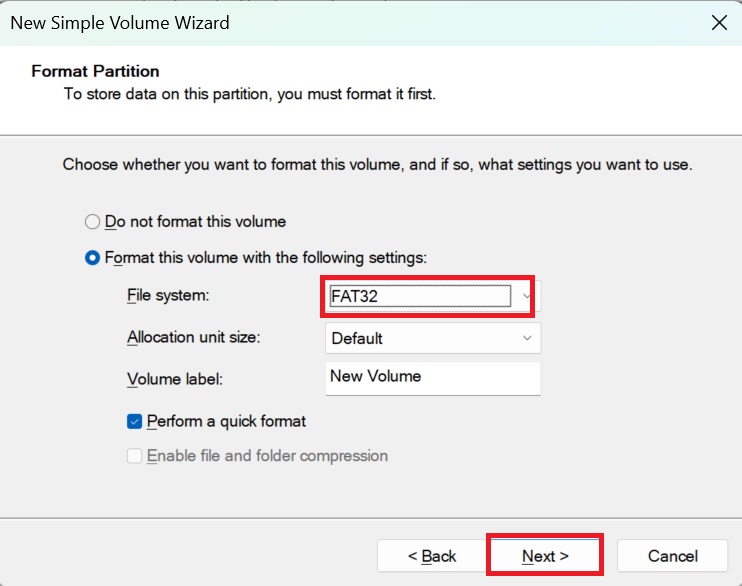
Step 6: Select the new partition format as NTFS or FAT32 in File System > Write partition name > Click Next > Click Finish to complete creating the new partition.
split hard drive on Windows 11
Choose partition format

Note: NTFS format allows saving files larger than 4GB, while with FAT32 you cannot save or copy data larger than 4GB.

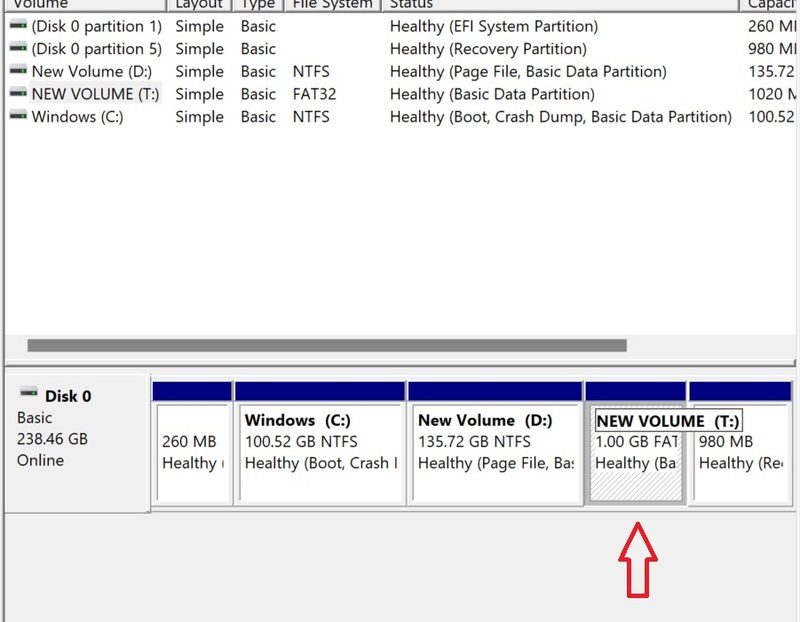
Once created, you will see the new T partition with the selected capacity.
split hard drive on Windows 11
New T partition

In This PC (My Computer) you also see the new partition displayed.
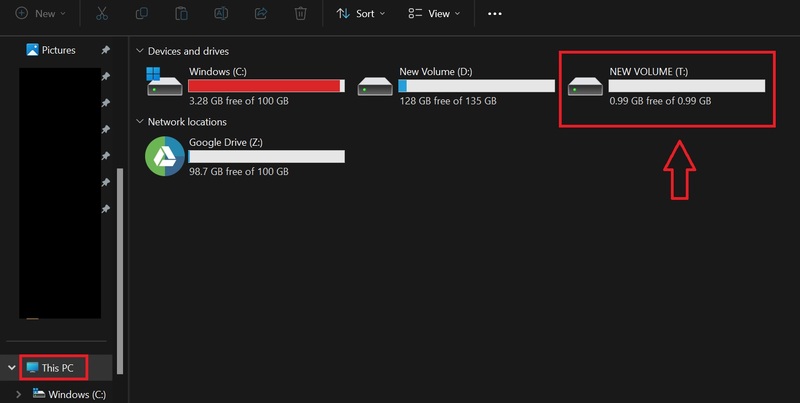
split hard drive on Windows 11
Complete how to divide the hard drive on Windows 11

Epilogue

Split hard drive on Windows 11 No data loss is a useful trick for those who want to take full advantage of the capabilities of Microsoft's latest operating system. By applying the above instructions, you can divide your hard drive easily, quickly and safely. Wishing you a successful application!


The article scored: 5/5 – (100 votes)

Tags: datadividingdriveshardInstructionslosingsoftwareWindows
Previous Post

How to completely turn off or delete Copilot on Windows 11

Next Post

How to cancel Vietcombank SMS Banking but still receive balance notifications

AnonyViet

AnonyViet

Related Posts

5+ prompts to create sparkling Christmas photos for mothers and babies at home
Tips

5+ prompts to create sparkling Christmas photos for mothers and babies at home

December 17, 2025
How to Clean Up Your Computer to Speed ​​Up Windows Faster
Tips

How to Clean Up Your Computer to Speed ​​Up Windows Faster

December 16, 2025
Share Snowfall Code for Website to celebrate Christmas
Tips

Share Snowfall Code for Website to celebrate Christmas

December 16, 2025
How to build web applications in just minutes with Youware
Tips

How to build web applications in just minutes with Youware

December 15, 2025
5 Free Adobe Illustrator Alternatives on Linux
Tips

5 Free Adobe Illustrator Alternatives on Linux

December 15, 2025
Review of Chongluadao utility – HieuPC’s new anti-fraud utility
Tips

Review of Chongluadao utility – HieuPC’s new anti-fraud utility

December 14, 2025
Next Post
How to cancel Vietcombank SMS Banking but still receive balance notifications

How to cancel Vietcombank SMS Banking but still receive balance notifications

0 0 votes
Article Rating
Subscribe
Login
Notify of
guest

guest

0 Comments
Oldest
Newest Most Voted
Inline Feedbacks
View all comments

Recent News

5+ prompts to create sparkling Christmas photos for mothers and babies at home

5+ prompts to create sparkling Christmas photos for mothers and babies at home

December 17, 2025
How to Clean Up Your Computer to Speed ​​Up Windows Faster

How to Clean Up Your Computer to Speed ​​Up Windows Faster

December 16, 2025
Share Snowfall Code for Website to celebrate Christmas

Share Snowfall Code for Website to celebrate Christmas

December 16, 2025
How to build web applications in just minutes with Youware

How to build web applications in just minutes with Youware

December 15, 2025
5+ prompts to create sparkling Christmas photos for mothers and babies at home

5+ prompts to create sparkling Christmas photos for mothers and babies at home

December 17, 2025
How to Clean Up Your Computer to Speed ​​Up Windows Faster

How to Clean Up Your Computer to Speed ​​Up Windows Faster

December 16, 2025
Share Snowfall Code for Website to celebrate Christmas

Share Snowfall Code for Website to celebrate Christmas

December 16, 2025
AnonyViet - English Version

AnonyViet

AnonyViet is a website share knowledge that you have never learned in school!

We are ready to welcome your comments, as well as your articles sent to AnonyViet.

Follow Us

Contact:

Email: anonyviet.com[@]gmail.com

Main Website: https://anonyviet.com

Recent News

5+ prompts to create sparkling Christmas photos for mothers and babies at home

5+ prompts to create sparkling Christmas photos for mothers and babies at home

December 17, 2025
How to Clean Up Your Computer to Speed ​​Up Windows Faster

How to Clean Up Your Computer to Speed ​​Up Windows Faster

December 16, 2025
  • Home
  • Home 2
  • Home 3
  • Home 4
  • Home 5
  • Home 6
  • Next Dest Page
  • Sample Page

trang chủ f168 nhà cái 78win https://www.qq8827.com/ https://go99.ae.org/ https://nohu90.bid/

No Result
View All Result
  • Home
  • News
  • Software
  • Knowledge
  • MMO
  • Tips
  • Security
  • Network
  • Office

trang chủ f168 nhà cái 78win https://www.qq8827.com/ https://go99.ae.org/ https://nohu90.bid/

wpDiscuz
0
0
Would love your thoughts, please comment.x
()
x
| Reply