Clone the Zalo group is an extremely useful feature that helps you create a new group from the existing member list. Instead of spending hours adding each person, you can now copy potential members in bulk with just a few taps. This solution not only saves effort but also opens up opportunities to reach target customers more accurately.
| Join the channel Telegram belong to AnonyViet 👉 Link 👈 |
Outstanding benefits when knowing how to clone the Zalo group
Creating a new group from an existing group brings a lot of strategic value, especially for those doing online business.
- You will save maximum time and effort in building a new community. Forget about having to search, make friends and invite each person one by one, this feature allows you to move a large number of members to your “new home” in just a snap.
- This feature allows you to filter and gather the most potential customers from the old group, creating a quality community with a common interest, thereby significantly increasing the conversion rate.
- When you create a new group, you automatically become an administrator, taking full initiative in posting, promoting products and interacting directly with members to boost sales.

Steps to clone Zalo group on phone
You just need to follow these steps:
Step 1: Open Zalo application and go to the original chat group where you intend to get the member list. In the upper right corner of the screen, tap the menu icon (three dashes).
Step 2: In the menu that appears, scroll down and find the item “View members“, then continue clicking the sub-menu icon (three vertical dots) in the right corner.
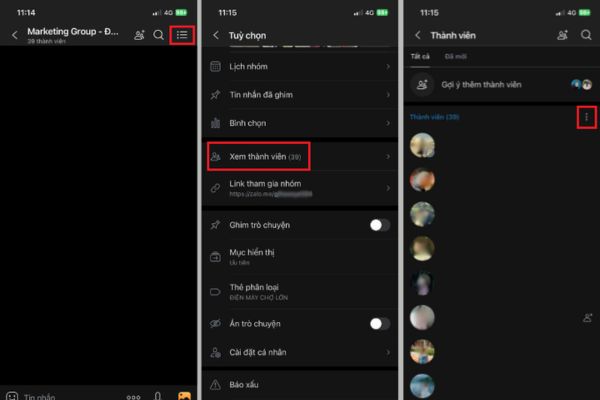
Step 3: A list of options will appear, select “Copy group” and confirm “Continuec” in the next message for the system to start the process.
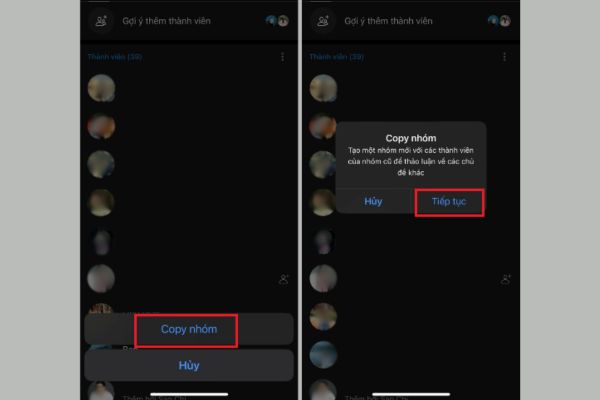
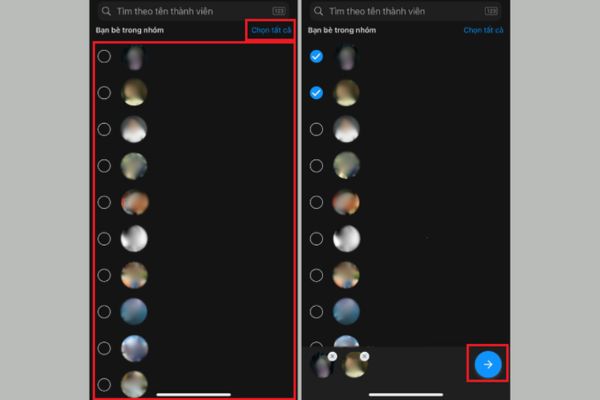
Step 4: The member selection interface will display. You can manually check the people you want to add to the new group, or click “Select all” to copy the whole thing.
Step 5: After completing your selection, simply tap the arrow icon at the bottom to create a new group. At this point, you can name the group and start a conversation.
Note: An important condition is that this feature is only available when the administrator of the parent group has granted permission to the member to perform copying.
How to invite more members to a new group
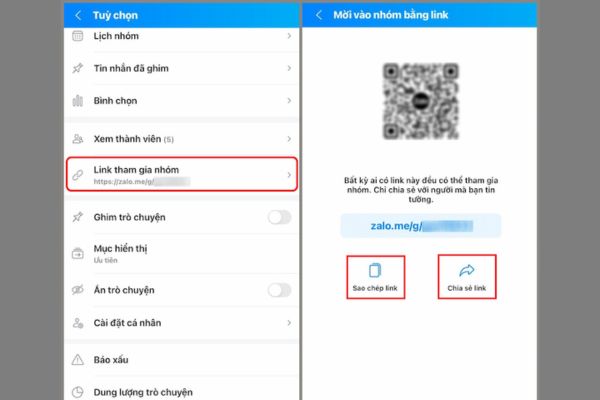
After successfully cloning the Zalo group, you can develop a larger community by sharing the invitation link. To get the link, go to the newly created group, click on the menu (three dashes) and select “Link to join the group“. Here, you can copy the link to send anywhere or share directly with your friends on Zalo.
Things to keep in mind
Group cloning feature Zalo This is very powerful, but to use it civilly and without risk, you need to pay attention:
- Only group admins are given permission to copy groups; regular members won’t see this option.
- The cloning process only copies the member list, the entire message history, images and files of the old group will not be transferred.
- You should have a clear announcement about the purpose of the new group to members to show respect and avoid misunderstanding that they are being bothered.
- After creating the group, check and update important information such as group name, avatar and rules so that the group operates in the right direction.
- Abusing this feature by continuously creating groups can be considered spam by Zalo and lead to the risk of account limitation.
Conclusion
Overall, features clone the Zalo group is a powerful tool that helps optimize community management and online business. By applying the right techniques and following important considerations, you can easily build quality teams. Take advantage of this feature now to develop your work more effectively!