• Home
  • News
  • Software
  • Knowledge
  • MMO
  • Tips
  • Security
  • Network
  • Office
AnonyViet - English Version
  • Home
  • News
  • Software
  • Knowledge
  • MMO
  • Tips
  • Security
  • Network
  • Office
No Result
View All Result
  • Home
  • News
  • Software
  • Knowledge
  • MMO
  • Tips
  • Security
  • Network
  • Office
No Result
View All Result
AnonyViet - English Version
No Result
View All Result

How to view more time zones on Mac with multitimeinmenubar

AnonyViet by AnonyViet
August 29, 2025
in Software
0

You are looking How to see more time zones on Mac The most convenient way? Whether it is to arrange a meeting with an international partner, keep in touch with relatives abroad, or simply satisfy the curiosity of the time in a place in the world, the simultaneous monitoring of many time zones is a very practical need. Fortunately, there is a neat and completely free solution called Multitimeinmenubar.


Join the channel Telegram belong to Anonyviet 👉 Link 👈

Why is it not good to see many default time zones on Mac?

Before going into the solution, let’s look back on the limitations of the above tools macOS:

  • Watch application (Clock): You must actively open the application whenever you want to check the hour. This interrupts the workflow and spends extra unnecessary operation.
  • Widget on desktop: Although more convenient, widget occupies a part of the screen space. When you are opening many windows, widgets may be obscured, losing its “quick viewing” usefulness.

Both of these methods do not meet the needs of instant time to see, even in sight without any redundant operation.
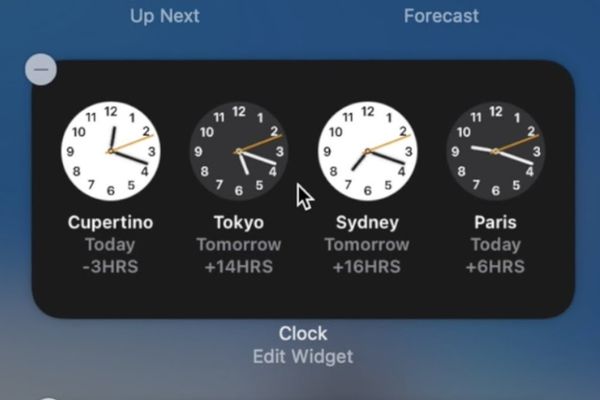
Why is it not good to see many default time zones on Mac?

Multitimeinmenubar As a compact open source utility, created to do a single task and do it extremely well: display the clock of many different time zones right on the menu bar (Menu bar) of the Mac.

Instead of having to open the application or look at the widget, now you just need to glance at the top right corner of the screen. Time in New York, London, or Tokyo will always be there, neatly next to the system clock. This is the most visual and time -saving time zone. The application integrates seamlessly with the system interface, creating a feeling as an original feature that Apple has “forgotten”.
Multitimeinmenubar: Tools to view multiple time zones on Mac convenient

System requirements: You need Macs running Apple Silicon chip (M1, M2, M3 …) and MacOS 15.4 and above. The application may not launch on an Intel chip.

Step 1: Visit the official release page on GitHub’s Multitimeinmenubar And download the latest .dmg file.

  • Open the .dmg file you just downloaded.
  • Pull the Multitimeinmenubar application icon to the Applications folder.
  • Run the application from the Applications directory or via Launchpad.
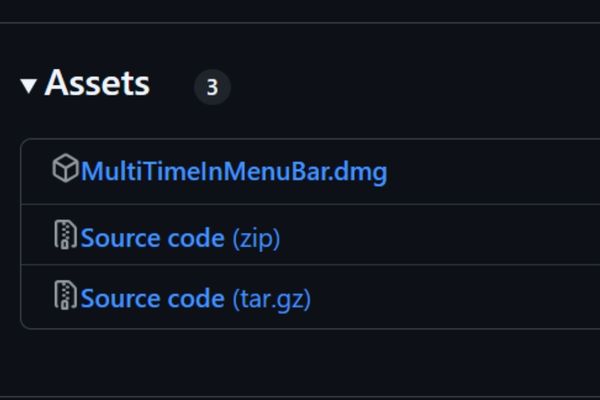
Download multitimeinmenubar

Step 2: After running, a small icon will appear on the menu bar. Click on it and select “Settings”(Settings) to start setup.

In the installation window, you can easily add the time zones you want to follow:

  • Add the city: Enter the city name in the search box. The application will automatically suggest the appropriate locations.
  • Showing national flags: Accumulate the “show flag” to have a small flag next to the watch, helping to identify faster.
  • Add the prefix (prefix): Name an abbreviation (for example, “NY” for New York) to distinguish it clearly if you follow many cities.
  • Time format: Choose between 12 hours or 24 hours.
  • Advanced options: You can turn on the seconds (show seconds) or date offset, very useful when working with the time zones that have entered the next day.

After adding, the watches will immediately appear on the menu bar. You can add how many clocks as you like.
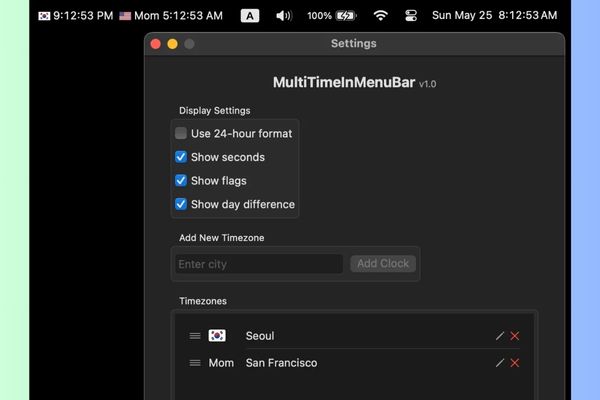
How to view more time zones on Mac with multitimeinmenubar

Advantages and some limitations to know

1. Outstanding advantages

  • This is the fastest way to view the time zone on Mac, no need for excess operation.
  • The interface is homogeneous with the system, bringing a natural feeling.
  • Allows custom format, adding flags, preferences to suit personal needs.
  • Is an open, free source project and is authenticated by Apple.

2. A small limitation

  • Some cities may not be updated. The solution is to choose a nearby city with the same time zone.
  • If you add too many watches, they may be hidden due to MacOS limitations.

Advantages and some limitations to know

Conclusion

How to see more time zones on Mac The most effective is to integrate them right on the menu bar. Hopefully through this article, you have found the perfect tool to master the global time without any other complex operations!


Tags: Macmultitimeinmenubartimeviewzones
Previous Post

How to link bank accounts to VnEID to receive social benefits

Next Post

Download Vietnamese Autoit self -study curriculum for the beginning

AnonyViet

AnonyViet

Related Posts

How to extract text from photos using Zalo is super simple
Software

How to extract text from photos using Zalo is super simple

May 29, 2026
HONOR 600 in hand – High-end design, 200MP camera, not cheap price
Software

HONOR 600 in hand – High-end design, 200MP camera, not cheap price

May 28, 2026
Instructions for getting 4 months of Adobe copyright for free
Software

Instructions for getting 4 months of Adobe copyright for free

May 28, 2026
The truth about the 7,000 mAh battery on Xiaomi 17T Pro: What benefits do users get?
Software

The truth about the 7,000 mAh battery on Xiaomi 17T Pro: What benefits do users get?

May 28, 2026
Instructions on how to turn text into stickers on Gboard
Software

Instructions on how to turn text into stickers on Gboard

May 26, 2026
Instructions on how to turn off YouTube Shorts on iPhone
Software

Instructions on how to turn off YouTube Shorts on iPhone

May 24, 2026
Next Post
Download Vietnamese Autoit self -study curriculum for the beginning

Download Vietnamese Autoit self -study curriculum for the beginning

0 0 votes
Article Rating
Subscribe
Login
Notify of
guest

guest

0 Comments
Oldest
Newest Most Voted
Inline Feedbacks
View all comments

Recent News

How to turn off Gemini Nano on Chrome to free up 4GB of memory

How to turn off Gemini Nano on Chrome to free up 4GB of memory

May 30, 2026
Instructions for receiving Lovable Pro 12 months for free

Instructions for receiving Lovable Pro 12 months for free

May 29, 2026
How to extract text from photos using Zalo is super simple

How to extract text from photos using Zalo is super simple

May 29, 2026
HONOR 600 in hand – High-end design, 200MP camera, not cheap price

HONOR 600 in hand – High-end design, 200MP camera, not cheap price

May 28, 2026
How to turn off Gemini Nano on Chrome to free up 4GB of memory

How to turn off Gemini Nano on Chrome to free up 4GB of memory

May 30, 2026
Instructions for receiving Lovable Pro 12 months for free

Instructions for receiving Lovable Pro 12 months for free

May 29, 2026
How to extract text from photos using Zalo is super simple

How to extract text from photos using Zalo is super simple

May 29, 2026
AnonyViet - English Version

AnonyViet

AnonyViet is a website share knowledge that you have never learned in school!

We are ready to welcome your comments, as well as your articles sent to AnonyViet.

Follow Us

Contact:

Email: anonyviet.com[@]gmail.com

Main Website: https://anonyviet.com

Recent News

How to turn off Gemini Nano on Chrome to free up 4GB of memory

How to turn off Gemini Nano on Chrome to free up 4GB of memory

May 30, 2026
Instructions for receiving Lovable Pro 12 months for free

Instructions for receiving Lovable Pro 12 months for free

May 29, 2026
No Result
View All Result
  • Home
  • News
  • Software
  • Knowledge
  • MMO
  • Tips
  • Security
  • Network
  • Office

wpDiscuz
0
0
Would love your thoughts, please comment.x
()
x
| Reply