If you’re looking for an app to make to-do lists or discuss project management tools with your team, you’ve probably heard of Trello. So in this article, I will learn with you what Trello is.
| Join the channel Telegram of the AnonyViet 👉 Link 👈 |

What is Trello?
Trello is a popular project management tool that lets you create and manage tasks, whether it’s a team project or just your own personal to-do list. You can set deadlines, leave notes on projects and tasks, and assign tasks to other project members. Trello uses a kanban board view so you can easily visualize how your project is progressing.
Trello is widely known for being one of the easiest project management tools to use. Trello’s simple design makes it very easy to get used to. Trello is also free to some extent. For the purpose of creating and managing small-scale projects by a small team, the free version is sufficient. You can always upgrade to a premium subscription later if needed.
How to use Trello
Trello offers a variety of features that allow you to create and manage tasks. I will introduce you to the main features one by one.
Create boards for project management
The Trello board is where you create and organize all the details of your project, such as the tasks that make up the overall project, task deadlines, roadmaps, and more. The board is also where you invite your team to collaborate. work in the project.
So when you create an account, the first thing you need to do is create a board for the project. The free version allows you to create up to 10 tables per workspace.
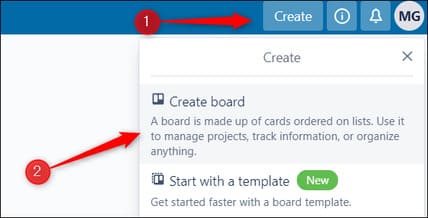
To create a board, log in to your account and then click “Create” in the upper-right corner of the window. Next, click “Create Board” from the menu.
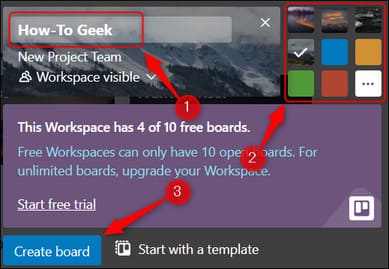
A small window will appear. Here, give your board a name, choose a theme for it, then click “Create Board”.
That’s it, you’ve created your Trello board.
Invite more members
If your Trello board is for personal use, you can skip this step. If you want others to have access to your board, such as other members of your team, you can invite them.
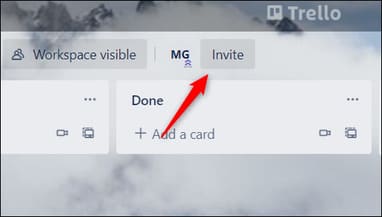
To invite someone to collaborate with you on a project, click the “Invite” button in the header menu of the board.
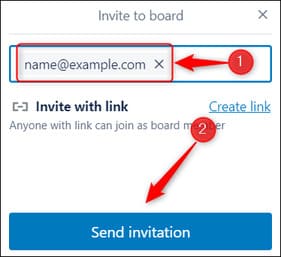
A pop-up window will appear. Enter the email of the person you want to invite in the text box, then click the blue “Send Invitation” button. You can also create a link and share it so everyone can get to the board.
They will receive an email and can follow the instructions to join your board.
Add lists to better organize tasks
After you’ve created the board (and added members if you want), it’s time to add all the project tasks. However, before you can start creating new tasks, you need to create a “List”. Think of the list as your project roadmap. Your roadmap doesn’t have to be complicated — it can be as simple as “To Do”, “In Progress” and “Done”.
Enter the name of your list in the text box, then click the blue “Add List” button.
Once your first list is created, a gray “Add Another List” button will appear to the right of your list. Click on it to create another list.
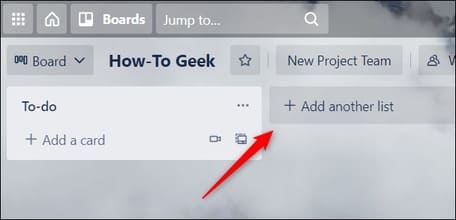
You can create as many lists as needed for your project. If you need to rearrange your lists, simply click and drag them to a new location.
Once the list has been created, you can start adding tasks.
Create and manage tasks
In Trello, your tasks will be created on “Cards”. Think of the cards as sticky notes. That’s where you’ll write down everything you need to know about a particular task.
You can create a tag in any of your lists. Just click “Add a Card” in the list you want to add the card to.
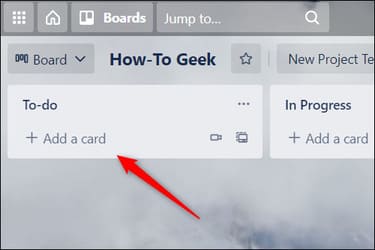
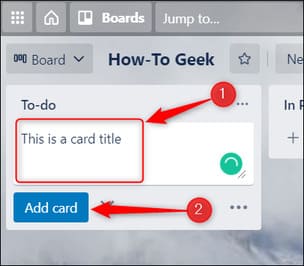
Give your card a title. Then, click the blue “Add Card” button.
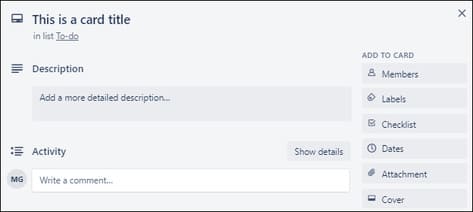
Your card has been created. If you click on the card, a window will appear. Here you can add additional details to the card, such as a description of the task, add a checklist for the task, set a deadline, upload attachments, and more.
Depending on your progress on the task, you may want to move the card to a different list. For example, if you’ve completed the task, you might want to move the card to the “Completed” list. To do so, simply click and drag the card to the list you want.
Increase work efficiency with Power-Up
Trello offers a feature called “Power-Up”. These are essentially add-ons in Trello. Trello offers a huge Power-Up library with features ranging from adding a calendar view, integrating your boards with popular apps like Slack, Gmail, MailChimp, Giphy, and OneDrive, and hundreds of other cool things .
Previously, you could only add one Power-Up per workspace if you were using the free version of Trello. But now, Trello also allows you to use an unlimited number of Power-Ups for free. However, Trello claims that some Power-Ups powered by their partners still require a paid version.
To add Power-Ups, simply visit Trello’s Power-Up page, find the one you want, and then click the blue “Add” button below it.
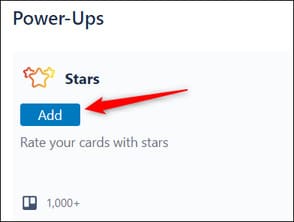
Every Power-Up is different, so follow the onscreen instructions to set everything up.
Trello is one of the most popular project management software available today because it’s easy to use, has a simple interface, and the free version lets you multitask. In addition, you can also choose other tools similar to Trello which are Microsoft Planner, Asanaand Jira or use productivity-enhancing extensions here.