• Home
  • News
  • Software
  • Knowledge
  • MMO
  • Tips
  • Security
  • Network
  • Office
AnonyViet - English Version
  • Home
  • News
  • Software
  • Knowledge
  • MMO
  • Tips
  • Security
  • Network
  • Office
No Result
View All Result
  • Home
  • News
  • Software
  • Knowledge
  • MMO
  • Tips
  • Security
  • Network
  • Office
No Result
View All Result
AnonyViet - English Version
No Result
View All Result

How to use the Range feature – AutoFill Excel

AnonyViet by AnonyViet
January 26, 2023
in Office
0

I see that these days, office-related articles like Word and Excel have been viewed and received by many brothers and sisters. So, I will make a series of instructions to guide you to use Excel in full through 300 brief Excel examples below.

Join the channel Telegram of the AnonyViet 👉 Link 👈

How to use the Range feature - AutoFill Excel 27

Introduce

I. Range

1. AutoFill

Use AutoFill in Excel to autofill the cells you want. You can see the examples below.

1. Enter 10 in cell A1 and 20 in cell A2.

How to use the Range feature - AutoFill Excel 28

2. Select cell A1 and cell A2 drag the small square in the lower right corner. The cells below will automatically fill in the exponential value of the 2 cells you select.How to use the Range feature - AutoFill Excel 29

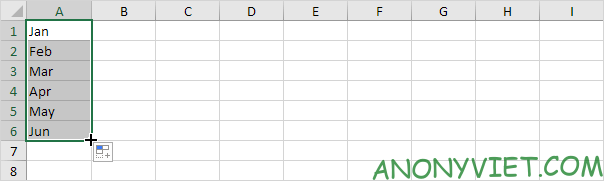
3. Enter Jan in cell A1.

How to use the Range feature - AutoFill Excel 30

4. Select cell A1 and drag it down. AutoFill automatically fills in the next month names.
How to use the Range feature - AutoFill Excel 31

5. Enter Product1 in cell A1.

How to use Range feature - AutoFill Excel 32

6. Select cell A1 and drag it down. AutoFill will automatically fill in the next numbers.

How to use the Range feature - AutoFill Excel 33

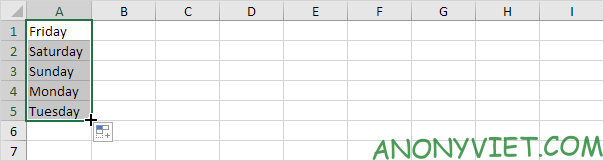
7. Enter Friday in cell A1.

How to use the Range feature - AutoFill Excel 34

8. Select cell A1 and drag it down. AutoFill will automatically fill in the next date names.
How to use the Range feature - AutoFill Excel 35

9. Enter January 1, 2019 in cell A1.

How to use the Range feature - AutoFill Excel 36

10. Select cell A1 and drag it down. AutoFill will automatically fill in the following dates.

How to use the Range feature - AutoFill Excel 37

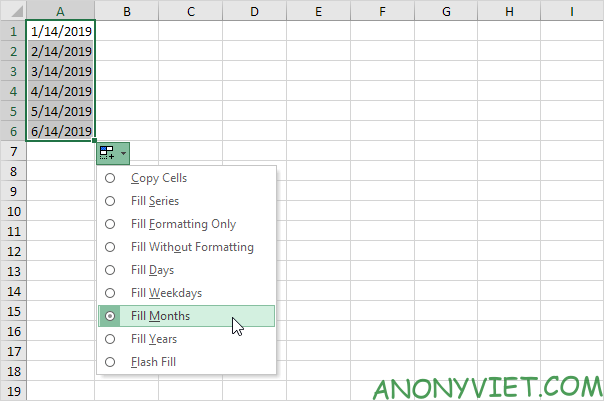
11. Instead of entering the date, use AutoFill option to fill in the days of the week (ignoring weekends), months or years.
How to use the Range feature - AutoFill Excel 38

12. Enter April 1, 2019 in cell A1 and January 1, 2019 in cell A2.

How to use the Range feature - AutoFill Excel 39

13. Select cell A1 and cell A2 and drag down. AutoFill will automatically fill in the next dates based on the 2 selected cells (7 days apart).

How to use Range feature - AutoFill Excel 40

14. Enter the time 6:00 AM in cell A1.

How to use the Range feature - AutoFill Excel 41

15. Select cell A1 and drag to the right. AutoFill will automatically fill in the next intervals.

How to use the Range feature - AutoFill Excel 42

16. When Excel doesn’t recognize the list you want, just create one custom list here.

How to use the Range feature - AutoFill Excel 43How to use the Range feature - AutoFill Excel 44

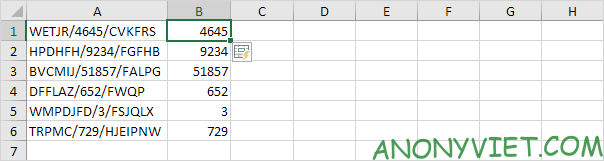
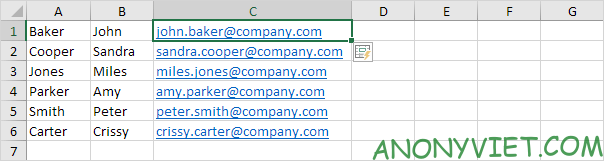
17. Uses flash fill in Excel 2013 or later to automatically extract or automatically combine data.
How to use the Range feature - AutoFill Excel 45 How to use the Range feature - AutoFill Excel 46

If you use Excel 365, you can also use the SEQUENCE function to populate cells. This function is quite interesting.

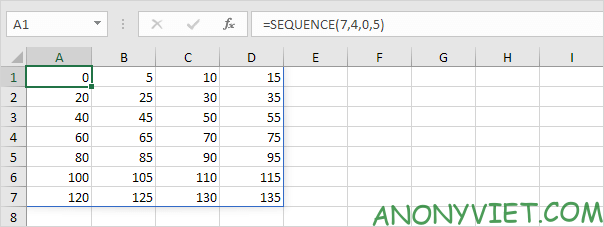
18. The SEQUENCE function below creates a two-dimensional array. 7 rows 4 columns, starting at 0 and spaced 5 units apart.
How to use the Range feature - AutoFill Excel 47

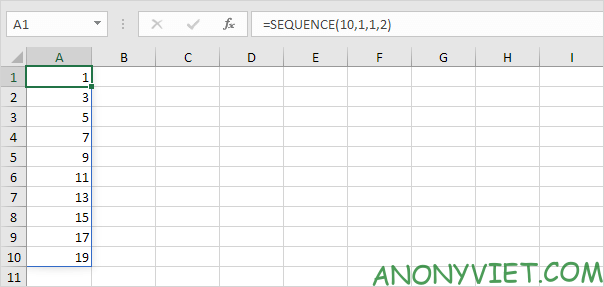
19. The SEQUENCE function below generates a list of odd numbers. 10 rows 1 column, starting at 1 and spaced 2 units apart.

How to use the Range feature - AutoFill Excel 48

The article achieved: 5/5 – (100 votes)

Tags: AutoFillExcelfeatureRange
Previous Post

How to create a Windows VPS with 12GB RAM using Lab Teamwork Solutions practice

Next Post

How to set Chrome to use less RAM

AnonyViet

AnonyViet

Related Posts

How to add Watermark to Google Docs to protect copyright
Office

How to add Watermark to Google Docs to protect copyright

April 19, 2026
Instructions on how to hide formulas in Excel to secure data
Office

Instructions on how to hide formulas in Excel to secure data

February 6, 2026
Top who creates the most beautiful presentation slide today
Office

Top who creates the most beautiful presentation slide today

September 23, 2025
Automatically check and correct spelling errors on Google Docs
Office

Automatically check and correct spelling errors on Google Docs

February 23, 2025
Instructions for downloading Google Docs files easily on any device
Office

Instructions for downloading Google Docs files easily on any device

December 18, 2024
Launching AI image creation feature on Google Docs
Office

Launching AI image creation feature on Google Docs

November 20, 2024
Next Post
How to set Chrome to use less RAM

How to set Chrome to use less RAM

0 0 votes
Article Rating
Subscribe
Login
Notify of
guest

guest

0 Comments
Oldest
Newest Most Voted

Recent News

Windows 7/8.1/10 users will be upgraded to Windows 11 for free

Windows 7/8.1/10 users will be upgraded to Windows 11 for free

July 30, 2026
Instructions for receiving the free Certified LLM Security Expert certificate

Instructions for receiving the free Certified LLM Security Expert certificate

July 30, 2026
MSI laptops are not just for gamers: Which line is suitable for students, office workers and creative people?

MSI laptops are not just for gamers: Which line is suitable for students, office workers and creative people?

July 29, 2026
What is quantum resistant cryptography? Why must the Internet change?

What is quantum resistant cryptography? Why must the Internet change?

July 29, 2026
Windows 7/8.1/10 users will be upgraded to Windows 11 for free

Windows 7/8.1/10 users will be upgraded to Windows 11 for free

July 30, 2026
Instructions for receiving the free Certified LLM Security Expert certificate

Instructions for receiving the free Certified LLM Security Expert certificate

July 30, 2026
MSI laptops are not just for gamers: Which line is suitable for students, office workers and creative people?

MSI laptops are not just for gamers: Which line is suitable for students, office workers and creative people?

July 29, 2026
AnonyViet - English Version

AnonyViet

AnonyViet is a website share knowledge that you have never learned in school!

We are ready to welcome your comments, as well as your articles sent to AnonyViet.

Follow Us

Contact:

Email: anonyviet.com[@]gmail.com

Main Website: https://anonyviet.com

Recent News

Windows 7/8.1/10 users will be upgraded to Windows 11 for free

Windows 7/8.1/10 users will be upgraded to Windows 11 for free

July 30, 2026
Instructions for receiving the free Certified LLM Security Expert certificate

Instructions for receiving the free Certified LLM Security Expert certificate

July 30, 2026
  • Home
  • Home 2
  • Home 3
  • Home 4
  • Home 5
  • Home 6
  • Next Dest Page
  • Sample Page

say88 tỷ lệ kèo nhà cái kèo nhà cái 5 febet

No Result
View All Result
  • Home
  • News
  • Software
  • Knowledge
  • MMO
  • Tips
  • Security
  • Network
  • Office

say88 tỷ lệ kèo nhà cái kèo nhà cái 5 febet

wpDiscuz
0
0
Would love your thoughts, please comment.x
()
x
| Reply