If you have decided to use Google Sites and create a free website, you will need to read this article. Here, I’ll walk you through the basics of how to use Google Sites like navigation, features, and settings.
| Join the channel Telegram of the AnonyViet 👉 Link 👈 |
Go to Google Sites
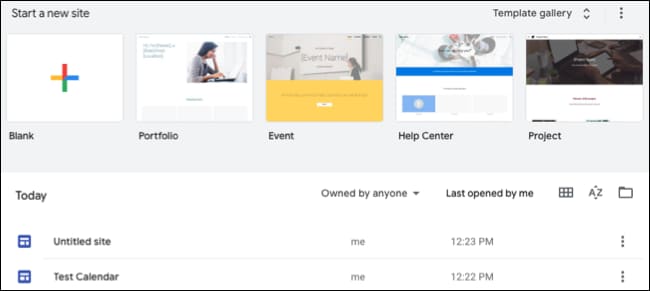
Like other Google apps like Drive, Docs, and Sheets, you get a simple home screen. At the top are google templates and at the bottom are your files.
Select a template at the top or click “Template Gallery” to see the full range of templates that google has to offer. You can also start with the Blank option (blank web page).
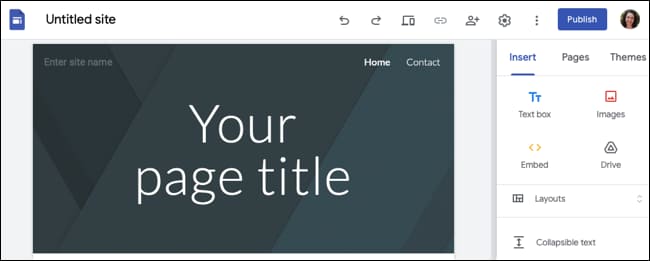
When you select a blank template or option, the website builder screen will appear.
At the top left, click the icon to return to the main Google Sites page or the text to name the file.
At the top right you have some icons. Starting from the left will be Undo, Redo, Preview, Copy a Link, Share, Settings, More, Publish and your profile icon.

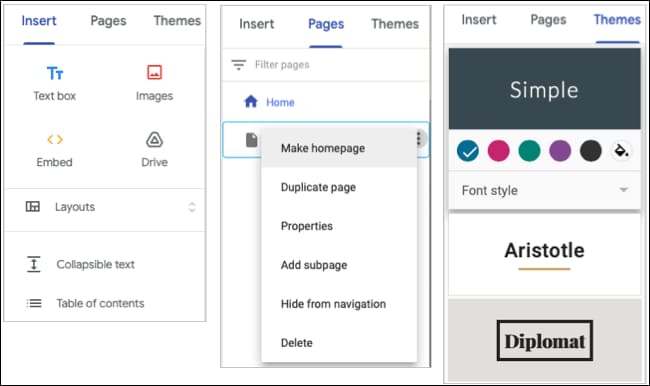
On the right side of the screen are the tools you will use to create your website. You have three tabs Insert, Pages, and Themes.
- Insert: Add page elements like text boxes, images, table of contents, calendars, files, etc.
- Pages: Manage pages for your website. You can add a page or subpage, duplicate a page, view its properties, or hide a page from the navigation.
- Themes: Whether you start with a template or not, you can change the theme of your site at any time. Choose a theme to change the look, fonts, and colors.
Build a website on Google Sites
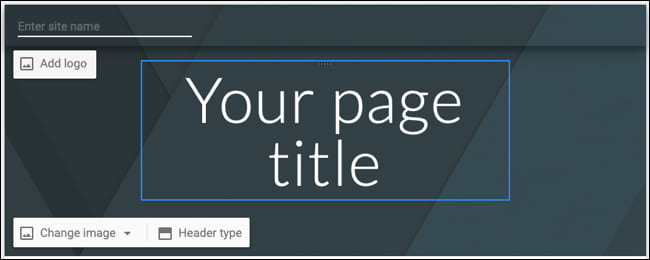
At the top of the page, you’ll see the site name, page title, and image.
- Click the “Enter Site Name” text to give your site a name, and click “Add Logo” if you want to add a logo.
- Click “Your Page Title” to give the page a title.
- Click on the header image and select “Change Image” and “Header Type” to change them.
For most of your page building, you’ll use the Insert tab on the right. You can create a page in minutes using the following features:
- Layout Selection
- Text boxes
- Images
- Embed options
- Collapsible text
- Table of contents
- Image carousel
- Buttons
- Dividers
- Placeholders
- Charts
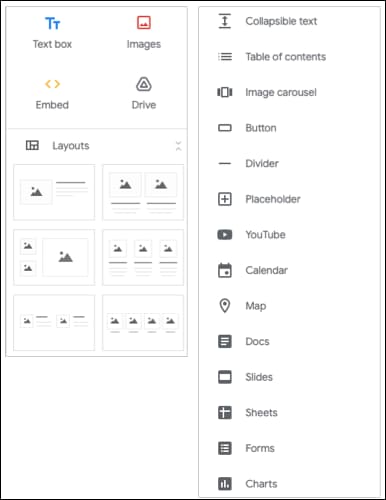
Additionally, you can insert items from other Google apps including YouTube, Maps, Docs, Slides, Sheets, and Forms.
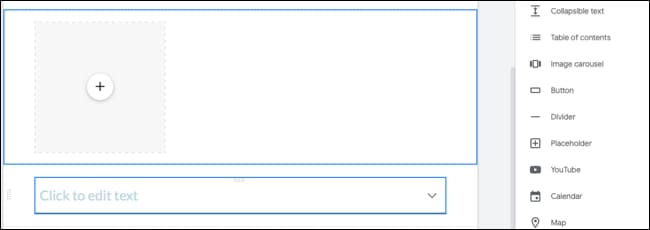
If you want to align text with images, you can choose from one of the six layouts below to help you position your items. Just click on a layout and it will apply to your page.
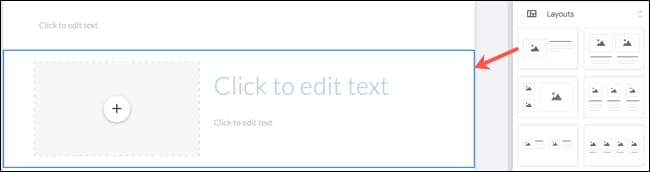
If you want to arrange your items yourself, click any item at the top or bottom of the Insert tab to place it on your page.
Configuring the element on the page
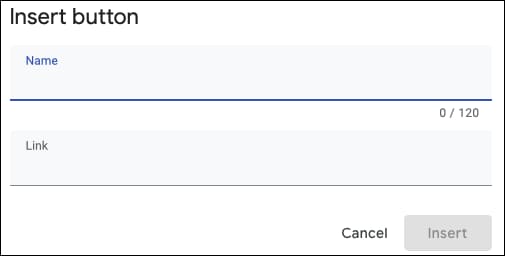
After placing the items on your page, you will be able to configure them. For example, if you insert a button, you will be able to give the button a name and link.
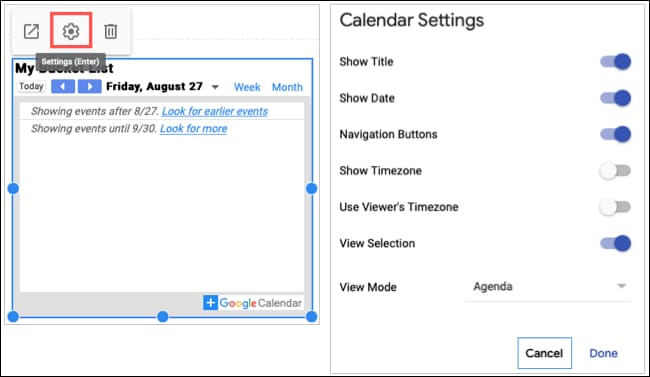
Or if you add Google Calendar, you’ll be able to choose which calendars to display, then choose to show things like the title, navigation buttons, and calendar view by clicking the gear icon in the toolbar.
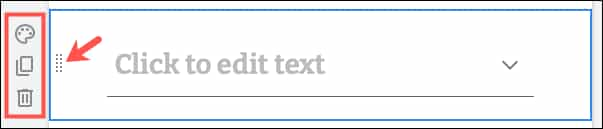
When you insert page elements, whether using layout or freeform, they stay in fixed sections. Those sections are covered by a blue border when you select an item within it. You will then see additional options on the left.
Hold down the mouse to move the section up or down. Or use the toolbar to select the section background, copy it, or delete it.
Adjust settings
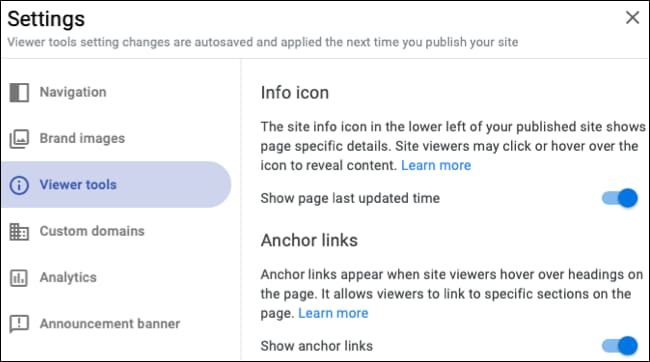
As you know, there is more to creating a website than just building pages. You can adjust the navigation, add a custom domain name or use a banner. Click the gear icon in the top right to open the settings.
Use the options on the left to choose a navigation location and color, add a brand image, use info icons and permalinks, set up a custom domain, connect your Google Analytics ID and create banners.
Upload website
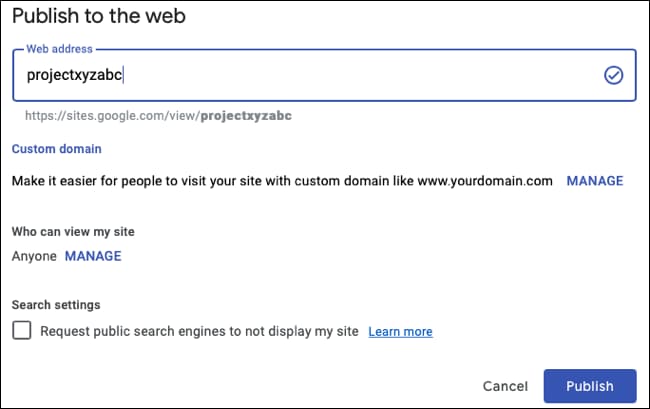
When you’re ready to publish your site to the world, click “Publish” in the top right.
If you haven’t set up a domain name in the settings above, you can do so here by clicking “Manage” under Custom Domain. Otherwise, your web address will start with http://sites.google.com/view/ with your site’s name after the slash.
To adjust who can see your site, click “Manage” next to Anyone. To keep your site away from search engines, select the option at the bottom. Click “Publish” to publish the website to the internet.
While there is much more to learn about the features and settings available in Google Sites, this article also gives you a brief introduction to the google suite. If you don’t want to create a website on google site, you can create a website using github here.