• Home
  • News
  • Software
  • Knowledge
  • MMO
  • Tips
  • Security
  • Network
  • Office
AnonyViet - English Version
  • Home
  • News
  • Software
  • Knowledge
  • MMO
  • Tips
  • Security
  • Network
  • Office
No Result
View All Result
  • Home
  • News
  • Software
  • Knowledge
  • MMO
  • Tips
  • Security
  • Network
  • Office
No Result
View All Result
AnonyViet - English Version
No Result
View All Result

How to use and upgrade Sidekick Pro browser for free

AnonyViet by AnonyViet
November 24, 2023
in Software
0

How to upgrade Sidekick Pro is one of the issues that many people are concerned about. Sidekick Pro offers more advanced features than the free version, like multiple workspaces, multiple app accounts, password sharing, custom web apps, and an unlimited number of sidebar apps . In this article, we will show you how to upgrade Sidekick Pro browser easily and quickly.

Join the channel Telegram belong to AnonyViet 👉 Link 👈

What is Sidekick browser?

Sidekick is an open source Chromium-based web browser, developed for people with attention deficit hyperactivity disorder (ADHD). Sidekick is designed to limit distracting factors and enhance attention.

You can use Sidekick for free with the basic version, or pay $8/month to get full browser functionality. But I will guide you how to upgrade Sidekick Pro completely free. Let’s follow along!

How to upgrade Sidekick Pro for free forever

Step 1: Access Sidekick home page > Click ‘Download’ or ‘Get it from Microsoft’ to download the software to your computer,
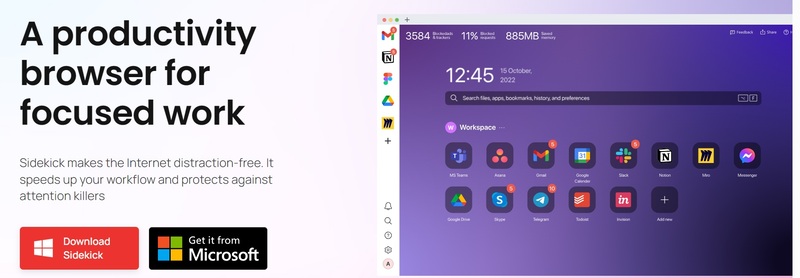
How to upgrade Sidekick Pro
Download Sidekick

Step 2: Log in to your Sidekick account

Step 3: Click Customize in the upper right corner of the screen > Select Account > Invite
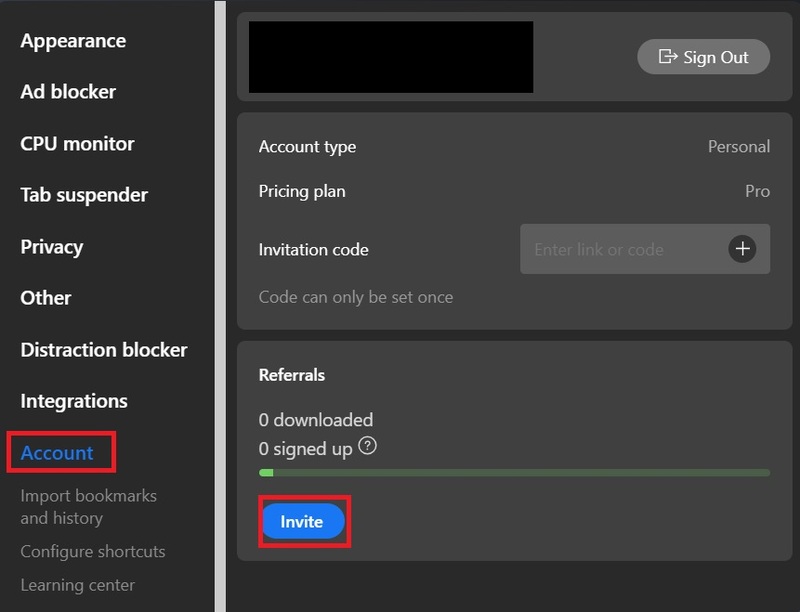
How to upgrade Sidekick Pro
Select Account > Invite

Step 4: Copy the referral link
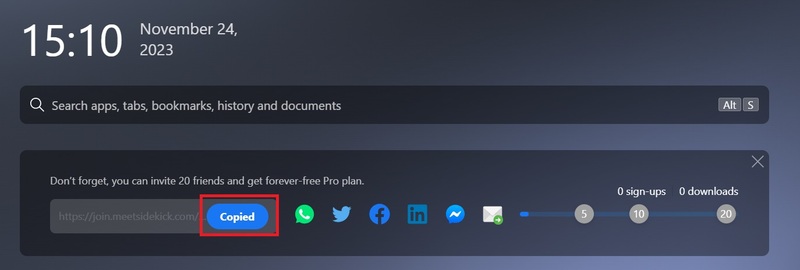
How to upgrade Sidekick Pro
Copy the referral link

Method 1: Use Telegram bot

This is the bot of the LK group (by Mr. Lang Khach, famous ipa mod master)

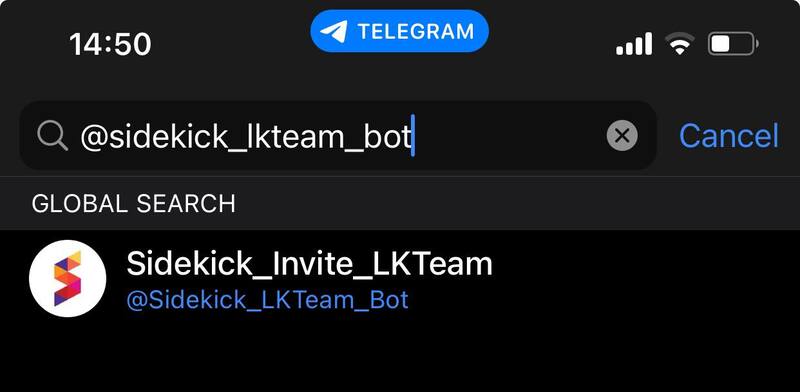
Step 1: Access the Telegram application on your phone > Click on Contacts > Search > Search for @sidekick_lkteam_bot
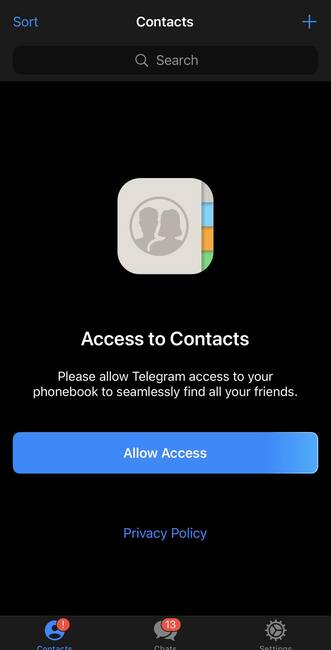
How to upgrade Sidekick Pro
Click Contacts > Search
How to upgrade Sidekick Pro
Search for @sidekick_lkteam_bot

Step 2: Click Start to start chatting with the bot

How to upgrade Sidekick Pro
Click Start

Step 3: Type in syntax:

/sidekick + space + invite link you copied earlier

How to upgrade Sidekick Pro
Type according to the syntax as instructed

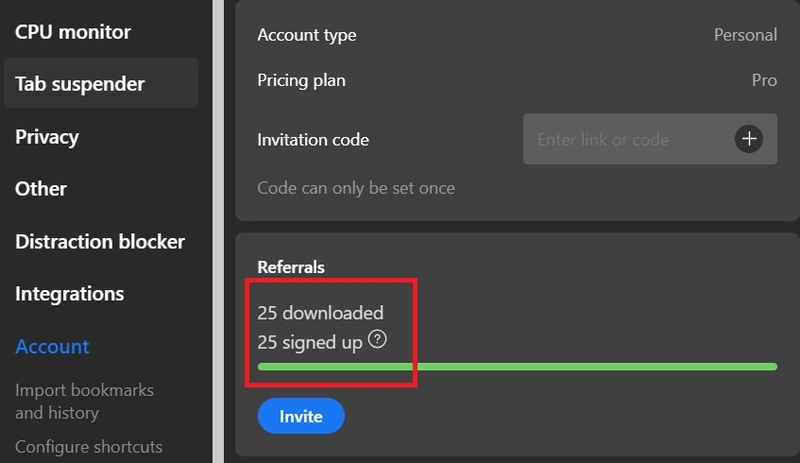
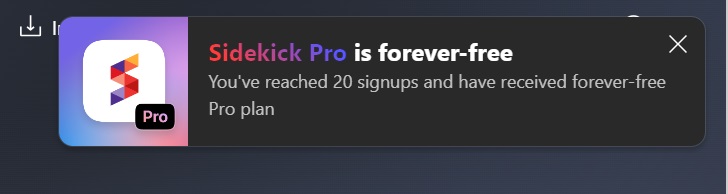
At this point, the bot will automatically activate 20 sign ups, making you eligible to own Sidekick Pro for free for life.
How to upgrade Sidekick Pro
The bot will automatically activate 20 sign ups
How to upgrade Sidekick Pro
Notice of successful upgrade to Sidekick Pro

Method 2: Use keyboard shortcuts

In addition to the above method, you can use keyboard shortcuts following the link The following

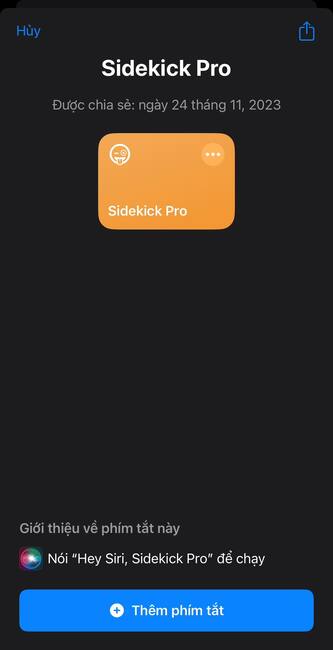
Step 1: Select ‘Add shortcut’
How to upgrade Sidekick Pro
Select ‘Add shortcut’

Step 2: Select the number of runs (default is 20) > Done

How to upgrade Sidekick Pro
Choose the number of runs

Step 3: Click allow when prompted

How to upgrade Sidekick Pro
Click allow

Sidekick’s outstanding features

Features to improve working efficiency

Sidekick has many features to help you work more efficiently, such as:

Sidebar: You can place your favorite apps and websites in the sidebar for quick access, no need to switch windows. You can place applications like WhatsApp, Gmail, Google Drive, Evernote, Slack, Notion, Microsoft Teams, etc.
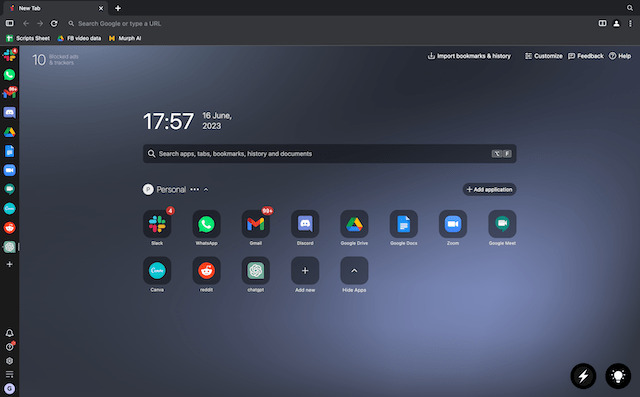
How to upgrade Sidekick Pro
Sidekick interface

Split mode: You can do two things at once without leaving the current browser window. For example, you can assign a task in Asana and reply to an email at the same time.

Integrated task management: You can pin important tasks for the day, create a to-do list, run a Pomodoro timer to manage your work day more effectively.
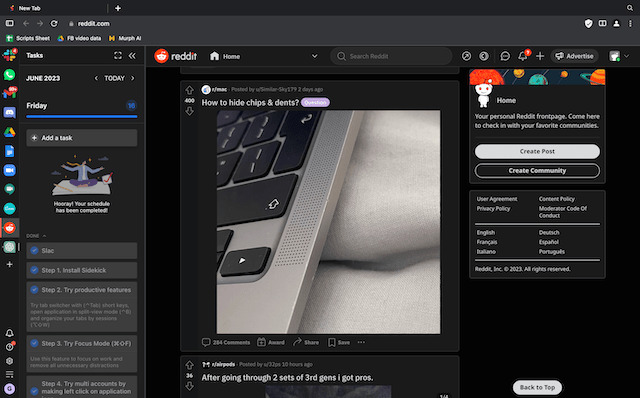
How to upgrade Sidekick Pro
You can pin important tasks for the day

Create session: You can group tabs together to categorize them by work, entertainment, and personal to keep your browser neatly organized. You can activate a session as needed and open specific sessions while keeping the browser clutter-free.
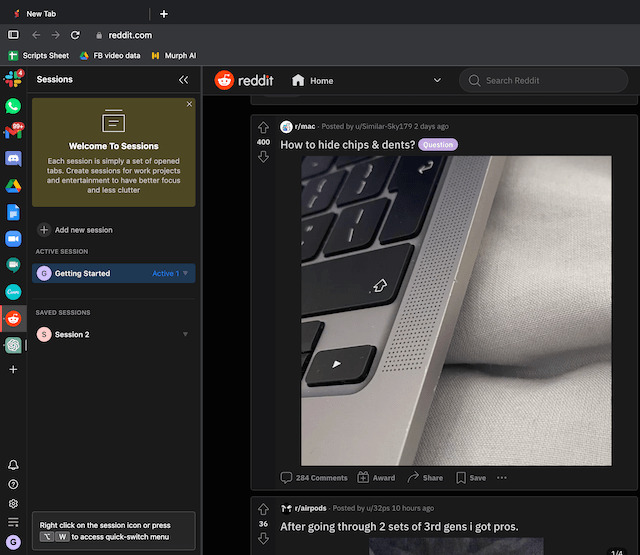
How to upgrade Sidekick Pro
Create session

Focus mode: In addition, Focus Mode in Sidekick is also for times when you really need to stay away from surrounding distractions. When this mode is enabled, the tab or application you are working on will be displayed in full screen and notifications will be disabled.
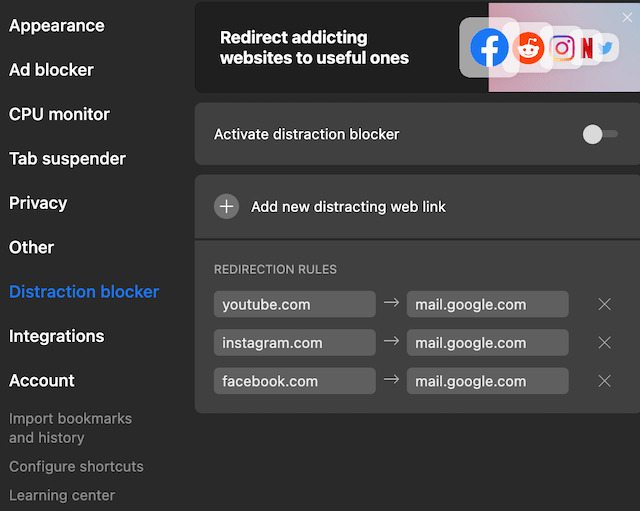
How to upgrade Sidekick Pro
Focus mode

Security features

Sidekick also has many security features to protect your privacy while surfing the web, such as:

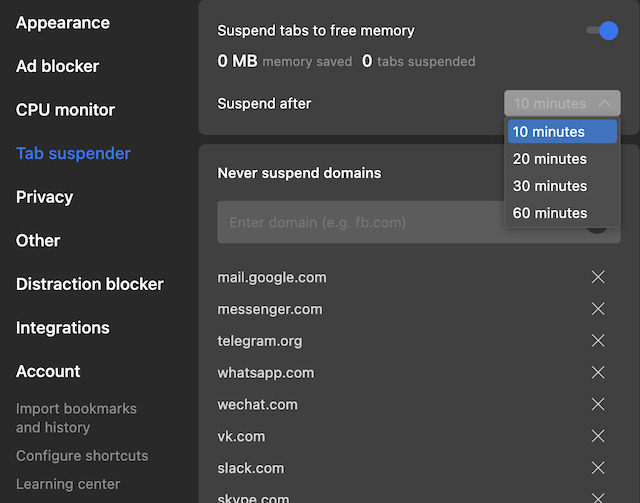
Pause tabs using AI: Sidekick makes the bold claim that it is three times faster than Google Chrome. The browser does that using Tab pause and AI-based memory optimization. Similar to Chrome’s tab freezing feature – pauses any tab you haven’t used for a while, thereby effectively saving RAM and battery.
How to upgrade Sidekick Pro
Pause tabs using AI

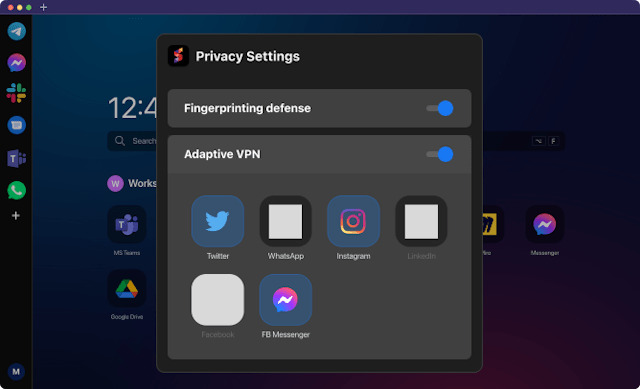
Privacy protection: Sidekick has a ‘fingerprint protection’ algorithm, which helps you avoid being identified and tracked by websites. This algorithm will make each of your requests appear to come from a different device, making it difficult to build a behavioral profile on your device.
How to upgrade Sidekick Pro
Protect your privacy

Block ads and tracking: Sidekick will block annoying ads and tracking from websites, helping you avoid data collection and user profiling.

Disable third-party cookies: Sidekick will disable third-party cookies, helping you prevent your data from being shared with unwanted third parties.

Integrated VPN: Sidekick has a built-in VPN, which helps you anonymize your IP address and access websites blocked in your country.

Epilogue

How to upgrade Sidekick Pro It’s not too difficult if you follow the instructions we have provided. This way, you will be able to experience the latest and greatest features of the browser. Wishing you a successful application!


Rate this post

Tags: browserfreeProSidekickupgrade
Previous Post

Windows App: Remote computer control application

Next Post

How to scan photos to your phone extremely sharp with PhotoScan

AnonyViet

AnonyViet

Related Posts

Instructions for looking up prescriptions on VNeID instead of paper medical books
Software

Instructions for looking up prescriptions on VNeID instead of paper medical books

April 26, 2026
Compare Poco X8 Pro and Poco X7 Pro: A new step for the “king” of mid-range performance
Software

Compare Poco X8 Pro and Poco X7 Pro: A new step for the “king” of mid-range performance

April 24, 2026
Top 5 apps to view good days 2026 for free on iOS and Android
Software

Top 5 apps to view good days 2026 for free on iOS and Android

April 23, 2026
Top 5+ utilities to install for Gmail to speed up work processing
Software

Top 5+ utilities to install for Gmail to speed up work processing

April 22, 2026
Decoding the problem of 4GB RAM and processing performance
Software

Decoding the problem of 4GB RAM and processing performance

April 21, 2026
4K Video Downloader Plus – Tool to download YouTube videos on macOS
Software

4K Video Downloader Plus – Tool to download YouTube videos on macOS

April 20, 2026
Next Post
How to scan photos to your phone extremely sharp with PhotoScan

How to scan photos to your phone extremely sharp with PhotoScan

0 0 votes
Article Rating
Subscribe
Login
Notify of
guest

guest

0 Comments
Oldest
Newest Most Voted
Inline Feedbacks
View all comments

Recent News

Tips for pinning the step counter to the iPhone screen to monitor your health

Tips for pinning the step counter to the iPhone screen to monitor your health

April 28, 2026
How to turn off password suggestions on iPhone: Prevent Safari from auto-filling passwords

How to turn off password suggestions on iPhone: Prevent Safari from auto-filling passwords

April 27, 2026
Instructions for looking up prescriptions on VNeID instead of paper medical books

Instructions for looking up prescriptions on VNeID instead of paper medical books

April 26, 2026
Tips to completely turn off CAPTCHA codes on iPhone and Mac are super simple

Tips to completely turn off CAPTCHA codes on iPhone and Mac are super simple

April 25, 2026
Tips for pinning the step counter to the iPhone screen to monitor your health

Tips for pinning the step counter to the iPhone screen to monitor your health

April 28, 2026
How to turn off password suggestions on iPhone: Prevent Safari from auto-filling passwords

How to turn off password suggestions on iPhone: Prevent Safari from auto-filling passwords

April 27, 2026
Instructions for looking up prescriptions on VNeID instead of paper medical books

Instructions for looking up prescriptions on VNeID instead of paper medical books

April 26, 2026
AnonyViet - English Version

AnonyViet

AnonyViet is a website share knowledge that you have never learned in school!

We are ready to welcome your comments, as well as your articles sent to AnonyViet.

Follow Us

Contact:

Email: anonyviet.com[@]gmail.com

Main Website: https://anonyviet.com

Recent News

Tips for pinning the step counter to the iPhone screen to monitor your health

Tips for pinning the step counter to the iPhone screen to monitor your health

April 28, 2026
How to turn off password suggestions on iPhone: Prevent Safari from auto-filling passwords

How to turn off password suggestions on iPhone: Prevent Safari from auto-filling passwords

April 27, 2026
No Result
View All Result
  • Home
  • News
  • Software
  • Knowledge
  • MMO
  • Tips
  • Security
  • Network
  • Office

wpDiscuz
0
0
Would love your thoughts, please comment.x
()
x
| Reply