• Home
  • News
  • Software
  • Knowledge
  • MMO
  • Tips
  • Security
  • Network
  • Office
AnonyViet - English Version
  • Home
  • News
  • Software
  • Knowledge
  • MMO
  • Tips
  • Security
  • Network
  • Office
No Result
View All Result
  • Home
  • News
  • Software
  • Knowledge
  • MMO
  • Tips
  • Security
  • Network
  • Office
No Result
View All Result
AnonyViet - English Version
No Result
View All Result

How to turn off the Weather utility on the Windows 11 Taskbar

AnonyViet by AnonyViet
January 26, 2023
in Tips
0

With the recent Windows 11 Insider 22518 version, Microsoft introduced some new changes such as the Spotlight desktop wallpaper and a new accessibility feature called Voice access. Besides, the Redmond giant has also adjusted the way you access widgets. Later on, you will see a weather icon on the taskbar, like News . widget of Windows 10. However, this implementation is quite annoying, and the widget page is automatically activated when you hover your mouse over the weather icon. If you are not interested in tracking the weather right from the taskbar or simply want to remove it, here is how to disable the weather widget on Windows 11.

Join the channel Telegram of the AnonyViet 👉 Link 👈

How to turn off the weather widget on the Windows 11 Taskbar

As mentioned above, the new weather widget icon on the taskbar is only available on the latest Windows Insider build 22518. However, I also guide the steps to enable this feature on the stable build because It’s still in A/B testing. You can try this feature out before it’s officially released and save this post to disable the new weather widget when it launches with the next Windows 11 update.

Force enable weather widget on Taskbar in Windows 11

1. Since the new weather widget isn’t available to everyone yet, you’ll need to use Albacore’s ViveTool to enable it manually. To get started, download the latest ViveTool release fromGitHub.
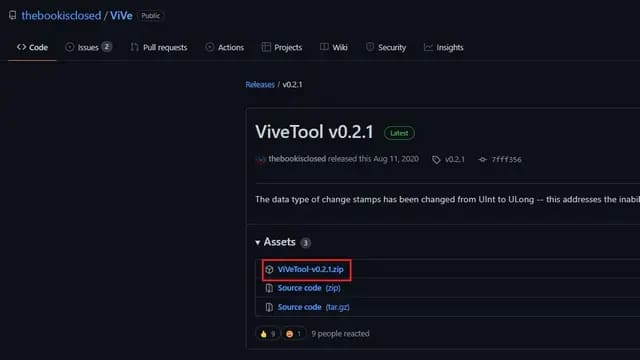
How to turn off the weather widget on the Windows 11 taskbar

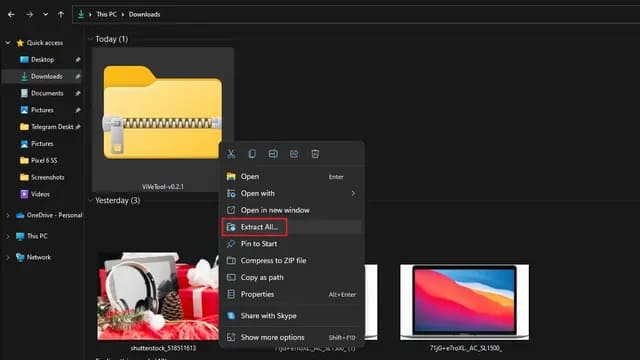
2. After downloading the ZIP file, right click on the file and select the “Extract All” option.
How to turn off the Weather utility on the Windows 11 Taskbar 18

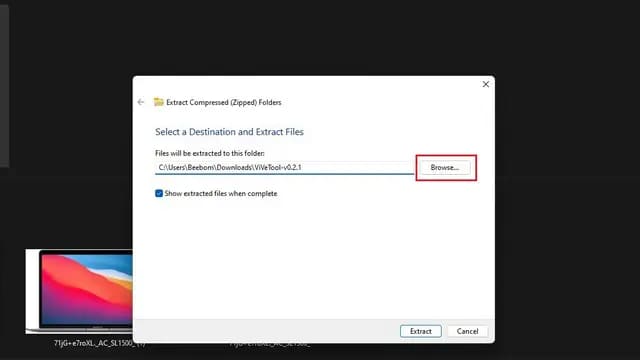
3. Then, click the “Browse” button to change the destination folder.
How to turn off the Weather utility on the Taskbar Windows 11 19

4. Go to folder to Windows -> System32 and select “Select Folder”.
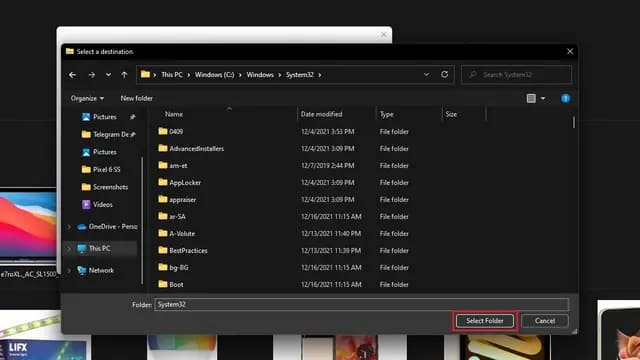
How to turn off the Weather utility on the Windows 11 Taskbar

5. After selecting the path, click “Extract” to transfer the contents to the destination folder.
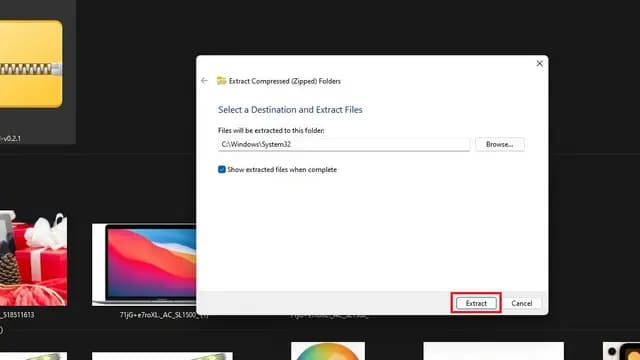
How to turn off the Weather utility on the Windows 11 Taskbar

6. Now that you have set up ViveTool, press the Windows key once, type “cmd” and click “Run as administrator” on the right menu to run Command Prompt with administrative rights.

How to turn off the Weather utility on the Windows 11 Taskbar

7. In the Command Prompt window, paste the following commands individually and wait for the confirmation message. After running all the commands, restart your Windows 11 PC.

vivetool addconfig 36553793 2
vivetool addconfig 36226456 2
vivetool addconfig 36226054 2
vivetool addconfig 34301415 2
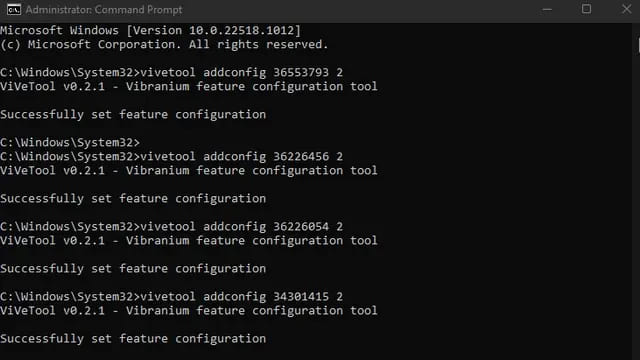
How to turn off the Weather utility on the Windows 11 Taskbar

8. One last step you should take is to update the Windows web experience pack. To do that, open the Microsoft Store, switch to the “Library” section and click the “Update” button. In case you don’t see the update, you can install Winget and use the command below to update the package manually.

winget upgrade 9MSSGKG348SP
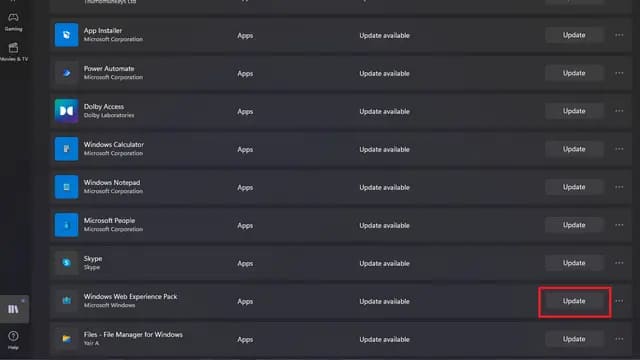
How to turn off the Weather utility on the Windows 11 Taskbar 24

9. If you have centered the taskbar, you will see a weather widget in the bottom left corner. In case you have moved the taskbar icons to the left, the new weather icon will replace the existing widget icon in the center.
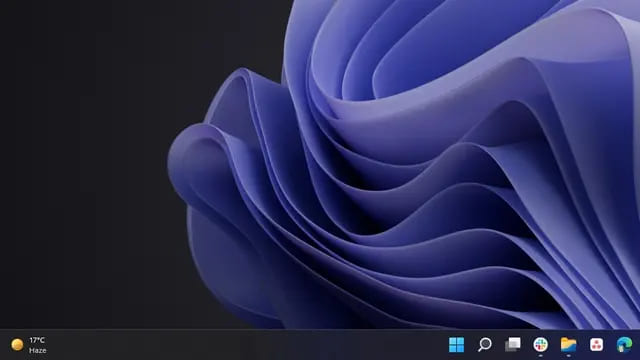
How to turn off the Weather utility on the Windows 11 Taskbar

Turn off the Windows 11 weather utility from the Settings of the Taskbar

1. Right-click anywhere on the Taskbar and select “Taskbar settings”.
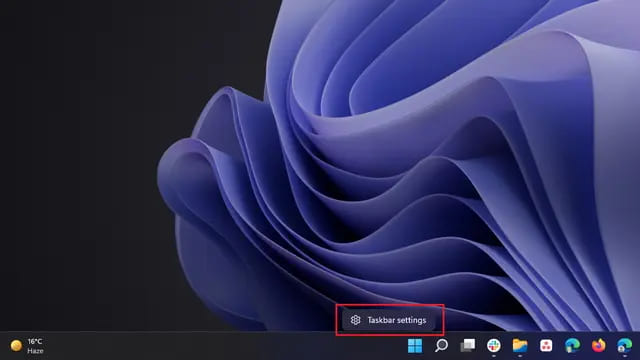
How to turn off the Weather utility on the Windows 11 Taskbar

2. From the Taskbar settings page, turn off the “Widgets” toggle. You will no longer see the weather widget on the Windows 11 taskbar.
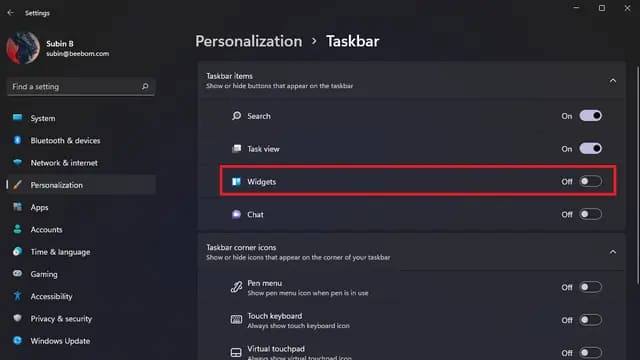
How to turn off the Weather utility on the Windows 11 Taskbar

Remove Windows 11 Weather Widget with Windows Settings

1. Another way to remove the weather widget is using the Settings app. Open the Settings app with the Windows 11 keyboard shortcut “Win ​​+ I” and navigate to Personalization -> Taskbar.
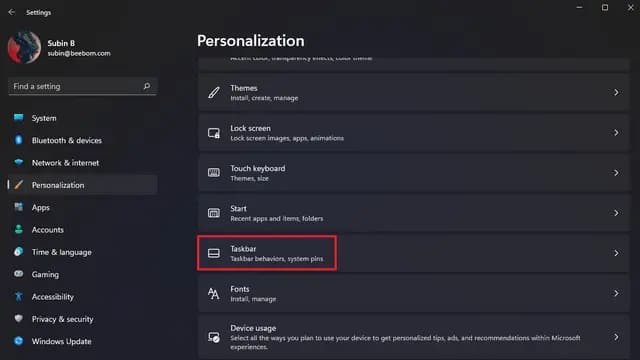
How to turn off the Weather utility on the Windows 11 Taskbar

2. You can now disable widget toggle to delete Windows 11 widgets.

How to turn off the Weather utility on the Windows 11 Taskbar

Uninstall Windows 11 Weather Widget Using Winget

1. If you want to uninstall alternative extensions, you can also do that by uninstalling the Windows web experience pack. First, press the Win key, type “cmd” and run Command Prompt with administrator privileges.

How to turn off the Weather utility on the Windows 11 Taskbar

2. Then, run the command below and press Enter to uninstall the Windows Web Experience Pack from your Windows 11 PC. If you want to reinstall the widgets later, you can re-download the package from the Microsoft Store.

winget uninstall "windows web experience pack"
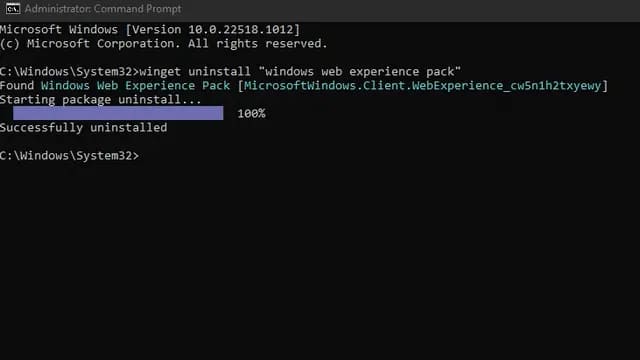
How to turn off the Weather utility on the Windows 11 Taskbar

The article achieved: 5/5 – (100 votes)

Tags: TaskbarturnutilityWeatherWindows
Previous Post

Lesson 37: How to get the sheet name in Excel

Next Post

How to Sign Up for Dohostme’s Free 1-Year SSD Hosting

AnonyViet

AnonyViet

Related Posts

Suggested AI command to create a rustic and charming image of a Ban Lien girl
Tips

Suggested AI command to create a rustic and charming image of a Ban Lien girl

November 16, 2025
Windows 10 will have a new, simpler interface
Tips

Windows 10 will have a new, simpler interface

November 16, 2025
How to check what data Facebook is controlling about you
Tips

How to check what data Facebook is controlling about you

November 15, 2025
How to record Chromebook screen – ChromeOS
Tips

How to record Chromebook screen – ChromeOS

November 14, 2025
How to create photos under the snow extremely quickly in just a few minutes
Tips

How to create photos under the snow extremely quickly in just a few minutes

November 13, 2025
How to Create a QR code to connect to Wifi without giving the guest a Password
Tips

How to Create a QR code to connect to Wifi without giving the guest a Password

November 13, 2025
Next Post
How to Sign Up for Dohostme’s Free 1-Year SSD Hosting

How to Sign Up for Dohostme's Free 1-Year SSD Hosting

0 0 votes
Article Rating
Subscribe
Login
Notify of
guest

guest

0 Comments
Oldest
Newest Most Voted
Inline Feedbacks
View all comments

Recent News

Suggested AI command to create a rustic and charming image of a Ban Lien girl

Suggested AI command to create a rustic and charming image of a Ban Lien girl

November 16, 2025
Windows 10 will have a new, simpler interface

Windows 10 will have a new, simpler interface

November 16, 2025
Share Key Active Visual Studio 2026

Share Key Active Visual Studio 2026

November 15, 2025
Instructions for using the online number-to-word conversion tool for accountants and offices

Instructions for using the online number-to-word conversion tool for accountants and offices

November 15, 2025
Suggested AI command to create a rustic and charming image of a Ban Lien girl

Suggested AI command to create a rustic and charming image of a Ban Lien girl

November 16, 2025
Windows 10 will have a new, simpler interface

Windows 10 will have a new, simpler interface

November 16, 2025
Share Key Active Visual Studio 2026

Share Key Active Visual Studio 2026

November 15, 2025
AnonyViet - English Version

AnonyViet

AnonyViet is a website share knowledge that you have never learned in school!

We are ready to welcome your comments, as well as your articles sent to AnonyViet.

Follow Us

Contact:

Email: anonyviet.com[@]gmail.com

Main Website: https://anonyviet.com

Recent News

Suggested AI command to create a rustic and charming image of a Ban Lien girl

Suggested AI command to create a rustic and charming image of a Ban Lien girl

November 16, 2025
Windows 10 will have a new, simpler interface

Windows 10 will have a new, simpler interface

November 16, 2025
  • Home
  • Home 2
  • Home 3
  • Home 4
  • Home 5
  • Home 6
  • Next Dest Page
  • Sample Page

new88 trang chủ shbet trang chủ f168 trang chủ qq88 nhà cái 78win

No Result
View All Result
  • Home
  • News
  • Software
  • Knowledge
  • MMO
  • Tips
  • Security
  • Network
  • Office

new88 trang chủ shbet trang chủ f168 trang chủ qq88 nhà cái 78win

wpDiscuz
0
0
Would love your thoughts, please comment.x
()
x
| Reply