How to turn off the red screen on StandBy mode is a great solution to restore the original color of the horizontal charging screen. Normal StandBy mode will help you track time and notify you extremely conveniently every time you charge the battery. However, the mechanism that automatically changes the color to red when it gets dark unintentionally causes trouble for many viewers. Let’s go together AnonyViet Learn the super easy adjustments below!
📢 Join the channel Telegram belong to AnonyViet
Update new articles, cool tools and IT tips fastest
What is the StandBy screen feature on the phone?
Every time you plug in the charging cord and place your phone horizontally, the StandBy feature will automatically be activated immediately. This is an extremely interesting utility that helps transform the screen iPhone into a smart desk clock. Thanks to that, you can easily track a lot of useful information such as widgets, favorite image display frames or trendy watch faces.
However, during the actual experience, there is a small point that makes many people feel uncomfortable. That is, every time the device’s light sensor detects that the surrounding environment is dark or the light in the room is weak, the entire interface StandBy will automatically switch to tones red glowing. Instead, many people still prefer to see more vibrant and realistic colors. Therefore, finding a way to turn off the red screen in StandBy mode is a common need of many users.

Why does the StandBy screen turn red at night?
The main reason why the screen turns red is because the system has enabled the Night Mode feature in the settings. The original purpose of this feature is to protect eyes and limit glare in dark bedrooms. When the environmental sensor sees the light go out, the machine will automatically dye all details red to reduce visual stimulation.
Although this feature is quite thoughtful, not everyone likes to see a red screen every night. Many of you feel that the familiar photo frames or colorful widgets suddenly become much more difficult to see. Fortunately, you can completely turn off this mode to preserve the original color of the interface.
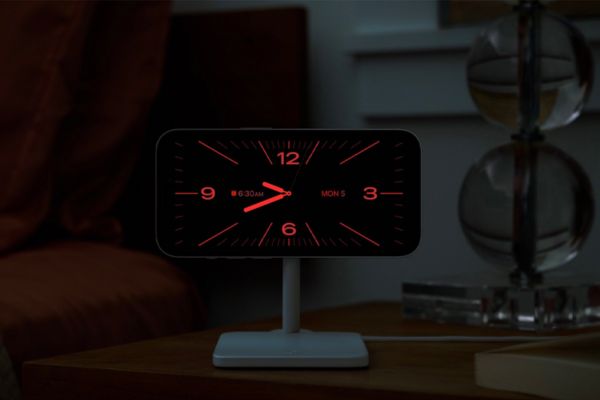
Instructions on how to turn off the red screen in StandBy mode
To remove the monochrome red color and return the standby screen to natural, vivid colors, you just need to follow these extremely brief steps:
Step 1: Open the application Settings available right on your phone’s home screen.
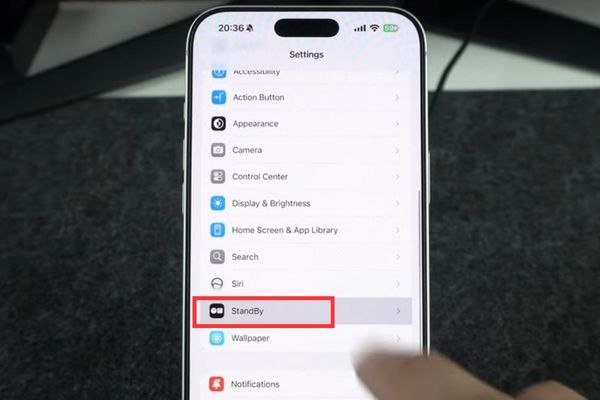
Step 2: Scroll the screen down, find and click on the item StandBy.
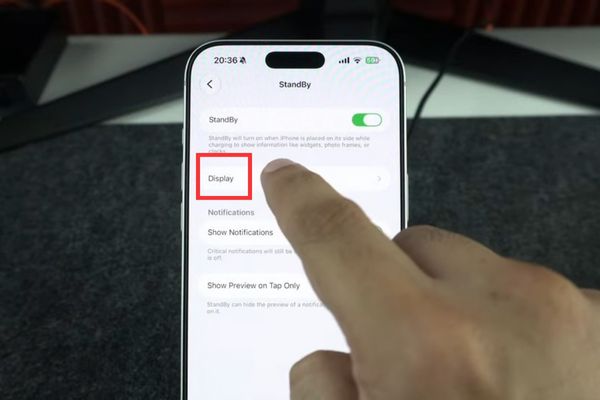
Step 3: Continue clicking on the item Display to open up advanced display options.
Step 4: At the screen settings interface that has just appeared, go to the At Night section and you will immediately see the switch Night Mode.
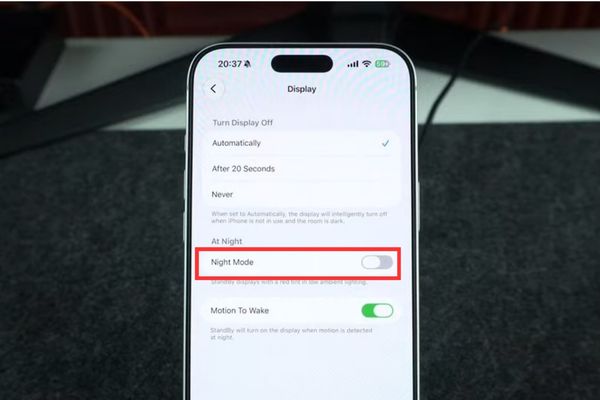
Step 5: You just need to turn off this Night Mode switch bar and you’re done.
With just a few quick steps as above, turning off the red screen in StandBy mode has been done successfully. From now on, no matter how dark or dimly lit your room is, the StandBy screen will always retain its original bright colors and will never change to red.

How to turn red mode back on when you want it
If after a period of use, you want to protect your eyes at night or want to experience the familiar soothing red color again, you can completely restore it at any time. You just need to repeat the above steps exactly, then wipe Turn the Night Mode switch back on. Thanks to that, you can proactively switch flexibly between two display modes depending on your own preferences and needs.
Conclusion
Hopefully the previous instructions have helped you understand How to turn off red screen on StandBy mode to comfortably enjoy colorful widgets. This customization is both quick and helps the phone look more beautiful when charging at night. Hope you do it successfully and have a satisfying screen viewing experience.
Frequently Asked Questions (Q&A)
1. When does the StandBy screen turn on automatically?
The StandBy screen will automatically activate every time you plug in the phone and place it horizontally.
2. Why does the StandBy screen automatically change to red at night?
Because the phone’s light sensor detects that the surrounding space is dark or poorly lit, it automatically activates the Night Mode feature.
3. Can I turn the red screen back on after turning it off?
Yes, you just need to go back to Settings, select StandBy, go to Display and turn the Night Mode switch back on.