Turn photos into editable design files is the wish of many people when encountering a beautiful design online. Instead of having to start drawing from scratch, you can fully take advantage of the power of AI to save time. Let’s go together AnonyViet Discover this secret right here.
📢 Join the channel Telegram belong to AnonyViet
Update new articles, cool tools and IT tips fastest
The nightmare of having beautiful photos but not being able to edit them
Surely all of you who work in marketing or design have been in this situation: Hanging out on Pinterest and seeing a great infographic, or a poster template exactly what you need. But unfortunately, it’s just one still photo (PNG or JPG file). If you want to use it, you have to sit down and re-map each icon, re-type each line of text, and re-select each color. Just thinking about it makes you feel discouraged, right?
In fact, redesigning from scratch is not only time-consuming but also easily loses the “spirit” of the original model. Many times we just want to change the content a little to suit our personal needs. Instead, if there is some miracle that helps us “disintegrate” that photo into each layer How good would it be to fix it? And the good news is, that magic is completely real right on the tool Canva familiar.

How to turn photos into editable design files
This is the “secret weapon” that I want to share with everyone. No need to be an expert Photoshop or Illustrator, you can still turn photos into editable design files in a snap. This tool is called Codia AI Design – an integrated application right inside Canva’s ecosystem.
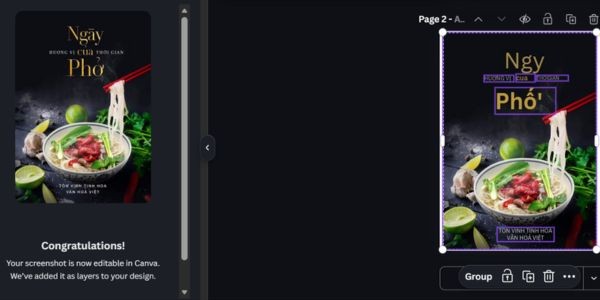
The beauty of Codia AI is that it uses artificial intelligence to scan your entire photo. It will identify text, images, and geometric shapes. After scanning, it will reconstruct the image as separate components. Thanks to that, you can click on the text to edit the content, drag and drop icons or change colors as desired.
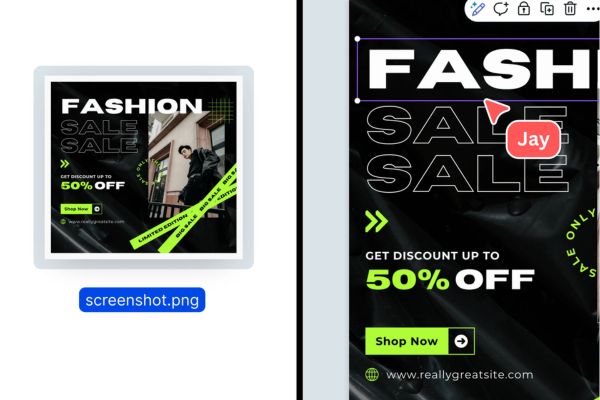
To start turning photos into editable design files, just follow these extremely simple steps. Please prepare the photo you want to have surgery on.
Step 1: First, you go to Canva and open a blank design page. Then, look at the left toolbar, find the item Apps.
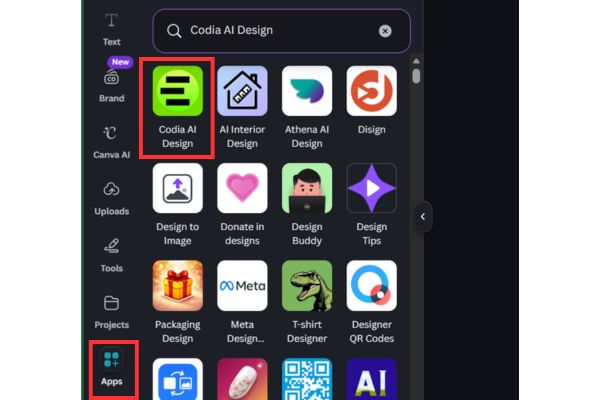
Step 2: In the search box of the Apps section, type in keywords Codia AI Design. When the results appear, select the correct application with the square icon > Tap Open > Connect.
Step 3: Next, you need to upload the photo you want to edit. You can drag and drop directly or select from your computer. Codia AI very well supports screenshots, images from Pinterest or even images created by ChatGPT and Gemini but with text errors.
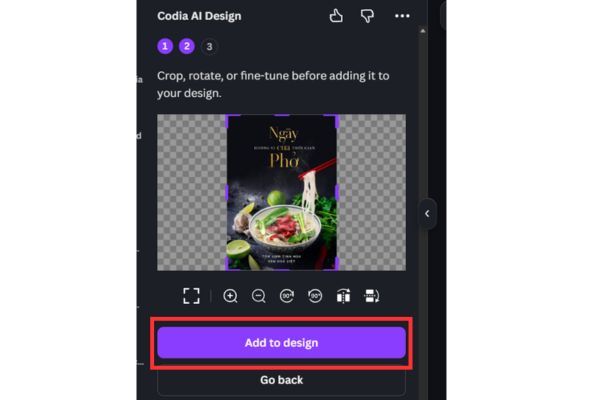
Step 4: Once uploaded, you click the button Add to design Let AI start the scanning and analysis process. Wait a few seconds (depending on the complexity of the image), the system will return a complete design version with separated layers.
Step 5: Now, you just need to click on the elements on the design to edit. You can change the font, edit the content, change the background color or add or remove icons as you like. Thanks to that, the original static image has become a completely “living” design file.
Small notes
Although this tool is very powerful, to turn images into editable design files most effectively, you should keep in mind a few points.
- Uploaded photos should be of clear quality, not too blurry or grainy.
- For unusual fonts that Canva does not have available, the system will automatically switch back to a similar default font. At this point, you just need to choose the font you like in Canva’s library and you’re done.
Conclusion
Job Turn photos into editable design files Now it’s no longer something too far-fetched for Canva users. Thanks to the support of AI, we can optimize the workflow to the maximum. Hope this little tip will help you in your daily work.
Frequently Asked Questions (Q&A)
1. Does Codia AI Design on Canva cost anything?
Currently you can experience this tool in the Apps section of Canva. Depending on the developer’s policy, there may be a limit to the number of free sessions or a Canva Pro account may be required for best results.
2. Why did the font in my photo change after scanning?
If the original font in the image is not available in Canva’s library, Codia AI will automatically replace it with a default font that is most similar. You can completely choose another font later.
3. Can I use this feature to edit photos taken from my phone?
Absolutely. However, for AI to accurately identify components, you should use photos with a clear layout, text that is not too slanted or obscured by other objects.