How to add number row on iPhone will help you save a lot of time when texting or working. Actually, having to switch back and forth between letters and numbers on iOS is sometimes quite annoying. Luckily, we have 3 great methods to overcome this situation. Let’s go together AnonyViet Find out details in the following article!
📢 Join the channel Telegram belong to AnonyViet
Update new articles, cool tools and IT tips fastest
Instructions on how to add a row of number keys on iPhone
Unlike most Android devices today, the default English keyboard of iOS does not have a separate row of numbers. To type the numbers from 0 to 9, you must touch the 123 button and then select the number you need. Actually, this operation is quite time consuming! If your job requires you to enter data continuously and quickly, this is a real torture. Therefore, this article will show you great methods to overcome this inconvenience.
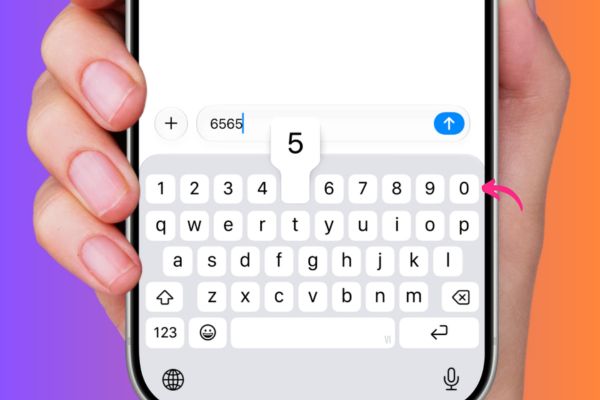
1. Use Microsoft Swiftkey keyboard
SwiftKey is an application keyboard of an extremely famous third party. It offers excellent word prediction, interface customization, swipe to type, and especially the option to display the number row right above the QWERTY layout. Personally, I have been using SwiftKey on iPhone for 12 years now, almost since the first day Apple allowed installing external keyboards on the iOS operating system. It will definitely take you a few days to get used to it, but once you get used to it, typing is super fun.
Step 1: Download version SwiftKey latest arrival.
Step 2: Open the app and tap Begin. You can skip signing in to your Microsoft account by choosing to do it later, and refuse to share keystroke data if you want to keep your personal information secure.
Step 3: Now, press the button Take me there Let the system automatically open the device’s settings.
Step 4: Select item Keyboardturn on the switch next to SwiftKey, then turn it on Allow Full Access to grant full access. Or you can also go to General Settings, select Keyboards, add a new keyboard and then search for SwiftKey.
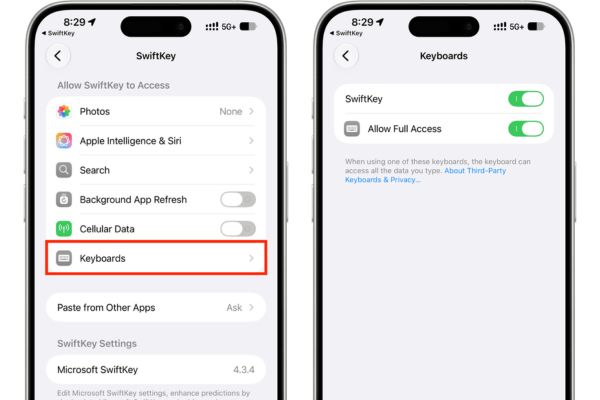
Step 5: Return to the SwiftKey application, press and hold globe icon to switch to this keyboard. When finished, press Next on the screen indicating successful installation.
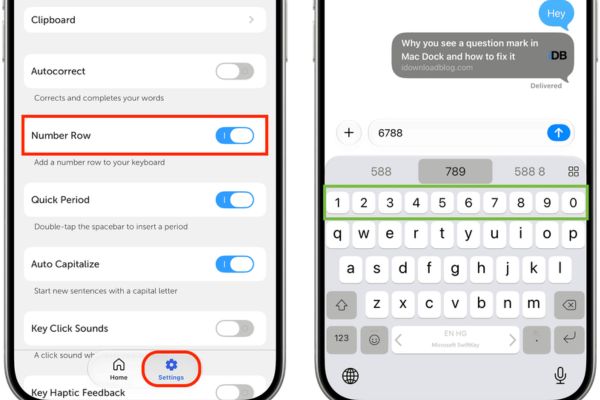
Step 6: Switch tabs Setting of the app and enable the feature Number Row.
Step 7: Now try opening the message or note and see. A row of genuine numbers has appeared at the top, helping you type freely without having to touch the 123 button anymore.
In case you feel itchy with redundant buttons like the Copilot icon, just go back to the application’s Settings. Here you can turn it off:
- Voice input
- Displays the Copilot icon
- Show left menu button or default toolbar.
Then remember to completely exit the application you are typing and reopen it for the changes to take effect. Thanks to that, your keyboard will be much neater. Once you get used to it, you can even delete the original Apple keyboard, keeping only SwiftKey and the Emoji keyboard to make your device lighter.
2. Use Google Gboard
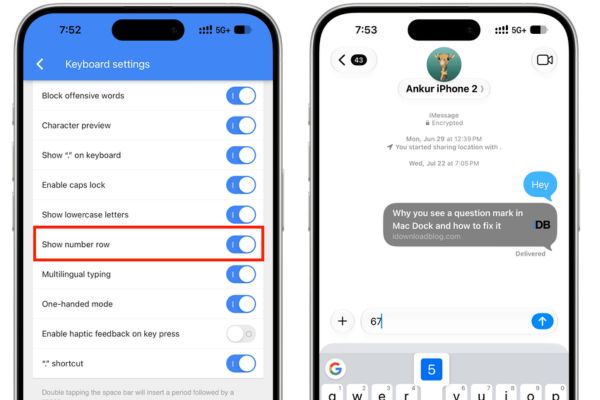
Gboard then it goes in a slightly different direction. This application does not provide a completely separate row of numbers like SwiftKey. Instead, you can turn on the number line display feature in the app’s settings.
You will then enter the numbers 0 to 9 by pressing and holding the letter keys on the top row. Although not as intuitive as having a row of prominent keys, this is also a convenient way to add a row of number keys on the iPhone for those who are die-hard fans of the Google ecosystem.
3. Use Apple’s Vietnamese keyboard
If you are a safe system player and do not like to install third-party apps, try this tip now. The Vietnamese VNI keyboard and the Arabic transliteration keyboard on the iPhone actually have the original number row built-in. However, Arabic keyboards type from right to left and turn English words into Arabic, so this option is considered abandoned. Therefore, the only option left for us is the Vietnamese keyboard.
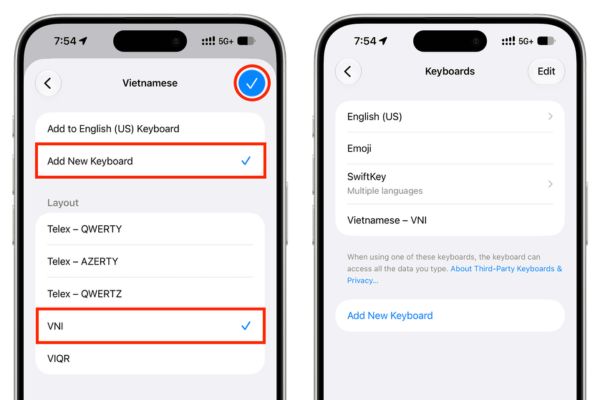
Step 1: Visit Settings > General > Keyboard > Add New Keyboard.
Step 2: Scroll down to the bottom and select Vietnamese.
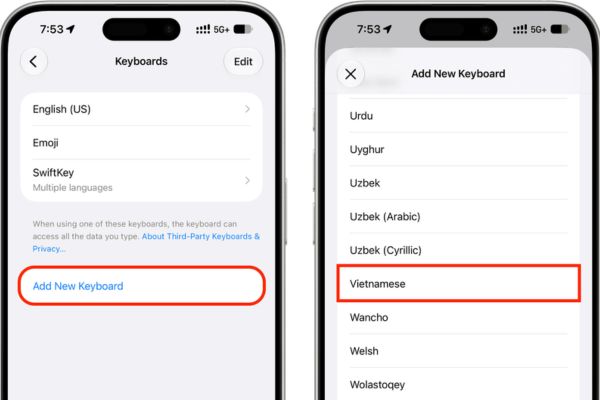
Step 3: Remember to choose Add New Keyboard.
Step 4: Select typing method VNI Because this is the true love that helps display the number line, then click on the check mark icon.
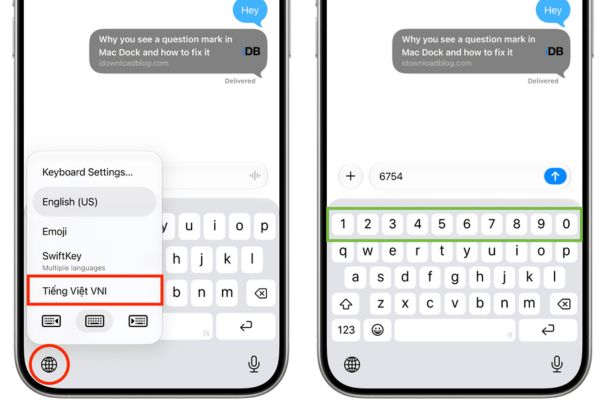
Step 5: Open any application to type. You just need to hold down the globe icon, switch to the Vietnamese keyboard and you will immediately see a row of numbers appear at the top. Too much!
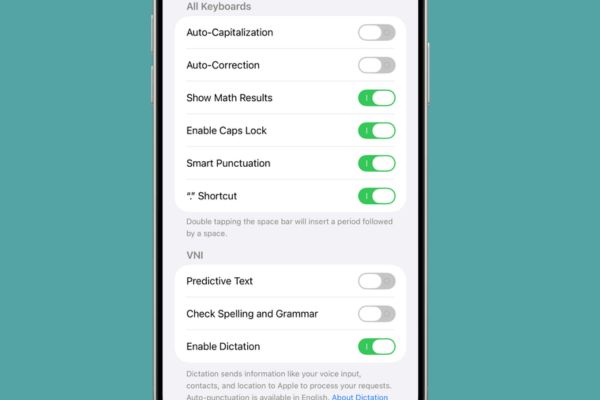
To turn off unnecessary Vietnamese word suggestions, just go back to the keyboard settings. Here, turn off auto-correction, text prediction and spell checking and you’re done.
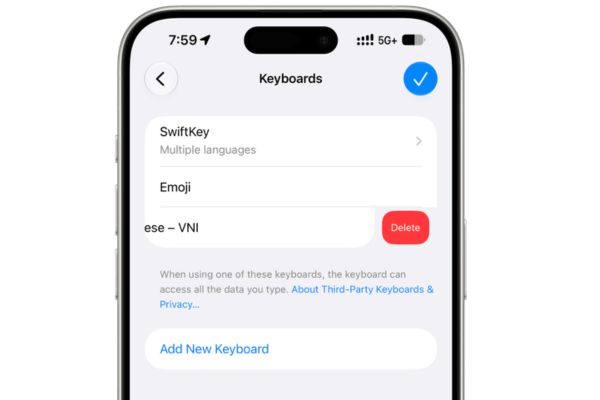
If you get bored and don’t want to use it anymore, just swipe left in the keyboard settings and press delete. But remember to add another keyboard before deleting.
Conclusion
Hopefully through this article, you have a clear understanding How to add number row on iPhone best suits your needs. Whether you choose to use SwiftKey, Gboard or VNI keyboard, your input speed will certainly improve significantly. Don’t forget to share this great tip with your friends.
Frequently Asked Questions (Q&A)
1. Does the iPhone’s default keyboard have a separate number row?
No, the default iOS English keyboard does not have a separate number row. You must press button 123 to switch to the number typing interface.
2. Is it safe to use the SwiftKey keyboard?
Yes, SwiftKey is a reputable application developed by Microsoft. You can completely refuse to share keystroke data from the beginning to protect your privacy.
3. Why does the VNI keyboard show spelling errors when typing in English?
Because this is a keyboard designed specifically for Vietnamese. When you type in English, the system cannot recognize the vocabulary so it will underline in red to report an error. You just need to go to settings to turn off the spell check feature and you’re done.