• Home
  • News
  • Software
  • Knowledge
  • MMO
  • Tips
  • Security
  • Network
  • Office
AnonyViet - English Version
  • Home
  • News
  • Software
  • Knowledge
  • MMO
  • Tips
  • Security
  • Network
  • Office
No Result
View All Result
  • Home
  • News
  • Software
  • Knowledge
  • MMO
  • Tips
  • Security
  • Network
  • Office
No Result
View All Result
AnonyViet - English Version
No Result
View All Result

How to switch Microsoft account to local account on Windows 10

AnonyViet by AnonyViet
February 3, 2023
in Tips
0

Currently, the Windows 10 setup process requires you to sign in with a Microsoft account. Therefore, when logging in, you need to enter the Password. You can switch to a local account to bypass Microsoft’s authentication step. However, the security will decrease.

Join the channel Telegram belong to AnonyViet 👉 Link 👈

If you use a local account, Microsoft recommends that you switch from a Microsoft account to a local account.

What you need to know

There is a way to set Windows 10 without using a Microsoft account. If you disconnect say your system from the internet, you should be able to log in with a local account.

But, if you have already set up, Windows 10 and have created or used an existing Microsoft account this has helped a lot.

This process will keep all your installed files and programs. However, Windows 10 will no longer sync settings between your PC and use other features associated with your Microsoft account. You can still sign in to some individual apps with your Microsoft account without signing in to your PC with that Microsoft account.

Anonyviet doesn’t say people need to use local accounts. The choice is up to you. Anonyviet provides these instructions because Microsoft is making using a local account that much more confusing.

Switch to local account from Microsoft account

Open the Start menu and tap “Settings” on the left or tap Windows + i.
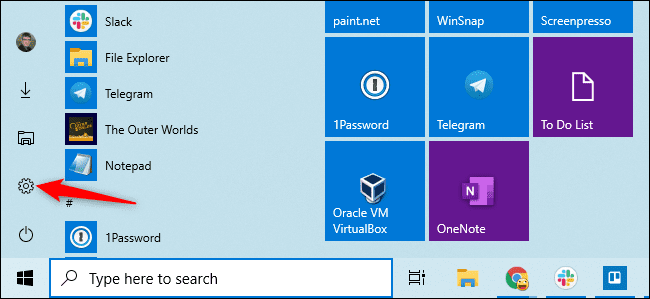
Settings

Click on the “Accounts” icon in the settings window.
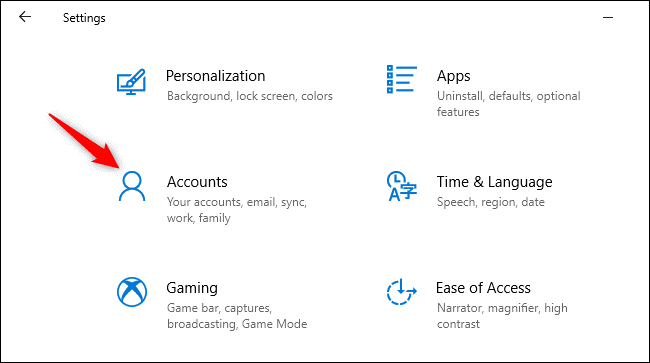
Switch to a local account from a Microsoft Account

Click “Sign in with a local account instead”. Located in the “Your info” tab.
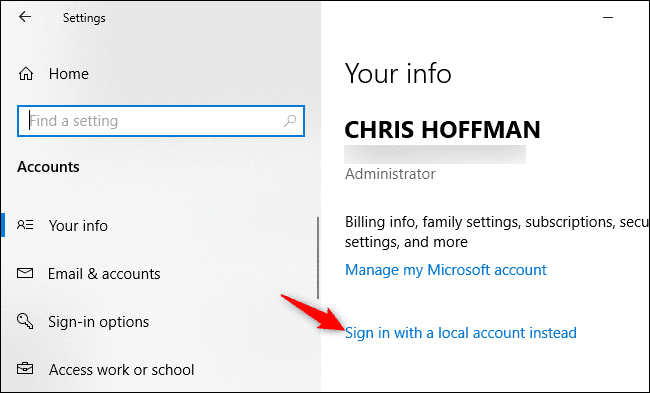
Your info

Windows 10 will ask you if you’re sure you want to continue, warning you that you’ll lose Microsoft account features like the ability to sync Windows settings between PCs. To continue, click “Next”.

Windows 10 will ask you to enter a PIN or password to confirm your identity.
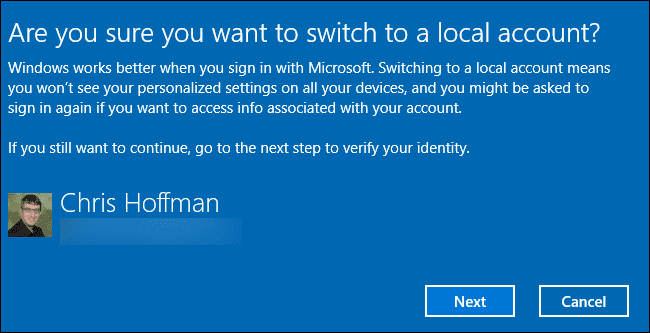
enter PIN code

Fill in the username, password, and password hint. Hints will show up when someone enters the wrong password.
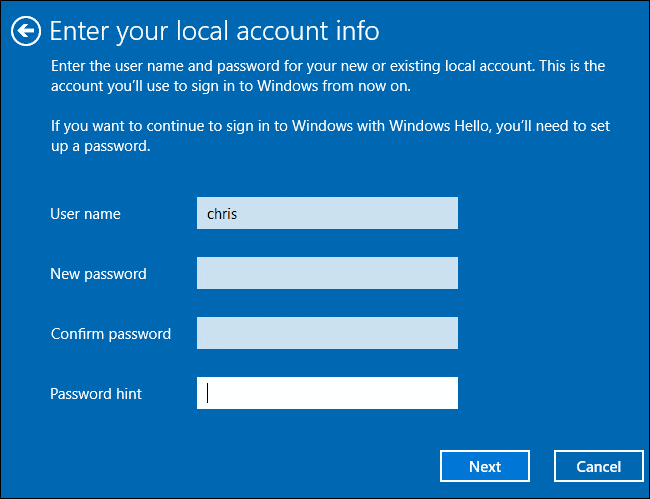
password hint

Nearly done. Click “Sign out and finish”. The next time you log in, you will use your new password.
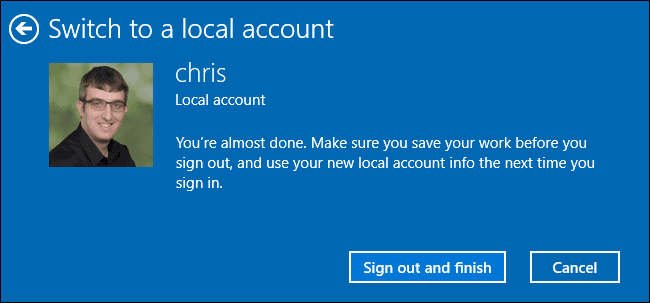
Sign out and finish

If you want to use your Microsoft account in the future, go back to Settings > Accounts > Your Info. You can link your local account to your Microsoft account by providing your Microsoft username and password.


The article achieved: 5/5 – (100 votes)

Tags: accountLocalMicrosoftSWITCHWindows
Previous Post

NirLauncher – Tổng hợp tất cả tiện ích Windows của NirSoft

Next Post

Download Classic Game Windows 7 for Windows 10

AnonyViet

AnonyViet

Related Posts

How to change the default font on Windows 10
Tips

How to change the default font on Windows 10

April 13, 2026
5 tips for using a Browser to replace an App (helps save RAM, time and money)
Tips

5 tips for using a Browser to replace an App (helps save RAM, time and money)

April 13, 2026
How to make funny MeMe photos without Photoshop within 10 seconds
Tips

How to make funny MeMe photos without Photoshop within 10 seconds

April 11, 2026
How to quickly design your own Logo without Photoshop
Tips

How to quickly design your own Logo without Photoshop

April 10, 2026
How to convert Website into App on Windows
Tips

How to convert Website into App on Windows

April 9, 2026
Instructions for getting 3 months of Adobe Express Pro for free
Tips

Instructions for getting 3 months of Adobe Express Pro for free

April 9, 2026
Next Post
Download Classic Game Windows 7 for Windows 10

Download Classic Game Windows 7 for Windows 10

0 0 votes
Article Rating
Subscribe
Login
Notify of
guest

guest

0 Comments
Oldest
Newest Most Voted
Inline Feedbacks
View all comments

Recent News

How to intercept traffic using Burp Suite to analyze HTTP/HTTPS

How to intercept traffic using Burp Suite to analyze HTTP/HTTPS

April 18, 2026
How to avoid Adblock detection on Youtube with 4 good tips

How to avoid Adblock detection on Youtube with 4 good tips

April 17, 2026
How to transfer ChatGPT data to Claude is extremely simple

How to transfer ChatGPT data to Claude is extremely simple

April 16, 2026
How to authenticate the owner’s SIM on VNeID from April 15

How to authenticate the owner’s SIM on VNeID from April 15

April 15, 2026
How to intercept traffic using Burp Suite to analyze HTTP/HTTPS

How to intercept traffic using Burp Suite to analyze HTTP/HTTPS

April 18, 2026
How to avoid Adblock detection on Youtube with 4 good tips

How to avoid Adblock detection on Youtube with 4 good tips

April 17, 2026
How to transfer ChatGPT data to Claude is extremely simple

How to transfer ChatGPT data to Claude is extremely simple

April 16, 2026
AnonyViet - English Version

AnonyViet

AnonyViet is a website share knowledge that you have never learned in school!

We are ready to welcome your comments, as well as your articles sent to AnonyViet.

Follow Us

Contact:

Email: anonyviet.com[@]gmail.com

Main Website: https://anonyviet.com

Recent News

How to intercept traffic using Burp Suite to analyze HTTP/HTTPS

How to intercept traffic using Burp Suite to analyze HTTP/HTTPS

April 18, 2026
How to avoid Adblock detection on Youtube with 4 good tips

How to avoid Adblock detection on Youtube with 4 good tips

April 17, 2026
No Result
View All Result
  • Home
  • News
  • Software
  • Knowledge
  • MMO
  • Tips
  • Security
  • Network
  • Office

wpDiscuz
0
0
Would love your thoughts, please comment.x
()
x
| Reply