• Home
  • News
  • Software
  • Knowledge
  • MMO
  • Tips
  • Security
  • Network
  • Office
AnonyViet - English Version
  • Home
  • News
  • Software
  • Knowledge
  • MMO
  • Tips
  • Security
  • Network
  • Office
No Result
View All Result
  • Home
  • News
  • Software
  • Knowledge
  • MMO
  • Tips
  • Security
  • Network
  • Office
No Result
View All Result
AnonyViet - English Version
No Result
View All Result

How to speed up SSD hard drive on Windows 11

AnonyViet by AnonyViet
January 23, 2023
in Tips
0

Windows 11 comes with exciting new changes that make a significant revolution to the Windows operating system. However, many users have complained that SSD Their performance has been slower since updating to Windows 11. Since then, Microsoft has released updates to speed up SSDs on Windows 11.

Join the channel Telegram of the AnonyViet 👉 Link 👈

How to speed up SSD hard drive on Windows 11

If you’ve also recently upgraded to Windows 11 and noticed a drop in SSD speed, then you’ll need to try some of the SSD performance fixes below.

How to fix slow SSD through Windows Update

Since the release of Windows 11, there have been many user complaints about the slow performance of NVMe SSDs. To resolve this issue, Microsoft has released Windows 11 update KB5007262. Windows update patch has helped fix SSD performance issues for many users.

Update KB5007262 was released in late 2021, so you may or may not have it installed on your system. I recommend checking your Windows Update history before proceeding.

If you haven’t installed update KB5007262, here’s how you can download the patch to fix Windows 11 SSD running slow through Windows Update:

  1. Launch Start menu, search Settings and click on the best match.
  2. From the side menu, click Windows Update.
  3. Click Check for Updates and when updates are fetched, confirm if update KB5007262 is listed. Windows 11 will automatically install updates if available.
  4. Once the installation is complete, click Restart now for the changes to take effect.
How to speed up SSD hard drive on Windows 11 7

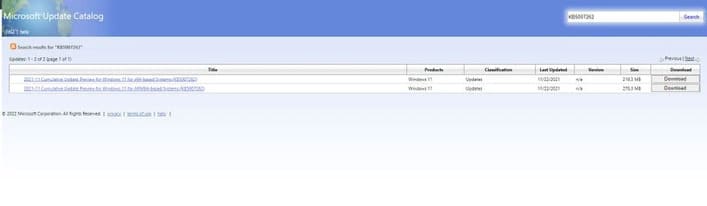
If you did not receive the KB5007262 update automatically, you will have to download it from Microsoft Update Catalog manually. Make sure to get the x64 version of the update

Once the update is downloaded, install it and when prompted, reboot your system. The updated patch will have a significant impact on improving your system’s SSD performance.

Turn off startup programs to speed up your SSD

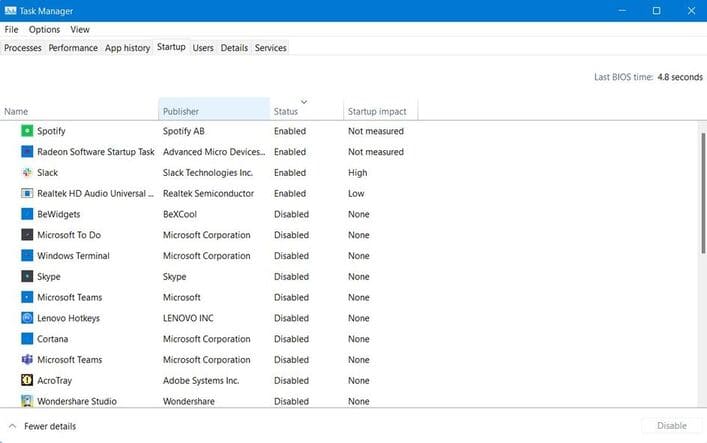
If you installed the update patch KB5007262, then you will need to tweak a few things to get your SSD working properly again. Reducing the number of applications that launch at startup can significantly affect an SSD’s performance and its boot speed.
How to speed up SSD hard drive on Windows 11 8

To disable startup apps, you just need to right click on Start menu and click Task Manager. Then click on the tab Startup and turn off all unnecessary applications.

Enable Fast Startup

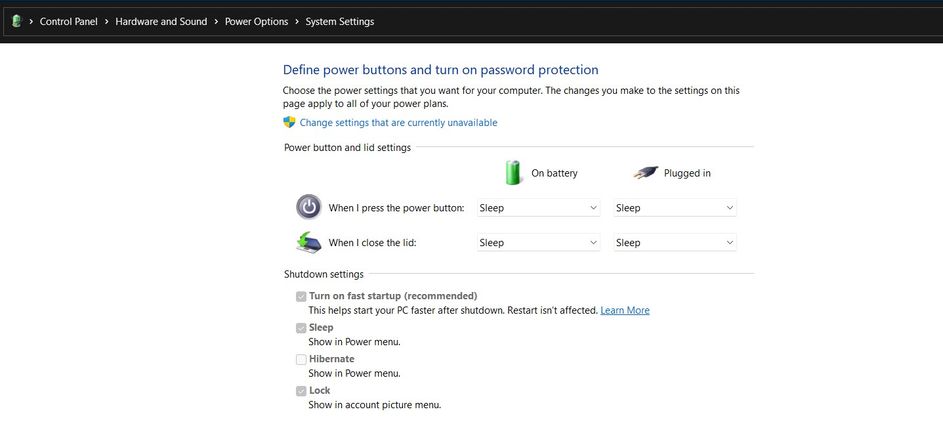
Fast startup is a nifty feature available in Power Options and it allows you to start up your PC faster after it shuts down. Note, you should not enable the feature when using dual boot.

To enable Fast startup on Windows 11 and increase SSD performance:
How to speed up SSD hard drive on Windows 11 9

  1. Open Control Panel the words Start menu.
  2. Click Hardware and Soundselect Power Optionsthen select Choose what the power button does.
  3. Click Change settings that are currently unavailable.
  4. In settings Shutdownplease make sure Turn on fast startup is turned on.
  5. Finally, click Save changes for the change to take effect.

Windows 11 is powerful, but it comes with some problems. There’s a lot to look forward to after the upgrade, and Windows 11 will only get better in 2022.


Rate this post

Tags: drivehardSpeedSSDWindows
Previous Post

What’s wrong with accessing the fake Saigon Beer link?

Next Post

How to install Tabs for Notepad on Windows 11

AnonyViet

AnonyViet

Related Posts

Suggested AI command to create a rustic and charming image of a Ban Lien girl
Tips

Suggested AI command to create a rustic and charming image of a Ban Lien girl

November 16, 2025
Windows 10 will have a new, simpler interface
Tips

Windows 10 will have a new, simpler interface

November 16, 2025
How to check what data Facebook is controlling about you
Tips

How to check what data Facebook is controlling about you

November 15, 2025
How to record Chromebook screen – ChromeOS
Tips

How to record Chromebook screen – ChromeOS

November 14, 2025
How to create photos under the snow extremely quickly in just a few minutes
Tips

How to create photos under the snow extremely quickly in just a few minutes

November 13, 2025
How to Create a QR code to connect to Wifi without giving the guest a Password
Tips

How to Create a QR code to connect to Wifi without giving the guest a Password

November 13, 2025
Next Post
How to install Tabs for Notepad on Windows 11

How to install Tabs for Notepad on Windows 11

0 0 votes
Article Rating
Subscribe
Login
Notify of
guest

guest

0 Comments
Oldest
Newest Most Voted
Inline Feedbacks
View all comments

Recent News

Suggested AI command to create a rustic and charming image of a Ban Lien girl

Suggested AI command to create a rustic and charming image of a Ban Lien girl

November 16, 2025
Windows 10 will have a new, simpler interface

Windows 10 will have a new, simpler interface

November 16, 2025
Share Key Active Visual Studio 2026

Share Key Active Visual Studio 2026

November 15, 2025
Instructions for using the online number-to-word conversion tool for accountants and offices

Instructions for using the online number-to-word conversion tool for accountants and offices

November 15, 2025
Suggested AI command to create a rustic and charming image of a Ban Lien girl

Suggested AI command to create a rustic and charming image of a Ban Lien girl

November 16, 2025
Windows 10 will have a new, simpler interface

Windows 10 will have a new, simpler interface

November 16, 2025
Share Key Active Visual Studio 2026

Share Key Active Visual Studio 2026

November 15, 2025
AnonyViet - English Version

AnonyViet

AnonyViet is a website share knowledge that you have never learned in school!

We are ready to welcome your comments, as well as your articles sent to AnonyViet.

Follow Us

Contact:

Email: anonyviet.com[@]gmail.com

Main Website: https://anonyviet.com

Recent News

Suggested AI command to create a rustic and charming image of a Ban Lien girl

Suggested AI command to create a rustic and charming image of a Ban Lien girl

November 16, 2025
Windows 10 will have a new, simpler interface

Windows 10 will have a new, simpler interface

November 16, 2025
  • Home
  • Home 2
  • Home 3
  • Home 4
  • Home 5
  • Home 6
  • Next Dest Page
  • Sample Page

new88 trang chủ shbet trang chủ f168 trang chủ qq88 nhà cái 78win

No Result
View All Result
  • Home
  • News
  • Software
  • Knowledge
  • MMO
  • Tips
  • Security
  • Network
  • Office

new88 trang chủ shbet trang chủ f168 trang chủ qq88 nhà cái 78win

wpDiscuz
0
0
Would love your thoughts, please comment.x
()
x
| Reply