• Home
  • News
  • Software
  • Knowledge
  • MMO
  • Tips
  • Security
  • Network
  • Office
AnonyViet - English Version
  • Home
  • News
  • Software
  • Knowledge
  • MMO
  • Tips
  • Security
  • Network
  • Office
No Result
View All Result
  • Home
  • News
  • Software
  • Knowledge
  • MMO
  • Tips
  • Security
  • Network
  • Office
No Result
View All Result
AnonyViet - English Version
No Result
View All Result

How to save places with Emoji on Google Maps: Give the map a personal touch

AnonyViet by AnonyViet
January 29, 2024
in Tips
0

How to save places with Emoji on Google Maps is a fun and useful trick you can apply to customize your map. You can use emojis to mark places you've visited, want to explore, or love. This way, it will be easier for you to recognize and find your locations, as well as add a personal touch to your map.

Join the channel Telegram belong to AnonyViet 👉 Link 👈

Benefits of saving places with Emoji on Google Maps

Saving locations using Emoji above Google Maps has many following benefits:

  • Helps you identify saved places more quickly and easily than just using text.
  • Helps you express your interests, emotions or personality through lovely and creative Emoji symbols.
  • Helps you increase your excitement when using Google Maps and discovering new places.

Instructions on how to save locations with Emoji on Google Maps

To save places using Emoji on Google Maps, simply follow these steps:

Step 1: Open the Google Maps app on your phone or tablet, search and select the place you want to save, then tap the 'Save' button.
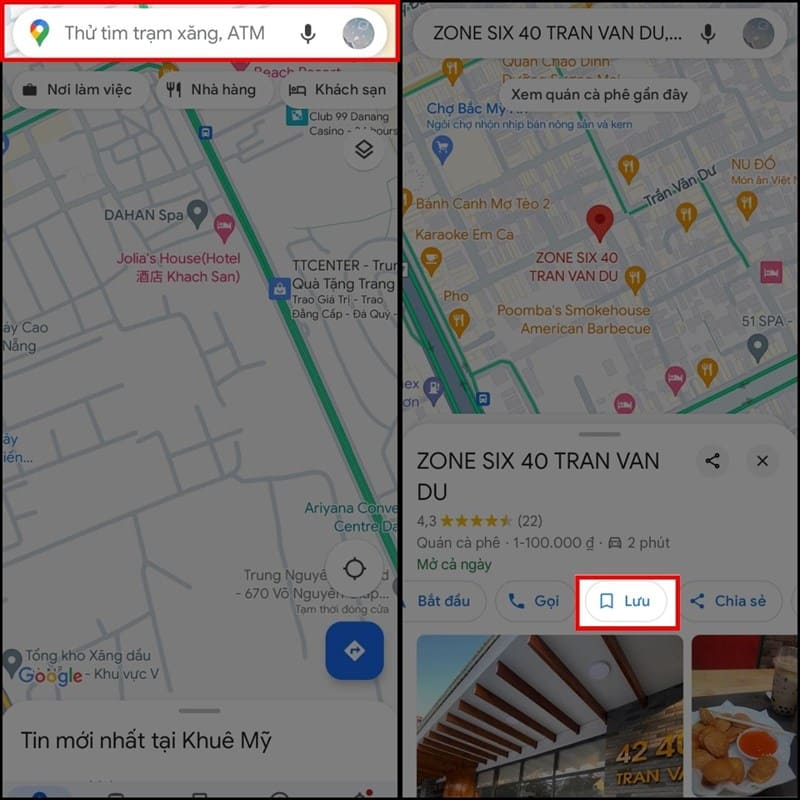
How to save places with Emoji
Search for a location > Tap 'Save

Step 2: Tap 'New List', enter a name and description for your list, then tap the Choose Emoji button to select the Emoji you want to use for this list. You can choose from the available Emoji or enter the Emoji character from your keyboard.
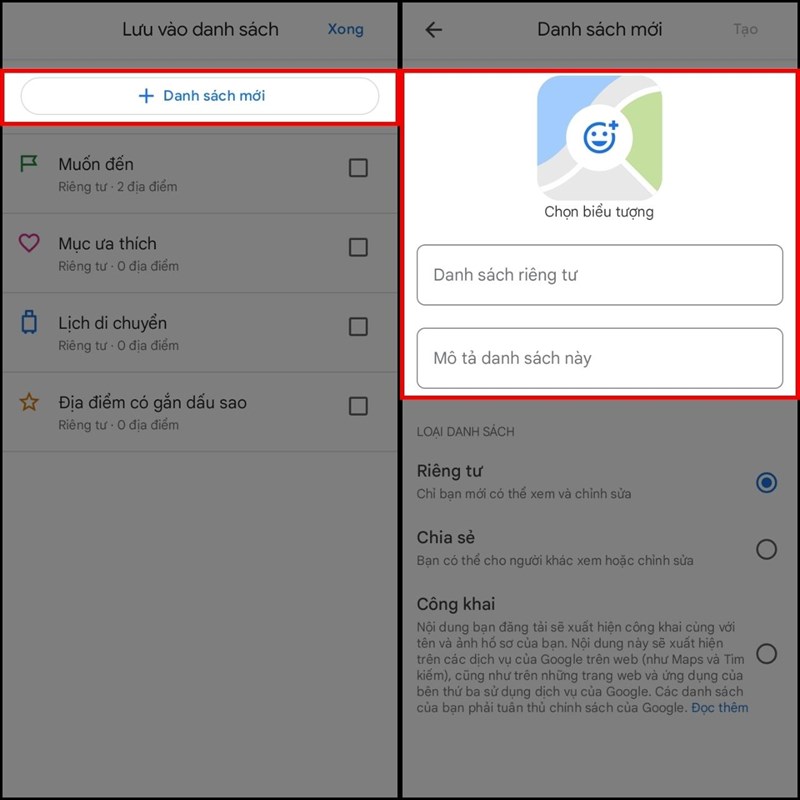
How to save places with Emoji
Select 'New List' > Tap add emoji

Step 3: Tap the 'Create' button to finish saving the location with Emoji. You can review your saved lists in the Saves section of Google Maps.
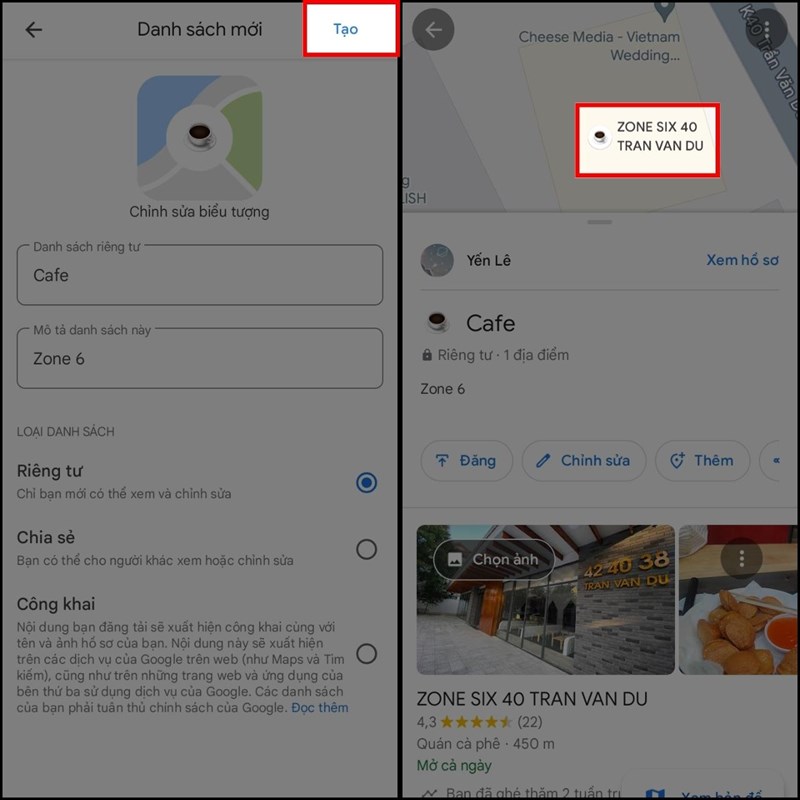
How to save places with Emoji
Click the 'Create' button

Epilogue

How to save places with Emoji on Google Maps is a new and convenient way for map users. You just need to choose an emoji that matches your location and assign it to the desired location. You can easily manage and distinguish your favorite places on the map. This is a new and interesting feature of Google Maps that you should try right away.


The article scored: 5/5 – (100 votes)

Tags: EmojiGiveGoogleMapMapspersonalplacessaveTouch
Previous Post

How to give 4G data to friends on ZaloPay

Next Post

How to learn on LinkedIn Learning for free for life

AnonyViet

AnonyViet

Related Posts

How to change the default font on Windows 10
Tips

How to change the default font on Windows 10

April 13, 2026
5 tips for using a Browser to replace an App (helps save RAM, time and money)
Tips

5 tips for using a Browser to replace an App (helps save RAM, time and money)

April 13, 2026
How to make funny MeMe photos without Photoshop within 10 seconds
Tips

How to make funny MeMe photos without Photoshop within 10 seconds

April 11, 2026
How to quickly design your own Logo without Photoshop
Tips

How to quickly design your own Logo without Photoshop

April 10, 2026
How to convert Website into App on Windows
Tips

How to convert Website into App on Windows

April 9, 2026
Instructions for getting 3 months of Adobe Express Pro for free
Tips

Instructions for getting 3 months of Adobe Express Pro for free

April 9, 2026
Next Post
How to learn on LinkedIn Learning for free for life

How to learn on LinkedIn Learning for free for life

0 0 votes
Article Rating
Subscribe
Login
Notify of
guest

guest

0 Comments
Oldest
Newest Most Voted
Inline Feedbacks
View all comments

Recent News

4K Video Downloader Plus – Tool to download YouTube videos on macOS

4K Video Downloader Plus – Tool to download YouTube videos on macOS

April 20, 2026
How to add Watermark to Google Docs to protect copyright

How to add Watermark to Google Docs to protect copyright

April 19, 2026
How to intercept traffic using Burp Suite to analyze HTTP/HTTPS

How to intercept traffic using Burp Suite to analyze HTTP/HTTPS

April 18, 2026
How to avoid Adblock detection on Youtube with 4 good tips

How to avoid Adblock detection on Youtube with 4 good tips

April 17, 2026
4K Video Downloader Plus – Tool to download YouTube videos on macOS

4K Video Downloader Plus – Tool to download YouTube videos on macOS

April 20, 2026
How to add Watermark to Google Docs to protect copyright

How to add Watermark to Google Docs to protect copyright

April 19, 2026
How to intercept traffic using Burp Suite to analyze HTTP/HTTPS

How to intercept traffic using Burp Suite to analyze HTTP/HTTPS

April 18, 2026
AnonyViet - English Version

AnonyViet

AnonyViet is a website share knowledge that you have never learned in school!

We are ready to welcome your comments, as well as your articles sent to AnonyViet.

Follow Us

Contact:

Email: anonyviet.com[@]gmail.com

Main Website: https://anonyviet.com

Recent News

4K Video Downloader Plus – Tool to download YouTube videos on macOS

4K Video Downloader Plus – Tool to download YouTube videos on macOS

April 20, 2026
How to add Watermark to Google Docs to protect copyright

How to add Watermark to Google Docs to protect copyright

April 19, 2026
No Result
View All Result
  • Home
  • News
  • Software
  • Knowledge
  • MMO
  • Tips
  • Security
  • Network
  • Office

wpDiscuz
0
0
Would love your thoughts, please comment.x
()
x
| Reply