• Home
  • News
  • Software
  • Knowledge
  • MMO
  • Tips
  • Security
  • Network
  • Office
AnonyViet - English Version
  • Home
  • News
  • Software
  • Knowledge
  • MMO
  • Tips
  • Security
  • Network
  • Office
No Result
View All Result
  • Home
  • News
  • Software
  • Knowledge
  • MMO
  • Tips
  • Security
  • Network
  • Office
No Result
View All Result
AnonyViet - English Version
No Result
View All Result

How to quickly take attendance with Google Meet for teachers

AnonyViet by AnonyViet
January 27, 2023
in Software
0

Due to the increasingly complex epidemic, affecting many professions in society, but I think the most affected industry is still the education industry. All pupils, students and teachers in epidemic areas must switch to online learning. Therefore, it will be very inconvenient for both students and teachers, both in terms of conditions and technology.

Join the channel Telegram of the AnonyViet 👉 Link 👈

Understanding the difficulty of teachers, so in this article, I will guide teachers on how to quickly take attendance on Google Meet, which is extremely simple to help teachers know who is participating in online learning the easiest. Please.

How to quickly take attendance with Google Meet for teachers

How to quickly take attendance with Google Meet for teachers

Google Meet is a free online learning application from Google. With the advantage of Google products, it is popular with many teachers and students. There is a great feature that helps teachers quickly take attendance of students who have joined the class using the Google Meet Attendance List utility.

Step 1: First, you press come in to install the extension Google Meet Attendance List before starting the meeting.
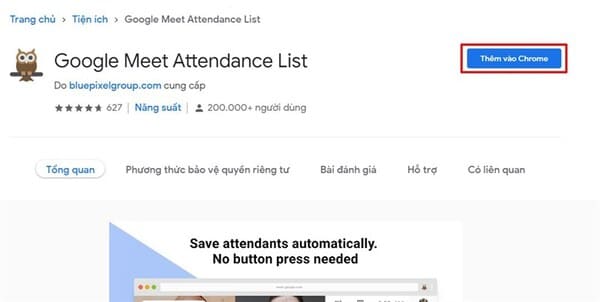
How to quickly take attendance with Google Meet for teachers 4

Step 2: Next, you just need to hold a normal meeting on Google Meet stop.

Step 3: When you want to take attendance of the people who attended the meeting, you just need to click on the human icon at the bottom of the screen, next to the messaging icon and select Save Attendance.
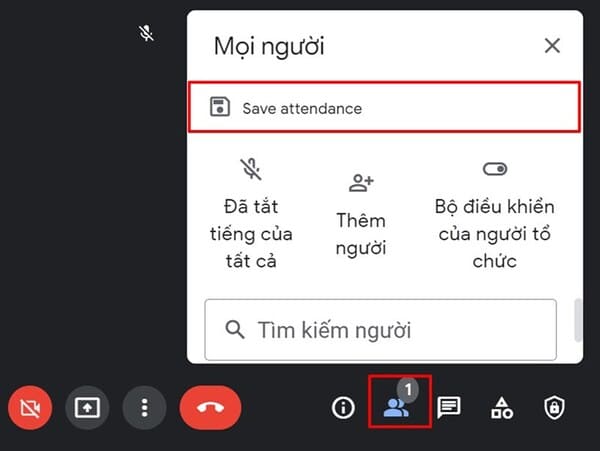
How to quickly take attendance using Google Meet for teachers 5

So you already have a list of meeting participants, if you want to download it, just click Export as CSV done.
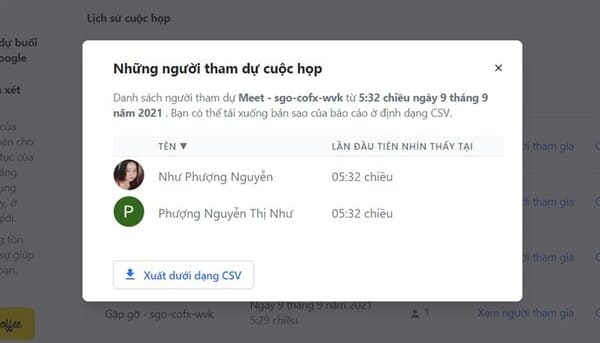
How to quickly take attendance with Google Meet for teachers 6

With just these extremely simple steps, teachers can take attendance of all students in their class. But I think the teacher can still call each student for oral attendance to be sure. In addition, you can also create virtual rooms on zoom using Immersive View here.


The article achieved: 5/5 – (100 votes)

Tags: attendanceGoogleMeetQuicklyteachers
Previous Post

How to use RAT without opening PORT with Ngrok

Next Post

How to Create a Simple DDOS Botnet Using Py-Botnet

AnonyViet

AnonyViet

Related Posts

How to pay health insurance on Momo online right at home
Software

How to pay health insurance on Momo online right at home

November 8, 2025
How to create Flycam videos from photos to sell real estate
Software

How to create Flycam videos from photos to sell real estate

November 8, 2025
AI tool creates song playlists: 3 Spotify alternatives you must try now
Software

AI tool creates song playlists: 3 Spotify alternatives you must try now

November 6, 2025
How to download the game Mr. Hai’s Pho Shop for free on PC
Software

How to download the game Mr. Hai’s Pho Shop for free on PC

November 5, 2025
Get free IObit Malware Fighter 13 Pro key
Software

Get free IObit Malware Fighter 13 Pro key

November 4, 2025
Instructions on how to support people in flooded areas through VNeID
Software

Instructions on how to support people in flooded areas through VNeID

November 3, 2025
Next Post
How to Create a Simple DDOS Botnet Using Py-Botnet

How to Create a Simple DDOS Botnet Using Py-Botnet

0 0 votes
Article Rating
Subscribe
Login
Notify of
guest

guest

0 Comments
Oldest
Newest Most Voted
Inline Feedbacks
View all comments

Recent News

Download training materials on Applying AI in teaching and learning in 2025

Download training materials on Applying AI in teaching and learning in 2025

November 8, 2025
How to pay health insurance on Momo online right at home

How to pay health insurance on Momo online right at home

November 8, 2025
How to create Flycam videos from photos to sell real estate

How to create Flycam videos from photos to sell real estate

November 8, 2025
3 OCR Tools Extract Text from Images without Retyping

3 OCR Tools Extract Text from Images without Retyping

November 8, 2025
Download training materials on Applying AI in teaching and learning in 2025

Download training materials on Applying AI in teaching and learning in 2025

November 8, 2025
How to pay health insurance on Momo online right at home

How to pay health insurance on Momo online right at home

November 8, 2025
How to create Flycam videos from photos to sell real estate

How to create Flycam videos from photos to sell real estate

November 8, 2025
AnonyViet - English Version

AnonyViet

AnonyViet is a website share knowledge that you have never learned in school!

We are ready to welcome your comments, as well as your articles sent to AnonyViet.

Follow Us

Contact:

Email: anonyviet.com[@]gmail.com

Main Website: https://anonyviet.com

Recent News

Download training materials on Applying AI in teaching and learning in 2025

Download training materials on Applying AI in teaching and learning in 2025

November 8, 2025
How to pay health insurance on Momo online right at home

How to pay health insurance on Momo online right at home

November 8, 2025
  • Home
  • Home 2
  • Home 3
  • Home 4
  • Home 5
  • Home 6
  • Next Dest Page
  • Sample Page

new88 trang chủ shbet trang chủ f168 trang chủ qq88 nhà cái 78win

No Result
View All Result
  • Home
  • News
  • Software
  • Knowledge
  • MMO
  • Tips
  • Security
  • Network
  • Office

new88 trang chủ shbet trang chủ f168 trang chủ qq88 nhà cái 78win

wpDiscuz
0
0
Would love your thoughts, please comment.x
()
x
| Reply