• Home
  • News
  • Software
  • Knowledge
  • MMO
  • Tips
  • Security
  • Network
  • Office
AnonyViet - English Version
  • Home
  • News
  • Software
  • Knowledge
  • MMO
  • Tips
  • Security
  • Network
  • Office
No Result
View All Result
  • Home
  • News
  • Software
  • Knowledge
  • MMO
  • Tips
  • Security
  • Network
  • Office
No Result
View All Result
AnonyViet - English Version
No Result
View All Result

How to install Siri to read application notifications on iPhone 17 is extremely simple

AnonyViet by AnonyViet
March 16, 2026
in Knowledge
0

How to set Siri to read application notifications not only brings convenience but also changes the daily habit of interacting with the phone. When this feature is enabled, Siri will act as a messenger, reading notifications from the application you choose. You can completely reply immediately afterwards without complicated manual operations.

📢 Join the channel Telegram belong to AnonyViet


👉 Go to Telegram AnonyViet

Update new articles, cool tools and IT tips fastest

Instructions on how to install Siri to read application notifications

Above iPhone 17, Apple optimized the virtual assistant’s interaction capabilities, allowing users to update information without touching the device. This feature works effectively through external speakers, headphones and especially the CarPlay system while driving. Below are the detailed setup steps for you to enjoy this convenience.

To activate this smart feature and customize it according to personal needs, users need to perform a few simple steps in the device settings.

Step 1: Access notification settings

The first thing to do is open the application Setting (Settings) on the home screen of iPhone 17 to start setup. At the main interface of the Settings section, users find and click on the item Notification (Notifications).

Step 2: Enable the notification reading feature

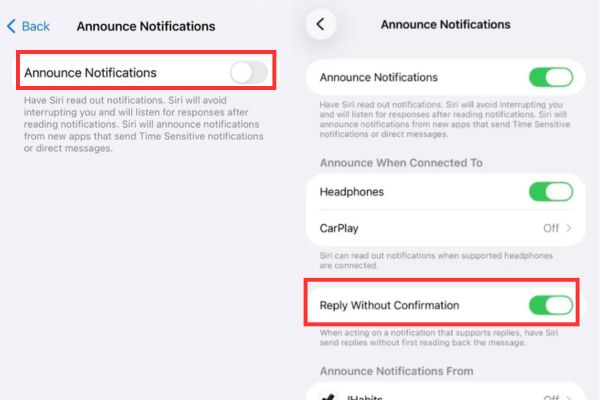
In the Notifications interface, drag the screen down to find it Siri & Search. Here, the user selects the item Read the announcement (Announce Notifications) to proceed with deeper customizations. You need to turn the switch at the Announce Notifications line to green to officially turn on Siri mode to read notifications on your device.
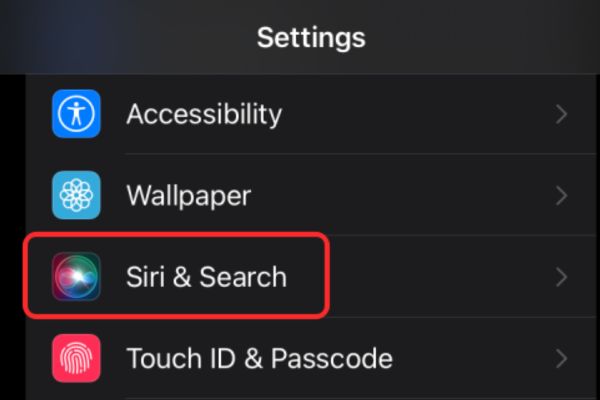
How to install Siri to read application notifications on iPhone 17 is extremely simple
Find Siri & Search

Step 3: Select the application and connect

After enabling the main feature, the system will display a detailed list of options under the “Announce Notifications From” section. Users need to click on each specific application whose content they want Siri to read aloud when there are new notifications. If you drive often, activating the CarPlay option is extremely necessary to ensure traffic safety.
How to install Siri to read application notifications on iPhone 17

Quick reply option without confirmation

A big plus point on the iPhone 17 is the ability to respond to messages extremely quickly via voice. Users should enable the option “Reply without confirmation” (Reply without confirmation) in this setting. Siri will then send your answer immediately after you finish speaking without having to read it again for confirmation, making the conversation more natural and seamless.

Conclusion

Hold tight How to install Siri to read application notifications That means you’ve taken advantage of one of the most useful features on iPhone 17. The ability to quickly reply without confirmation also helps save significant operation time. Wishing you interesting and safe technology experiences on every journey!


Tags: applicationextremelyinstalliPhoneNotificationsreadsimpleSiri
Previous Post

How to mute AirPods when charging so as not to disturb others

Next Post

Receive Advanced SystemCare 19 Pro key for free for 6 months

AnonyViet

AnonyViet

Related Posts

Prompt wrote a great Adam voice script for TikTok videos
Knowledge

Prompt wrote a great Adam voice script for TikTok videos

July 3, 2026
How to create a script from any TikTok video that attracts millions of views
Knowledge

How to create a script from any TikTok video that attracts millions of views

July 2, 2026
Tool to download videos without Watermark on TikTok, Douyin, YouTube,…
Knowledge

Tool to download videos without Watermark on TikTok, Douyin, YouTube,…

June 30, 2026
Tips for browsing the web with Safari on iPhone
Knowledge

Tips for browsing the web with Safari on iPhone

June 26, 2026
Instructions on how to use Gemini Omni to create realistic videos
Knowledge

Instructions on how to use Gemini Omni to create realistic videos

June 23, 2026
Instructions for creating Adam’s voice for million-view TikTok videos
Knowledge

Instructions for creating Adam’s voice for million-view TikTok videos

June 21, 2026
Next Post
Receive Advanced SystemCare 19 Pro key for free for 6 months

Receive Advanced SystemCare 19 Pro key for free for 6 months

0 0 votes
Article Rating
Subscribe
Login
Notify of
guest

guest

0 Comments
Oldest
Newest Most Voted
Inline Feedbacks
View all comments

Recent News

The easiest way to convert Word File to PowerPoint – Convert DOCX File to PTTX

The easiest way to convert Word File to PowerPoint – Convert DOCX File to PTTX

July 6, 2026
The simplest way to log out of Gmail on Huawei phones

The simplest way to log out of Gmail on Huawei phones

July 5, 2026
Receive a free 6-month Smart Game Booster VIP license

Receive a free 6-month Smart Game Booster VIP license

July 5, 2026
What is TPM 2.0 CHIP? Why is it required to have a TPM chip when installing Windows 11?

What is TPM 2.0 CHIP? Why is it required to have a TPM chip when installing Windows 11?

July 5, 2026
The easiest way to convert Word File to PowerPoint – Convert DOCX File to PTTX

The easiest way to convert Word File to PowerPoint – Convert DOCX File to PTTX

July 6, 2026
The simplest way to log out of Gmail on Huawei phones

The simplest way to log out of Gmail on Huawei phones

July 5, 2026
Receive a free 6-month Smart Game Booster VIP license

Receive a free 6-month Smart Game Booster VIP license

July 5, 2026
AnonyViet - English Version

AnonyViet

AnonyViet is a website share knowledge that you have never learned in school!

We are ready to welcome your comments, as well as your articles sent to AnonyViet.

Follow Us

Contact:

Email: anonyviet.com[@]gmail.com

Main Website: https://anonyviet.com

Recent News

The easiest way to convert Word File to PowerPoint – Convert DOCX File to PTTX

The easiest way to convert Word File to PowerPoint – Convert DOCX File to PTTX

July 6, 2026
The simplest way to log out of Gmail on Huawei phones

The simplest way to log out of Gmail on Huawei phones

July 5, 2026
  • Home
  • Home 2
  • Home 3
  • Home 4
  • Home 5
  • Home 6
  • Next Dest Page
  • Sample Page

6789 kv999

No Result
View All Result
  • Home
  • News
  • Software
  • Knowledge
  • MMO
  • Tips
  • Security
  • Network
  • Office

6789 kv999

wpDiscuz
0
0
Would love your thoughts, please comment.x
()
x
| Reply