• Home
  • News
  • Software
  • Knowledge
  • MMO
  • Tips
  • Security
  • Network
  • Office
AnonyViet - English Version
  • Home
  • News
  • Software
  • Knowledge
  • MMO
  • Tips
  • Security
  • Network
  • Office
No Result
View All Result
  • Home
  • News
  • Software
  • Knowledge
  • MMO
  • Tips
  • Security
  • Network
  • Office
No Result
View All Result
AnonyViet - English Version
No Result
View All Result

How to fix The Spotification Application Is Not Responding on Windows 11

AnonyViet by AnonyViet
June 28, 2025
in Software
0

Spotify is one of the world’s leading online music platforms, bringing a treasure of music, podcast and a variety of playlists. However, sometimes users have annoying errors: The Spotification Application Is Not Responding. This error causes the application to hang or cannot open, interrupting your music listening experience. Do not worry! Anonyviet will show you how Fix the Spotification Application Is Not Responding A detailed, effective and easy way to implement.

Join the channel Telegram belong to Anonyviet 👉 Link 👈

The cause of the Spotification Application Is Not Responding

Error The Spotification Application Is Not Responding may appear for many reasons, including:

  • Temporary data of Spotify Sometimes errors, causing applications not to work.
  • Spotify may not be completely closed, causing conflict when you try to reopen.
  • Other system applications or settings can hinder Spotify’s operation.
  • The Spotify installation may be broken due to incomplete updates or system errors.

How to fix the Spotification Application Is Not Responding

Here are the ways to fix the Spotification Application Is Not Responding that you can apply.

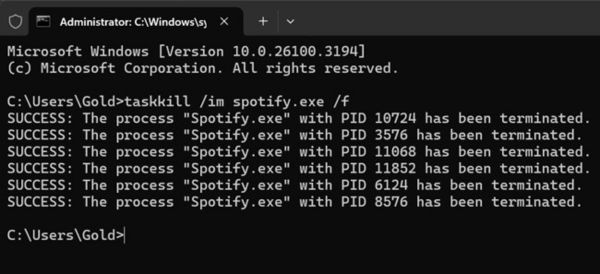
1. Completely turn off spotify with taskkill

Sometimes, Spotify still runs background even if you have closed the application. This can cause the application to hang when you try to reopen. To handle the problem, you can use the taskkill command to turn off Spotify forced:

  1. Press Win + R To open the tremor window.
  2. Enter CMD Then click Enter to access Command Prompt.
  3. At Command Prompt, type the following command: Taskkill /f /im Spotify.exe
  4. Press Enter To execute the command.

Try reopening Spotify to check if the error has been fixed.
How to fix the Spotification Application Is Not Responding

2. Delete the cache of spotify

Cache Spotify helps the application work smoother, but when the cache files are broken, they can cause the Spotification Application is not responding. Delete cache is a simple way to overcome this problem.

Implementation guide:

  1. Completely close Spotify with Task Manager or Taskkill command as instructed above.
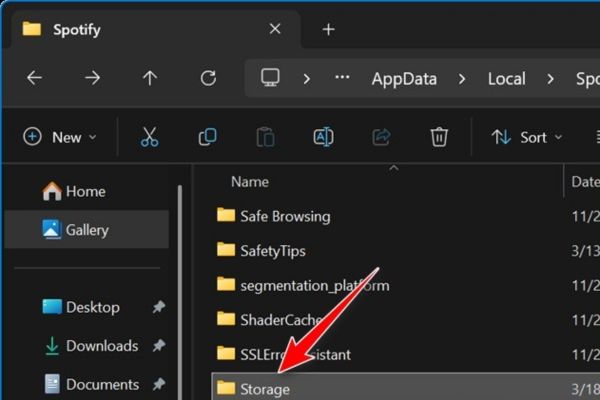
  2. Press Win + Renter the following link and press Enter: %LocalappData%\ Spotify \
  3. Find the folder Storage and delete all internal files (do not delete the Storage folder itself).
  4. Restart Spotify and check if the application works normally.

Note: Deleting cache does not affect your account or account data.
Delete Spotify's cache
Delete Spotify’s cache

3. Uninstall and reinstall Spotify

If the above two methods are not effective, your Spotify installation may be broken. Uninstalling and reinstalling the application will help fix the problem.

Implementation guide:

  1. Press Win + I To open Settings.
  2. Navigate Apps → Installed Apps.
  3. Find Spotify on the list, click it and select Uninstall.
  4. After uninstalling, restart the computer.
  5. Access The official website of Spotify And download the latest version.
  6. Install the application and check if the Spotification Application Is Not Redonding error has disappeared.

4. Restart the computer

Sometimes, a small error in the system can make Spotify do not work. Restarting the computer is a simple but effective way to refresh the system process and fix The Spotification Application is not Responding.

Implementation guide:

  1. Click Start menu.
  2. Select Power → Restart.
  3. After the computer restarts, open Spotify and check if the application is operating.

This method is especially useful if the error occurs due to a temporary conflict in the system.

Conclude

Spotify error can interrupt the music experience, but with 4 ways Fix the Spotification Application Is Not Responding Which Anonyviet instructed above, you will quickly bring the application to work smoothly again. Try the steps above to enjoy your favorite music without worrying about being interrupted!


Tags: applicationfixRespondingSpotificationWindows
Previous Post

Unlock Facebook form “upload to identification”

Next Post

Facebook changes in update 2020

AnonyViet

AnonyViet

Related Posts

TruyenDrive: Turn Google Drive into a professional manga reader
Software

TruyenDrive: Turn Google Drive into a professional manga reader

May 31, 2026
How to extract text from photos using Zalo is super simple
Software

How to extract text from photos using Zalo is super simple

May 29, 2026
HONOR 600 in hand – High-end design, 200MP camera, not cheap price
Software

HONOR 600 in hand – High-end design, 200MP camera, not cheap price

May 28, 2026
Instructions for getting 4 months of Adobe copyright for free
Software

Instructions for getting 4 months of Adobe copyright for free

May 28, 2026
The truth about the 7,000 mAh battery on Xiaomi 17T Pro: What benefits do users get?
Software

The truth about the 7,000 mAh battery on Xiaomi 17T Pro: What benefits do users get?

May 28, 2026
Instructions on how to turn text into stickers on Gboard
Software

Instructions on how to turn text into stickers on Gboard

May 26, 2026
Next Post
Facebook changes in update 2020

Facebook changes in update 2020

0 0 votes
Article Rating
Subscribe
Login
Notify of
guest

guest

0 Comments
Oldest
Newest Most Voted
Inline Feedbacks
View all comments

Recent News

How to record reaction videos with Android phones, no app needed

How to record reaction videos with Android phones, no app needed

June 1, 2026
Instructions on how to get Google AI Pro 1 year for free for new accounts

Instructions on how to get Google AI Pro 1 year for free for new accounts

June 1, 2026
Top free AI tools to help write, test and optimize content

Top free AI tools to help write, test and optimize content

June 1, 2026
TruyenDrive: Turn Google Drive into a professional manga reader

TruyenDrive: Turn Google Drive into a professional manga reader

May 31, 2026
How to record reaction videos with Android phones, no app needed

How to record reaction videos with Android phones, no app needed

June 1, 2026
Instructions on how to get Google AI Pro 1 year for free for new accounts

Instructions on how to get Google AI Pro 1 year for free for new accounts

June 1, 2026
Top free AI tools to help write, test and optimize content

Top free AI tools to help write, test and optimize content

June 1, 2026
AnonyViet - English Version

AnonyViet

AnonyViet is a website share knowledge that you have never learned in school!

We are ready to welcome your comments, as well as your articles sent to AnonyViet.

Follow Us

Contact:

Email: anonyviet.com[@]gmail.com

Main Website: https://anonyviet.com

Recent News

How to record reaction videos with Android phones, no app needed

How to record reaction videos with Android phones, no app needed

June 1, 2026
Instructions on how to get Google AI Pro 1 year for free for new accounts

Instructions on how to get Google AI Pro 1 year for free for new accounts

June 1, 2026
No Result
View All Result
  • Home
  • News
  • Software
  • Knowledge
  • MMO
  • Tips
  • Security
  • Network
  • Office

wpDiscuz
0
0
Would love your thoughts, please comment.x
()
x
| Reply