Screen flickering is often an annoying problem that frustrates users. If you are new to upgrading from Windows 10 to Windows 11 or facing flickering screen error on your new Windows 11 machine, then you should read this article.
| Join the channel Telegram of the AnonyViet 👉 Link 👈 |
What causes screen flickering in Windows 11?
Screen flickering mainly occurs due to outdated graphics drivers and incompatible applications. If it’s not a hardware failure, you can fix the flickering screen error with some simple measures. Including disconnecting the cable and reconnecting, restarting the machine and changing the screen refresh rate and solutions below.
How to fix screen flickering in Windows 11
Check the display cable
Before moving on to various troubleshooting solutions, the easiest way to fix screen flickering in Windows 11 is to check that you have connected the correct display cable to your monitor. You can try unplugging the monitor from your PC and reconnecting it. If you are using a laptop, make sure that the hinge is not broken or damaged, as it is one of the potential causes of screen flickering.
Change accent color and background image
Windows 10 is what causes screen flickering when you let the operating system pick an accent color from your wallpaper. Unfortunately, this problem persists in Windows 11 and you should avoid using automatic accent colors in Windows 11 to fix screen flickering. This method is useful if you use a slideshow background image.
1. Open Settings with shortcut Win + I and go to Personalization. Now, click “Colors” to access the personalization settings.
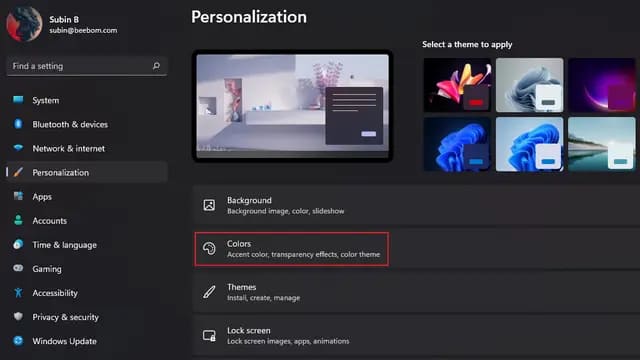
2. From this settings page, click “Accent color” and select “Manual“.
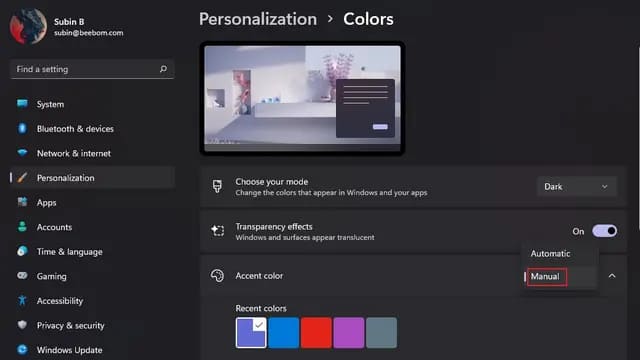
3. If that doesn’t work, you can try disabling the wallpaper option “Slideshow“. To disable the slideshow background setting, click “Background” in Personalization.
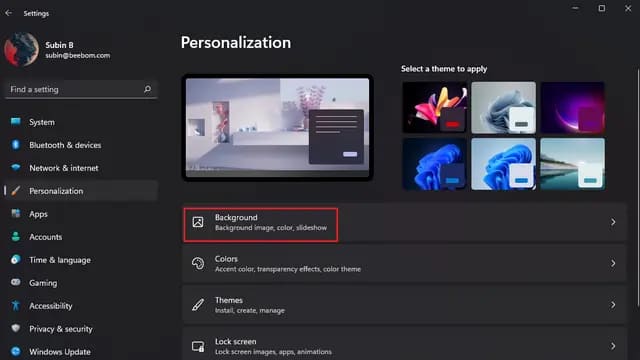
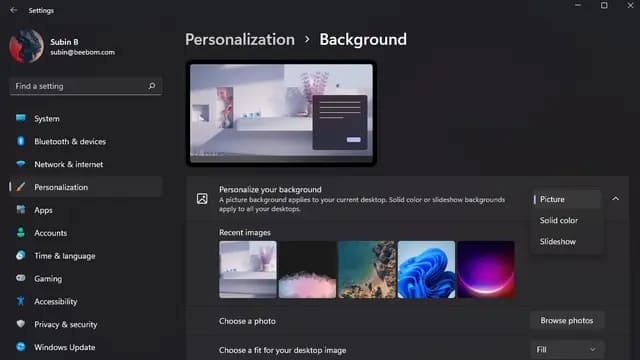
4. Click “Personalize your background” and select Picture or Solid color. In other words, you should disable the slideshow wallpaper to fix the flickering screen on Windows 11.
Turn off animation effects
Another fix is to disable animation effects on Windows 11 PCs.
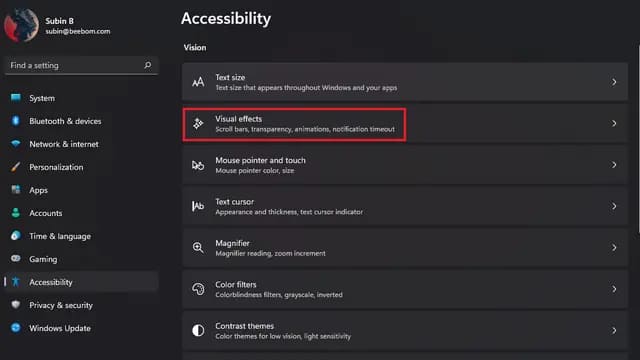
1. Open the Settings app and go to “Accessibility”. Then click “Visual effects” to access the animation settings.
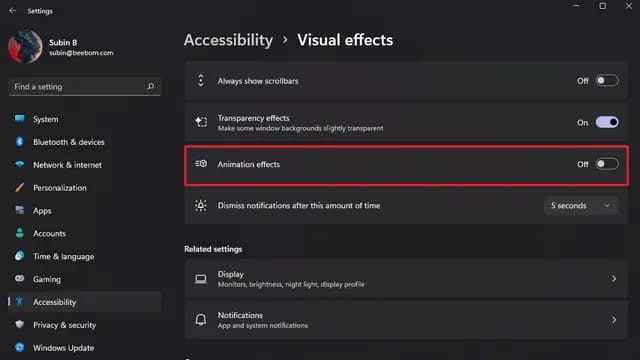
2. All you have to do now is turn off”Animation effects“. If this doesn’t fix the problem, try the methods below.
Turn off hardware acceleration to fix screen flickering in Chrome
Users report that disabling hardware acceleration helps with screen flickering issues. In this way, we will turn off hardware acceleration in Google Chrome.
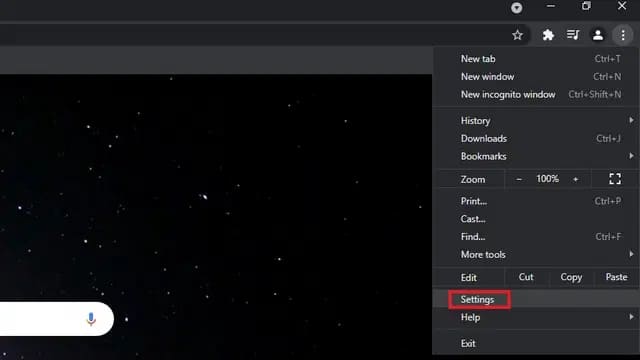
1. After opening the Chrome browser, click on the three vertical dot menu icon in the top right corner and select Settings.
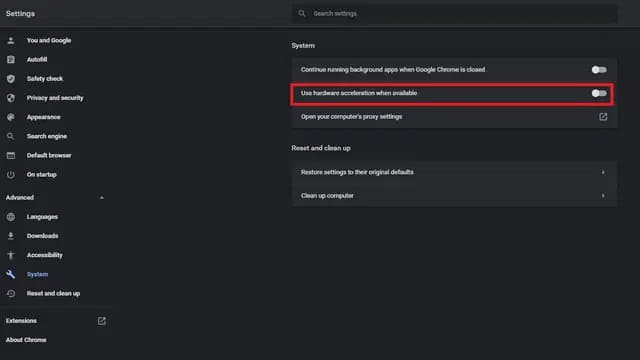
2. Switch to “System” tab in “Advanced” settings and disable “Use hardware acceleration when available“. Now, restart Chrome and you should no longer face any screen flickering issues.
Update monitor driver
If none of the above solutions help you to fix the problem, you can try updating the driver. In this case, you should update the display and graphics drivers to fix the screen flickering problem.
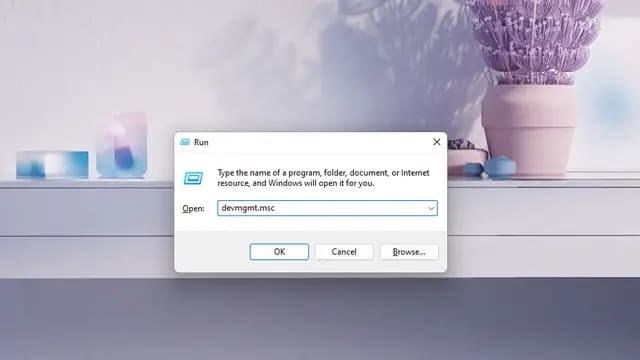
1. Use keyboard shortcut Win + R to open Run window and type “devmgmt.msc” to open Device Manager.
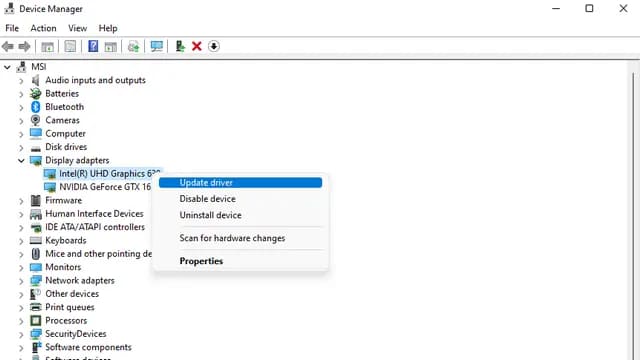
2. Expand the section Display adapters and right-click on your PC’s graphics card. Then select “Update drivers” to update the display driver.
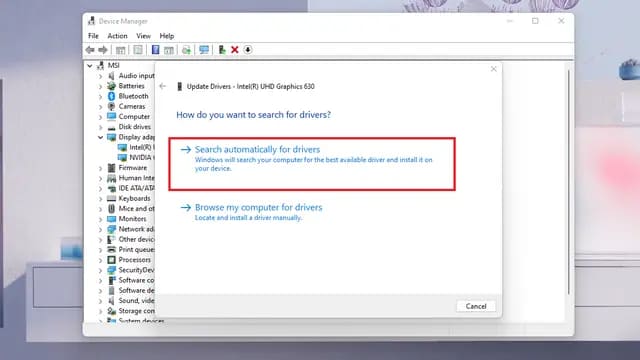
3. You can choose to automatically search for drivers on the Internet or install these drivers from your PC manually. You can also check for driver updates from the Settings app in the “Optional updates” section of the “Windows Update” page.
In addition, you can also use Driver Booster software to update drivers automatically here.
Uninstall incompatible apps
There is a possibility that a recently installed incompatible app is causing the screen flickering on your Windows 11. I recommend that you try to uninstall the apps you installed just before this problem occurs. Here’s how to uninstall apps on Windows 11:
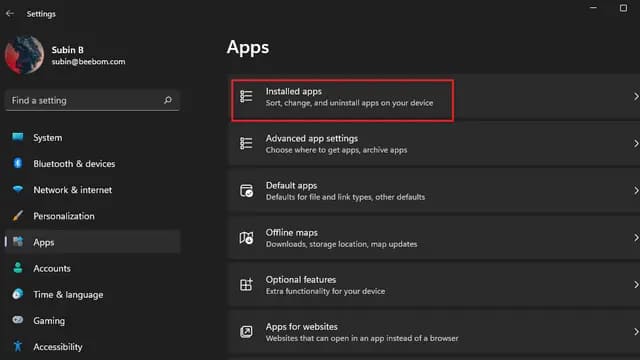
1. Open the Settings app, switch to the Apps section and click “Installed apps” to see a list of all the apps you have installed on your PC.
2. To make it easier to find apps you installed recently, click “Sort by” and select Last installed.
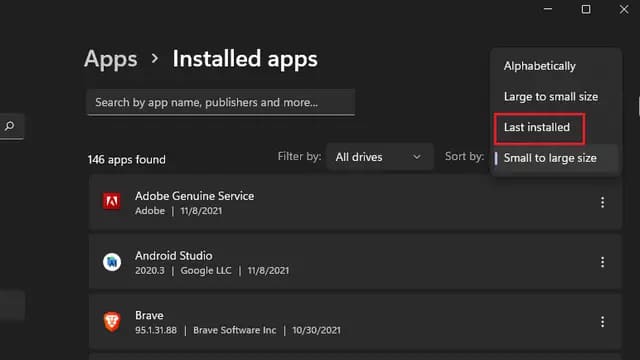
3. Now click on the three-dot menu next to the name of each app and select “Uninstall” to remove apps that can cause the screen to flicker.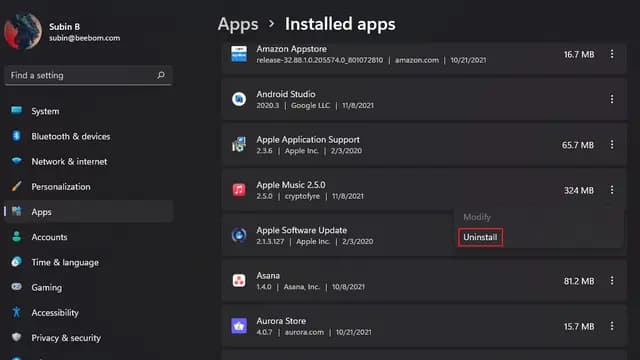
Adjust the refresh rate of the screen
1. Open the Settings app and click Display.
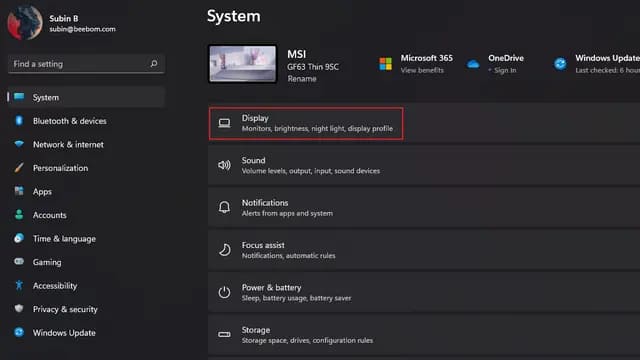
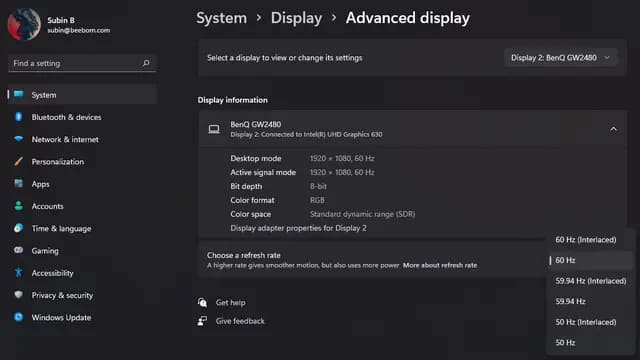
2. Scroll down until you find Advanced display settings in “Related settings”.

3. Now you will see the option “Choose a refresh rate“. Click on the list and try switching to a different refresh rate. If the screen flickering problem is caused by your monitor’s refresh rate, then this method should fix that.
Hope this article will help you fix the flickering screen error on Windows 11.