• Home
  • News
  • Software
  • Knowledge
  • MMO
  • Tips
  • Security
  • Network
  • Office
AnonyViet - English Version
  • Home
  • News
  • Software
  • Knowledge
  • MMO
  • Tips
  • Security
  • Network
  • Office
No Result
View All Result
  • Home
  • News
  • Software
  • Knowledge
  • MMO
  • Tips
  • Security
  • Network
  • Office
No Result
View All Result
AnonyViet - English Version
No Result
View All Result

How to enable and disable hardware acceleration in Chrome

AnonyViet by AnonyViet
January 27, 2023
in Tips
0

Google Chrome is equipped with hardware acceleration, a feature that takes advantage of your computer’s GPU to speed up processes and free up CPU work. However, sometimes a driver incompatibility can cause this feature to misbehave, and disabling it can save you headaches.

Join the channel Telegram of the AnonyViet 👉 Link 👈

How to enable and disable hardware acceleration in Chrome

What is hardware acceleration in Chrome?

Hardware acceleration is when a program uses the computer’s hardware to assist in performing certain features more efficiently. Hardware is designed to perform some features faster than software that only runs on the CPU.

In Chrome, hardware acceleration uses the computer’s graphics processing unit (GPU) to tackle graphics-intensive tasks, like playing videos, games, or anything that requires faster computation. The GPU handles the processes it was designed to run.

While this sounds great in most cases, sometimes hardware acceleration can cause Chrome to lag, freeze, or crash — possibly even draining your laptop’s battery. much faster. Since everyone’s computer is different, the problem could be with the GPU or the driver associated with it. If you suspect hardware acceleration is the culprit, then the best thing to do is to disable it and see if that fixes the problem.

How to enable or disable hardware acceleration

By default, hardware acceleration is enabled on Chrome, so let’s see how to disable it first.

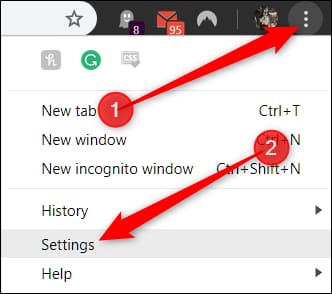
Start up Chrome, click the menu icon, then click “Settings”. Alternatively, you can enter chrome://settings/ in the address bar to go there directly.
How to enable and disable hardware acceleration in Chrome 8

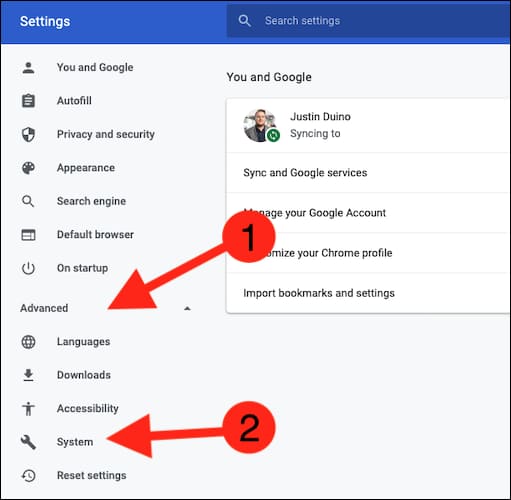
In the Settings menu, expand the “Advanced” section in the left menu, then select “System”.
How to enable and disable hardware acceleration in Chrome 9

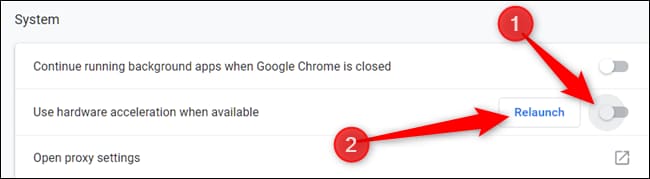
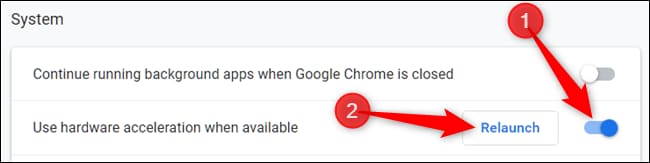
Find settings “Use hardware acceleration when available”. Toggle the switch to “Off” and then click “Relaunch” to apply the changes.

Warning: Make sure you save whatever you’re working on in the browser. Chrome will reopen tabs that were opened before it was relaunched, but without saving any data contained in them.
How to enable and disable hardware acceleration in Chrome 10

If you don’t want to restart Chrome and finish everything you’re doing, just close the tab. Chrome will apply the change the next time you close and reopen it.

To confirm that hardware acceleration is completely disabled, type chrome://gpu/ in the address bar and press Enter. When hardware acceleration is off, most of the items in “Graphics Feature Status” will have the content “Software only, hardware acceleration disabled”.

How to enable and disable hardware acceleration in Chrome 11

If you’re looking to enable — or re-enable — hardware acceleration, go back chrome://settings/system and switch settings “Use hardware acceleration when available” to the “On” state. Then, click “Relaunch” to apply the change.
How to enable and disable hardware acceleration in Chrome 12

Alternatively, you can also use These 11 extensions to increase learning productivity on Chrome.


The article achieved: 5/5 – (100 votes)

Tags: accelerationChromeDisableEnablehardware
Previous Post

Summary of free Free Hosting that can be registered

Next Post

How to fix screen flickering in Windows 11

AnonyViet

AnonyViet

Related Posts

How to record reaction videos with Android phones, no app needed
Tips

How to record reaction videos with Android phones, no app needed

June 1, 2026
Instructions on how to get Google AI Pro 1 year for free for new accounts
Tips

Instructions on how to get Google AI Pro 1 year for free for new accounts

June 1, 2026
Top free AI tools to help write, test and optimize content
Tips

Top free AI tools to help write, test and optimize content

June 1, 2026
Instructions for receiving Lovable Pro 12 months for free
Tips

Instructions for receiving Lovable Pro 12 months for free

May 29, 2026
Instructions for receiving 1 month of ElevenLabs Creator for free worth
Tips

Instructions for receiving 1 month of ElevenLabs Creator for free worth $22

May 25, 2026
How to create beautiful studio-like preschool graduation photos for your child
Tips

How to create beautiful studio-like preschool graduation photos for your child

May 21, 2026
Next Post
How to fix screen flickering in Windows 11

How to fix screen flickering in Windows 11

0 0 votes
Article Rating
Subscribe
Login
Notify of
guest

guest

0 Comments
Oldest
Newest Most Voted
Inline Feedbacks
View all comments

Recent News

How to check network speed on Apple TV when the image is jerky or lagging

How to check network speed on Apple TV when the image is jerky or lagging

June 3, 2026
Instructions on how to prevent acquaintances from seeing your Tiktok

Instructions on how to prevent acquaintances from seeing your Tiktok

June 2, 2026
How to record reaction videos with Android phones, no app needed

How to record reaction videos with Android phones, no app needed

June 1, 2026
Instructions on how to get Google AI Pro 1 year for free for new accounts

Instructions on how to get Google AI Pro 1 year for free for new accounts

June 1, 2026
How to check network speed on Apple TV when the image is jerky or lagging

How to check network speed on Apple TV when the image is jerky or lagging

June 3, 2026
Instructions on how to prevent acquaintances from seeing your Tiktok

Instructions on how to prevent acquaintances from seeing your Tiktok

June 2, 2026
How to record reaction videos with Android phones, no app needed

How to record reaction videos with Android phones, no app needed

June 1, 2026
AnonyViet - English Version

AnonyViet

AnonyViet is a website share knowledge that you have never learned in school!

We are ready to welcome your comments, as well as your articles sent to AnonyViet.

Follow Us

Contact:

Email: anonyviet.com[@]gmail.com

Main Website: https://anonyviet.com

Recent News

How to check network speed on Apple TV when the image is jerky or lagging

How to check network speed on Apple TV when the image is jerky or lagging

June 3, 2026
Instructions on how to prevent acquaintances from seeing your Tiktok

Instructions on how to prevent acquaintances from seeing your Tiktok

June 2, 2026
No Result
View All Result
  • Home
  • News
  • Software
  • Knowledge
  • MMO
  • Tips
  • Security
  • Network
  • Office

wpDiscuz
0
0
Would love your thoughts, please comment.x
()
x
| Reply