How to fix black screen error on iOS 26 will help you quickly regain the brilliant interface of your phone instead of having to look at the dark lock screen. This issue usually occurs randomly and may be related to new features like Liquid Glass or 3D wallpapers. Please join AnonyViet for some good tips to overcome this situation.
📢 Join the channel Telegram belong to AnonyViet
Update new articles, cool tools and IT tips fastest
Effective ways to fix black screen error on iOS 26
Below is a summary of the most effective remedies based on feedback from the community.
1. Restart iPhone
Sometimes, minor glitches in the software can temporarily cause image display to be distorted.
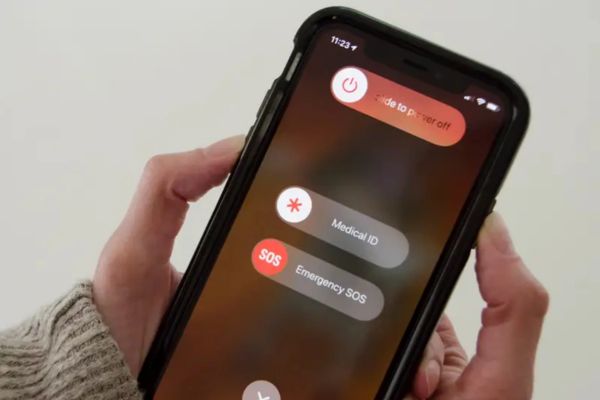
Step 1: Press and hold the power button (or the power + volume key combination depending on the model) to power off the device.
Step 2: Wait approx 30 seconds After the machine turns off completely, then restart iPhone.
Step 3: Check if the wallpaper is displayed normally again.
2. Update iOS to the latest version
Apple regularly releases patches to resolve outstanding issues. If you’re on the early version of iOS 26, upgrading is essential.
Step 1: Access Setting on iPhone.
Step 2: Select item General settings and click Software updates.
Step 3: Download and install the latest version (eg update March 2, 2026) to make the system more stable.
3. Check and unlink focus mode
One of the common causes leading to the above black screen error fix iOS 26 is the intervention of the Focus Mode feature. This feature can automatically change or dim your lock screen.
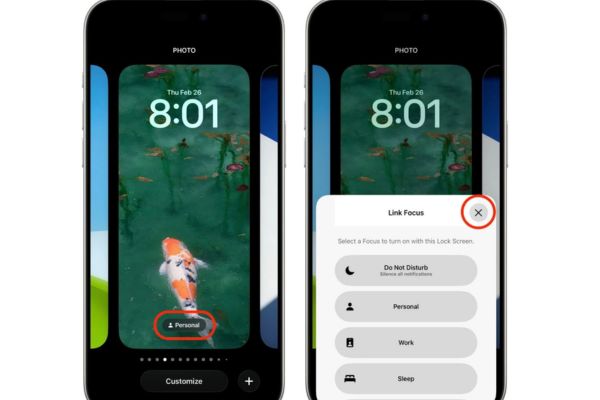
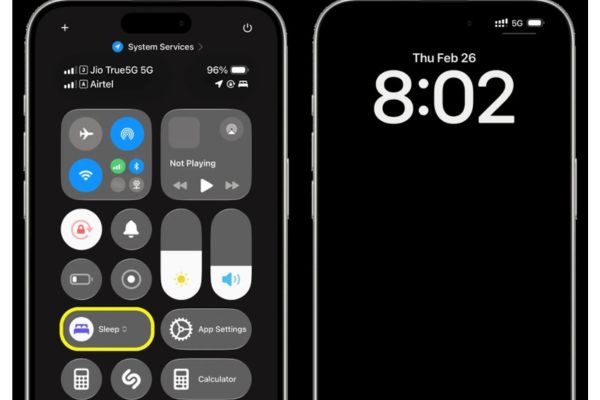
Step 1: At the lock screen, touch and hold the screen until the custom interface shrinks.
Step 2: Look at the bottom of the screen, if you see the name of one Focus mode is displayed, tap it.
Step 3: Uncheck the currently linked mode to disconnect from this lock screen.
Step 4: Press the mark X to exit and check the wallpaper again.
Notes about Sleep Mode: According to Apple’s default design, when Sleep mode is activated, the lock screen will automatically turn black or dimmed to protect eyes and sleep. You can’t completely change this unless you turn off Sleep mode completely. However, you can try turning off the “Sleep screen” option in Focus mode settings, although the effect may not be as effective if this mode is still running.
4. Adjust accessibility and display settings
If the new “Fluid Design” interface is causing conflicts, adjusting transparency could be the key to solving the problem.
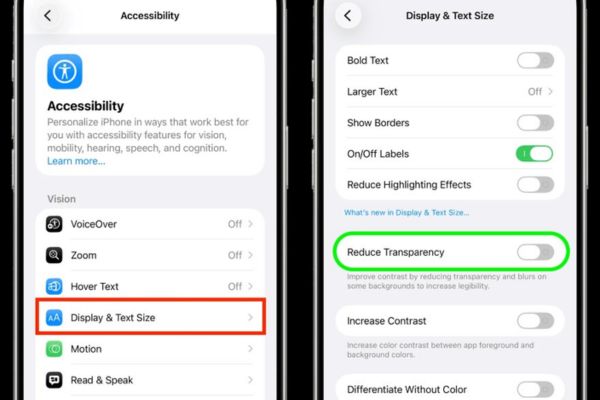
Turn off the Reduce Transparency function:
Step 1: Open the application Setting and go to item Accessibility.
Step 2: Click Screen & font size.
Step 3: Find item Reduce transparencyif it is on, toggle it to off.
Step 4: Restart your device to see if the black wallpaper problem is gone.
Change Liquid Glass style (If applicable):
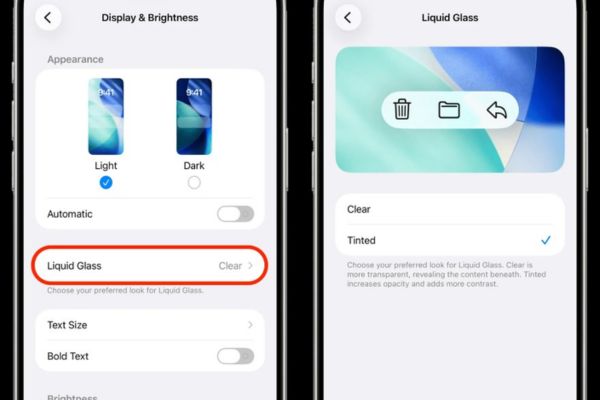
Some users share that changing the liquid glass interface settings is also effective.
Step 1: Enter Settings > Select next item Screen & brightness.
Step 2: Find item Liquid Glass and try switching to options There is coloring instead of Transparent.
5. Reset wallpaper and factory settings
If the above measures do not bring the expected results, you need to take stronger measures to apply the black screen error fix on iOS 26.
Reset new wallpaper:
Step 1: Delete the current lock screen wallpaper set that is failing.
Step 2: Create a new lock screen and choose a photo from your gallery again.
Step 3: Avoid using moving 3D or Spatial Scenery wallpapers, prioritize still images to ensure stability.
Reset all settings:
This is the last solution but often the most effective.
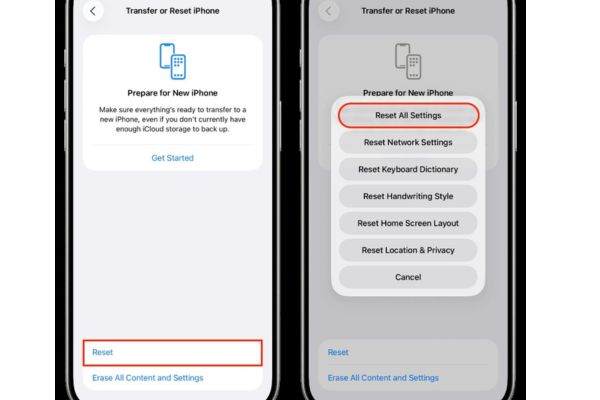
Step 1: Enter Settings > Select continue General settings.
Step 2: Click Switch or reset iPhone > Reset.
Step 3: Select section Reset all settings.
Note that this operation does not delete personal data but will return network settings, keyboard, and screen layout to default.
If all efforts fail, this is probably a deep error in the system and you are forced to wait for the next update (like iOS 27) from Apple.
Compare repair methods
To help you easily choose a solution, below is a table comparing the effectiveness and complexity of each method:
| Method | Complexity | Success rate | Note |
| Restart the machine | Short | Medium | Should try first |
| Unlink Focus | Medium | High | Most common cause |
| Turn off transparency reduction | Medium | High | Effective with interface errors |
| Reset all settings | High | Very high | Wi-Fi and alarm settings will be lost |
Conclusion
Correct application How to fix black screen error on iOS 26 will help you quickly restore meaningful background photos. Solutions ranging from as simple as restarting to more complex as resetting settings are all worth a try. Wishing you success and having the most satisfactory phone interface.
Q&A: Frequently asked questions
Question 1: Why is my iPhone screen still black when I turn on Sleep mode even though I changed the wallpaper?
Answer: This is the default feature of iOS to reduce light that harms sleep. You can’t completely change this interface unless you turn off Focus Sleep in settings.
Question 2: Will “Reset all settings” lose my photos and messages?
Answer: No, this only returns settings such as Wi-Fi, alarms, and home screen layout to their original defaults. Personal data such as photos, messages, and applications remain intact.
Question 3: I have tried everything but still get the black screen error, what should I do?
Answer: If you’ve tried everything including resetting settings to no avail, you should wait for the next iOS update or contact Apple support for further testing.