• Home
  • News
  • Software
  • Knowledge
  • MMO
  • Tips
  • Security
  • Network
  • Office
AnonyViet - English Version
  • Home
  • News
  • Software
  • Knowledge
  • MMO
  • Tips
  • Security
  • Network
  • Office
No Result
View All Result
  • Home
  • News
  • Software
  • Knowledge
  • MMO
  • Tips
  • Security
  • Network
  • Office
No Result
View All Result
AnonyViet - English Version
No Result
View All Result

How to download PDF without preview on Chrome, Firefox and Edge

AnonyViet by AnonyViet
March 23, 2026
in Tips
0

When opening a link with a pdf file, browsers will often default to opening the pdf file with that browser, instead of downloading it to your computer for you. But your need is to download PDF without preview, follow the method below and you can simply download the pdf file to your computer. To download a PDF file and not preview it, you need to change some settings in your browser. This feature works on Chrome, Firefox, and Edge.

📢 Join the channel Telegram belong to AnonyViet


👉 Go to Telegram AnonyViet

Update new articles, cool tools and IT tips fastest

How to download PDF without preview on Chrome, Firefox and Edge

How to download PDF without preview on browsers

Download PDF Files with Chrome

Google Chrome Use the built-in PDF viewer to let you preview PDF FILEs. You can disable this PDF viewer and then Chrome will prompt you to download PDF FILE instead of previewing them.

First, you need to open Google Chrome. Then click the 3-dot button on the top right and select “Settings”.
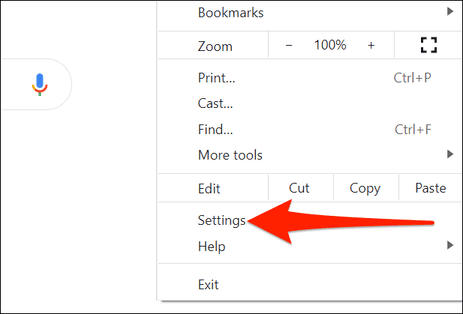
Download PDF Files with Chrome

In Settings, select “Privacy and security” – >“Site Settings”.
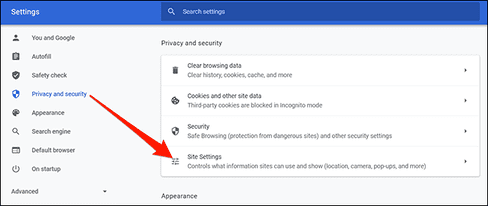
Site Settings

Scroll down and select “Additional content settings”.
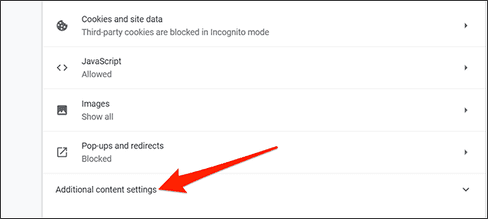
Additional content settings

In the drop-down menu, select “PDF documents”.
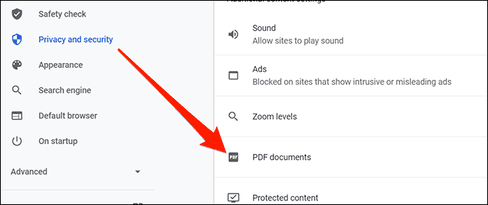
PDF documents

Finally, enable the “Download PDF files instead of automatically opening them in Chrome” option.
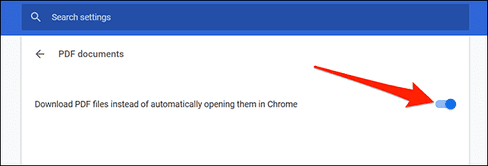
Download PDF files instead of automatically opening them in Chrome

Chrome will now ask you to download PDF files instead of letting you preview them in the browser.

Download PDF Files with Firefox

Mozilla Firefox also has a built-in option to let you download PDF files instead of previewing them in the browser.

First, you need to open Firefox and go to “Options”.
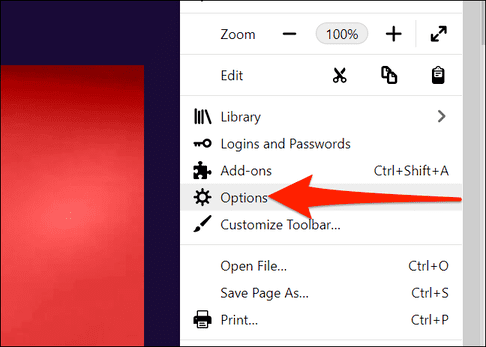
Download PDF Files with Firefox

In Options, click “General” on the left. Scroll down the menu on the right until you see “Applications”.

In Applications, click the “Portable Document Format (PDF)” option and select “Save File”.
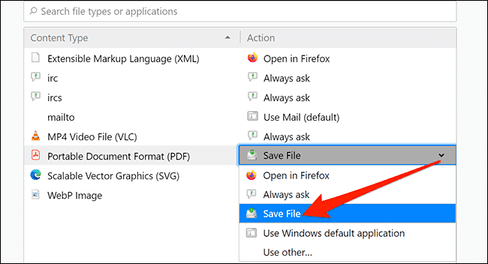
Applications

So you can download pdf files to your computer without having to view them in the browser.

Download PDF Files with Microsoft Edge

Microsoft Edge uses a built-in PDF viewer to let you preview PDF files. Turn off the option to view pdf using the browser and edge will automatically download the pdf file to your computer, you just need to do the following:

First, you need to open Edge and go to “Settings”.
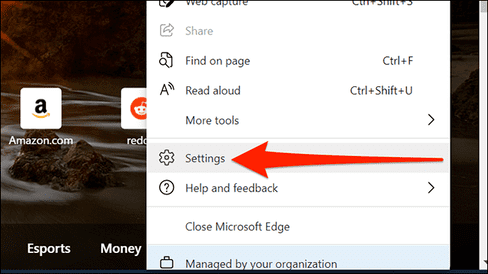
Microsoft Edge Settings

In Settings, click “Cookies and site permissions” on the left, then select “PDF documents” on the right.
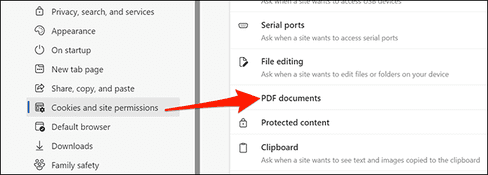
Cookies and site permissions

Turn on the “Always download PDF files” option.
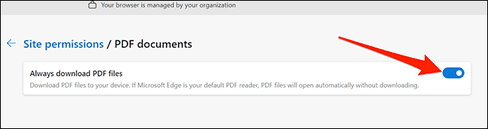
Always download PDF files

That’s it. You can too download web pages as PDF to read offline too.

Download the Web page as PDF to your computer

You surf the web and accidentally see a good website, you want to download that article, instead of pressing Ctrl + S to save the entire html, js, css file, now you can save that website with just a single pdf file.

Saving web pages as pdf makes it easy for you to print, store, and share with others. You just need to visit the website you want to save as a pdf, right-click on the website and select it Print

print pdf website

In section Destination you choose Save as Pdfthen press the button Saveselect the path to save the pdf file and you’re done.

In case the pdf file does not display the image, remember to select More Settings, check the box Background graphics.

destination PRINT WEBSITE PDF

In this article, I have shown you how to download pdf without previewing in the browser. Now you can download textbooks and pdf documents to your computer easily.

Frequently asked questions

Can I download PDF files without preview on Chrome, Firefox and Edge?

Yes, you absolutely can. The article has detailed instructions on how to turn off the built-in PDF preview feature on each browser, helping you download PDF files directly to your computer.

If I accidentally opened a PDF file in my browser, can I download it?

Yes, most browsers allow you to download opened PDF files. You can usually find the download option in your browser’s menu or toolbar.

How to download a web page as PDF?

You can use the “Print” function of your browser. Select “Save as PDF” as the printing device and choose a location to save the file.

Previous Post

Samsung Internet for Windows: Is it enough to replace Chrome?

Next Post

How to fix black screen error on iOS 26 without losing data

AnonyViet

AnonyViet

Related Posts

Microsoft is preparing to launch Windows 11
Tips

Microsoft is preparing to launch Windows 11

October 9, 2026
How to download all photos from Google Photos to transfer to another service
Tips

How to download all photos from Google Photos to transfer to another service

October 8, 2026
How to use newly updated utilities on Windows 10
Tips

How to use newly updated utilities on Windows 10

October 7, 2026
Stealth Reader – Web story reader with Excel interface without being detected by the boss
Tips

Stealth Reader – Web story reader with Excel interface without being detected by the boss

October 7, 2026
Tips for handling when JPG images cannot be saved in Photoshop
Tips

Tips for handling when JPG images cannot be saved in Photoshop

October 6, 2026
Windows 11 release date and new features
Tips

Windows 11 release date and new features

October 6, 2026
Next Post
How to fix black screen error on iOS 26 without losing data

How to fix black screen error on iOS 26 without losing data

0 0 votes
Article Rating
Subscribe
Login
Notify of
guest

guest

0 Comments
Oldest
Newest Most Voted

Recent News

NoteCute – Extension to create super cute sticky notes

NoteCute – Extension to create super cute sticky notes

October 10, 2026
Super virtual way to change the photography angle using AI on iPhone

Super virtual way to change the photography angle using AI on iPhone

October 9, 2026
Instructions for detecting network vulnerabilities: How to check the system for data leaks (IP/DNS)

Instructions for detecting network vulnerabilities: How to check the system for data leaks (IP/DNS)

October 9, 2026
Microsoft is preparing to launch Windows 11

Microsoft is preparing to launch Windows 11

October 9, 2026
NoteCute – Extension to create super cute sticky notes

NoteCute – Extension to create super cute sticky notes

October 10, 2026
Super virtual way to change the photography angle using AI on iPhone

Super virtual way to change the photography angle using AI on iPhone

October 9, 2026
Instructions for detecting network vulnerabilities: How to check the system for data leaks (IP/DNS)

Instructions for detecting network vulnerabilities: How to check the system for data leaks (IP/DNS)

October 9, 2026
AnonyViet - English Version

AnonyViet

AnonyViet is a website share knowledge that you have never learned in school!

We are ready to welcome your comments, as well as your articles sent to AnonyViet.

Follow Us

Contact:

Email: anonyviet.com[@]gmail.com

Main Website: https://anonyviet.com

Recent News

NoteCute – Extension to create super cute sticky notes

NoteCute – Extension to create super cute sticky notes

October 10, 2026
Super virtual way to change the photography angle using AI on iPhone

Super virtual way to change the photography angle using AI on iPhone

October 9, 2026
  • Home
  • Home 2
  • Home 3
  • Home 4
  • Home 5
  • Home 6
  • Next Dest Page
  • Sample Page

say88 tỷ lệ kèo nhà cái kèo nhà cái 5 febet

No Result
View All Result
  • Home
  • News
  • Software
  • Knowledge
  • MMO
  • Tips
  • Security
  • Network
  • Office

say88 tỷ lệ kèo nhà cái kèo nhà cái 5 febet

wpDiscuz
0
0
Would love your thoughts, please comment.x
()
x
| Reply