• Home
  • News
  • Software
  • Knowledge
  • MMO
  • Tips
  • Security
  • Network
  • Office
AnonyViet - English Version
  • Home
  • News
  • Software
  • Knowledge
  • MMO
  • Tips
  • Security
  • Network
  • Office
No Result
View All Result
  • Home
  • News
  • Software
  • Knowledge
  • MMO
  • Tips
  • Security
  • Network
  • Office
No Result
View All Result
AnonyViet - English Version
No Result
View All Result

How to Find the Location of Relatives and Friends Using Google Maps

AnonyViet by AnonyViet
January 27, 2023
in Software
0

The location of your family and friends will be displayed on Google Maps, giving you more peace of mind about your loved ones. Whether it’s kids at school or older members of the family, you can use Google Maps to find the location of your family or friends.

Join the channel Telegram of the AnonyViet 👉 Link 👈

share google maps

Ask for the location of a friend or family member

To know the other person’s location, both of them need to download the Google Maps app on Androidor Iphone. You must also share your location with loved ones at least once.

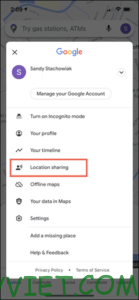
First, open Google Maps, and tap your profile picture in the top right and select “Location Sharing”.
How to Find the Location of Relatives and Friends Using Google Maps 12

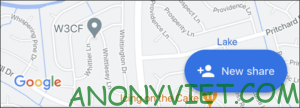
If you have never shared your location in Google Maps, you must share your location with a loved one before you can request their location, by selecting “New Share” (New shares).
How to Find the Location of Relatives and Friends Using Google Maps 13

Before you select a contact, select a time frame. You can then share your location with them for a certain amount of time until you turn the feature off.

How to Find the Location of Relatives and Friends Using Google Maps 14

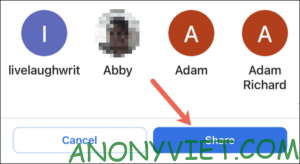
Next, select the contact you want or drag to the right and press “More” (More options) to see all contacts, once you’ve selected, press “Share”.
How to Find the Location of Relatives and Friends Using Google Maps 15

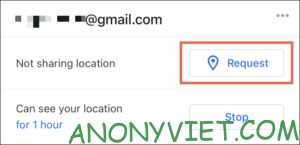
After you share your location, you can send requests to others to share their location with you. Select the contact, then tap “Request” (Request).
How to Find the Location of Relatives and Friends Using Google Maps 16

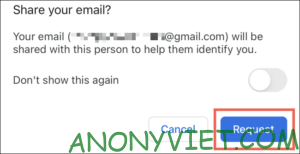
You will see a notification that your email will be shared with them and you can choose to turn off notifications like this in the future. Just choose “Request” (Request) Please.
How to Find the Location of Relatives and Friends Using Google Maps 17

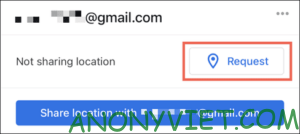
If you’ve shared your location with someone before, you’ll see them at the bottom of the window Location Sharing. And now you can share your location again with them or simply ask them to share their location with you.

Select your contact at the bottom. and press “Request” and select one more time”Request” again in the next window.
How to Find the Location of Relatives and Friends Using Google Maps 18

Your friends and family will receive email notifications in Google Maps when you ask them to share your location.

How to Find the Location of Relatives and Friends Using Google Maps 19

Find the location of relatives and friends using Google Maps

Once someone has agreed to share their location with you, you can also easily find them in Google Maps on your phone or the web. In this article, I will call them all relatives.

Find family and friends on your phone

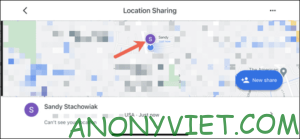
Open Google Maps on your phone, tap your avatar in the top right and select “Location Sharing” .

Once selected, your loved one will show up on Google Maps, click to see their location details, or maybe Google Maps will direct you to your loved one.
Find family and friends on your phone

Find the location of family and friends on the Web

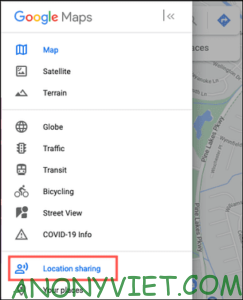
First you need to access the website Google Mapslog in to your account and then click the 3 tile menu button in the top left corner and select “Location Sharing”.
Find the location of family and friends on the Web

Select a loved one who is sharing their location with you. You’ll see their photo or initials appear on the map with their current location on the left.
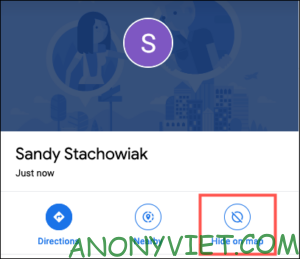
share google maps location

Hide someone on Google Maps

Of course you can also hide someone on Google Maps. Even if the person has shared their location with you, that doesn’t mean you always want to see them on the map. Maybe you already know they’re safe and normal so now you want to check on someone else.

Hide someone’s location on phone

Return to the Location Sharing screen in the app by tapping your avatar or initials and selecting “Location Sharing”. Select the contact you want to hide from the map on Google Maps.

Tap the three dots in the upper right corner and select “Hide From Map”.
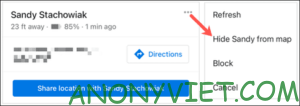
Hide someone's location on phone

To show that contact again, tap the contact at the bottom of your location sharing list. Then tap on the “Unhide” of the notification.

Unhide

Hide someone’s location on the Web

First of all, you need the Location Sharing screen of Google Maps web version in Menu > Location Sharing.

Select the contact you want to hide and click “Hide on Map” below their name. This will remove their photo or initials from your map, although they will still appear in your location sharing list.
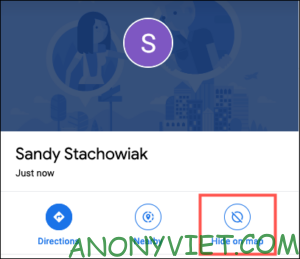
Hide someone's location on the Web

To show a contact, hover your cursor over their name in the location sharing list and click “Show on Map”.
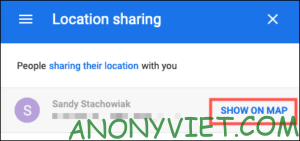
Show on Map

To stop seeing someone else’s location, you can block them. Otherwise, wait for the location sharing period to expire or they stop sharing their location with you on Google Maps.

In addition, you can also put the company address on Google Map here.

The article achieved: 5/5 – (100 votes)

Tags: FindfriendsGoogleLocationMapsRelatives
Previous Post

AndroRAT: Remote and Hack Android phone data remotely

Next Post

[Tạo 2D Platformer Game với Godot] Part 6: Adding Background

AnonyViet

AnonyViet

Related Posts

4K Video Downloader Plus – Tool to download YouTube videos on macOS
Software

4K Video Downloader Plus – Tool to download YouTube videos on macOS

April 20, 2026
How to authenticate the owner’s SIM on VNeID from April 15
Software

How to authenticate the owner’s SIM on VNeID from April 15

April 15, 2026
Review of Galaxy A57 and A37: Some are eight ounces, some are half a pound
Software

Review of Galaxy A57 and A37: Some are eight ounces, some are half a pound

April 14, 2026
JOPDF: Versatile PDF editing software for Windows and Mac
Software

JOPDF: Versatile PDF editing software for Windows and Mac

April 10, 2026
MyVehicle: Convenient and secure motorcycle maintenance reminder app
Software

MyVehicle: Convenient and secure motorcycle maintenance reminder app

April 10, 2026
How to turn off AI on Gmail to absolutely protect personal data
Software

How to turn off AI on Gmail to absolutely protect personal data

April 8, 2026
Next Post
[Tạo 2D Platformer Game với Godot] Part 6: Adding Background

[Tạo 2D Platformer Game với Godot] Part 6: Adding Background

0 0 votes
Article Rating
Subscribe
Login
Notify of
guest

guest

0 Comments
Oldest
Newest Most Voted
Inline Feedbacks
View all comments

Recent News

4K Video Downloader Plus – Tool to download YouTube videos on macOS

4K Video Downloader Plus – Tool to download YouTube videos on macOS

April 20, 2026
How to add Watermark to Google Docs to protect copyright

How to add Watermark to Google Docs to protect copyright

April 19, 2026
How to intercept traffic using Burp Suite to analyze HTTP/HTTPS

How to intercept traffic using Burp Suite to analyze HTTP/HTTPS

April 18, 2026
How to avoid Adblock detection on Youtube with 4 good tips

How to avoid Adblock detection on Youtube with 4 good tips

April 17, 2026
4K Video Downloader Plus – Tool to download YouTube videos on macOS

4K Video Downloader Plus – Tool to download YouTube videos on macOS

April 20, 2026
How to add Watermark to Google Docs to protect copyright

How to add Watermark to Google Docs to protect copyright

April 19, 2026
How to intercept traffic using Burp Suite to analyze HTTP/HTTPS

How to intercept traffic using Burp Suite to analyze HTTP/HTTPS

April 18, 2026
AnonyViet - English Version

AnonyViet

AnonyViet is a website share knowledge that you have never learned in school!

We are ready to welcome your comments, as well as your articles sent to AnonyViet.

Follow Us

Contact:

Email: anonyviet.com[@]gmail.com

Main Website: https://anonyviet.com

Recent News

4K Video Downloader Plus – Tool to download YouTube videos on macOS

4K Video Downloader Plus – Tool to download YouTube videos on macOS

April 20, 2026
How to add Watermark to Google Docs to protect copyright

How to add Watermark to Google Docs to protect copyright

April 19, 2026
No Result
View All Result
  • Home
  • News
  • Software
  • Knowledge
  • MMO
  • Tips
  • Security
  • Network
  • Office

wpDiscuz
0
0
Would love your thoughts, please comment.x
()
x
| Reply