
• Home
  • News
  • Software
  • Knowledge
  • MMO
  • Tips
  • Security
  • Network
  • Office
AnonyViet - English Version
  • Home
  • News
  • Software
  • Knowledge
  • MMO
  • Tips
  • Security
  • Network
  • Office
No Result
View All Result
  • Home
  • News
  • Software
  • Knowledge
  • MMO
  • Tips
  • Security
  • Network
  • Office
No Result
View All Result
AnonyViet - English Version
No Result
View All Result

How to enable Widgets on Windows 11 lock screen

AnonyViet by AnonyViet
May 26, 2024
in Tips
0

How to enable Widgets on the lock screen Windows 11 not only helps you access information quickly but also increases the dynamism of your computer. Microsoft recently added a feature that allows users to add a weather widget to the lock screen in update KB5035941 (19045.4235) for Windows 10. Now, this feature has also been introduced in the Release Preview channel of Windows 11 with update KB5035942 (22631.3371).

Join the channel Telegram belong to AnonyViet 👉 Link 👈

Widget design on both Windows 10 and 11 operating systems is almost identical. The only difference you may notice is that on Windows 10, widgets are added to the lower left corner, while Windows 11 places them in the middle of the screen.

As of the time of writing, the only way to add widgets to the Windows 11 lock screen is to use ViveTool. The steps are as follows:

Step 1: Update the system to version 22631.3371 (KB5035942).

Step 2: Download and install ViveTool on your computer according to the link HERE

Step 3: Open Start Menu > Search for 'Command Prompt' > Select 'Run as administrator'.
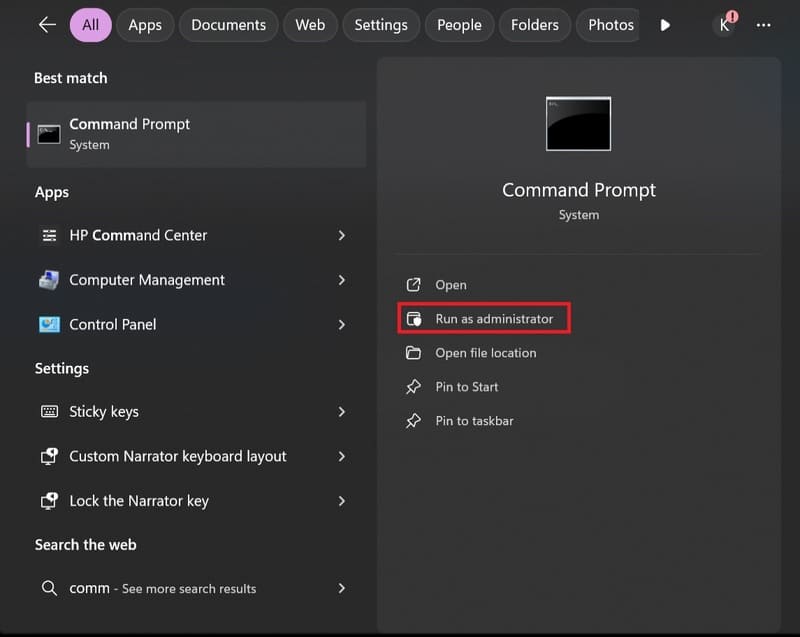
How to enable Widgets on the lock screen
Open 'Command Prompt'

Step 4: Navigate to the ViveTool folder using the CD command.

For example, if you installed ViveTool in drive C:\Vive, enter CD C:\Vive.

Step 5: Paste the command line below > Enter

vivetool /enable /id:47921515,47921574
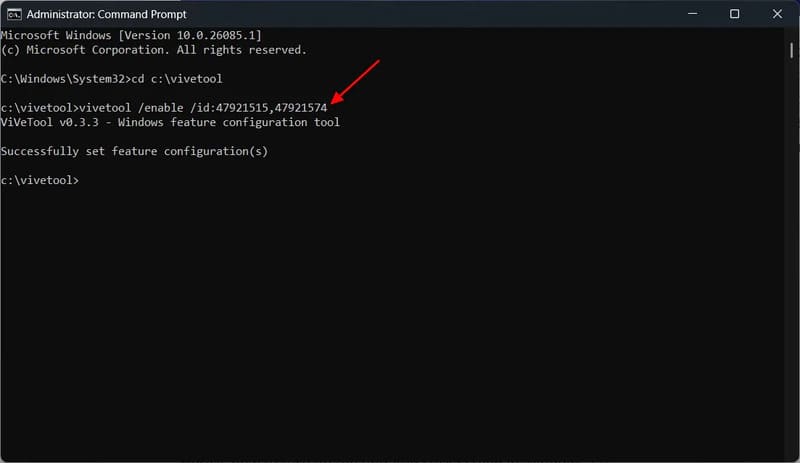
How to enable Widgets on the lock screen
Paste the command line above

You will see the message 'Successfully set feature configuration', indicating that the command ran successfully. Then, restart your computer and open the Settings application.

Step 6: In the Settings app, select 'Personalization' and click 'Lock screen' on the right.
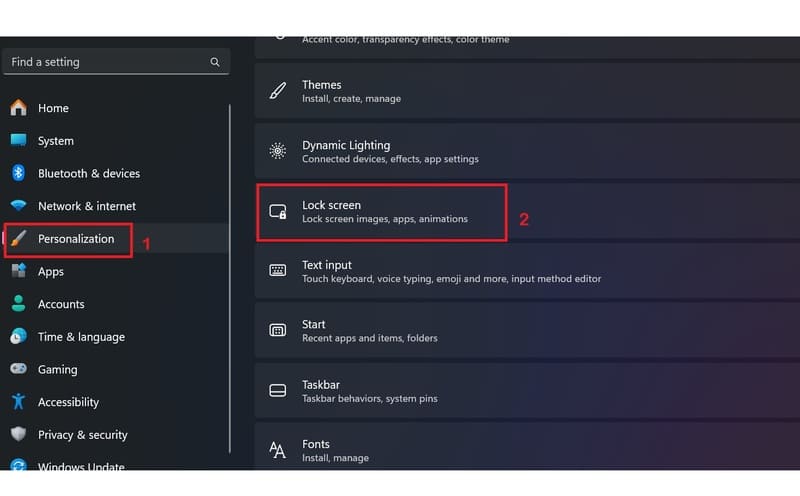
How to enable Widgets on the lock screen
Select Personalization > Lock screen

Step 7: In the Lock screen status section, select 'Weather and more' from the drop-down menu.

At this point, you can press the key combination Windows + L to see widgets on the lock screen.

One minus point for Windows 11 is that you cannot choose which widgets will appear on the lock screen. You can show all widgets or none at all. This is also a problem that Windows 10 faces and is something that many users do not 'satisfy'.

Epilogue

So you know How to enable Widgets on lock screen Windows 11 is here. How do you like this new feature? Would you like Microsoft to give you the option to choose which widgets appear on your lock screen? Please leave your thoughts below in the comments section!


Tags: EnableLockscreenWidgetsWindows
Previous Post

Experience Galaxy AI right on Galaxy S23: No different from S24, so delicious!

Next Post

How to turn off Recall on Windows to ensure privacy

AnonyViet

AnonyViet

Related Posts

How to write Shell Script in Linux/Unix
Tips

How to write Shell Script in Linux/Unix

December 6, 2025
How to completely uninstall WSL on Windows 11?
Tips

How to completely uninstall WSL on Windows 11?

December 6, 2025
Kinh nghiệm mua Laptop cho sinh viên nhóm ngành kế toán, kinh tế, xã hội…
Tips

Kinh nghiệm mua Laptop cho sinh viên nhóm ngành kế toán, kinh tế, xã hội…

December 5, 2025
8 tips for more successful PowerPoint presentations
Tips

8 tips for more successful PowerPoint presentations

December 4, 2025
Chrome extensions to improve productivity in 2021
Tips

Chrome extensions to improve productivity in 2021

December 2, 2025
How to create photos that run KPIs while crying using Gemini for the 12 zodiac animals
Tips

How to create photos that run KPIs while crying using Gemini for the 12 zodiac animals

December 1, 2025
Next Post
How to turn off Recall on Windows to ensure privacy

How to turn off Recall on Windows to ensure privacy

0 0 votes
Article Rating
Subscribe
Login
Notify of
guest

guest

0 Comments
Oldest
Newest Most Voted
Inline Feedbacks
View all comments

Recent News

How to create Mind Map and Flowchart using ChatGPT is super simple

How to create Mind Map and Flowchart using ChatGPT is super simple

December 7, 2025
Free Gemini Google certification exam guide and Answers

Free Gemini Google certification exam guide and Answers

December 6, 2025
How to write Shell Script in Linux/Unix

How to write Shell Script in Linux/Unix

December 6, 2025
How to completely uninstall WSL on Windows 11?

How to completely uninstall WSL on Windows 11?

December 6, 2025
How to create Mind Map and Flowchart using ChatGPT is super simple

How to create Mind Map and Flowchart using ChatGPT is super simple

December 7, 2025
Free Gemini Google certification exam guide and Answers

Free Gemini Google certification exam guide and Answers

December 6, 2025
How to write Shell Script in Linux/Unix

How to write Shell Script in Linux/Unix

December 6, 2025
AnonyViet - English Version

AnonyViet

AnonyViet is a website share knowledge that you have never learned in school!

We are ready to welcome your comments, as well as your articles sent to AnonyViet.

Follow Us

Contact:

Email: anonyviet.com[@]gmail.com

Main Website: https://anonyviet.com

Recent News

How to create Mind Map and Flowchart using ChatGPT is super simple

How to create Mind Map and Flowchart using ChatGPT is super simple

December 7, 2025
Free Gemini Google certification exam guide and Answers

Free Gemini Google certification exam guide and Answers

December 6, 2025
  • Home
  • Home 2
  • Home 3
  • Home 4
  • Home 5
  • Home 6
  • Next Dest Page
  • Sample Page

trang chủ f168 nhà cái 78win https://www.qq8827.com/

No Result
View All Result
  • Home
  • News
  • Software
  • Knowledge
  • MMO
  • Tips
  • Security
  • Network
  • Office

trang chủ f168 nhà cái 78win https://www.qq8827.com/

wpDiscuz
0
0
Would love your thoughts, please comment.x
()
x
| Reply





