• Home
  • News
  • Software
  • Knowledge
  • MMO
  • Tips
  • Security
  • Network
  • Office
AnonyViet - English Version
  • Home
  • News
  • Software
  • Knowledge
  • MMO
  • Tips
  • Security
  • Network
  • Office
No Result
View All Result
  • Home
  • News
  • Software
  • Knowledge
  • MMO
  • Tips
  • Security
  • Network
  • Office
No Result
View All Result
AnonyViet - English Version
No Result
View All Result

How to enable God Mode on Windows 11 or Windows 10

AnonyViet by AnonyViet
January 27, 2023
in Tips
0

With the new and innovative Windows user interface, the harder it is to access the most advanced settings. Windows 11like Windows 10 before it, tries to make you use the new, more modern Settings app but doesn’t remove the old Control Panel, which still contains a lot of important options.

Join the channel Telegram of the AnonyViet 👉 Link 👈

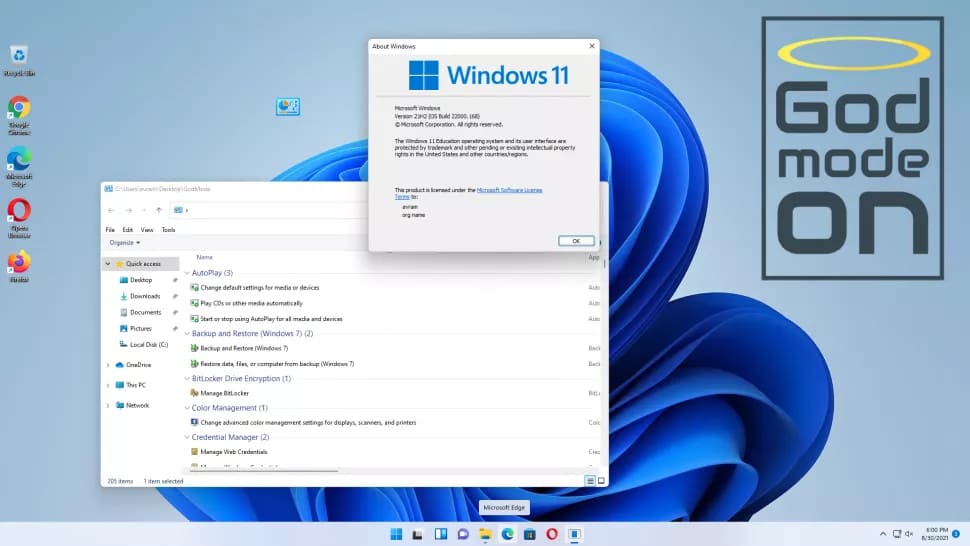
How to enable God Mode on Windows 11 or Windows 10

Even when launching the Control Panel, you may have trouble finding the setting you want. For example, to change your environment variables (which affects what applications you can launch from any directory via cmd), you go Settings->System->About->Advanced System Settings or Control Panel->System->Advanced System Settings and then click the Environment Variables button.

The good news is that you can see the full list of keyboard shortcuts directly by enabling “God Mode,” or more precisely, creating a God Mode folder.

God Mode is a special option available in some previous versions of Windows that gives you quick access to most of the special tools in the Control Panel. Therefore, God Mode – or Windows Master Control Panel – is a useful time-saver that can save you a lot of time looking for features in the Control Panel.

God Mode has always been seen as having the greatest appeal for advanced Windows users and developers, but it can be useful for anyone who wants one place that brings together all the features you want. Since Microsoft no longer provides shortcuts to the Control Panel since Windows 10, God Mode is possibly the fastest and easiest way to access all of the Control Panel’s core features.

How to enable God Mode on Windows 11 or Windows 10

1. Right click on desktop and choose New->Folder.
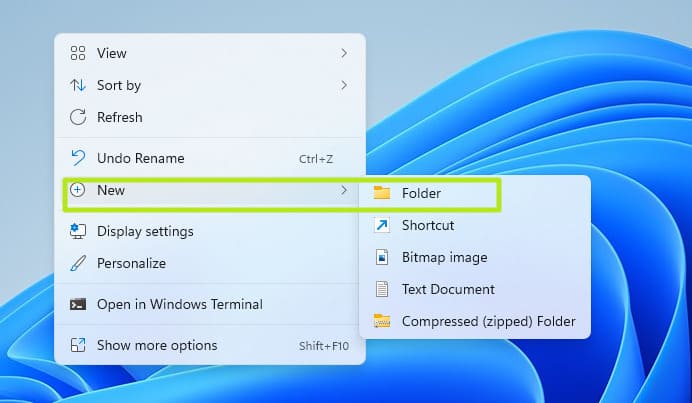
How to enable God Mode on Windows 11 or Windows 10 7

2. Name the folder: GodMode. {ED7BA470-8E54-465E-825C-99712043E01C}
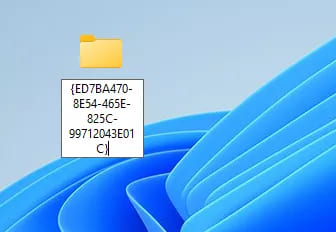
How to enable God Mode on Windows 11 or Windows 10 8

The name will disappear once you’re done.

3. Open the folder. You’ll see over 200 settings menus to choose from, organized into categories like Security and Maintenance and Power Options.
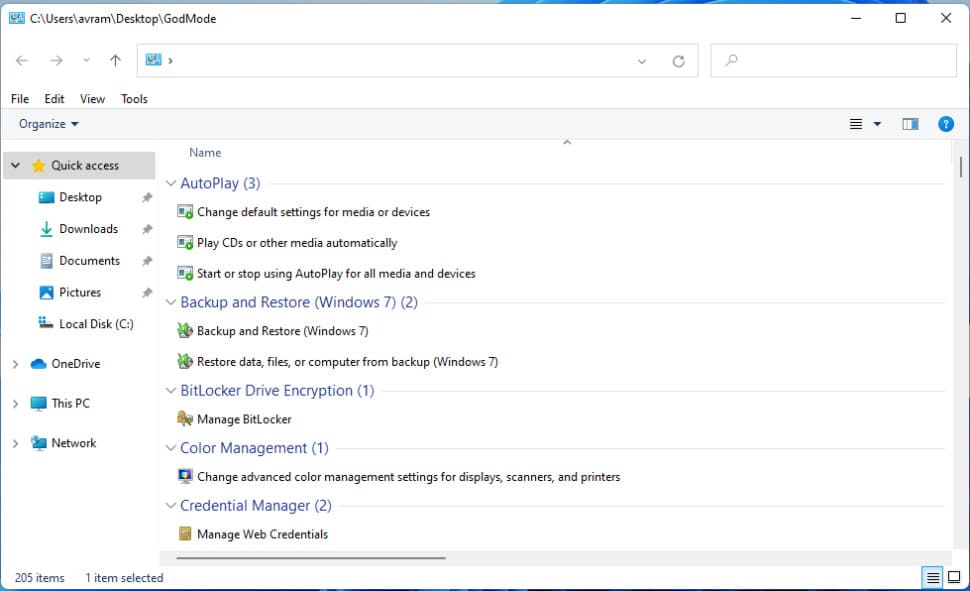
How to enable God Mode on Windows 11 or Windows 10 9

4. Drag and drop shortcuts to the Desktop if you want faster access. For example, if you want quick access to “Manage audio devices”, drag it to the Desktop.
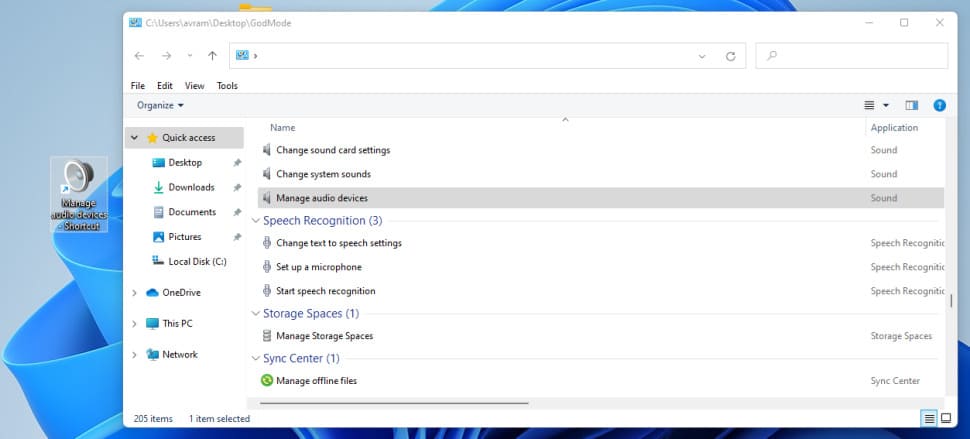
How to enable God Mode on Windows 11 or Windows 10 10

Note that the God Mode folder icon may change, it is no longer a yellow folder icon, but instead will be the Control Panel icon as shown below.

How to enable God Mode on Windows 11 or Windows 10 11

Alternatively, you can also try Windows 11 on a web browser here.

The article achieved: 5/5 – (100 votes)

Tags: EnableGodModeWindows
Previous Post

How to convert Text to Speech with no time limit

Next Post

Instructions for Using LimeRat – Hijacking Other People’s Computers

AnonyViet

AnonyViet

Related Posts

How to record reaction videos with Android phones, no app needed
Tips

How to record reaction videos with Android phones, no app needed

June 1, 2026
Instructions on how to get Google AI Pro 1 year for free for new accounts
Tips

Instructions on how to get Google AI Pro 1 year for free for new accounts

June 1, 2026
Top free AI tools to help write, test and optimize content
Tips

Top free AI tools to help write, test and optimize content

June 1, 2026
Instructions for receiving Lovable Pro 12 months for free
Tips

Instructions for receiving Lovable Pro 12 months for free

May 29, 2026
Instructions for receiving 1 month of ElevenLabs Creator for free worth
Tips

Instructions for receiving 1 month of ElevenLabs Creator for free worth $22

May 25, 2026
How to create beautiful studio-like preschool graduation photos for your child
Tips

How to create beautiful studio-like preschool graduation photos for your child

May 21, 2026
Next Post
Instructions for Using LimeRat – Hijacking Other People’s Computers

Instructions for Using LimeRat - Hijacking Other People's Computers

0 0 votes
Article Rating
Subscribe
Login
Notify of
guest

guest

0 Comments
Oldest
Newest Most Voted
Inline Feedbacks
View all comments

Recent News

How to check network speed on Apple TV when the image is jerky or lagging

How to check network speed on Apple TV when the image is jerky or lagging

June 3, 2026
Instructions on how to prevent acquaintances from seeing your Tiktok

Instructions on how to prevent acquaintances from seeing your Tiktok

June 2, 2026
How to record reaction videos with Android phones, no app needed

How to record reaction videos with Android phones, no app needed

June 1, 2026
Instructions on how to get Google AI Pro 1 year for free for new accounts

Instructions on how to get Google AI Pro 1 year for free for new accounts

June 1, 2026
How to check network speed on Apple TV when the image is jerky or lagging

How to check network speed on Apple TV when the image is jerky or lagging

June 3, 2026
Instructions on how to prevent acquaintances from seeing your Tiktok

Instructions on how to prevent acquaintances from seeing your Tiktok

June 2, 2026
How to record reaction videos with Android phones, no app needed

How to record reaction videos with Android phones, no app needed

June 1, 2026
AnonyViet - English Version

AnonyViet

AnonyViet is a website share knowledge that you have never learned in school!

We are ready to welcome your comments, as well as your articles sent to AnonyViet.

Follow Us

Contact:

Email: anonyviet.com[@]gmail.com

Main Website: https://anonyviet.com

Recent News

How to check network speed on Apple TV when the image is jerky or lagging

How to check network speed on Apple TV when the image is jerky or lagging

June 3, 2026
Instructions on how to prevent acquaintances from seeing your Tiktok

Instructions on how to prevent acquaintances from seeing your Tiktok

June 2, 2026
No Result
View All Result
  • Home
  • News
  • Software
  • Knowledge
  • MMO
  • Tips
  • Security
  • Network
  • Office

wpDiscuz
0
0
Would love your thoughts, please comment.x
()
x
| Reply