PDF is easy to view on most devices but editing can be difficult because it is designed to be viewed. Editing PDFs can be more difficult than editing Microsoft Office documents. Don’t worry, there’s a way. Whether you want to add, delete, or insert text or images, you can use the following methods to do it.
| Join the channel Telegram belong to AnonyViet 👉 Link 👈 |
How to edit PDF with a powerful PDF editor
SwifDoo PDF is the best software best PDF editor helps users easily add, change and format text in PDF files. It works well on Windows systems and is completely clean and safe.
With SwifDoo PDF, editing PDF text, rotating, extracting or renumbering PDF pages is easy. Annotating or signing PDF files is also well supported.
Step 1. Open the PDF file with SwifDoo PDF
First, Download SwifDoo PDF to your Windows and double click on the software icon to launch it after successful installation.
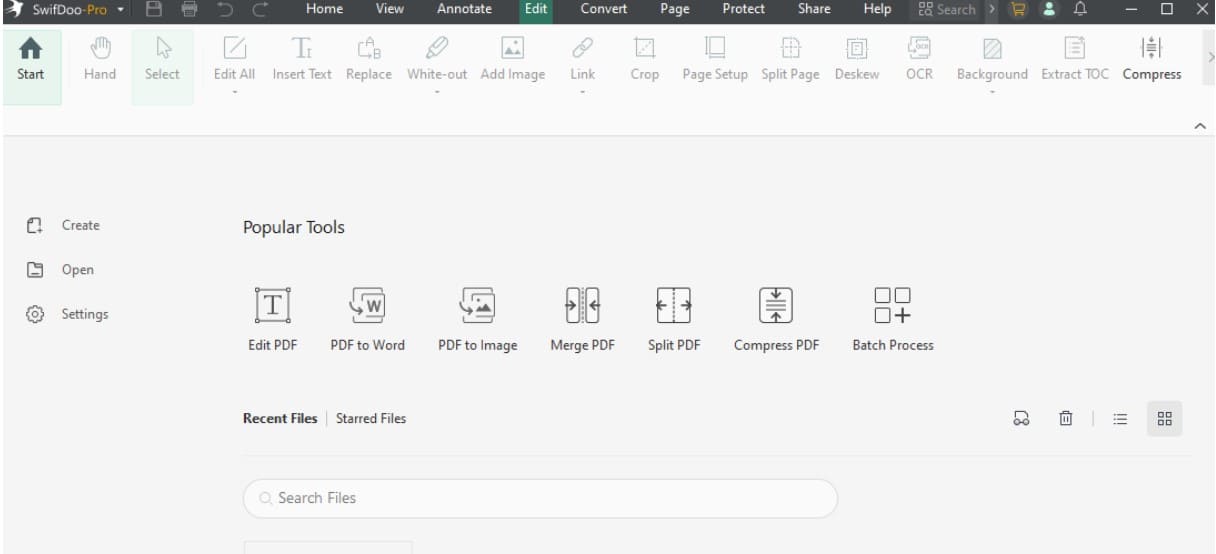
Open the PDF document you want to edit by clicking the “Open” button or dragging and dropping. If the PDF file is password protected, you can remove password protected PDF in SwifDoo PDF.
Step 2. Make edits to PDF
Click the Edit Text icon below the editing tab on the toolbar, then you can modify, add, delete, or format text in the PDF file. SwifDoo PDF also provides an OCR feature that allows you to Copy text from scanned PDF file.
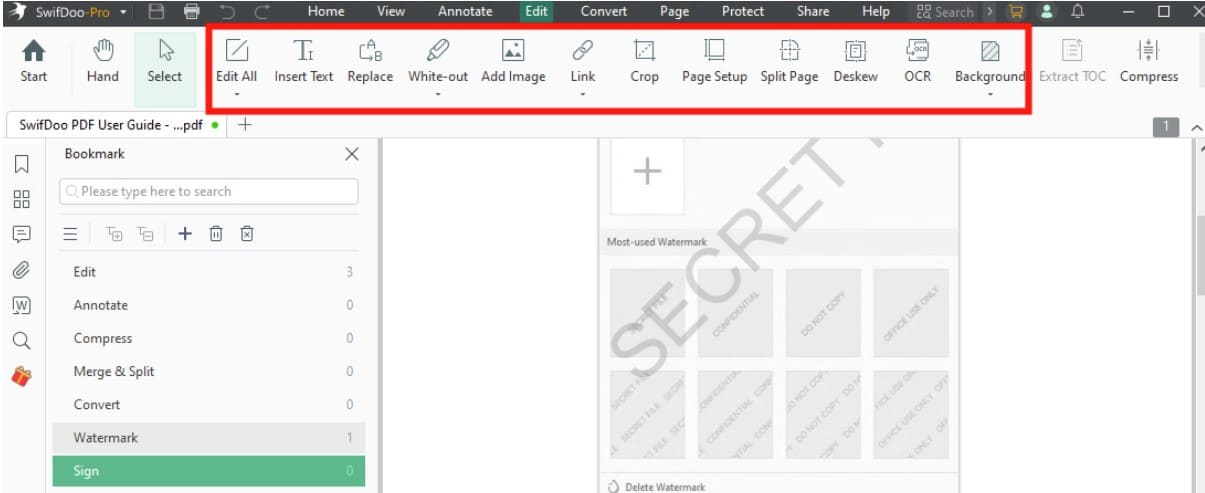
In the editing tab, you can underline, strikethrough, and highlight text in the PDF. Adding text boxes, comments, and shapes to PDF pages is also supported.
After modifying the PDF file to your liking, you can insert a watermark or signature into the PDF page or Use a password to protect your PDF documents.
Step 3. Save the new PDF file
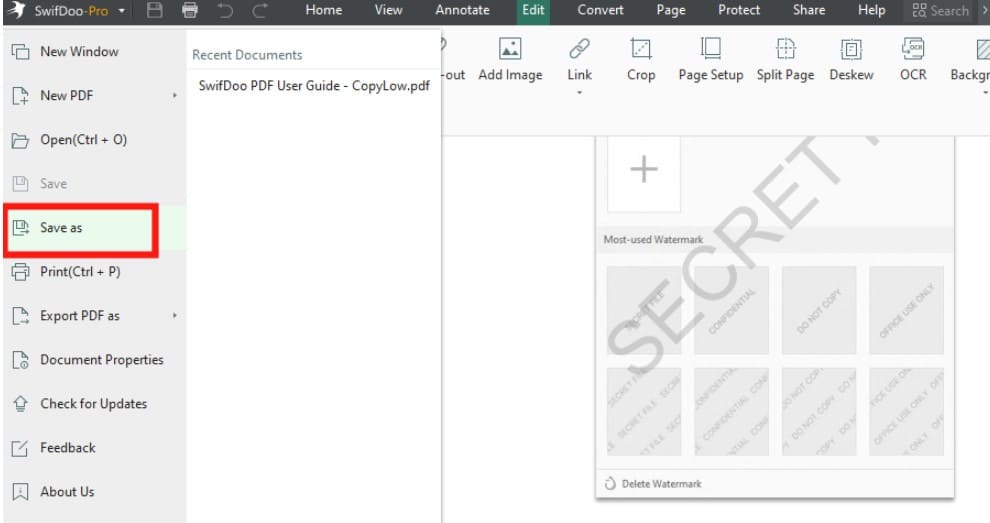
Click the ‘Save as’ button on the top left, rename your PDF file and press the Save button to export the file to your computer.
SwifDoo PDF is now completely free and will not place any intrusive watermarks on your exported PDFs.
How to edit PDF in Microsoft Word
If your PDF document mainly consists of plain text content or if you don’t mind losing the PDF formatting, you can use Microsoft Word to make changes to the PDF document.
This method only works if you have Microsoft 365 Suite pre-installed and activated on your Windows. Please follow the instructions below to Edit PDF files in Microsoft Word.
Step 1. Upload the PDF file to Microsoft Word
Open the Microsoft Word application on your computer and select Open > Browse. Find your PDF file and select it to open it in Word. Or just drag the PDF into the Microsoft Word page.
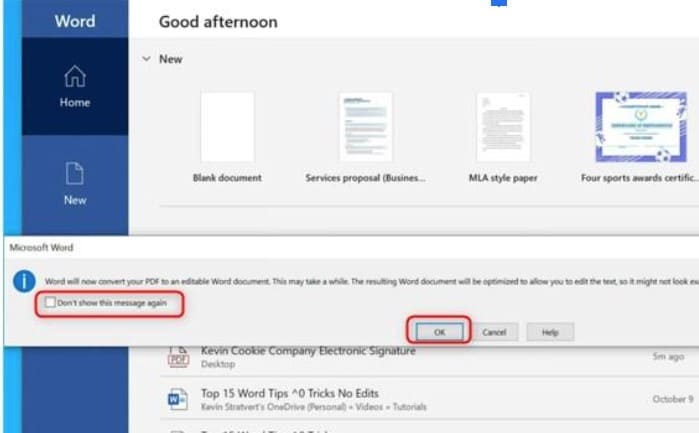
Before your PDF file opens, Word displays a warning that you may lose some of the PDF file’s original formatting. If you agree to this, click OK when prompted.
Step 2. Edit the PDF file in Word.
You will now see the editable PDF version in the Word window. At the top of the window, click ‘Enable editing’, then click ‘OK’ to start editing the file.

To change or edit text, select the existing text and perform the desired action. Feel free to make any changes you want.
Step 3. Save the edited PDF file
After making changes, save the file as PDF. Click ‘File’ in the upper left corner. Select ‘Save As’ > ‘Browse’ from the screen that appears.
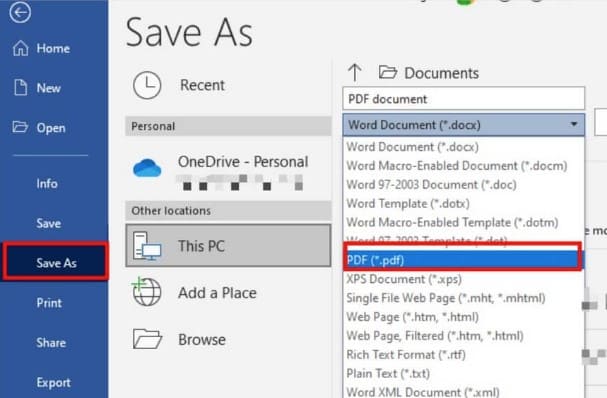
Select a folder to save your file in the ‘Save As’ window. In the ‘File name’ field, enter a name for the PDF file you are editing. Select ‘PDF’ from the ‘Save as type’ drop-down menu. The edited PDF is now available in the folder you selected.
How to edit PDF in Microsoft Edge
You may not know that Microsoft Edge also supports users to make simple edits to PDF files online. In the Microsoft Edge browser, you can easily add text, drawings, or markup to PDF files.
Below are step-by-step instructions on how to do this.
Step 1. Open PDF with Microsoft Edge
First, find your target PDF file in File Explorer on Windows, then right-click your PDF file and select ‘Open with’ > ‘Microsoft Edge’.
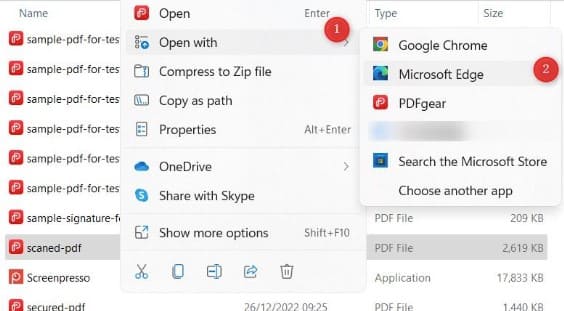
Step 2. Edit PDF files on Microsoft Edge
When your PDF file is opened in Edge, several editing options will show up at the top of the PDF preview.
- Insert text: Supports you to add new text strings to PDF.
- Drawing on PDF: Draw lines of various colors and thicknesses.
- PDF Markup: Customize with a variety of colors to highlight any item in the PDF.
- Eraser: Use this eraser tool to erase any changes you made to the PDF file.
Step 3. Save the new PDF file
After making the desired changes to the PDF file, click ‘Save’ in the upper right corner to save the file. If you want to save the edited PDF as a separate file, select the ‘Save As’ option.”
Conclusion
No matter which option you choose for PDF editing, it’s important to explore your options and choose the tool that works best for you. The above four methods all allow you to open and edit PDF files on Windows 10 and 11 easily, each method has its own advantages. But if you need more advanced PDF editing features, you may need a dedicated PDF editor like SwifDoo PDF.