• Home
  • News
  • Software
  • Knowledge
  • MMO
  • Tips
  • Security
  • Network
  • Office
AnonyViet - English Version
  • Home
  • News
  • Software
  • Knowledge
  • MMO
  • Tips
  • Security
  • Network
  • Office
No Result
View All Result
  • Home
  • News
  • Software
  • Knowledge
  • MMO
  • Tips
  • Security
  • Network
  • Office
No Result
View All Result
AnonyViet - English Version
No Result
View All Result

How to download your Google Maps data to your computer

AnonyViet by AnonyViet
January 27, 2023
in Tips
0

If you want to create a backup or use a new mapping service, you can download your Google Maps data very easily. By visiting the website of Google Maps and download your data.

Join the channel Telegram of the AnonyViet 👉 Link 👈

How to download your Google Maps data to your computerExport data on Google Maps

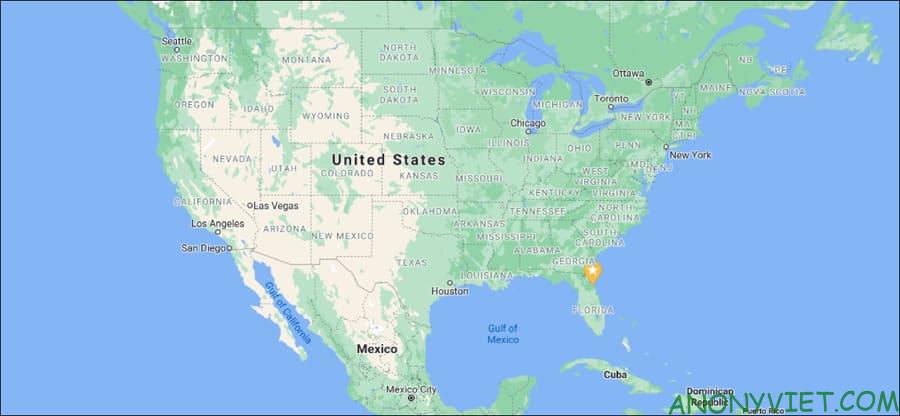
Visit the website Google Maps this and log in to your account. Next, click on the three-bar menu icon in the top left corner right next to the search box.

How to download your Google Maps data to your computer 15

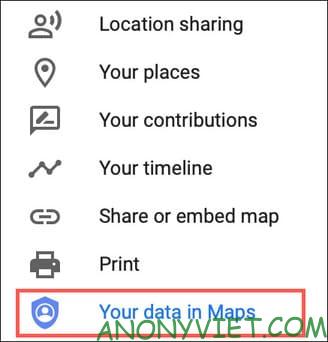
Near the bottom, select “Your Data in Maps”.
How to download your Google Maps data to your computer 16

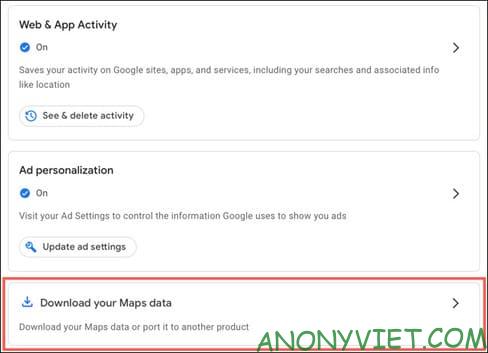
On the next screen, scroll down and select “Download Your Maps Data”.
How to download your Google Maps data to your computer 17

Choose your data would like

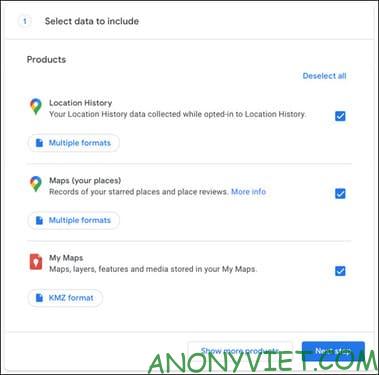
You can export Location History, Maps (Your Places), My Maps or select all 3.
How to download your Google Maps data to your computer 18

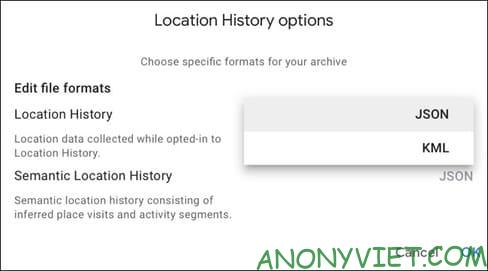
Click “Multiple Formats” to view and change file formats.
How to download your Google Maps data to your computer 19

When you’re done, click “Next Step“.

Choose export destination and file format

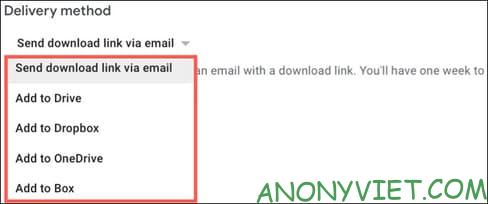
You can send data files to email or to your preferred cloud storage service like Google Drive, Dropbox, OneDrive or Box. Select export destination in “Delivery Method”.
How to download your Google Maps data to your computer 20

In this article, I will send the data file via email.

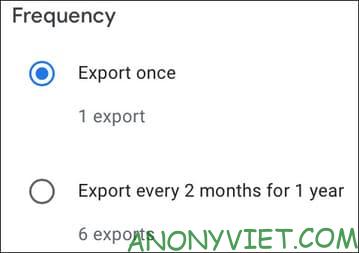
Next, you can choose to export the data once or send it every 2 months.
How to download your Google Maps data to your computer 21

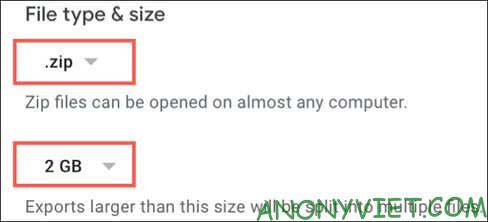
Finally, choose the file format and size. You can choose the ZIP or TGZ file format for Google Maps data. Then choose a maximum file size from 1GB to 50GB. If your data is larger than the size you choose, it will be split into multiple files.
How to download your Google Maps data to your computer 22

When done, click “Create Export”.

Review data export confirmation

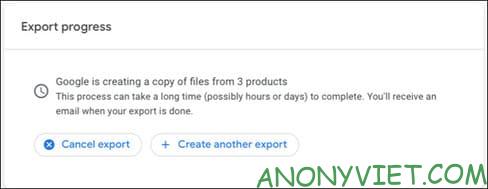
You will see a message confirming that the data export is being processed in Export Progress. If you change your mind and don’t want to export data anymore, you can click “Cancel export”. You can also click “Create Another Export” if you want to export more data.
How to download your Google Maps data to your computer 23

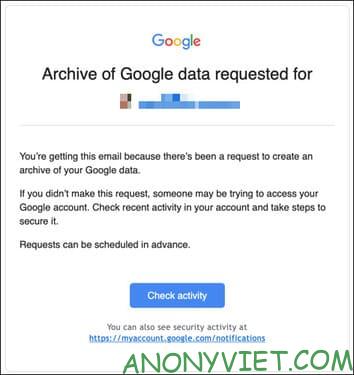
You will also receive email notifications.
How to download your Google Maps data to your computer 24

Download Google Maps data

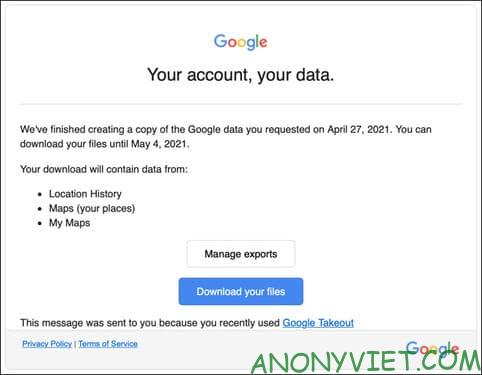
Depending on the amount of Google Maps data, the export can take anywhere from a few minutes to several days. You will receive an email when the file is ready.

Because I export data via email, I will choose “Manage Exports” or “Download Your Files” in the email sent.
How to download your Google Maps data to your computer 25

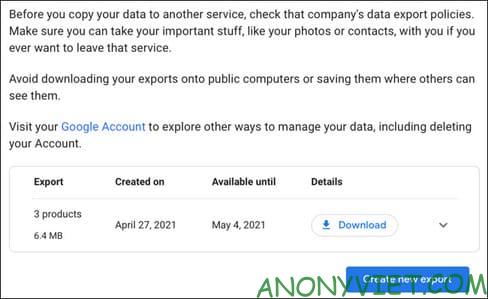
The Manage Exports option will take you to a web page that displays the data you have selected. The Download Your Files option will take you to the same page, but will automatically download your file to your computer.
How to download your Google Maps data to your computer 26

After downloading the file and extracting it. You will see folders for each data type you selected.
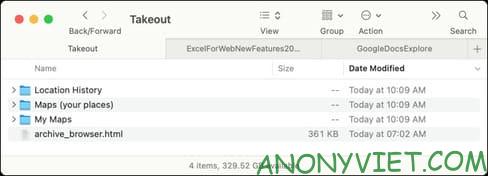
How to download your Google Maps data to your computer 27

If you choose to send the file to a hosting service, you will receive a link to the data file via email. Click the link, log in and view your data.
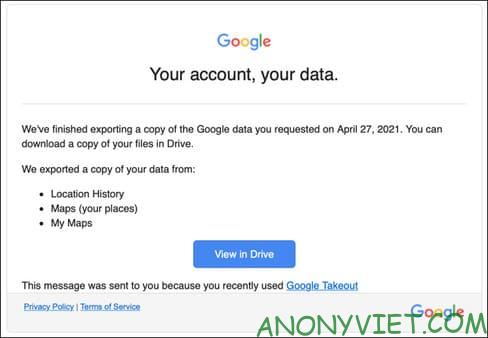
How to download your Google Maps data to your computer 28

No matter where you send your Google Maps data file, you will have a separate backup. And transfer your Google Maps data to other map services, if desired. In addition, you can also put your store and company address on Google Maps here.


The article achieved: 5/5 – (100 votes)

Tags: computerdataDownloadGoogleMaps
Previous Post

Psychology, Privacy and Security

Next Post

How to get free 3G/4G Mobifone D10 package for 3 days

AnonyViet

AnonyViet

Related Posts

How to change the default font on Windows 10
Tips

How to change the default font on Windows 10

April 13, 2026
5 tips for using a Browser to replace an App (helps save RAM, time and money)
Tips

5 tips for using a Browser to replace an App (helps save RAM, time and money)

April 13, 2026
How to make funny MeMe photos without Photoshop within 10 seconds
Tips

How to make funny MeMe photos without Photoshop within 10 seconds

April 11, 2026
How to quickly design your own Logo without Photoshop
Tips

How to quickly design your own Logo without Photoshop

April 10, 2026
How to convert Website into App on Windows
Tips

How to convert Website into App on Windows

April 9, 2026
Instructions for getting 3 months of Adobe Express Pro for free
Tips

Instructions for getting 3 months of Adobe Express Pro for free

April 9, 2026
Next Post
How to get free 3G/4G Mobifone D10 package for 3 days

How to get free 3G/4G Mobifone D10 package for 3 days

0 0 votes
Article Rating
Subscribe
Login
Notify of
guest

guest

0 Comments
Oldest
Newest Most Voted
Inline Feedbacks
View all comments

Recent News

4K Video Downloader Plus – Tool to download YouTube videos on macOS

4K Video Downloader Plus – Tool to download YouTube videos on macOS

April 20, 2026
How to add Watermark to Google Docs to protect copyright

How to add Watermark to Google Docs to protect copyright

April 19, 2026
How to intercept traffic using Burp Suite to analyze HTTP/HTTPS

How to intercept traffic using Burp Suite to analyze HTTP/HTTPS

April 18, 2026
How to avoid Adblock detection on Youtube with 4 good tips

How to avoid Adblock detection on Youtube with 4 good tips

April 17, 2026
4K Video Downloader Plus – Tool to download YouTube videos on macOS

4K Video Downloader Plus – Tool to download YouTube videos on macOS

April 20, 2026
How to add Watermark to Google Docs to protect copyright

How to add Watermark to Google Docs to protect copyright

April 19, 2026
How to intercept traffic using Burp Suite to analyze HTTP/HTTPS

How to intercept traffic using Burp Suite to analyze HTTP/HTTPS

April 18, 2026
AnonyViet - English Version

AnonyViet

AnonyViet is a website share knowledge that you have never learned in school!

We are ready to welcome your comments, as well as your articles sent to AnonyViet.

Follow Us

Contact:

Email: anonyviet.com[@]gmail.com

Main Website: https://anonyviet.com

Recent News

4K Video Downloader Plus – Tool to download YouTube videos on macOS

4K Video Downloader Plus – Tool to download YouTube videos on macOS

April 20, 2026
How to add Watermark to Google Docs to protect copyright

How to add Watermark to Google Docs to protect copyright

April 19, 2026
No Result
View All Result
  • Home
  • News
  • Software
  • Knowledge
  • MMO
  • Tips
  • Security
  • Network
  • Office

wpDiscuz
0
0
Would love your thoughts, please comment.x
()
x
| Reply