• Home
  • News
  • Software
  • Knowledge
  • MMO
  • Tips
  • Security
  • Network
  • Office
AnonyViet - English Version
  • Home
  • News
  • Software
  • Knowledge
  • MMO
  • Tips
  • Security
  • Network
  • Office
No Result
View All Result
  • Home
  • News
  • Software
  • Knowledge
  • MMO
  • Tips
  • Security
  • Network
  • Office
No Result
View All Result
AnonyViet - English Version
No Result
View All Result

How to display lunar calendar on iOS 26: See New Year, death anniversary without app

AnonyViet by AnonyViet
September 19, 2025
in Knowledge
0

You are looking How to display lunar calendar on iOS 26 new? Seeing holidays, New Year, or the anniversary of the lunar calendar is an integral part of Vietnamese culture. The good news is that the iPhone now has this feature, you don’t need to install any additional applications. Together Anonyviet Follow the super easy instructions below!

Join the channel Telegram belong to Anonyviet 👉 Link 👈

Lunar calendar features available on iPhone iOS 26

Monitoring the lunar calendar to plan for important events is the essential needs of many people. Instead of having to go to third -party applications, the use of features is built on iOS 26 Bring many outstanding benefits:

  • Experience completely seamless and synchronized because this is part of the operating system, helping you see the lunar calendar in parallel with the calendar naturally.
  • You will not need to download extra applications App Storehelp save space and avoid annoying ads.
  • The interface is minimalist and friendly, suitable for all users, from the elderly to young people.
  • Ensure safety and security than granting access to unknown applications.

Lunar calendar features available on iPhone iOS 26

Instructions on how to display lunar calendar on iPhone

There are 2 ways for you to see the lunar calendar, one is to see in the calendar application, the other is to watch quickly outside the lock screen.

Method 1: Turn in the settings

Step 1: Open Setting On iPhone> Select Application.

Step 2: Pull down and find items Calendar.
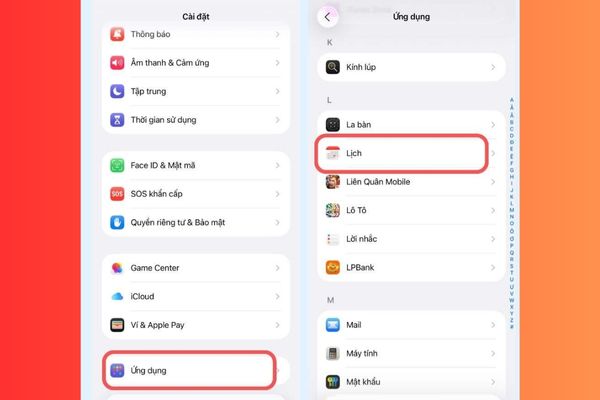
Select the calendar item

Step 3: Click on the line Replacement schedule.

Step 4: Here, you just need to choose Lunar calendar And a green traces will appear to confirm.

Once completed, open the default calendar application and will see the lunar calendar displayed small below the positive day.
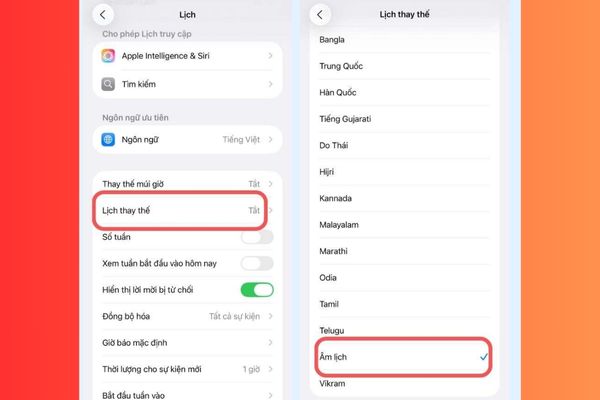
Choose on the lunar calendar

Method 2: Bring the lunar calendar out of the lock screen

For quick tracking without opening the device, you can add the lunar widget (widget) to the lock screen.

Step 1: At the lock screen, click on any space until the screen, then select Custom.
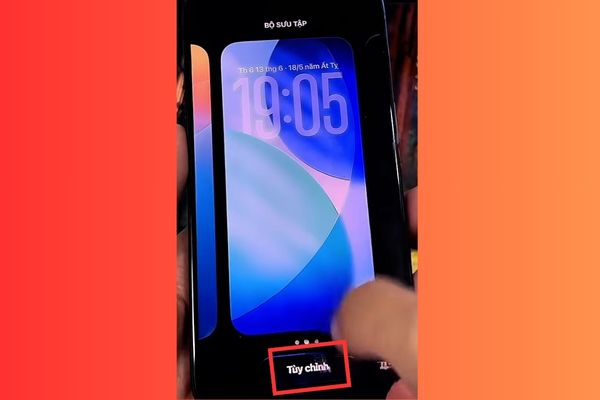
Choose customized
Choose customized

Step 2: Click the time display area at the top.

Step 3: A list of utilities will appear, scroll down and find the item Calendarchoose the replacement date.
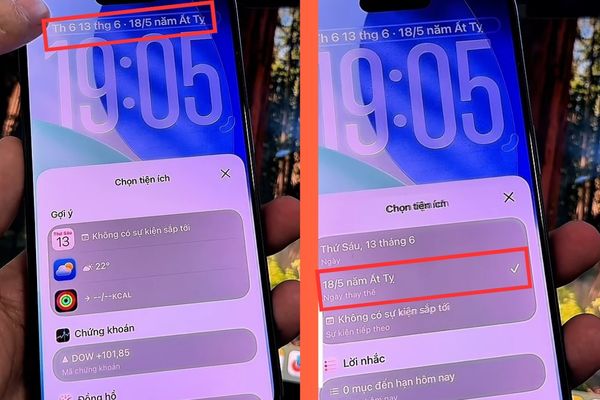
Find the calendar section, choose the replacement date.

Immediately, the lunar calendar will appear with the positive day on your lock screen.

How to display lunar calendar on iOS 26

Conclusion

It’s simple, right? Now you know How to display lunar calendar on iOS 26 Easy way. This available feature is both convenient and safe, helping you to monitor the important days of the family without any difficulty. Wish you successful!


Tags: AnniversaryAppCalendarDeathdisplayiOSLunaryear
Previous Post

How to see the new YouTube chart, replacing the top trending has been “killed”

Next Post

Top 3 best free Story Instagram download tools

AnonyViet

AnonyViet

Related Posts

Tips for pinning the step counter to the iPhone screen to monitor your health
Knowledge

Tips for pinning the step counter to the iPhone screen to monitor your health

April 28, 2026
How to turn off password suggestions on iPhone: Prevent Safari from auto-filling passwords
Knowledge

How to turn off password suggestions on iPhone: Prevent Safari from auto-filling passwords

April 27, 2026
Tips to completely turn off CAPTCHA codes on iPhone and Mac are super simple
Knowledge

Tips to completely turn off CAPTCHA codes on iPhone and Mac are super simple

April 25, 2026
How to compress online videos for free without losing quality
Knowledge

How to compress online videos for free without losing quality

April 24, 2026
Common errors when using Bosch products and how to fix them
Knowledge

Common errors when using Bosch products and how to fix them

April 22, 2026
How to avoid Adblock detection on Youtube with 4 good tips
Knowledge

How to avoid Adblock detection on Youtube with 4 good tips

April 17, 2026
Next Post
Top 3 best free Story Instagram download tools

Top 3 best free Story Instagram download tools

0 0 votes
Article Rating
Subscribe
Login
Notify of
guest

guest

0 Comments
Oldest
Newest Most Voted
Inline Feedbacks
View all comments

Recent News

Tips for pinning the step counter to the iPhone screen to monitor your health

Tips for pinning the step counter to the iPhone screen to monitor your health

April 28, 2026
How to turn off password suggestions on iPhone: Prevent Safari from auto-filling passwords

How to turn off password suggestions on iPhone: Prevent Safari from auto-filling passwords

April 27, 2026
Instructions for looking up prescriptions on VNeID instead of paper medical books

Instructions for looking up prescriptions on VNeID instead of paper medical books

April 26, 2026
Tips to completely turn off CAPTCHA codes on iPhone and Mac are super simple

Tips to completely turn off CAPTCHA codes on iPhone and Mac are super simple

April 25, 2026
Tips for pinning the step counter to the iPhone screen to monitor your health

Tips for pinning the step counter to the iPhone screen to monitor your health

April 28, 2026
How to turn off password suggestions on iPhone: Prevent Safari from auto-filling passwords

How to turn off password suggestions on iPhone: Prevent Safari from auto-filling passwords

April 27, 2026
Instructions for looking up prescriptions on VNeID instead of paper medical books

Instructions for looking up prescriptions on VNeID instead of paper medical books

April 26, 2026
AnonyViet - English Version

AnonyViet

AnonyViet is a website share knowledge that you have never learned in school!

We are ready to welcome your comments, as well as your articles sent to AnonyViet.

Follow Us

Contact:

Email: anonyviet.com[@]gmail.com

Main Website: https://anonyviet.com

Recent News

Tips for pinning the step counter to the iPhone screen to monitor your health

Tips for pinning the step counter to the iPhone screen to monitor your health

April 28, 2026
How to turn off password suggestions on iPhone: Prevent Safari from auto-filling passwords

How to turn off password suggestions on iPhone: Prevent Safari from auto-filling passwords

April 27, 2026
No Result
View All Result
  • Home
  • News
  • Software
  • Knowledge
  • MMO
  • Tips
  • Security
  • Network
  • Office

wpDiscuz
0
0
Would love your thoughts, please comment.x
()
x
| Reply