How to create flash effects for photos with AI technology of Instagram will surprise you with its convenience. No need to master complicated editing software, you can still own stories with millions of views. With just a few touches, light and color will be perfectly optimized. Let’s find out how to do it right away with AnonyViet!
📢 Join the channel Telegram belong to AnonyViet
Update new articles, cool tools and IT tips fastest
What is flash light effect?
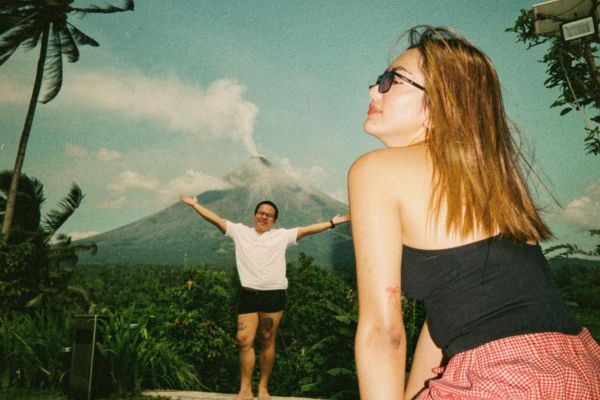
Recently, the online community is passing along an extremely unique image editing trick, helping photos posted on social networks become more sparkling and stylish. To better understand how to create flash effects for photos, we need to know that this is essentially a smart feature with built-in artificial intelligence (Meta AI).
Instead of having to manually drag each toolbar, the AI system will automatically scan and analyze your entire photo composition. Then, it will automatically fine-tune a series of important factors such as contrast, color saturation level and especially light intensity. The result is a work of photography that looks extremely modern, has depth, is much more vibrant and eye-catching than the original photo.
Compare how to create flash effects for photos using AI and manually
Before going into details on how to create flash effects for photos, let’s take a look at the evaluation table below to see the superiority of the newly updated AI technology compared to the traditional color pulling method:
| Comparison factor | Instagram Meta AI Tool | Manual Editing (Color Pulling) |
| Processing speed | Complete instantly in just 1-2 seconds | It takes a lot of time to fine-tune each parameter |
| Requires skills | Basic operations, suitable for all subjects | Requires users to be knowledgeable about photography (ISO, Exposure…) |
| Aesthetic effect | The lighting is harmonious, maintaining the authenticity of the photo | Risk of damaging the photo (burnt light, washed out colors) if inexperienced |
| Platform used | Operate directly right on the IG application | Depends on third-party software (Lightroom, Snapseed…) |
Instructions on how to create flash effects for photos
If you are too eager to catch up with this “hot” trend, please follow the correct order below. Guaranteed that after just a few minutes, you will have an extremely impressive story to show off to your friends.
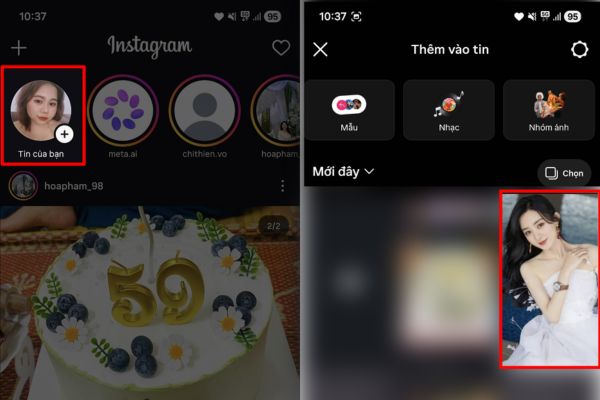
Step 1: First, start up Instagram app on your smartphone. At the home page interface, click on “Your news” (Story). Next, browse and choose the best photo from your photo library that you want to highlight.
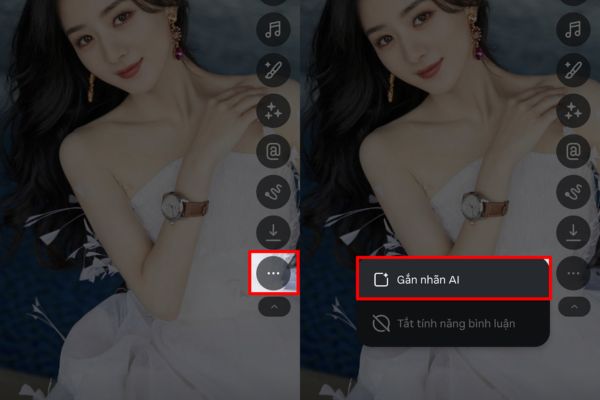
Step 2: After the photo has been uploaded to the screen, look to the right edge and click the arrow icon to switch to advanced editing mode. Next, touch three-dot icon to enable the feature Label AI.
(Small note: If your interface already displays the AI effect icon, you can completely skip this step).
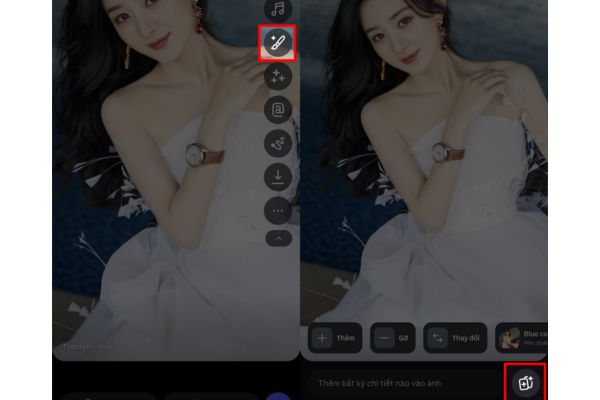
Step 3: Now, find and click on the icons as shown in the image below.
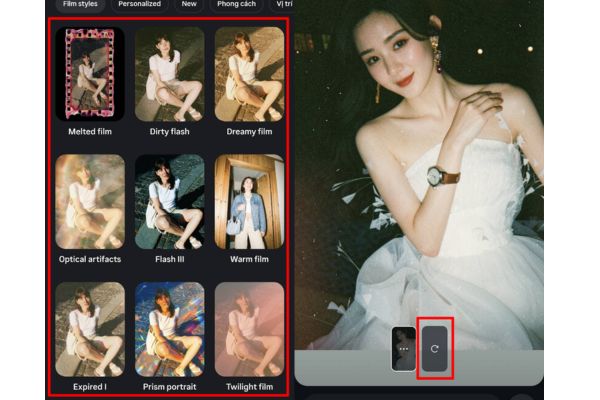
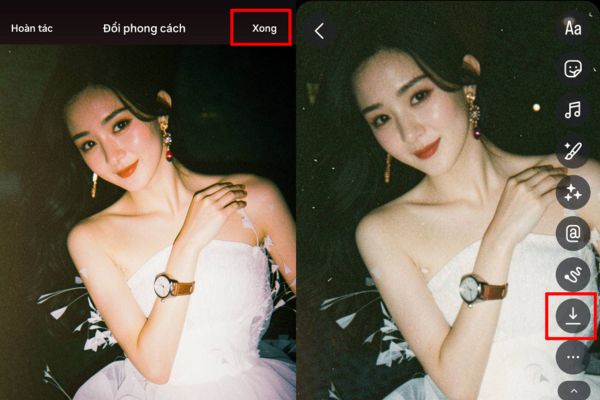
Step 4: Here, you surf and select the flash effect for photos that the system suggests to apply the filter to your work. Please wait patiently for a few seconds for the Meta AI system to analyze and overlay the new light.
In case you feel that the color tone or brightness is not really satisfactory, don’t worry, just press the button “Recreate” to let the AI give you more suitable alternative versions.
Step 5: When you are completely satisfied with your work, just click on the word “Finished” to finish the editing process. Finally, you can select the save icon to download this beautiful photo to your device memory, or click share directly to Story for everyone to admire.
Conclusion
Hopefully through this article, you have mastered it How to create flash effect for photos on the phone. Don’t hesitate to experiment with many different shooting angles to let AI maximize its power. Please share your sparkling results with your friends.
Frequently Asked Questions (Q&A)
1. Does this feature require downloading any other photo editing applications?
No, this feature uses Meta AI integrated directly inside the Instagram application, you do not need to install any additional software.
2. What if I don’t like the results generated by AI?
Very simple, in the step of applying the effect, you just need to click the “Recreate” button, the AI system will automatically process and provide other light versions for you to choose from.
3. Can photos be saved to the phone after editing?
Absolutely. In the final step, you can select the save icon to download the photo to your device library, or choose to post directly to your Story.