Cafes and shopping centers now share Wifi Passwords by QR code, you don’t need to enter each Password character when connecting to Wifi. The situation of asking for Wifi in temples is probably nothing new to you guys, right? Especially if you are a student or living in a dormitory, where your room is the only one with a wifi router :)). To overcome that situation, the way I see most people using it is to set a long wifi password or something like this fajf&Y*^Rfkjh. So, in this article, I will show you how to Create a Wifi connection QR code to quickly connect to Wifi, without revealing your password.
| Join the channel Telegram belong to AnonyViet 👉 Link 👈 |
This method will be extremely useful for you who do not want to use wifi. Just give yourself a crazy password, then force him to enter it. Either way, you’ll give up. But when you give it to your Crush, just give him the QR code to scan for convenience.
How to Create a QR code to connect to Wifi
If you want to share Wifi with others, but don’t want them to know what your Password is, you can create a QR code for them to scan and connect. The characteristic of this method is after scanning the QR
Step 1: Go to the page qifi.org.

Step 2: Enter the Wifi SSID, encryption type and password.
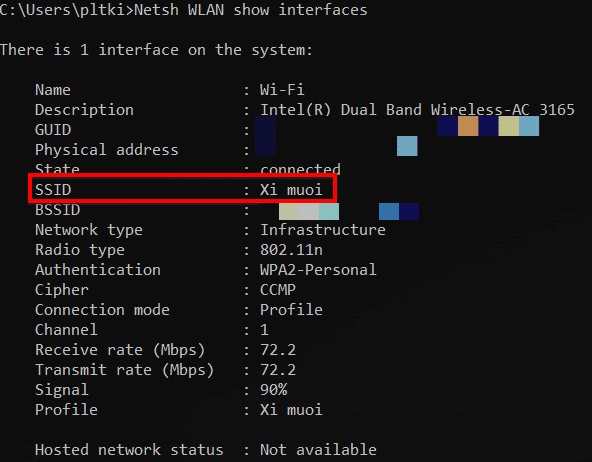
SSID is your home’s Wifi name. You open Cmd by pressing Windows + Rpress cmd Already Enter. Then enter this command to get the SSID of the currently connected wifi:
Netsh WLAN show interfacesPlease note that Authentication is the encryption type, as shown in the picture, it is WPA2
Step 3: Press “Generate” to create a QR code and save to save the QR code to your device.
You can also use other tools like ZXing’s QR code generator hoh QR4’s generator to generate QR codes. Now, you don’t need to enter passwords for each person anymore.0
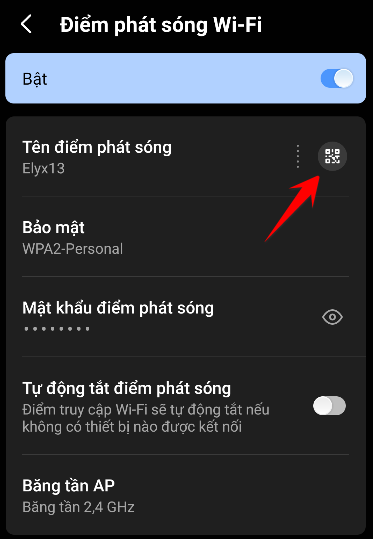
If you don’t want to use any website, you can also Siri Shortcuts from your iPhone or iPad to create a QR code. And if you’re using a phone running Android 10, you can share the QR code available in that Wifi hotspot settings.
How to share wifi password using QR code on iOS
Shortcuts app for iOS is a very useful way to automate your iPhone or iPad. So you can also share your Wi-Fi password as a QR code using Shortcuts app.
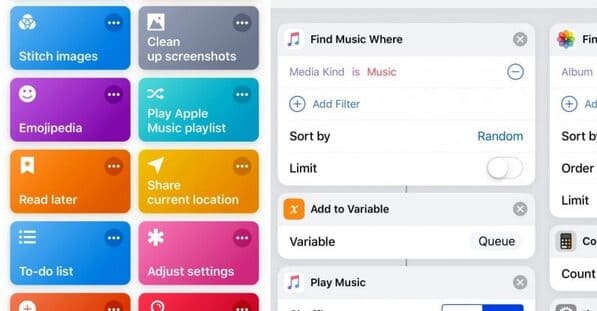
Step 1: Download the application Shortcuts app from the App Store if you don’t have one yet.
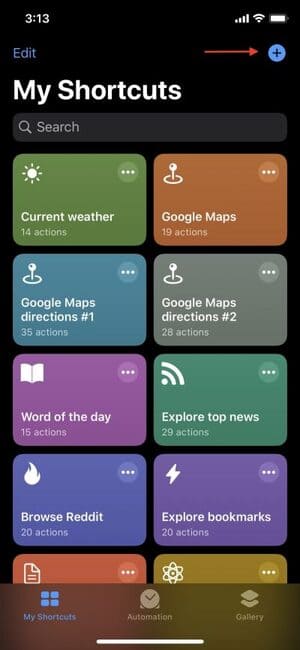
Step 2: Open the app, and tap “+” at the top to create a new shortcut.
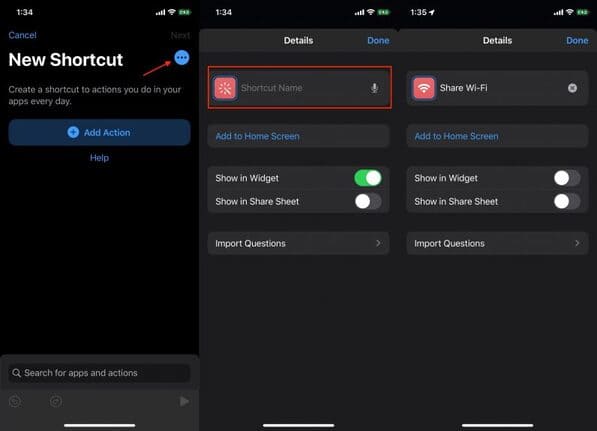
Step 3: Click the “Settings” icon and name the Shortcuts, for example: “Share Wifi”. You can also tap the “icon” to change it to something that better suits the function of Shortcuts.
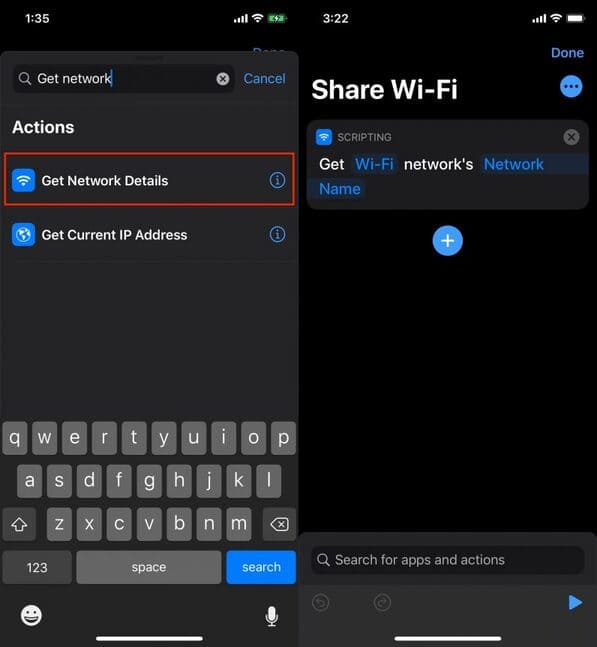
Step 4: Now you need to get detailed information about the network. You can do this by adding a “Get Network Details” action. Since it is Wi-Fi, you need to select “Network” as “Wi-Fi” and in the “Get” field select “Network Name”.
Step 5: Next you need to provide the Wifi password. The simplest way is to add a “Text” action and enter your Wifi password.
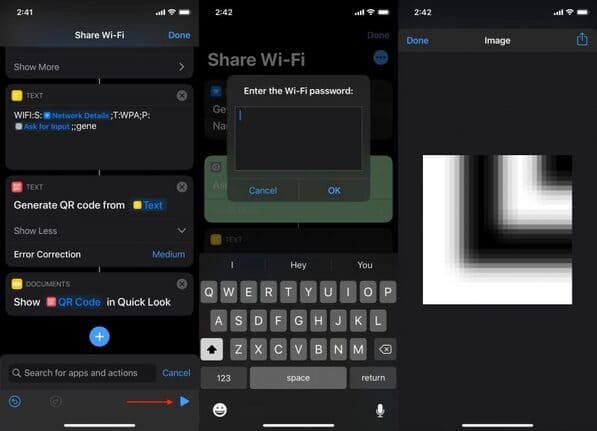
Additionally, you can set Shortcuts to prompt you for a password every time you run Shortcuts Share Wifi. To do this, you can add an “Ask for Input” action. In the “Ask” field, you can specify a question, such as “Enter the Wi-Fi password”.
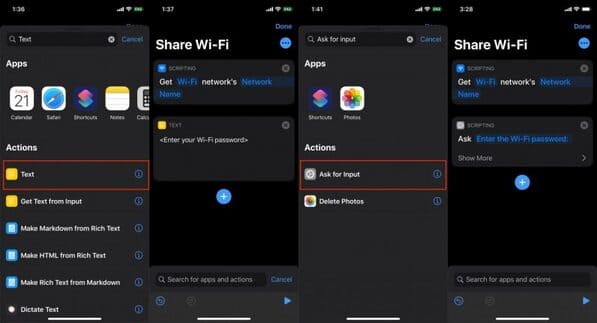
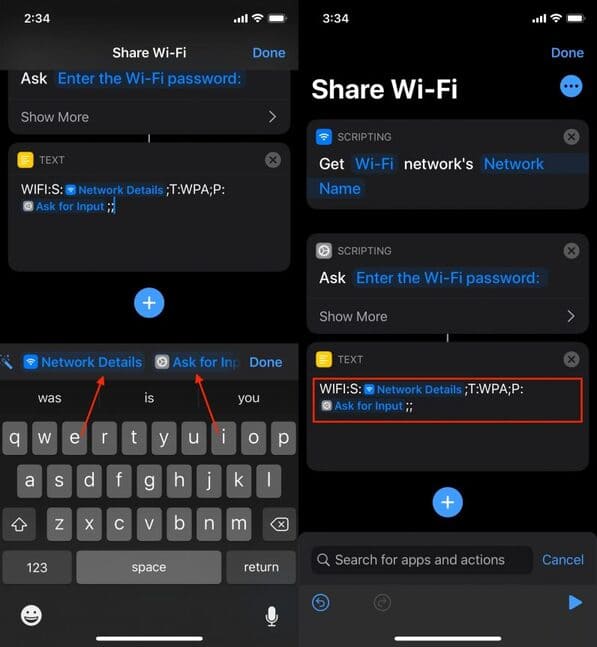
Step 6: To create a QR code for a Wi-Fi network, you need to create a new string with the following format: WIFI: T: WPA; S:; P: ;;
“T” stands for authentication type (WPA or WEP), “S” stands for network name, and “P” stands for password. The order of the fields does not matter.
But since we already have the Wi-Fi network name and password from steps 4 and 5, you can simply specify them by selecting the “Network Details” and “Ask for Input” variables from the options listed below.
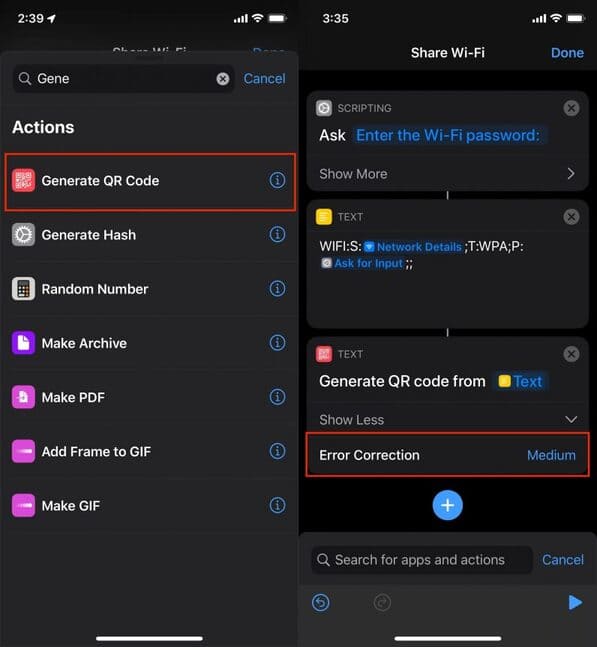
 Step 7: Once you have created the string, you can generate a QR code using the “Generate QR Code” action. You can also specify the “Error Correction” option to Low, Medium, Quartile, or High, which will give you data recovery options if the QR code becomes corrupted.
Step 8: Next, add a “Quick Look” action to preview the output. This will allow you to view the generated QR code.
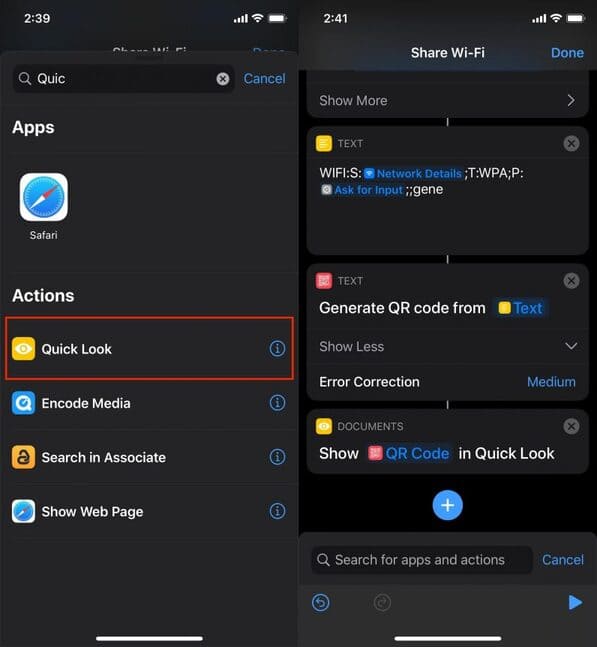
Step 9: Complete Shortcuts. You can now run Shortcuts by clicking the “Play” button.
So that’s it. At this point, a few problems appear, QR codes are really convenient and fast, but this is also the top goal of Hackers. You won’t know if the QR code someone gives you is real or not. Hackers can also trick you into downloading software or visiting fraudulent websites without your knowledge. So please read the article below to best protect yourself:
Connect to Wifi by scanning the QR code
You can use QR code scanning software on Android, or on iPhone, use the Camera application to scan.
When scanning the QR code, the phone will display the network connection notification “Your Wifi Name”.

Continue pressing the Connect button, so guests will be able to access the network’s Wifi network without knowing what the Password is.

Now you are not afraid of others knowing your Password and sharing it with strangers.
Frequently asked questions
What website can I use to generate a Wifi connection QR code?
You can use qifi.org, ZXing’s QR code generator or QR4’s generator to generate Wifi connection QR codes.
How to get the SSID of the current Wifi network?
Open Command Prompt (cmd) by pressing Windows + R, typing cmd then Enter. Then, enter the command “netsh wlan show interfaces” to view the SSID information and encryption type of the Wifi network.
Can I create Wifi QR codes on iPhone without using any website?
Yes, you can use the Shortcuts app on iOS to create Wifi QR codes by automating the process of generating Wifi information strings and QR codes.