• Home
  • News
  • Software
  • Knowledge
  • MMO
  • Tips
  • Security
  • Network
  • Office
AnonyViet - English Version
  • Home
  • News
  • Software
  • Knowledge
  • MMO
  • Tips
  • Security
  • Network
  • Office
No Result
View All Result
  • Home
  • News
  • Software
  • Knowledge
  • MMO
  • Tips
  • Security
  • Network
  • Office
No Result
View All Result
AnonyViet - English Version
No Result
View All Result

How to connect images from the phone screen to the computer screen

AnonyViet by AnonyViet
January 25, 2024
in Tips
0

Sometimes the Smartphone screen is too small, making it impossible to take full advantage of the entertainment function. Want to connect it to display images on a larger screen? Today I will show you how to connect your phone screen to your computer screen so you can have a better experience.

Join the channel Telegram belong to AnonyViet 👉 Link 👈

With this method, you will be able to take advantage of your computer screen for your phone. You can watch movies and play games on your phone through your computer screen. This is great to help protect your eyes from the strain of looking at screens that are too small.

Connect the phone screen to the computer screen

We will use a tool called ApowerMirror that will help you do this in a few minutes. ApowerMirror provides you with the following 2 connection solutions:

  • Wireless connection: directly between phone and computer via WiFi connection.
  • Wired connection: use a USB cable to transmit data connection.

However, I prioritize wireless connection because it is much simpler and more convenient. But it requires a stable Wifi connection. If you are in an environment without Internet or weak network, you can choose the second solution.

Introducing outstanding features of ApowerMirror

  • Transmit images directly from your phone to your computer or projector.
  • Allows interaction with separate hardware such as keyboard and mouse.
  • Sync phone notifications to computer.
  • Capture and record phone screen (operate right on the computer).
  • Supports composing and sending messages and emails from phone to computer.

Instructions for installing and using ApowerMirror

First, you must download the software from the home page according to the link below. Download for both phone and computer (download for both devices).

Go to the homepage and download the software for both devices. Note that the Wifi connection feature will only allow you to transfer images. Cannot interact with mouse and keyboard… If you want to use the mouse with the keyboard, you must use a cable connection.

Instructions for connecting phone images to computer via WiFi

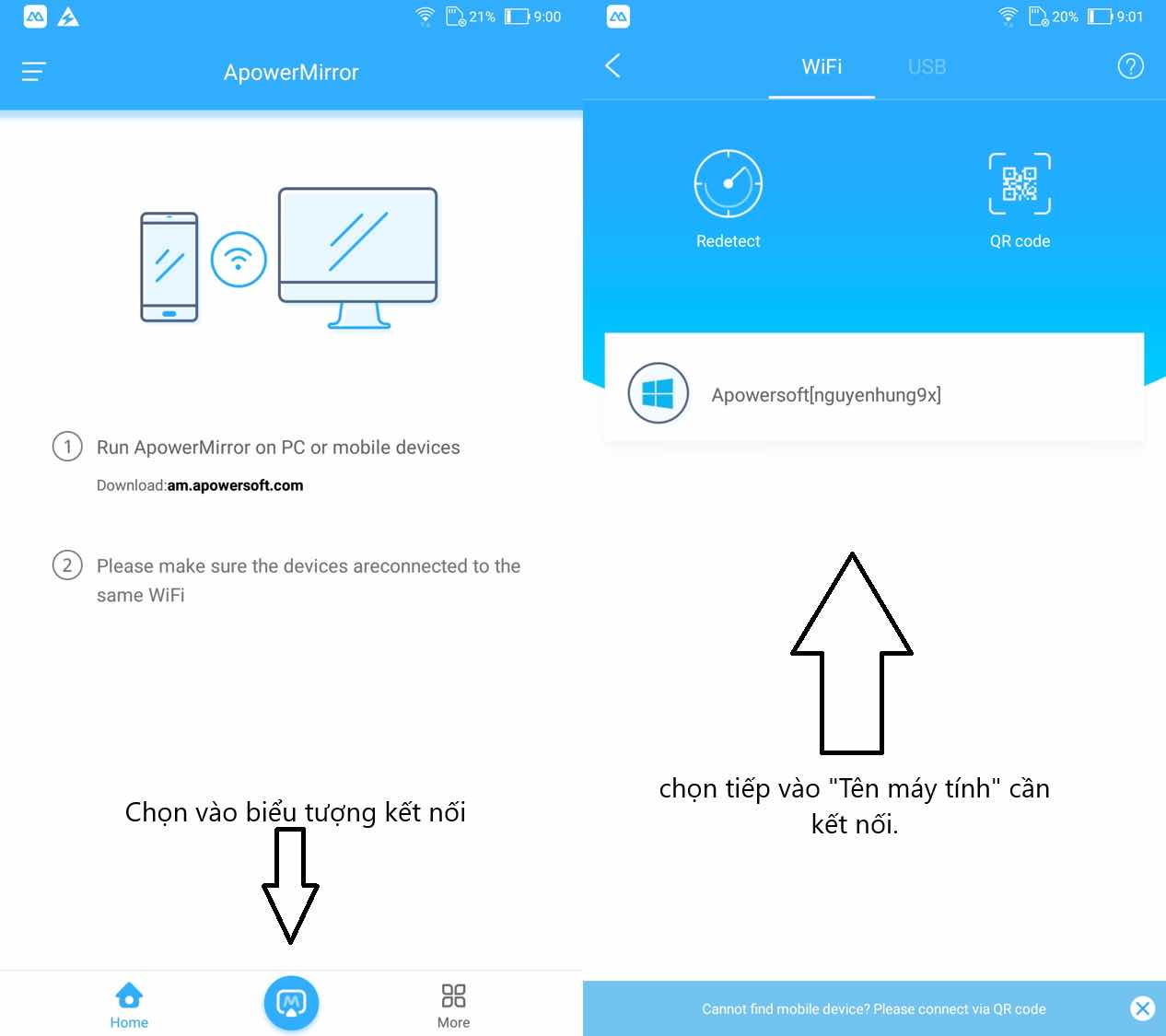
  • Now, let's start the software ApowerMirror on phones and computers.
  • On the phone application, select the icon “Connect” application. (The two devices should use the same Wifi).
  • Then select the name of the computer to connect to.
How to connect images from the phone screen to the computer screen

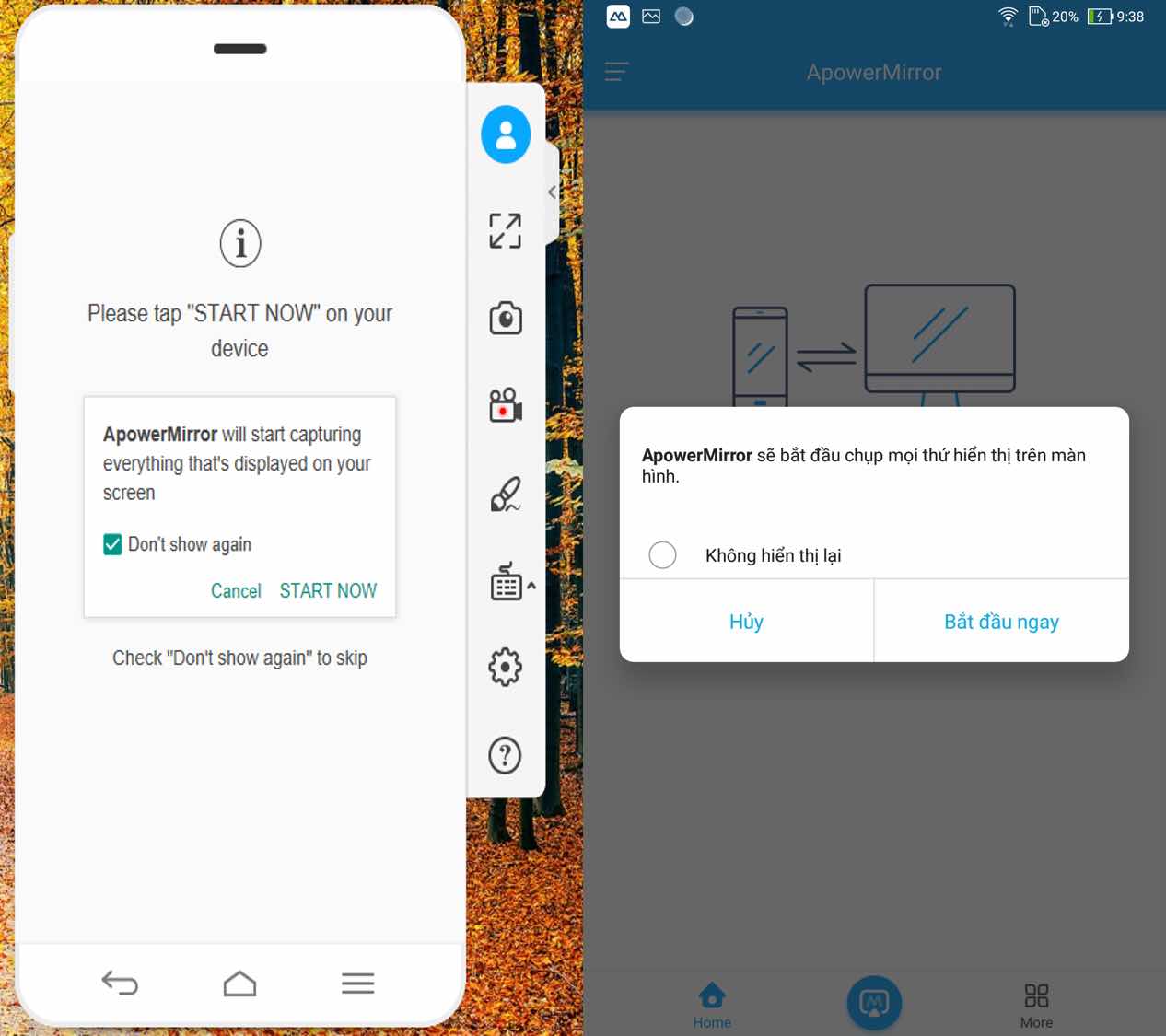
After selecting the computer name, a message will appear asking for permission to use. Click START IMMEDIATELY on the phone application and START NOW on computer application. After allowing both devices, the application will begin transferring images and synchronizing images with each other. You can now start using your phone from your computer screen.

Instructions for connecting phone images to computer via USB cable

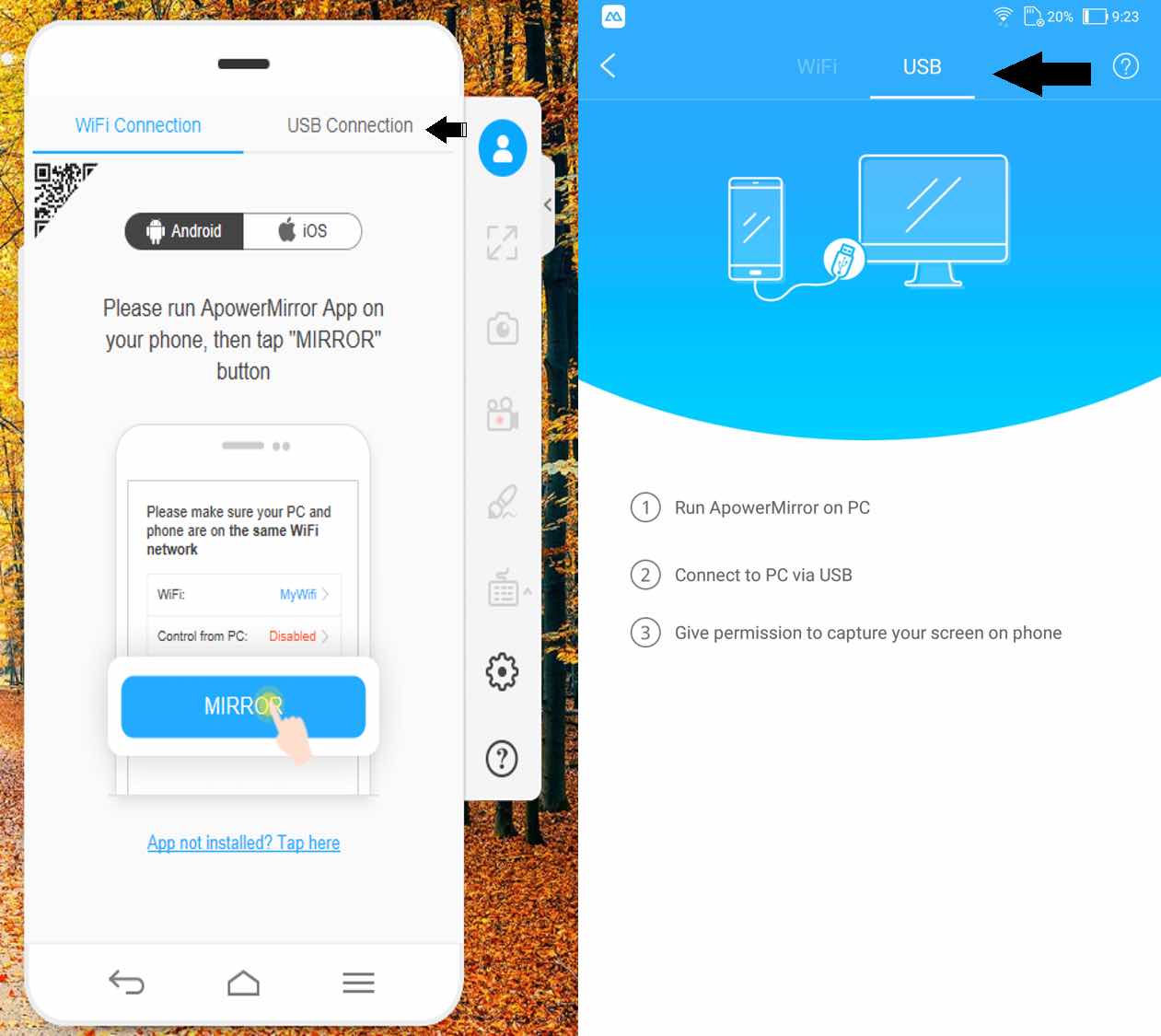
This method is a bit more expensive to buy the wire. But it will ensure you a more stable and quality connection. Additionally, you can also use the mouse and keyboard to control and use your phone. Now I will show you how to do it!!

You need to enable your phone's developer mode to allow use. Please visit Settings => About phone. Then, repeatedly click on “Version number” until the message “You are now a developer” appears, then stop.
How to connect images from phone screen to computer screen 7

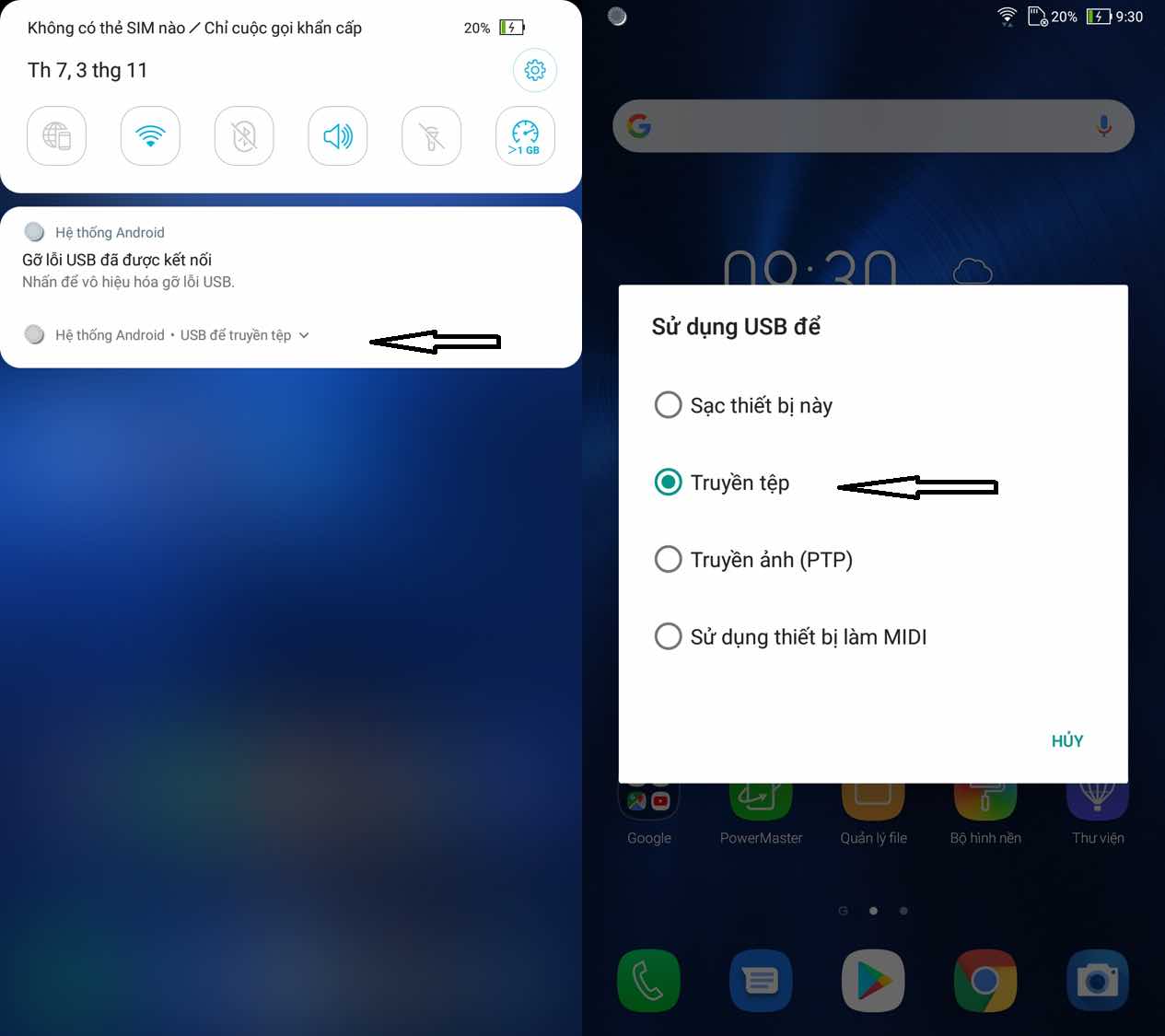
Go to your phone's notification center and select mode Transfer files with USB. This function will be in a different place for each device, so please take the time to help me find it.
How to connect images from phone screen to computer screen 8

At this time, a message will appear asking for permission to use the same way as connecting to Wifi above. You click START IMMEDIATELY on the phone application and START NOW on computer application. Once done, you can start using it!!

Instructions for connecting a phone screen to a computer screen

The article scored: 5/5 – (100 votes)

Previous Post

How is Copilot Pro different from the Free version? Should I upgrade?

Next Post

Sending mail to the future is easy with FutureMe

AnonyViet

AnonyViet

Related Posts

Instructions to receive Claude Fable 5 for free for 30 days
Tips

Instructions to receive Claude Fable 5 for free for 30 days

June 15, 2026
Delete all Event Logs on Windows to remove traces of activity
Tips

Delete all Event Logs on Windows to remove traces of activity

June 15, 2026
Instructions for creating Minecraft-style food photos
Tips

Instructions for creating Minecraft-style food photos

June 9, 2026
Get free Cambridge courses to prepare for IELTS, Starters, Movers
Tips

Get free Cambridge courses to prepare for IELTS, Starters, Movers

June 4, 2026
How to record reaction videos with Android phones, no app needed
Tips

How to record reaction videos with Android phones, no app needed

June 1, 2026
Instructions on how to get Google AI Pro 1 year for free for new accounts
Tips

Instructions on how to get Google AI Pro 1 year for free for new accounts

June 1, 2026
Next Post
Sending mail to the future is easy with FutureMe

Sending mail to the future is easy with FutureMe

0 0 votes
Article Rating
Subscribe
Login
Notify of
guest

guest

0 Comments
Oldest
Newest Most Voted
Inline Feedbacks
View all comments

Recent News

Instructions to receive Claude Fable 5 for free for 30 days

Instructions to receive Claude Fable 5 for free for 30 days

June 15, 2026
Instructions on how to activate the new Siri on iOS 27

Instructions on how to activate the new Siri on iOS 27

June 15, 2026
Delete all Event Logs on Windows to remove traces of activity

Delete all Event Logs on Windows to remove traces of activity

June 15, 2026
Instructions on how to get the latest 200GB MultCloud for free in 2026

Instructions on how to get the latest 200GB MultCloud for free in 2026

June 14, 2026
Instructions to receive Claude Fable 5 for free for 30 days

Instructions to receive Claude Fable 5 for free for 30 days

June 15, 2026
Instructions on how to activate the new Siri on iOS 27

Instructions on how to activate the new Siri on iOS 27

June 15, 2026
Delete all Event Logs on Windows to remove traces of activity

Delete all Event Logs on Windows to remove traces of activity

June 15, 2026
AnonyViet - English Version

AnonyViet

AnonyViet is a website share knowledge that you have never learned in school!

We are ready to welcome your comments, as well as your articles sent to AnonyViet.

Follow Us

Contact:

Email: anonyviet.com[@]gmail.com

Main Website: https://anonyviet.com

Recent News

Instructions to receive Claude Fable 5 for free for 30 days

Instructions to receive Claude Fable 5 for free for 30 days

June 15, 2026
Instructions on how to activate the new Siri on iOS 27

Instructions on how to activate the new Siri on iOS 27

June 15, 2026
  • Home
  • Home 2
  • Home 3
  • Home 4
  • Home 5
  • Home 6
  • Next Dest Page
  • Sample Page

6789 kv999

No Result
View All Result
  • Home
  • News
  • Software
  • Knowledge
  • MMO
  • Tips
  • Security
  • Network
  • Office

6789 kv999

wpDiscuz
0
0
Would love your thoughts, please comment.x
()
x
| Reply