• Home
  • News
  • Software
  • Knowledge
  • MMO
  • Tips
  • Security
  • Network
  • Office
AnonyViet - English Version
  • Home
  • News
  • Software
  • Knowledge
  • MMO
  • Tips
  • Security
  • Network
  • Office
No Result
View All Result
  • Home
  • News
  • Software
  • Knowledge
  • MMO
  • Tips
  • Security
  • Network
  • Office
No Result
View All Result
AnonyViet - English Version
No Result
View All Result

How to command the virtual assistant Google Assistant to send you messages

AnonyViet by AnonyViet
January 28, 2023
in Software
0

If you are busy and can’t pick up your phone to text someone, the virtual assistant Google can help you easily send voice messages. I will show you how to use this feature on your phone and smart speaker.

Join the channel Telegram of the AnonyViet 👉 Link 👈

How to command the virtual assistant Google Assistant to send you messages

The process of sending messages using the Google virtual assistant is the same on all devices. The only difference here is how you call the Google assistant.

How to send messages using Google Assistant virtual assistant

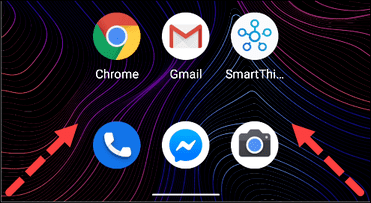
On your Android phone or tablet, call up the Assistant by saying, “OK, Google,” or by swiping from the bottom left or right corner of the screen. Google Assistant will immediately start listening.
How to send messages using Google Assistant virtual assistant

On your iPhone or iPad, you’ll need to install the app Google Assistant and run this app from home screen. After you open the app, say “OK, Google” or tap the microphone icon and the Google Assistant will start listening.
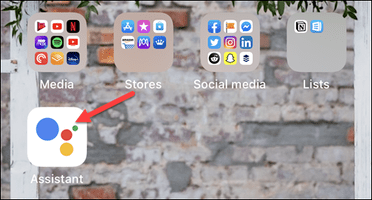
Open Google Assistant on ios

For smart speakers and displays, just like with the Nest Mini and Nest Hub, you can simply say “Hey Google” within range of your device.

Once the Google Assistant starts listening on the device of your choice, you need to command the Assittant to send SMS as follows:

  • “Send a message to [Tên trong danh bạ]“
  • Assistant will ask What is the content of the message?
  • Friend read the content to send Have the Assittant fill in on its own.
  • Next, Assistant will ask to confirm whether you want to send or change the content?
  • You command To sendSMS will be sent to the recipient immediately without you having to go to your contacts to find and type the word text message.

How to send messages using Google Assistant virtual assistant

If you say “Send Message” without the contact name, Google will ask the person you want to send the message to. Say the name of anyone in your contacts.

How to send sms using Google Assistant virtual assistant

After you select the sender of the message, Google will ask for the message you want to send. Simply say what you want to send to that person.

Finally, Google will confirm the message with you and then it will be sent. You will have the opportunity to change the message at this time if it is not correct.
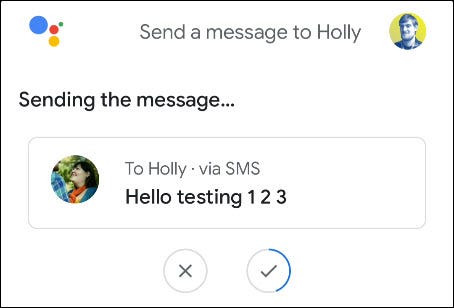
How to command the virtual assistant Google Assistant to send you messages 2

If text messaging doesn’t work for you, you can also send audio messages using the Google Assistant.

If you know how to take advantage of the Google Assistant virtual assistant, you will save a lot of time because you don’t have to move your hands, just give a voice command, Google will follow your command.

If you use iOS you can use Siri, but it only supports English, you can call Siri up with the command: Hey, siri.


The article achieved: 5/5 – (100 votes)

Tags: AssistantCommandGooglemessagessendvirtual
Previous Post

Does it really take 60 seconds to track a phone call?

Next Post

Create a virtual machine template in Hyper-DRAW

AnonyViet

AnonyViet

Related Posts

Instructions on how to prevent acquaintances from seeing your Tiktok
Software

Instructions on how to prevent acquaintances from seeing your Tiktok

June 2, 2026
TruyenDrive: Turn Google Drive into a professional manga reader
Software

TruyenDrive: Turn Google Drive into a professional manga reader

May 31, 2026
How to extract text from photos using Zalo is super simple
Software

How to extract text from photos using Zalo is super simple

May 29, 2026
HONOR 600 in hand – High-end design, 200MP camera, not cheap price
Software

HONOR 600 in hand – High-end design, 200MP camera, not cheap price

May 28, 2026
Instructions for getting 4 months of Adobe copyright for free
Software

Instructions for getting 4 months of Adobe copyright for free

May 28, 2026
The truth about the 7,000 mAh battery on Xiaomi 17T Pro: What benefits do users get?
Software

The truth about the 7,000 mAh battery on Xiaomi 17T Pro: What benefits do users get?

May 28, 2026
Next Post
Create a virtual machine template in Hyper-DRAW

Create a virtual machine template in Hyper-DRAW

0 0 votes
Article Rating
Subscribe
Login
Notify of
guest

guest

0 Comments
Oldest
Newest Most Voted
Inline Feedbacks
View all comments

Recent News

How to check network speed on Apple TV when the image is jerky or lagging

How to check network speed on Apple TV when the image is jerky or lagging

June 3, 2026
Instructions on how to prevent acquaintances from seeing your Tiktok

Instructions on how to prevent acquaintances from seeing your Tiktok

June 2, 2026
How to record reaction videos with Android phones, no app needed

How to record reaction videos with Android phones, no app needed

June 1, 2026
Instructions on how to get Google AI Pro 1 year for free for new accounts

Instructions on how to get Google AI Pro 1 year for free for new accounts

June 1, 2026
How to check network speed on Apple TV when the image is jerky or lagging

How to check network speed on Apple TV when the image is jerky or lagging

June 3, 2026
Instructions on how to prevent acquaintances from seeing your Tiktok

Instructions on how to prevent acquaintances from seeing your Tiktok

June 2, 2026
How to record reaction videos with Android phones, no app needed

How to record reaction videos with Android phones, no app needed

June 1, 2026
AnonyViet - English Version

AnonyViet

AnonyViet is a website share knowledge that you have never learned in school!

We are ready to welcome your comments, as well as your articles sent to AnonyViet.

Follow Us

Contact:

Email: anonyviet.com[@]gmail.com

Main Website: https://anonyviet.com

Recent News

How to check network speed on Apple TV when the image is jerky or lagging

How to check network speed on Apple TV when the image is jerky or lagging

June 3, 2026
Instructions on how to prevent acquaintances from seeing your Tiktok

Instructions on how to prevent acquaintances from seeing your Tiktok

June 2, 2026
No Result
View All Result
  • Home
  • News
  • Software
  • Knowledge
  • MMO
  • Tips
  • Security
  • Network
  • Office

wpDiscuz
0
0
Would love your thoughts, please comment.x
()
x
| Reply