• Home
  • News
  • Software
  • Knowledge
  • MMO
  • Tips
  • Security
  • Network
  • Office
AnonyViet - English Version
  • Home
  • News
  • Software
  • Knowledge
  • MMO
  • Tips
  • Security
  • Network
  • Office
No Result
View All Result
  • Home
  • News
  • Software
  • Knowledge
  • MMO
  • Tips
  • Security
  • Network
  • Office
No Result
View All Result
AnonyViet - English Version
No Result
View All Result

How to combine two Powerpoint files into one complete file

AnonyViet by AnonyViet
December 21, 2023
in Office
0

Surely you have done group projects, presented research results, or created electronic lectures and wanted to combine many different lessons into one summary. With How to combine two Powerpoint files into one File not only saves you time, but also increases the consistency and professionalism of your presentation. So how to do it? Follow AnonyViet through the article below!

Join the channel Telegram belong to AnonyViet 👉 Link 👈

How to combine two Powerpoint files into one composite file

Use Reuse Slides

This is a smart and convenient feature PowerPoint, allows you to insert slides from another file into the current file. You don't need to open two Powerpoint files at the same time, just select the slides you want to insert and Powerpoint will automatically merge them into your file.

You can also keep the format of the inserted slides unchanged, or change it according to the format of the current file.

The steps are as follows:

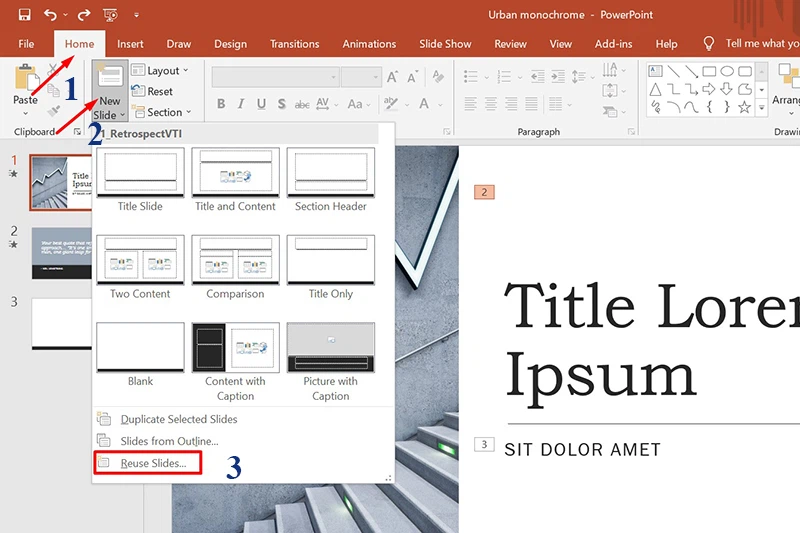
Step 1: First, open a PowerPoint file and select the slide you want to add another slide after. Then, click on the Home tab and select New Slide > Select “Reuse Slides” at the bottom of the list that appears.
How to combine two Powerpoint files into one
Select “Reuse Slides” at the bottom of the list

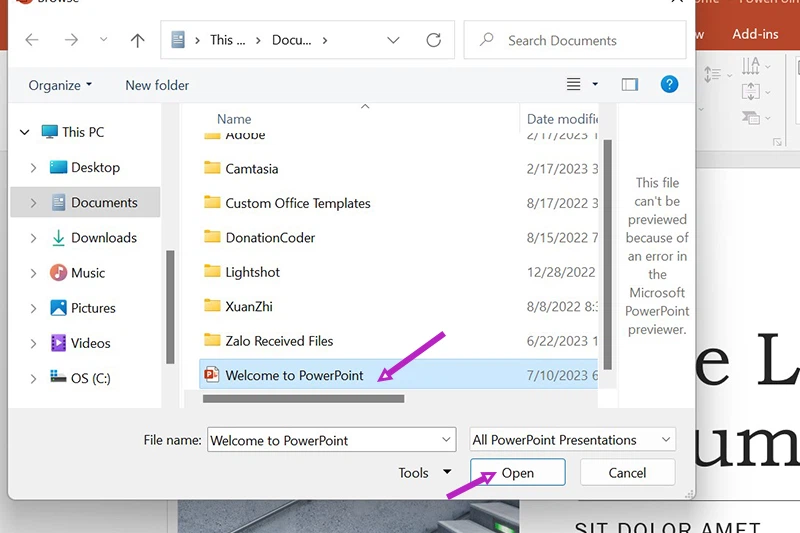
Step 2: Then, a Reuse Slides interface will appear on the right half of the screen. Click Browse to find another PowerPoint file on your computer that you want to connect to the open file.

Find the second PowerPoint file and click Open to open it.
How to combine two Powerpoint files into one
Select another PowerPoint file on your computer

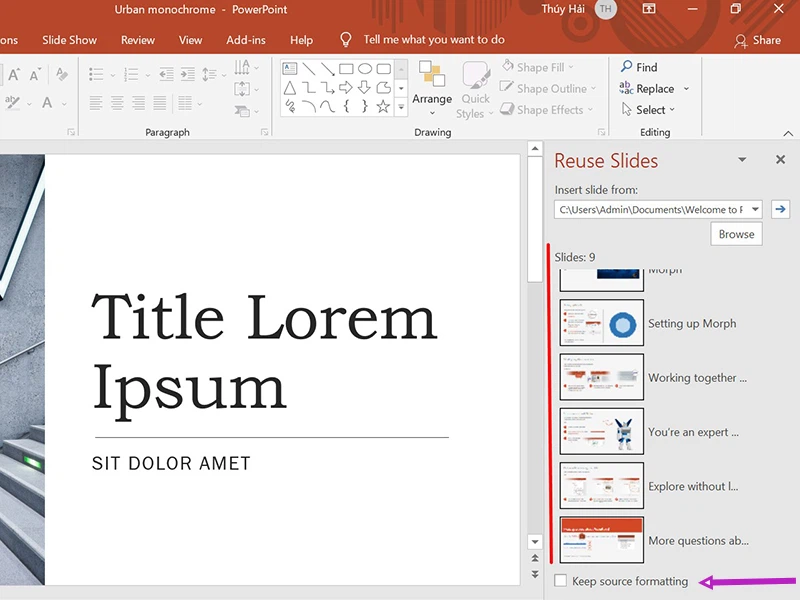
Step 3: At the Reuse Slides interface, you will see all the slides in the second PowerPoint file you just opened. If you want to keep the format of these slides, select “Keep Source Formatting” below the interface.
How to combine two Powerpoint files into one
Select “Keep Source Formatting” to keep the format intact

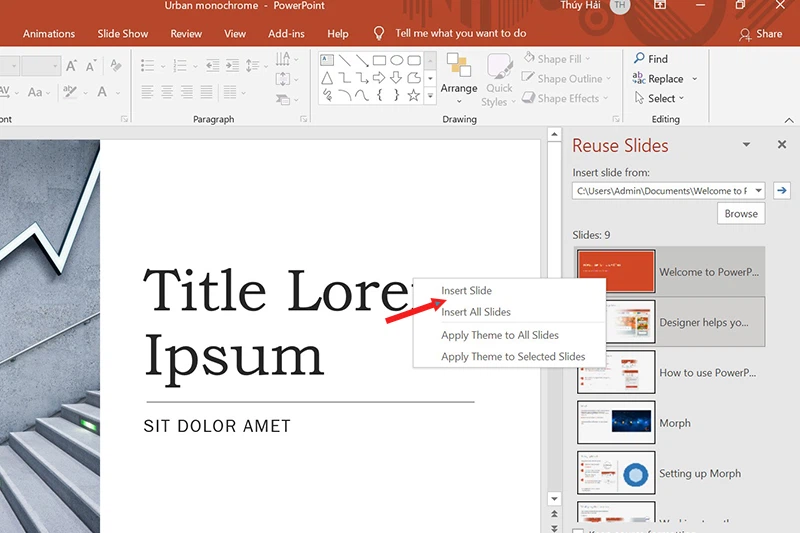
Step 4: To add any slide, just click on that slide or right-click > Select Insert Slide.
How to combine two Powerpoint files into one
How to add any slide

If you want to add all slides to the current PowerPoint file, select Insert All Slides. Immediately the slides will be added to the location you just clicked.

Use the Copy Paste operation

How to combine 2 PowerPoint files by Copy Paste is a simple but more time-consuming method, often used by people new to PowerPoint.

Step 1: Open a PowerPoint slide you want to copy, then select the slides you want to copy in the left panel.

If you want to copy all the slides in the file, click on the control panel on the left side of the screen (where the list of slides is displayed) and press the key combination Ctrl + A.
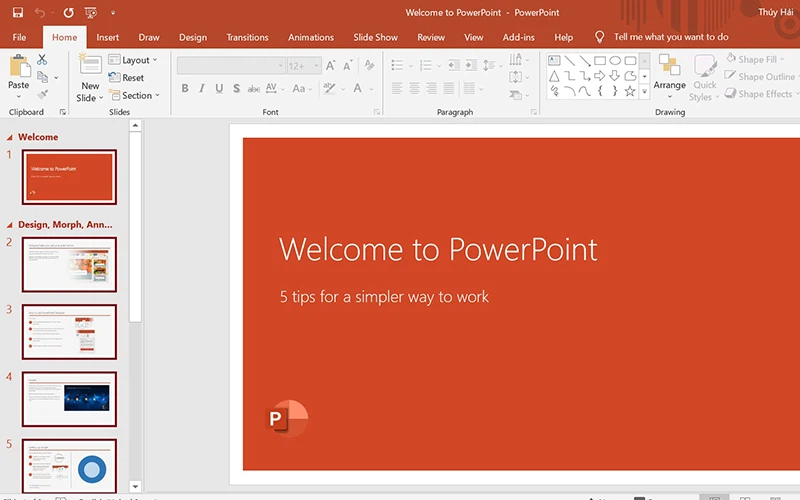
How to combine two Powerpoint files into one
Copy all slides in the file
  • To select multiple slides at the same time, click on the first slide, hold down the Shift key on the keyboard and click on the next slides.
  • If you want to select multiple consecutive slides, click on the first slide, hold the Ctrl key on the keyboard and click on the last slide.

Step 2: After selecting the slides you want to copy, press Ctrl + C or right-click and select Copy.

Step 3: Next, open the second PowerPoint file > Press Ctrl + V to paste all the copied slides. It is done.

How to combine two Powerpoint files into one
Paste all copied slides

Epilogue

In this article, I have guided you How to combine two Powerpoint files into one files simply and quickly in two different ways. You can choose whichever method best suits your needs and situation. Hopefully this article will help you solve your problems and create impressive and professional presentations.


The article scored: 5/5 – (100 votes)

Tags: combineCompletefilefilesPowerPoint
Previous Post

Magnific AI tool: Turn emoji into realistic images

Next Post

Epic Games gives away free DNF Duel worth more than 1 million VND

AnonyViet

AnonyViet

Related Posts

How to add Watermark to Google Docs to protect copyright
Office

How to add Watermark to Google Docs to protect copyright

April 19, 2026
Instructions on how to hide formulas in Excel to secure data
Office

Instructions on how to hide formulas in Excel to secure data

February 6, 2026
Top who creates the most beautiful presentation slide today
Office

Top who creates the most beautiful presentation slide today

September 23, 2025
Automatically check and correct spelling errors on Google Docs
Office

Automatically check and correct spelling errors on Google Docs

February 23, 2025
Instructions for downloading Google Docs files easily on any device
Office

Instructions for downloading Google Docs files easily on any device

December 18, 2024
Launching AI image creation feature on Google Docs
Office

Launching AI image creation feature on Google Docs

November 20, 2024
Next Post
Epic Games gives away free DNF Duel worth more than 1 million VND

Epic Games gives away free DNF Duel worth more than 1 million VND

0 0 votes
Article Rating
Subscribe
Login
Notify of
guest

guest

0 Comments
Oldest
Newest Most Voted
Inline Feedbacks
View all comments

Recent News

Create an avatar to celebrate April 30 with a beautiful red flag shirt with yellow stars

Create an avatar to celebrate April 30 with a beautiful red flag shirt with yellow stars

April 30, 2026
How to get 2 months of Super Duolingo for free worth 300k

How to get 2 months of Super Duolingo for free worth 300k

April 30, 2026
How to create a Face Sticker Collection using ChatGPT

How to create a Face Sticker Collection using ChatGPT

April 29, 2026
How to install the cute Bongo Cat mouse pointer for Windows

How to install the cute Bongo Cat mouse pointer for Windows

April 29, 2026
Create an avatar to celebrate April 30 with a beautiful red flag shirt with yellow stars

Create an avatar to celebrate April 30 with a beautiful red flag shirt with yellow stars

April 30, 2026
How to get 2 months of Super Duolingo for free worth 300k

How to get 2 months of Super Duolingo for free worth 300k

April 30, 2026
How to create a Face Sticker Collection using ChatGPT

How to create a Face Sticker Collection using ChatGPT

April 29, 2026
AnonyViet - English Version

AnonyViet

AnonyViet is a website share knowledge that you have never learned in school!

We are ready to welcome your comments, as well as your articles sent to AnonyViet.

Follow Us

Contact:

Email: anonyviet.com[@]gmail.com

Main Website: https://anonyviet.com

Recent News

Create an avatar to celebrate April 30 with a beautiful red flag shirt with yellow stars

Create an avatar to celebrate April 30 with a beautiful red flag shirt with yellow stars

April 30, 2026
How to get 2 months of Super Duolingo for free worth 300k

How to get 2 months of Super Duolingo for free worth 300k

April 30, 2026
No Result
View All Result
  • Home
  • News
  • Software
  • Knowledge
  • MMO
  • Tips
  • Security
  • Network
  • Office

wpDiscuz
0
0
Would love your thoughts, please comment.x
()
x
| Reply