Check VRAM on Mac It is an essential step for you to understand the real graphics power of the device. Whether you are a gamer who wants to conquer top -notch games or designers who are processing complex files, this parameter will determine the smoothness of the experience. Let’s explore how to do it quickly and mean behind these important numbers!
| Join the channel Telegram belong to Anonyviet 👉 Link 👈 |
What is VRAM and why is it so important?
VRAMabbreviated for Video Random Access Memory, is a specialized type of dedicated memory designed to store image data and graphics that the graphics card (GPU) needs to be processed.
Imagine GPU is a genius artist, and VRAM is his drawing table. The larger the drawing table (the higher the VRAM capacity), the more the artist has more space to sketch, color and complete complex paintings at the same time without interrupting.
On the contrary, if the drawing table is too small, the artist will have to continuously delete it over and down, slow down the progress and affect the quality of the work. Similarly, VRAM is large enough to help:
- Play smoother gaming, minimize jerky, lag, tear lag, especially at high resolution and maximum graphics installation.
- Video render faster, accelerate the process of exporting video files, edit complex effects in software such as Final Cut Pro, Adobe Premiere Pro.
- Improve performance when working with large design files on Photoshop, Illustrator, or 3D models on Blender, AutoCAD.
How to check VRAM on Mac (for Intel line)
For Macs using Intel’s processor, checking the special VRAM capacity is extremely simple. You just need to follow these steps:
- Click Apple icon At the top corner of the screen.
- From the drop -down menu, choose to introduce this Mac (About this mac).
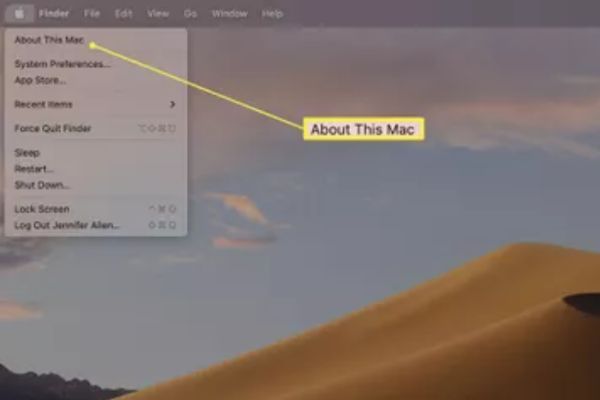
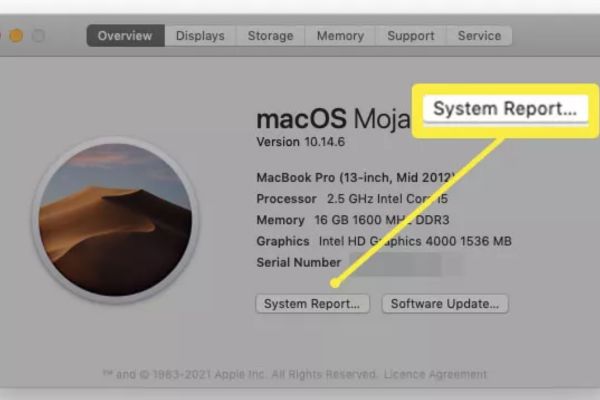
- An overview will appear. Here, you should pay attention to the graphics line (Graphics). The display information will include the name of the graphics card and immediately after that is its VRAM capacity.
- For a more detailed and intensive view, click the System Report button (System Report...).
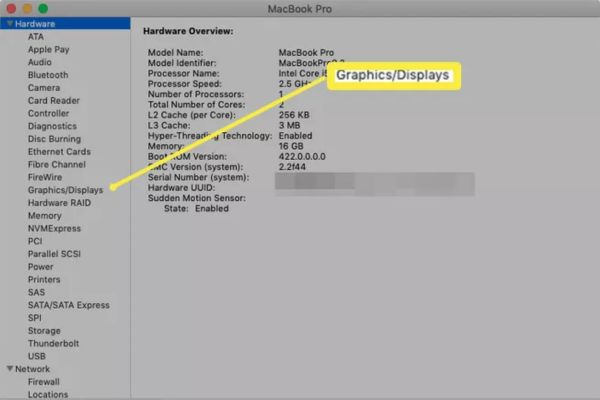
- Find and select graphics/screen items (Graphics/Displays) in the left column.
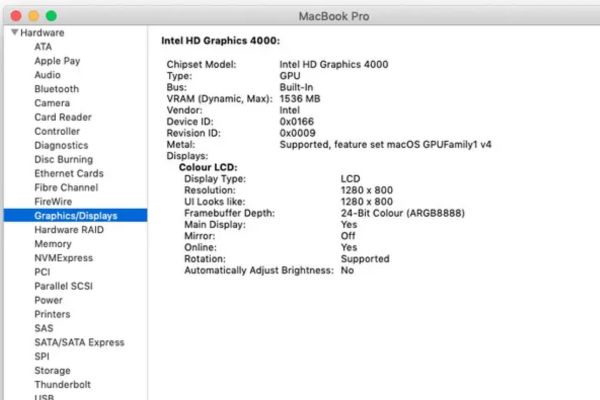
- In the right frame, you will see all the details of the graphics card. Find the line VRAM (Total) or VRAM (Dynamic, Max)the main display number is the maximum graphics memory capacity that your system has.
In case the Mac uses Apple Silicon chip (M1, M2, M3)
If you own a MacBook Air, MacBook Pro, iMac or Mac Studio using Apple Silicon chip (M series), you will notice that when checking VRAM on Mac in the above way, this information is not listed separately. Don’t worry, your device is not missing VRAM!
The reason is because Apple has created a revolution with the “Unified Memory” architecture. Instead of having RAM for CPU and VRAM for GPU, the M-Series chip integrates all into a single memory area. Both CPUs and GPUs can directly access this memory group at extremely high speed.
Advantage: This architecture completely eliminates the need to copy data between RAM and VRAM, help reduce latency, increase overall efficiency and use energy significantly.
How to check: On the Mac Apple Silicon, the “memory” (memory) that you see in the Mac introduction section is the total resource that both the system and graphics share.
For example, a MacBook Pro M3 with 16GB of the unified memory means that 16GB will be flexibly allocated for all tasks, including graphics.
How much VRAM is enough for your needs?
The answer depends entirely on your purpose.
With basic users (surfing the web, office, watching movies): You almost do not care about VRAM. Any modern Mac configuration meets these needs.
For gamers:
- 4GB VRAM: Absolutely minimum to play old games or popular eSports games at 1080p resolution with low to medium setting.
- 8GB VRAM: The “gold standard” level for smooth gaming experience at 1080p and 1440p with high installation. This is a safe option for most gamers today.
- 12GB VRAM or more: For those who want to conquer the game in 4K resolution, turn on Tracing and enjoy the highest quality graphics quality.
Content creator (Edit video, design):
- 8GB VRAM: Good starting level for basic 4K video editing and 2D graphics design.
- 16GB VRAM or more: very encouraged for professional video editors to work with complex 4K/8K projects, heavy effects, 3D render and tasks that require high graphics power.
Frequently asked questions
1. VRAM 128MB can use it?
Are not. 128MB is an extremely outdated number and is not enough for any modern graphics tasks, including the lightest games. If your Mac only has this VRAM capacity, it is only suitable for the most basic text and browsing tasks.
2. How to increase VRAM on Mac?
This is an important difference between Mac and many Windows computers. For the vast majority of Mac models, especially recent models and the entire Apple Silicon, VRAM (or consolidated memory), welded on the motherboard. This means you cannot upgrade or increase VRAM after buying the device.
The only way to have more vrams is to choose a higher configuration right at the time of buying the device. So, carefully consider your needs to make the most wise investment decision.
Conclusion
Check VRAM on Mac Now it is no longer a complex operation with detailed instructions in the article. Understanding VRAM not only helps you to appreciate the machine performance, but also an important basis to make a decision to upgrade or shop in the future.