• Home
  • News
  • Software
  • Knowledge
  • MMO
  • Tips
  • Security
  • Network
  • Office
AnonyViet - English Version
  • Home
  • News
  • Software
  • Knowledge
  • MMO
  • Tips
  • Security
  • Network
  • Office
No Result
View All Result
  • Home
  • News
  • Software
  • Knowledge
  • MMO
  • Tips
  • Security
  • Network
  • Office
No Result
View All Result
AnonyViet - English Version
No Result
View All Result

How to Capture Full Web Pages in Chrome and Firefox

AnonyViet by AnonyViet
January 26, 2023
in Tips
0

There won’t be any difficulty when it comes to taking screenshots. However, you may find it difficult to capture the entire web page and have no choice but to stitch together separate screenshots using a photo editor. The following article will guide you to take pictures of the entire Web page from start to finish with just 1 click.

Join the channel Telegram of the AnonyViet 👉 Link 👈

How to Capture Full Web Pages in Chrome and Firefox

The good news is that you can avoid this headache by using free Chrome or Firefox extensions or built-in tools.

How to Capture Full Web Pages in Chrome

If your default browser is Google Chrome, there are a lot of options you can use to capture the full page:

ScreenCapture is one of the best extensions available for Chrome.

How to capture full page with ScreenCapture

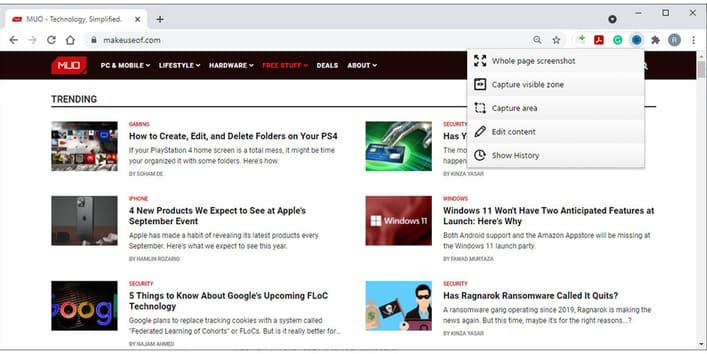
To access the extension’s menu, all you have to do is click on its icon. If you need to take a screenshot of the entire page, select Whole page screenshot. ScreenCapture will automatically scroll the entire page and will open a new tab containing the screenshot.
How to Capture Full Web Pages in Chrome and Firefox 10

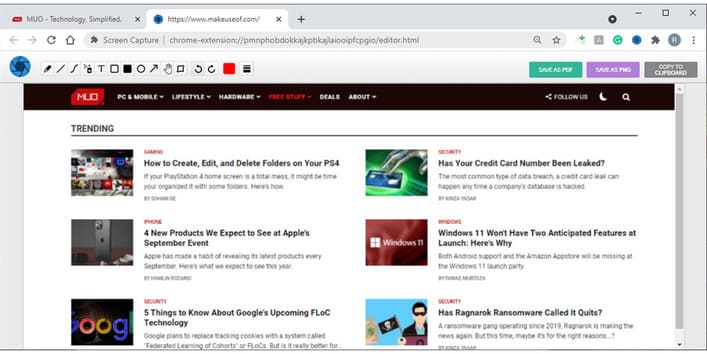
Using ScreenCapture, you can edit your screenshot without having to open another app or website. You can add text, arrows or other elements using extensions. When you’re done editing, you can save it as a PDF, PNG, or copy it to the clipboard.
How to Capture Full Web Pages in Chrome and Firefox 11

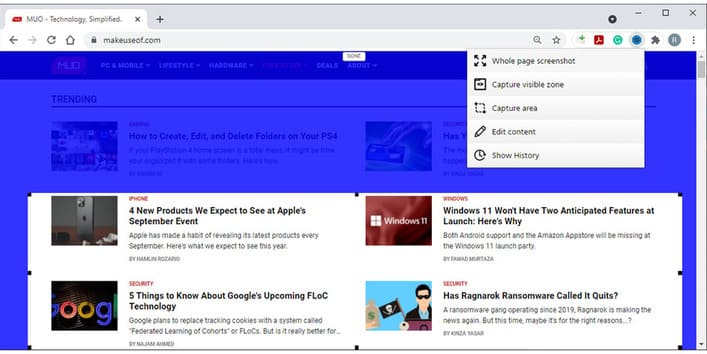
If you only want to capture an area of ​​the screen, select Capture area. You can edit the captured area by resizing the border. If you want to take a screenshot of the scroll, click and hold the bottom of the box and scroll the page with your mouse. If you want to exit the screenshot, just press Esc.
How to Capture Full Web Pages in Chrome and Firefox 12

To access your screenshot, open the widget’s menu and click Show History. There you can view, download, or delete your screenshots.

How to capture full page without extension

If you feel you have installed too many extensions, you can take a screenshot using Developer Tools. Before trying this method, keep in mind that it works better for web pages with text-based content than web applications.

Follow these steps to capture the full page:

The article achieved: 5/5 – (100 votes)

Tags: captureChromeFirefoxFullpagesweb
Previous Post

Lesson 67: How to limit your budget in Excel

Next Post

Tìm hiểu Dark Web từ cơ bản đến nâng cao

AnonyViet

AnonyViet

Related Posts

How to record reaction videos with Android phones, no app needed
Tips

How to record reaction videos with Android phones, no app needed

June 1, 2026
Instructions on how to get Google AI Pro 1 year for free for new accounts
Tips

Instructions on how to get Google AI Pro 1 year for free for new accounts

June 1, 2026
Top free AI tools to help write, test and optimize content
Tips

Top free AI tools to help write, test and optimize content

June 1, 2026
Instructions for receiving Lovable Pro 12 months for free
Tips

Instructions for receiving Lovable Pro 12 months for free

May 29, 2026
Instructions for receiving 1 month of ElevenLabs Creator for free worth
Tips

Instructions for receiving 1 month of ElevenLabs Creator for free worth $22

May 25, 2026
How to create beautiful studio-like preschool graduation photos for your child
Tips

How to create beautiful studio-like preschool graduation photos for your child

May 21, 2026
Next Post
Tìm hiểu Dark Web từ cơ bản đến nâng cao

Tìm hiểu Dark Web từ cơ bản đến nâng cao

0 0 votes
Article Rating
Subscribe
Login
Notify of
guest

guest

0 Comments
Oldest
Newest Most Voted
Inline Feedbacks
View all comments

Recent News

How to record reaction videos with Android phones, no app needed

How to record reaction videos with Android phones, no app needed

June 1, 2026
Instructions on how to get Google AI Pro 1 year for free for new accounts

Instructions on how to get Google AI Pro 1 year for free for new accounts

June 1, 2026
Top free AI tools to help write, test and optimize content

Top free AI tools to help write, test and optimize content

June 1, 2026
TruyenDrive: Turn Google Drive into a professional manga reader

TruyenDrive: Turn Google Drive into a professional manga reader

May 31, 2026
How to record reaction videos with Android phones, no app needed

How to record reaction videos with Android phones, no app needed

June 1, 2026
Instructions on how to get Google AI Pro 1 year for free for new accounts

Instructions on how to get Google AI Pro 1 year for free for new accounts

June 1, 2026
Top free AI tools to help write, test and optimize content

Top free AI tools to help write, test and optimize content

June 1, 2026
AnonyViet - English Version

AnonyViet

AnonyViet is a website share knowledge that you have never learned in school!

We are ready to welcome your comments, as well as your articles sent to AnonyViet.

Follow Us

Contact:

Email: anonyviet.com[@]gmail.com

Main Website: https://anonyviet.com

Recent News

How to record reaction videos with Android phones, no app needed

How to record reaction videos with Android phones, no app needed

June 1, 2026
Instructions on how to get Google AI Pro 1 year for free for new accounts

Instructions on how to get Google AI Pro 1 year for free for new accounts

June 1, 2026
No Result
View All Result
  • Home
  • News
  • Software
  • Knowledge
  • MMO
  • Tips
  • Security
  • Network
  • Office

wpDiscuz
0
0
Would love your thoughts, please comment.x
()
x
| Reply