• Home
  • News
  • Software
  • Knowledge
  • MMO
  • Tips
  • Security
  • Network
  • Office
AnonyViet - English Version
  • Home
  • News
  • Software
  • Knowledge
  • MMO
  • Tips
  • Security
  • Network
  • Office
No Result
View All Result
  • Home
  • News
  • Software
  • Knowledge
  • MMO
  • Tips
  • Security
  • Network
  • Office
No Result
View All Result
AnonyViet - English Version
No Result
View All Result

How to adjust display screen size on Windows 11

AnonyViet by AnonyViet
February 20, 2024
in Tips
0

How to adjust display screen size is an essential skill for anyone who uses a computer. Adjusting the size will help you have a better experience when watching videos, playing games, working or studying. In this article, AnonyViet will guide you how to adjust the display size on Windows 11.

Join the channel Telegram belong to AnonyViet 👉 Link 👈

Why is it necessary to adjust the display screen size?

Display ratio, also known as DPI (Dots per inch), is a unit of measurement for the number of pixels that can be displayed on one inch of the screen. Display scale affects the size of on-screen elements such as text, icons, apps, and other elements. If you increase the display scale, things will appear larger, while decreasing the display scale will make them smaller.

Adjusting display scaling is important if you have poor eyesight or just want to make it easier on your eyes. Additionally, if you use a screen with high resolution but small size, you also need to adjust the display scale to avoid blurring or difficulty reading.

How to adjust display screen size

Method 1: Adjust using Display Settings

The simplest way to adjust the above display scale Windows 11 is to access settings on Windows. You can follow these steps:

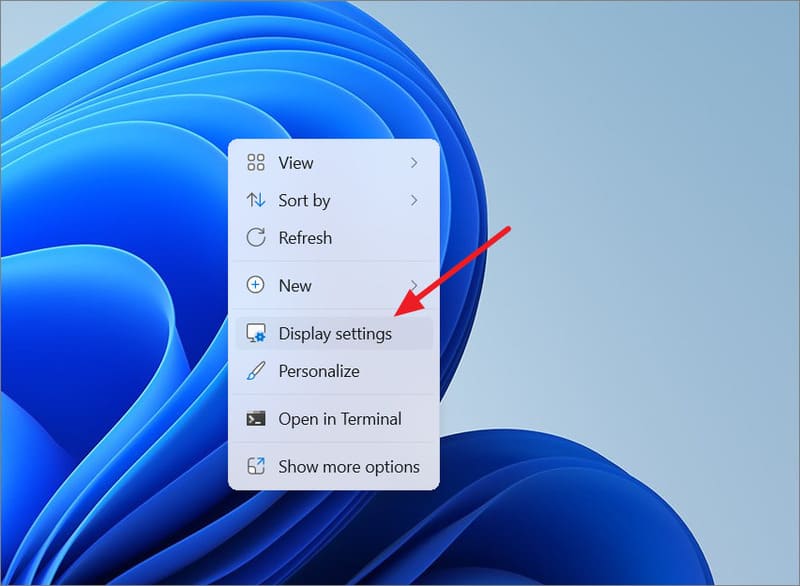
Step 1: Right click anywhere on the wallpaper and select 'Display settings'

Or you can press the keyboard shortcut Windows + I > Select 'System' > 'Display.'
How to adjust display screen size
Right click and select 'Display settings'

Step 2: Scroll down to 'Scale & layout' and click the drop-down list next to 'Scale'
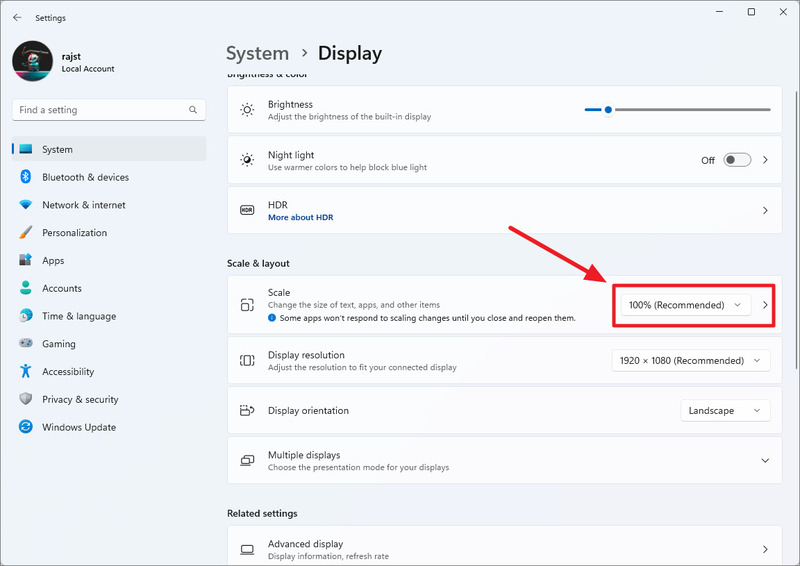
How to adjust display screen size
Click the drop-down list next to 'Scale'

Step 3: Choose an appropriate scale setting. The available options are 100%, 125%, 150% and 175%.
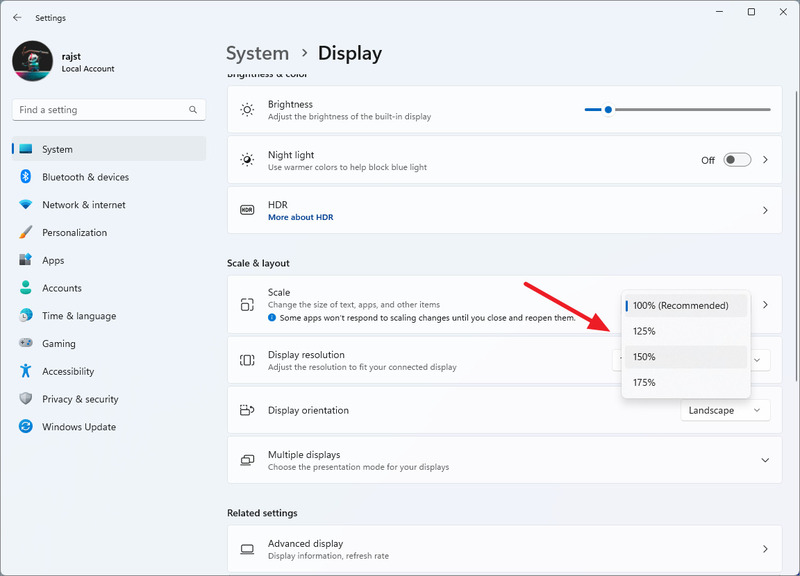
How to adjust display screen size
Choose an appropriate scale setting

Step 4: Once selected, the size of text, icons, and interface elements will change accordingly.
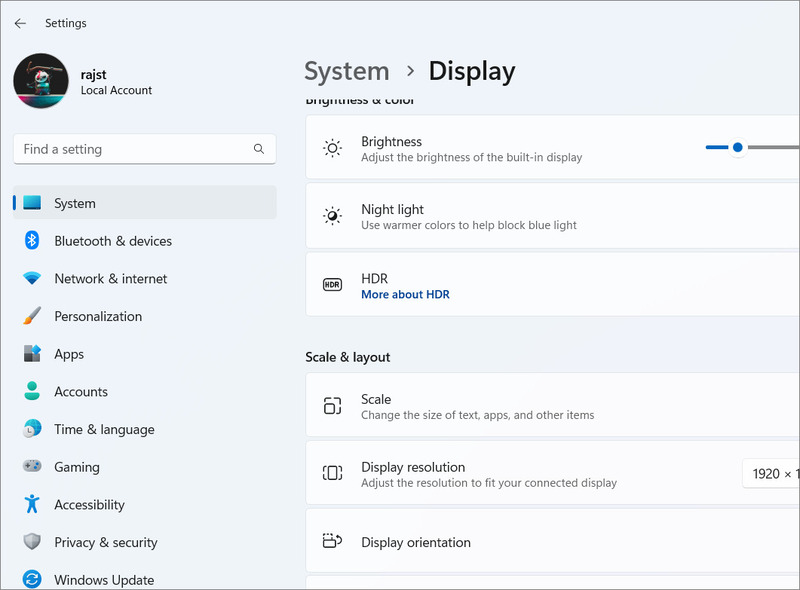
How to adjust display screen size
The display size changes instantly

Step 5: If the default options are not suitable, you can set a custom ratio. by clicking directly on the 'Scale' box instead of the drop-down list.
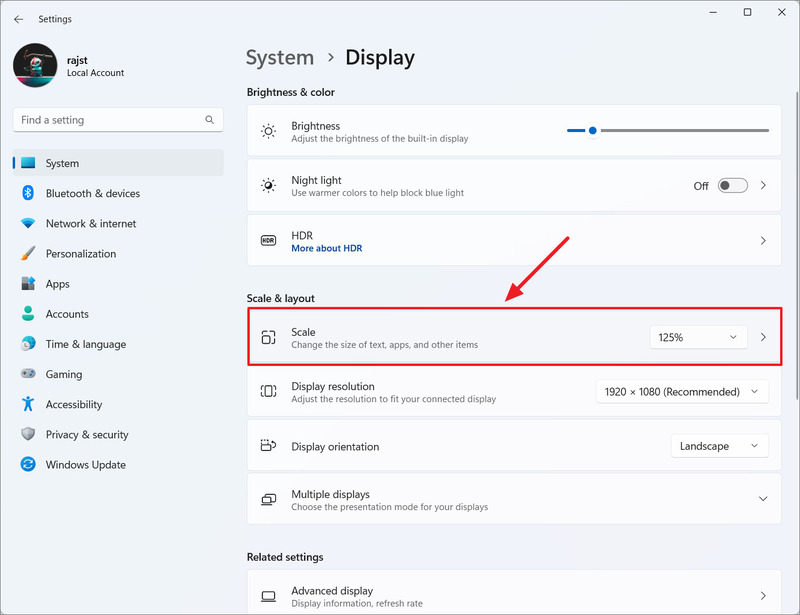
How to adjust display screen size
Click directly on the 'Scale' box

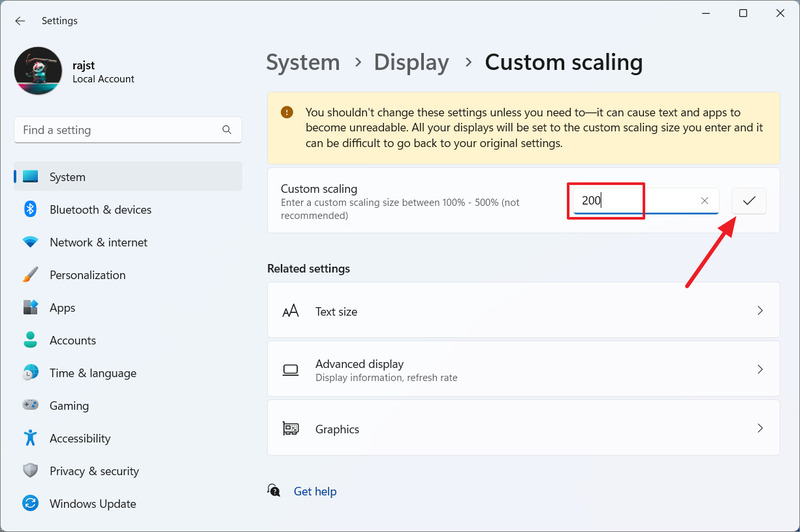
Step 6: Enter a custom scale value from 100% to 500% in the text box and click the check mark
How to adjust display screen size
Enter a scale value > Click the check mark

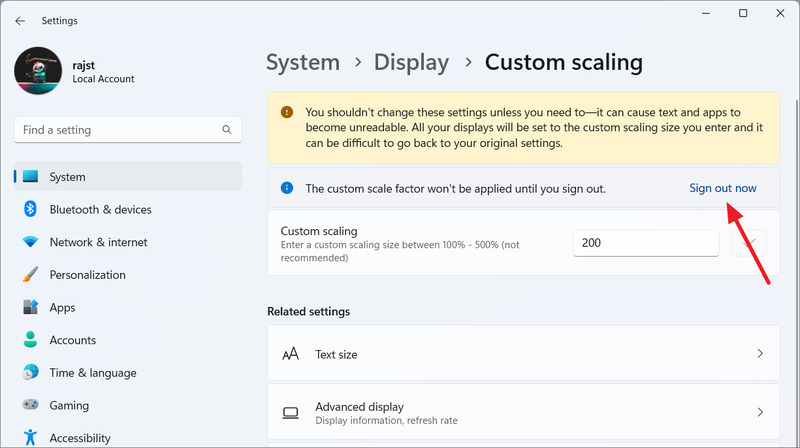
Step 7: To apply the new rate, click 'Sign out now' and then sign in again.
How to adjust display screen size
Click 'Sign out now'

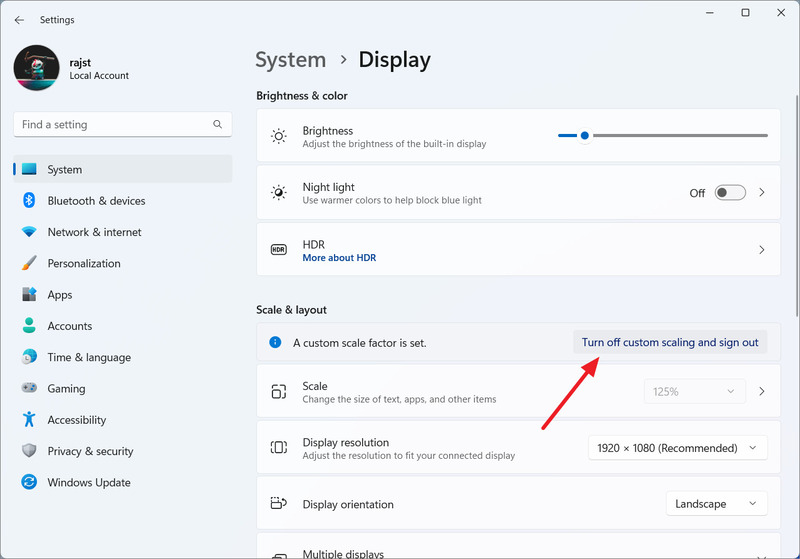
Step 8: After setting a custom scale, the 'Scale' menu will be disabled. If you want to go back to the previous default settings, you must turn off custom scaling by clicking 'Turn off custom scaling and sign out'
How to adjust display screen size
Click 'Turn off custom scaling and sign out'

Method 2: Adjust using Registry

Although not recommended, you can still change display scaling settings using Registry Editor as a fallback if the regular Settings app doesn't work.

This is another way to configure custom scaling on Windows 11, but remember to back up the Registry before making any changes.

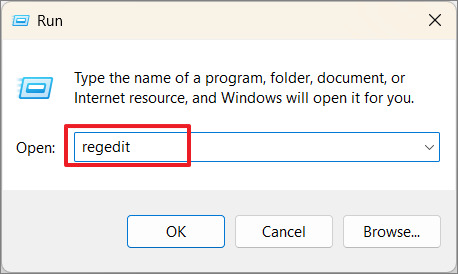
Step 1: Press Windows + R, then type regedit and press Enter to launch Registry Editor.
How to adjust display screen size
Press Windows + R > Enter regedit

Step 2: Go to the folder below

HKEY_CURRENT_USER\Control Panel\Desktop

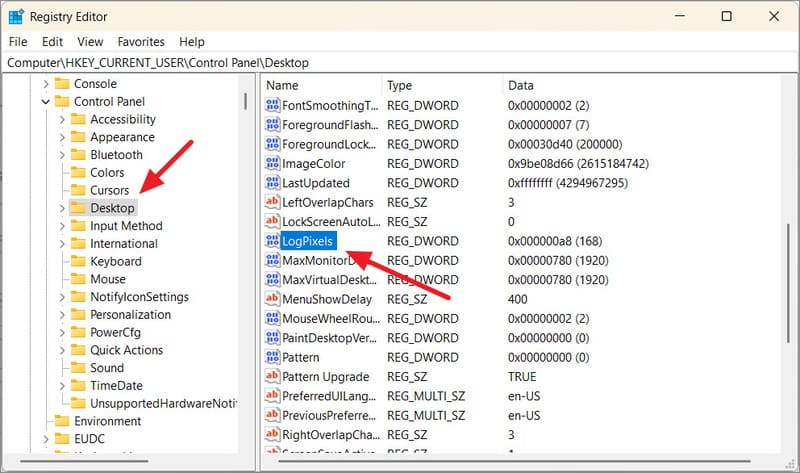
Step 3: Find and double-click 'LogPixels' on the right panel. If you can't find it, right-click in the right pane, select New > DWORD (32-bit) Value and name the item LogPixels, and press Enter.
How to adjust display screen size
Double click on 'LogPixels' item

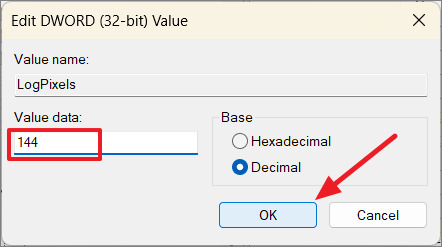
Step 4: Then, select Base as 'Decimal', enter one of the following values ​​for your desired size and click 'OK'.

  • 96 -> 100%
  • 120 -> 125%
  • 144 -> 150%
  • 192 -> 200%
  • 240 -> 250%
  • 288 -> 300%
  • 384 -> 400%
  • 480 -> 500%
How to adjust display screen size
Select Base as 'Decimal' > Enter value > OK

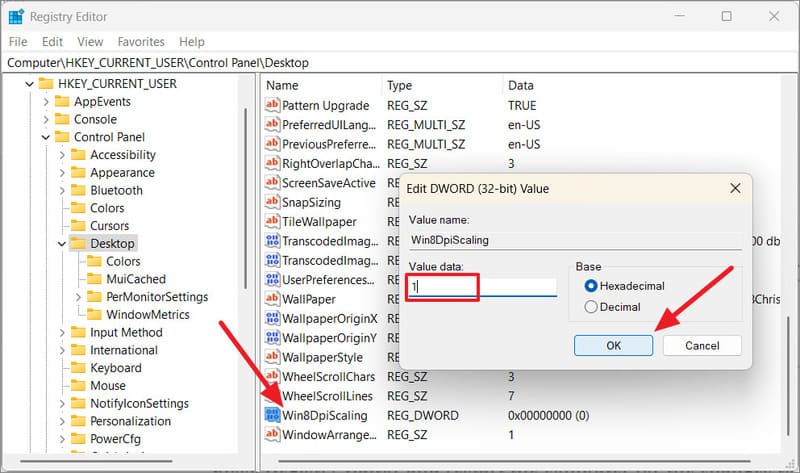
Step 5: Then, find and double-click 'Win8DpiScaling' in the right panel. If it's not there, right-click > select New > DWORD (32-bit) Value, name it Win8DpiScaling and press Enter.

Step 6: In value data, enter 0 (to disable custom scaling) or 1 (to enable custom scaling) and click 'OK'.
How to adjust display screen size
Enter 0 in value data > OK

Step 7: Close the Registry window and restart the computer for the changes to take effect.

Epilogue

How to adjust display screen size It's not too difficult or complicated. You just need to know how to use the options and tools available on the device. By adjusting the screen size, you will be able to enjoy benefits such as: enhanced image quality, enhanced performance, reduced stress and eye strain. Wishing you a successful application!


The article scored: 5/5 – (100 votes)

Tags: adjustdisplayscreensizeWindows
Previous Post

Download and activate Office 2021 Free with OfficeSavior tool

Next Post

How to create a Q&A chat bot on your files using Coze AI

AnonyViet

AnonyViet

Related Posts

Don’t install leaked Windows 11
Tips

Don’t install leaked Windows 11

July 25, 2026
Microsoft announced the end of support date for Windows 10
Tips

Microsoft announced the end of support date for Windows 10

July 24, 2026
Microsoft confirms leaked Windows 11 is real
Tips

Microsoft confirms leaked Windows 11 is real

July 22, 2026
HeroSMS là gì? Cách thuê số điện thoại ảo nhận SMS OTP online không cần SIM
Tips

HeroSMS là gì? Cách thuê số điện thoại ảo nhận SMS OTP online không cần SIM

July 22, 2026
How to download documents on 123doc for free
Tips

How to download documents on 123doc for free

July 21, 2026
Instructions for Logo Design in just a few clicks with Logaster
Tips

Instructions for Logo Design in just a few clicks with Logaster

July 20, 2026
Next Post
How to create a Q&A chat bot on your files using Coze AI

How to create a Q&A chat bot on your files using Coze AI

0 0 votes
Article Rating
Subscribe
Login
Notify of
guest

guest

0 Comments
Oldest
Newest Most Voted

Recent News

Don’t install leaked Windows 11

Don’t install leaked Windows 11

July 25, 2026
Instructions on how to get 1 year of VIP Hidely VPN for free

Instructions on how to get 1 year of VIP Hidely VPN for free

July 25, 2026
Instructions on how to block strange devices from accessing your home Wifi

Instructions on how to block strange devices from accessing your home Wifi

July 25, 2026
Microsoft announced the end of support date for Windows 10

Microsoft announced the end of support date for Windows 10

July 24, 2026
Don’t install leaked Windows 11

Don’t install leaked Windows 11

July 25, 2026
Instructions on how to get 1 year of VIP Hidely VPN for free

Instructions on how to get 1 year of VIP Hidely VPN for free

July 25, 2026
Instructions on how to block strange devices from accessing your home Wifi

Instructions on how to block strange devices from accessing your home Wifi

July 25, 2026
AnonyViet - English Version

AnonyViet

AnonyViet is a website share knowledge that you have never learned in school!

We are ready to welcome your comments, as well as your articles sent to AnonyViet.

Follow Us

Contact:

Email: anonyviet.com[@]gmail.com

Main Website: https://anonyviet.com

Recent News

Don’t install leaked Windows 11

Don’t install leaked Windows 11

July 25, 2026
Instructions on how to get 1 year of VIP Hidely VPN for free

Instructions on how to get 1 year of VIP Hidely VPN for free

July 25, 2026
  • Home
  • Home 2
  • Home 3
  • Home 4
  • Home 5
  • Home 6
  • Next Dest Page
  • Sample Page

say88 tỷ lệ kèo nhà cái kèo nhà cái 5 febet

No Result
View All Result
  • Home
  • News
  • Software
  • Knowledge
  • MMO
  • Tips
  • Security
  • Network
  • Office

say88 tỷ lệ kèo nhà cái kèo nhà cái 5 febet

wpDiscuz
0
0
Would love your thoughts, please comment.x
()
x
| Reply