• Home
  • News
  • Software
  • Knowledge
  • MMO
  • Tips
  • Security
  • Network
  • Office
AnonyViet - English Version
  • Home
  • News
  • Software
  • Knowledge
  • MMO
  • Tips
  • Security
  • Network
  • Office
No Result
View All Result
  • Home
  • News
  • Software
  • Knowledge
  • MMO
  • Tips
  • Security
  • Network
  • Office
No Result
View All Result
AnonyViet - English Version
No Result
View All Result

How to add, reduce applications on the right mouse menu Windows

AnonyViet by AnonyViet
February 27, 2025
in Software
0

Right -click menu (Context menu) on Windows is an indispensable tool in the process of using the computer daily. However, over time and with installation of multiple software, this menu can become bulky and slow. This article Anonyviet will guide you 2 effective methods to Add applications on the right mouse menuhelp your computer operate faster and more effectively.


Join the channel Telegram belong to Anonyviet 👉 Link 👈

When using Windows, each installed application can add separate options to the right -click menu. This gradually makes the menu overload with many unnecessary options. The consequence is:

  • The time for displaying the menu when right click becomes slow
  • The interface becomes messy, difficult to find the necessary options
  • System resources.

See also: Instructions to update Windows 11 24h2 right away

Easy Context Menu is a free tool developed by Sordum, helping you customize the right -click menu quickly and simply. With just a few clicks, you can add or delete the items in the menu as needs, helping the menu become more neat.

Step 1: Load Easy Context menu From the official developer's website.

Step 2: Extract the zip file in any position on the computer.

Step 3: Run Easy Context Menu. Because this is a Portable application, you don't need to install it.

Add new items to the right -click menu:

  1. Select the items you want to add to the menu.
  2. Click the mouse icon with a plus (+) sign to save change.
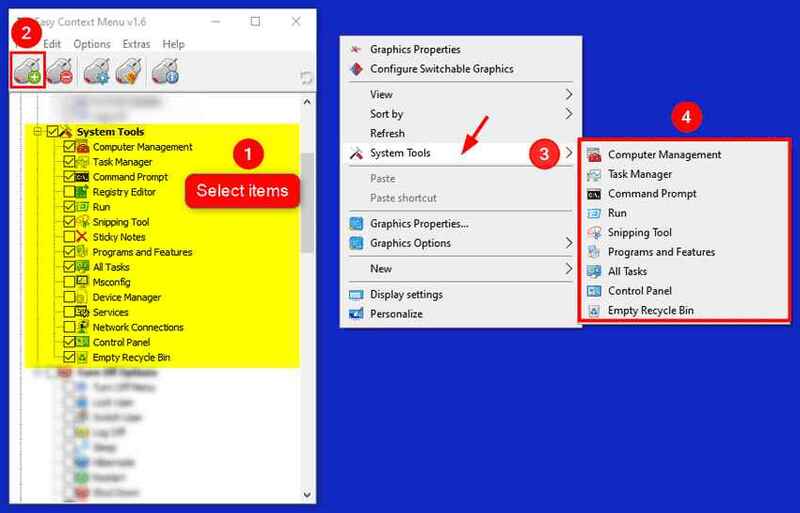
Click the icon with the plus

For example: As in the illustration above, I created a new menu item called “System Tools” containing many different applications.

Delete the items from the right -click menu:

  1. Click the icon ContextMenu Cleaner.
  2. Select the items you want to delete.
  3. Click Refresh In the right frame to apply changes.
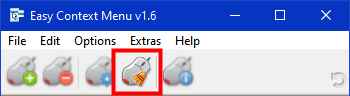
Click the ContextMenu Cleaner icon

Method 2: Use Shellexview

Shellexview is a free tool developed by Nirsoft, allowing you to view and manage the shell extension installed on your computer. These extensions are responsible for adding options to the right -click menu. With Shellexview, you can disable unnecessary extensions, thereby helping the menu become more compact.

Step 1: Load Shellexview From the official website of Nirsoft.

Step 2: Extract the zip file into the optional folder on the computer.

Step 3: Run Shellexview. Because this is also a Portable application, you don't need to install anything else.

Step 4: First, to avoid disabling the important components of Windows, click the menu Options > Mark selection Hide all Microsoft Extensions. This will only display the extensions from third -party software.
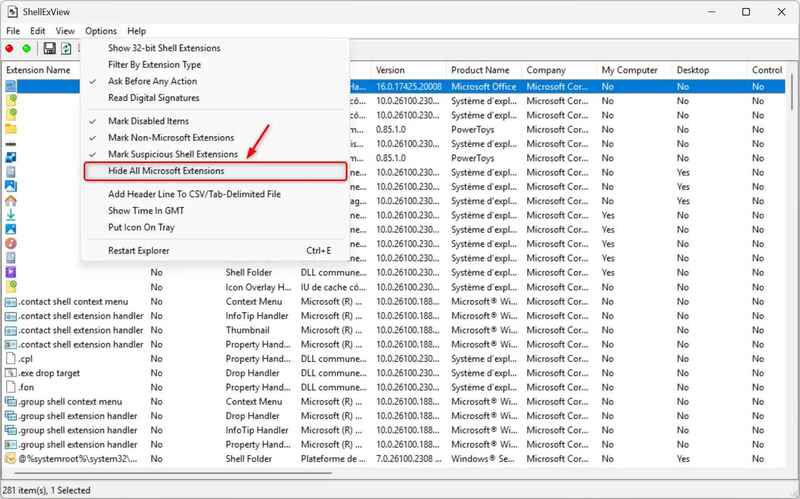
Select Hide All Microsoft Extensions

Step 5: In the main list, please classify the extensions by Context menu (in the “type” column)

Step 6: Select the item to delete from the right mouse menu> Right -click> Select Disable Selected Items > Confirm by clicking Yes.
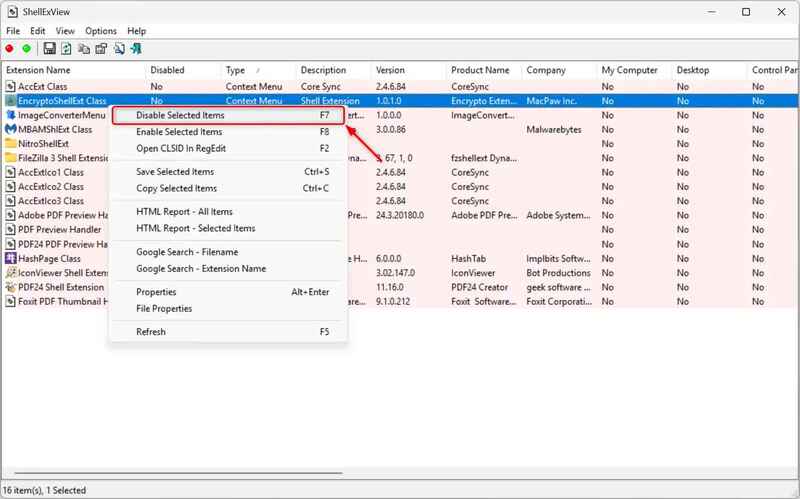
Select Disable Selected Items

Note: Unlike Easy Context Menu, changes in Shellexview need to restart Windows Explorer to take effect. To restart the Explorer, you do the following:

  • Method 1: Go to the menu Options → Select Restart Explorer
  • Method 2: Use shortcuts Ctrl + E

That's it! Now you know how to add the application of the Windows right -click menu with Shellexview.

See also: How to check the Bluetooth version on Windows 11/10

Conclusion

Job Add applications on the right mouse menu Not only helps computers operate faster but also creates a neat and effective working environment. Depending on the level of proficiency, you can choose one of the two methods above to achieve this goal. For beginners, Easy Context Menu is the safest and most effective choice. For experienced users, Shellexview or direct editing will allow more thorough control of Windows right -click menu.


Tags: AddapplicationsmenumouseReduceWindows
Previous Post

How to bring the website to Google News as a source for Google

Next Post

How to check whether Facebook is collapsed or not equal to downforelyoneonyorjustme.com.

AnonyViet

AnonyViet

Related Posts

How to get 1 month of Super Duolingo for free
Software

How to get 1 month of Super Duolingo for free

February 13, 2026
Instructions to receive 9GB Data eSIM 4G for free
Software

Instructions to receive 9GB Data eSIM 4G for free

February 12, 2026
Instructions for setting up fake location on Zalo
Software

Instructions for setting up fake location on Zalo

February 8, 2026
Instructions for cloning Zalo groups super quickly
Software

Instructions for cloning Zalo groups super quickly

February 7, 2026
Share the latest iTop Easy Desktop PRO free key for 6 months
Software

Share the latest iTop Easy Desktop PRO free key for 6 months

February 6, 2026
Instructions for viewing lyrics without internet on Apple Music
Software

Instructions for viewing lyrics without internet on Apple Music

February 4, 2026
Next Post
How to check whether Facebook is collapsed or not equal to downforelyoneonyorjustme.com.

How to check whether Facebook is collapsed or not equal to downforelyoneonyorjustme.com.

0 0 votes
Article Rating
Subscribe
Login
Notify of
guest

guest

0 Comments
Oldest
Newest Most Voted
Inline Feedbacks
View all comments

Recent News

7 other features of USB you may not know

7 other features of USB you may not know

February 14, 2026
Instructions for creating a photo holding a QR code to receive super cute lucky money for Tet

Instructions for creating a photo holding a QR code to receive super cute lucky money for Tet

February 14, 2026
How to see the package Viettel is using to avoid losing money unfairly

How to see the package Viettel is using to avoid losing money unfairly

February 14, 2026
How to overclock RAM – Overlock RAM helps speed up faster

How to overclock RAM – Overlock RAM helps speed up faster

February 13, 2026
7 other features of USB you may not know

7 other features of USB you may not know

February 14, 2026
Instructions for creating a photo holding a QR code to receive super cute lucky money for Tet

Instructions for creating a photo holding a QR code to receive super cute lucky money for Tet

February 14, 2026
How to see the package Viettel is using to avoid losing money unfairly

How to see the package Viettel is using to avoid losing money unfairly

February 14, 2026
AnonyViet - English Version

AnonyViet

AnonyViet is a website share knowledge that you have never learned in school!

We are ready to welcome your comments, as well as your articles sent to AnonyViet.

Follow Us

Contact:

Email: anonyviet.com[@]gmail.com

Main Website: https://anonyviet.com

Recent News

7 other features of USB you may not know

7 other features of USB you may not know

February 14, 2026
Instructions for creating a photo holding a QR code to receive super cute lucky money for Tet

Instructions for creating a photo holding a QR code to receive super cute lucky money for Tet

February 14, 2026
  • Home
  • Home 2
  • Home 3
  • Home 4
  • Home 5
  • Home 6
  • Next Dest Page
  • Sample Page

https://sun52.network

No Result
View All Result
  • Home
  • News
  • Software
  • Knowledge
  • MMO
  • Tips
  • Security
  • Network
  • Office

https://sun52.network

wpDiscuz
0
0
Would love your thoughts, please comment.x
()
x
| Reply