• Home
  • News
  • Software
  • Knowledge
  • MMO
  • Tips
  • Security
  • Network
  • Office
AnonyViet - English Version
  • Home
  • News
  • Software
  • Knowledge
  • MMO
  • Tips
  • Security
  • Network
  • Office
No Result
View All Result
  • Home
  • News
  • Software
  • Knowledge
  • MMO
  • Tips
  • Security
  • Network
  • Office
No Result
View All Result
AnonyViet - English Version
No Result
View All Result

How to add emoji to Macbook folder to easily distinguish

AnonyViet by AnonyViet
October 30, 2025
in Tips
0

Add emoji to Macbook folder is a way to make your workspace more lively and recognizable. Instead of monotonous blue folders, you can assign emojis to visually classify documents. This article AnonyViet will guide you through the steps to do it in the simplest way.

Join the channel Telegram belong to AnonyViet 👉 Link 👈

Why should you add emoji to your Macbook folder?

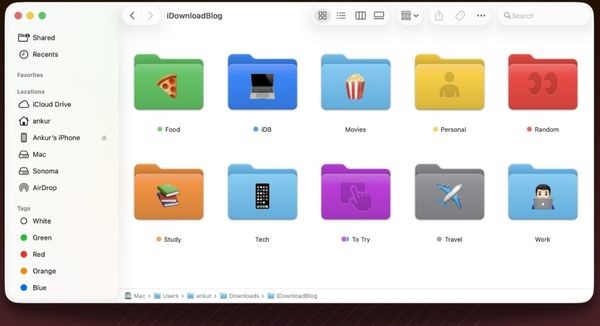
Attaching a small emoji to a folder is not only an aesthetic change, but also brings practical benefits such as:

Superfast visual organization

Our brains process images much faster than text. Instead of having to search for folder names, a ✈️ icon for the “Travel Plans” folder or a 💼 icon for “Client Projects” will help you locate them at a glance.
Why should you add emoji to your Macbook folder?

Create a unique memory system

You can build your own “language”. For example, emoji 💡 for new ideas, 💰 for finance-related folders, and 🎓 for all study materials. Adding emoji to the Macbook folder this way makes the classification more scientific and easier to remember.

Instructions for adding emoji to Macbook folder

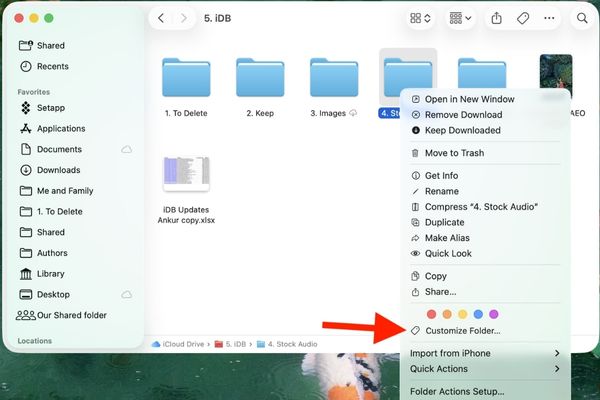
Step 1: First, simply right-click (or Control-click) on any folder you want to customize. Then find and select Customize Folders.
Select Customize Folder

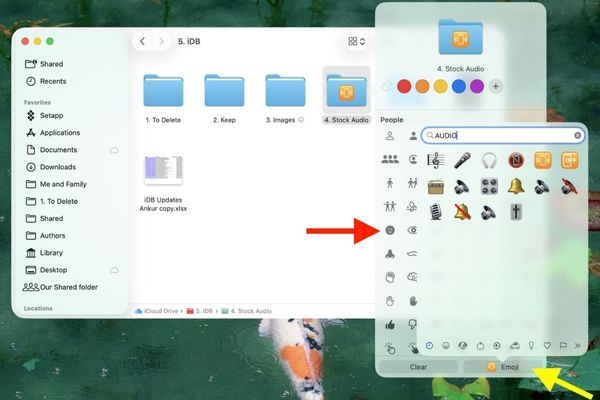
Step 2: Now it will give you two main options:

  • Built-in icons: Browse hundreds of symbols pre-categorized by Apple by topics such as Animals, Food, Activities, Objects, etc.
  • Emoji Keyboard: Click the Emoji button to open up the familiar emoji keyboard. You can use the search bar to quickly find the emoji you want, for example type “book” to find 📚 or “camera” to find 📷.

Step 3: Once you’ve chosen the emoji you like, just click out of that window to close it. Immediately, the icon you choose will be “printed” neatly in the middle of the folder, replacing the default interface.
Instructions for adding emoji to Macbook folder

How to “color” MacOS folders

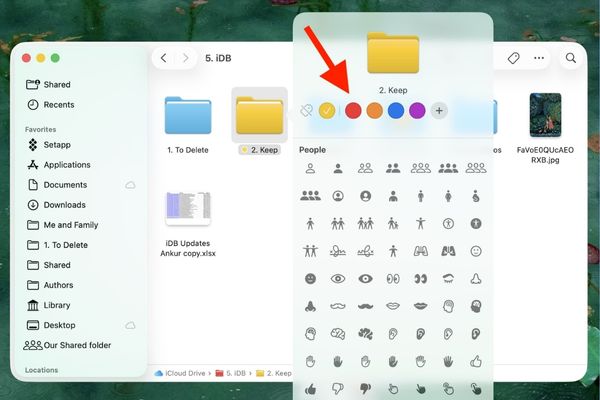
Besides adding icons, the new update also upgrades a familiar feature: Color tags (Tags).

Previously, assigning a color tag to a folder only showed a tiny colored dot next to the name. But now, when you right-click on a folder and select a color in the “Tags” section, the entire folder will be colored accordingly. A red “Urgent” folder or a green “Done” folder will become more prominent and easier to manage than ever.
How to
How to “color” MacOS folders

How to delete emoji and colors from Macbook folder

If you want to go back to the classic look, restoring is easy:

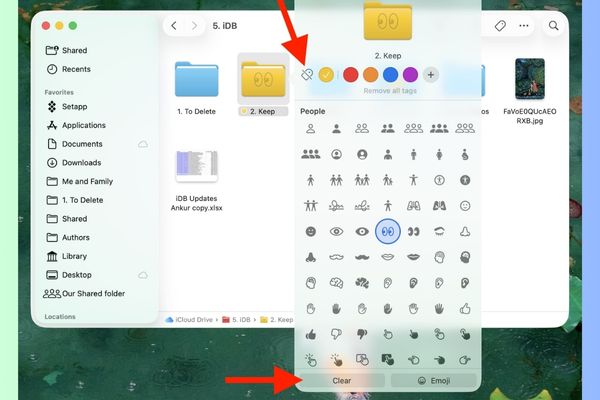
  • Delete emojis: Right-click the folder, select Customize Folder again, then click the Clear button. The icon will disappear.
  • Remove color: Right-click on the folder, move to “Tags” and uncheck the color being applied. The folder will return to its default blue color.
How to delete emoji and colors from Macbook folder

Synchronize emoji on Macbook folder with iPhone and iPad

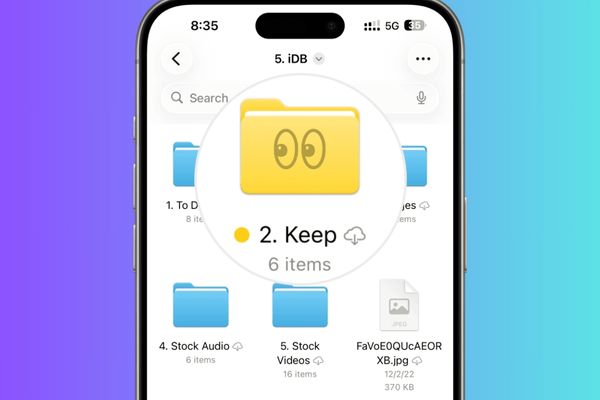
One of the biggest pluses of this feature is the seamless synchronization across the ecosystem Apple. When you add emoji to a Macbook folder stored on iCloud Drive, these changes will automatically update and display on the Files app of iPhone and iPad (requires compatible operating system version).

This means your visual organization goes with you on every device, making your work and file management experience consistent and efficient. However, currently these customizations may not appear on iCloud for Windows or the web version.
Synchronize emoji on Macbook folder with iPhone and iPad

Conclusion

Add emoji to Macbook folder Obviously a small but powerful feature, making file management more interesting and effective. With the above instructions, hopefully you are ready to experience and refresh your workspace. Wish you success!


Tags: AddDistinguisheasilyEmojiFolderMacBook
Previous Post

What is Direct Connect AWS? Benefits when businesses use Direct Connect AWS

Next Post

What chip does the iPhone 17 series use? Power of A19 and A19 Pro

AnonyViet

AnonyViet

Related Posts

New features of Windows 10 21H1 are coming soon
Tips

New features of Windows 10 21H1 are coming soon

March 16, 2026
How to convert normal music into 8D music with Audioalter
Tips

How to convert normal music into 8D music with Audioalter

March 14, 2026
How to prevent your family’s Security Camera from being hacked
Tips

How to prevent your family’s Security Camera from being hacked

March 13, 2026
Pixel Agents: Turn VS Code into a Pixel Art Office for AI
Tips

Pixel Agents: Turn VS Code into a Pixel Art Office for AI

March 12, 2026
English learning app Memrise is offering a lifetime discount of only 21,000 VND
Tips

English learning app Memrise is offering a lifetime discount of only 21,000 VND

March 11, 2026
Instructions for upgrading to Windows 10 Sun Valley (February 21)
Tips

Instructions for upgrading to Windows 10 Sun Valley (February 21)

March 11, 2026
Next Post
What chip does the iPhone 17 series use? Power of A19 and A19 Pro

What chip does the iPhone 17 series use? Power of A19 and A19 Pro

0 0 votes
Article Rating
Subscribe
Login
Notify of
guest

guest

0 Comments
Oldest
Newest Most Voted
Inline Feedbacks
View all comments

Recent News

How to install extension to remind office workers to drink water

How to install extension to remind office workers to drink water

March 17, 2026
Why are iPhones and MacBooks still the number 1 “weapons” of the technology world?

Why are iPhones and MacBooks still the number 1 “weapons” of the technology world?

March 16, 2026
New features of Windows 10 21H1 are coming soon

New features of Windows 10 21H1 are coming soon

March 16, 2026
Receive Advanced SystemCare 19 Pro key for free for 6 months

Receive Advanced SystemCare 19 Pro key for free for 6 months

March 16, 2026
How to install extension to remind office workers to drink water

How to install extension to remind office workers to drink water

March 17, 2026
Why are iPhones and MacBooks still the number 1 “weapons” of the technology world?

Why are iPhones and MacBooks still the number 1 “weapons” of the technology world?

March 16, 2026
New features of Windows 10 21H1 are coming soon

New features of Windows 10 21H1 are coming soon

March 16, 2026
AnonyViet - English Version

AnonyViet

AnonyViet is a website share knowledge that you have never learned in school!

We are ready to welcome your comments, as well as your articles sent to AnonyViet.

Follow Us

Contact:

Email: anonyviet.com[@]gmail.com

Main Website: https://anonyviet.com

Recent News

How to install extension to remind office workers to drink water

How to install extension to remind office workers to drink water

March 17, 2026
Why are iPhones and MacBooks still the number 1 “weapons” of the technology world?

Why are iPhones and MacBooks still the number 1 “weapons” of the technology world?

March 16, 2026
No Result
View All Result
  • Home
  • News
  • Software
  • Knowledge
  • MMO
  • Tips
  • Security
  • Network
  • Office

wpDiscuz
0
0
Would love your thoughts, please comment.x
()
x
| Reply