
• Home
  • News
  • Software
  • Knowledge
  • MMO
  • Tips
  • Security
  • Network
  • Office
AnonyViet - English Version
  • Home
  • News
  • Software
  • Knowledge
  • MMO
  • Tips
  • Security
  • Network
  • Office
No Result
View All Result
  • Home
  • News
  • Software
  • Knowledge
  • MMO
  • Tips
  • Security
  • Network
  • Office
No Result
View All Result
AnonyViet - English Version
No Result
View All Result

How to activate security mode when sending emails with self-destruct ability

AnonyViet by AnonyViet
May 27, 2024
in Tips
0

How to activate Security mode when sending emails not only helps protect personal information but is also an important step to ensure network security. Let's join AnonyViet to learn the steps to do this in detail and easily.

Join the channel Telegram belong to AnonyViet 👉 Link 👈

Do you know about Confidential Mode when sending emails?

When you need to send important or sensitive information via email that you want only the recipient to see, you can use Gmail's self-destruct feature to protect your content. These emails will automatically disappear after a fixed period of time, leaving no trace in the recipient's mailbox.
Security mode when sending emails

Gmail offers an option called 'confidential mode' that allows emails to not be forwarded, shared, printed, or copied. The sender also has the right to set a time limit for the email, and after that time, the email will be automatically destroyed and no longer viewable, even by the recipient.

For example, you can configure emails to self-destruct after a day, a week, or a month. If you want, you can also cancel emails sent before their scheduled expiration.

How to activate security mode when sending emails

Follow these steps to create and send a highly secure self-destructing email in Gmail:

Step 1: Open Gmail and press the 'Compose' button to begin the process of composing your new email.

Step 2: Select the three-dot icon in the bottom corner of the editor window and select 'Enable/disable security mode'.
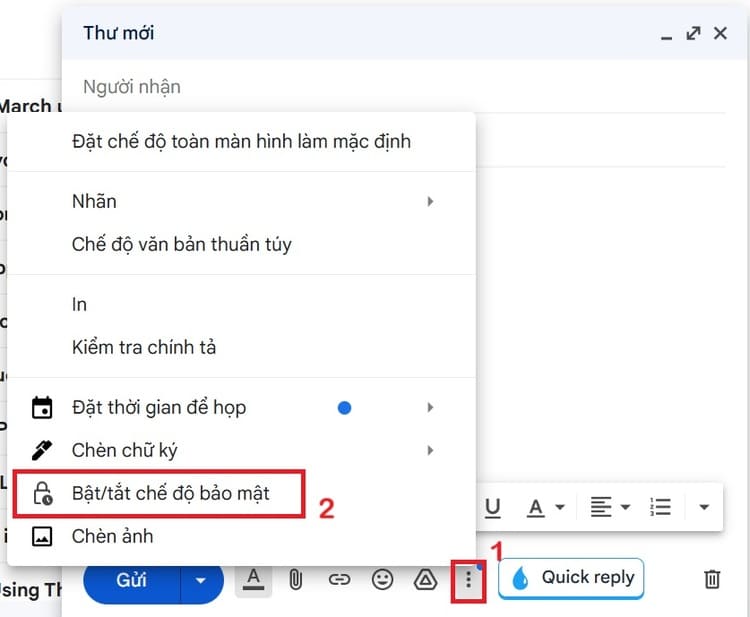
Security mode when sending emails
Select 'Enable/disable security mode'.

Step 3: In the new window that appears, you can set how long to automatically delete emails after sending. Once this time has passed, the email will no longer be accessible from the recipient's mailbox.
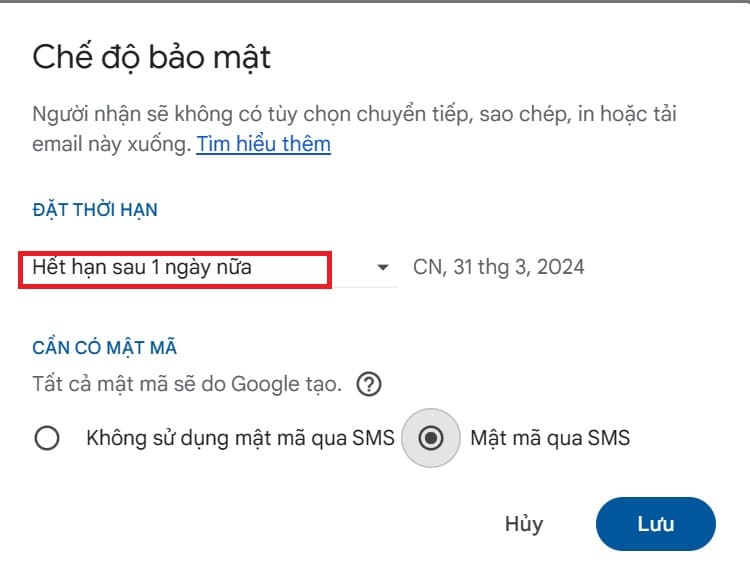
Security mode when sending emails
Set email auto-delete time

For enhanced security, you can select 'Send password via SMS'. Gmail will generate a unique passcode and send it to the recipient's phone number via SMS. The recipient needs to enter this password to open the email.
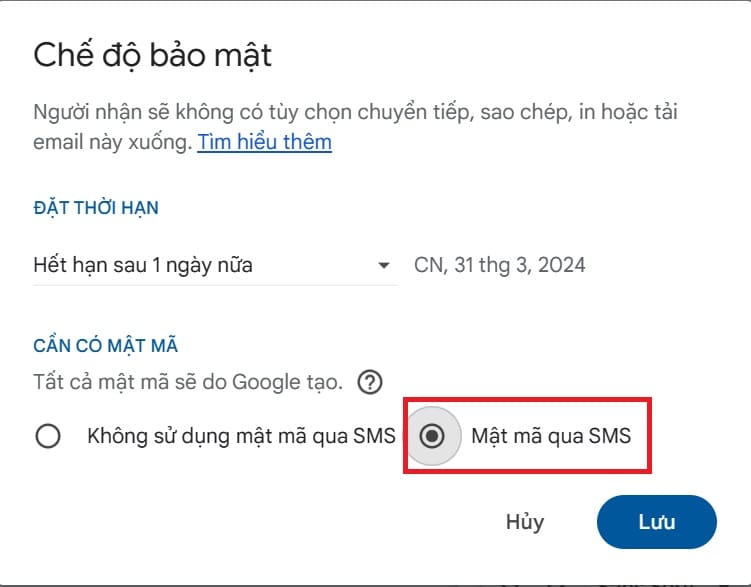
Security mode when sending emails
Select 'Send password via SMS'

Step 4: After installation is complete, press 'Save', enter the address email of the recipient and click 'Send' to complete sending the secure email.

With the steps above, you can send an email that cannot be copied or shared, and cannot be printed on paper. This ensures that only the intended recipient can see the email content.

When your predetermined time arrives, the email will be automatically canceled and the content will no longer be viewable, even by the recipient.

Note:

In secure mode, the recipient will:

  • Cannot download attachments (can only be viewed)
  • The email cannot be forwarded to others (There is no 'Forward' button)

Epilogue

How to activate Security mode when sending emails is an indispensable part when you want to send important and private content. Hopefully, with the information shared above, you can be more confident in protecting your data in cyberspace. Good luck!


Tags: abilityactivateemailsModesecurityselfdestructsending
Previous Post

Facebook's default Avatar collection has changed its background image

Next Post

[Lập Trình Game]Lesson 8: Creating Background for Sence

AnonyViet

AnonyViet

Related Posts

How to add sliders to Facebook Stories to easily rewind videos
Tips

How to add sliders to Facebook Stories to easily rewind videos

April 21, 2026
How to change the default font on Windows 10
Tips

How to change the default font on Windows 10

April 13, 2026
5 tips for using a Browser to replace an App (helps save RAM, time and money)
Tips

5 tips for using a Browser to replace an App (helps save RAM, time and money)

April 13, 2026
How to make funny MeMe photos without Photoshop within 10 seconds
Tips

How to make funny MeMe photos without Photoshop within 10 seconds

April 11, 2026
How to quickly design your own Logo without Photoshop
Tips

How to quickly design your own Logo without Photoshop

April 10, 2026
How to convert Website into App on Windows
Tips

How to convert Website into App on Windows

April 9, 2026
Next Post

[Lập Trình Game]Lesson 8: Creating Background for Sence

0 0 votes
Article Rating
Subscribe
Login
Notify of
guest

guest

0 Comments
Oldest
Newest Most Voted
Inline Feedbacks
View all comments

Recent News

How to install the cute Bongo Cat mouse pointer for Windows

How to install the cute Bongo Cat mouse pointer for Windows

April 29, 2026
Tips for pinning the step counter to the iPhone screen to monitor your health

Tips for pinning the step counter to the iPhone screen to monitor your health

April 28, 2026
How to turn off password suggestions on iPhone: Prevent Safari from auto-filling passwords

How to turn off password suggestions on iPhone: Prevent Safari from auto-filling passwords

April 27, 2026
Instructions for looking up prescriptions on VNeID instead of paper medical books

Instructions for looking up prescriptions on VNeID instead of paper medical books

April 26, 2026
How to install the cute Bongo Cat mouse pointer for Windows

How to install the cute Bongo Cat mouse pointer for Windows

April 29, 2026
Tips for pinning the step counter to the iPhone screen to monitor your health

Tips for pinning the step counter to the iPhone screen to monitor your health

April 28, 2026
How to turn off password suggestions on iPhone: Prevent Safari from auto-filling passwords

How to turn off password suggestions on iPhone: Prevent Safari from auto-filling passwords

April 27, 2026
AnonyViet - English Version

AnonyViet

AnonyViet is a website share knowledge that you have never learned in school!

We are ready to welcome your comments, as well as your articles sent to AnonyViet.

Follow Us

Contact:

Email: anonyviet.com[@]gmail.com

Main Website: https://anonyviet.com

Recent News

How to install the cute Bongo Cat mouse pointer for Windows

How to install the cute Bongo Cat mouse pointer for Windows

April 29, 2026
Tips for pinning the step counter to the iPhone screen to monitor your health

Tips for pinning the step counter to the iPhone screen to monitor your health

April 28, 2026
No Result
View All Result
  • Home
  • News
  • Software
  • Knowledge
  • MMO
  • Tips
  • Security
  • Network
  • Office

wpDiscuz
0
0
Would love your thoughts, please comment.x
()
x
| Reply





