• Home
  • News
  • Software
  • Knowledge
  • MMO
  • Tips
  • Security
  • Network
  • Office
AnonyViet - English Version
  • Home
  • News
  • Software
  • Knowledge
  • MMO
  • Tips
  • Security
  • Network
  • Office
No Result
View All Result
  • Home
  • News
  • Software
  • Knowledge
  • MMO
  • Tips
  • Security
  • Network
  • Office
No Result
View All Result
AnonyViet - English Version
No Result
View All Result

Do not use the Flashlight application on your phone

AnonyViet by AnonyViet
January 1, 2023
in Software
0

The smartphone comes with a Flash to assist in low-light photography which is very convenient and easy to use. But some of you use Flash as Flashlight, this will reduce the life of the PIN and save the phone.

Why should you not use your phone as a PIN light

Most people have their phone with them 24/7 and the small LED flash on most smartphones, in flashlight mode, can illuminate about 2-3m. You can adjust the brightness of the flashlight on your Apple Watch phone with flashlight mode, but it also doesn’t work as well as it should.
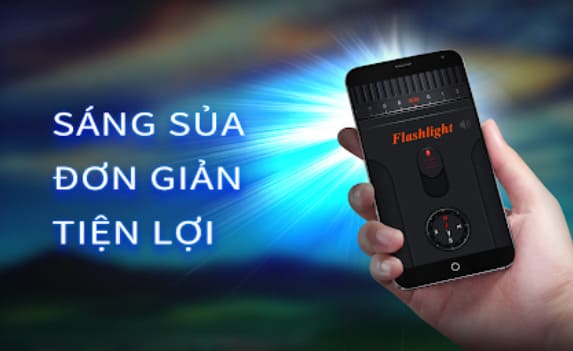
Do not use the Flashlight application on your phone

Sometimes you need to find something that you dropped under your bed or you are looking for something in your wallet in a dark room then an ultra-compact flashlight is built into a device that you are carrying around. how wonderful.

It may be hard to believe, but the camera flash is not always found on smartphones. Apple didn’t add an LED flash until the iPhone 4 in 2010. Even after phones with built-in flash became more common, iOS and Android didn’t have a built-in “flashlight” feature for a long time. .

What is flashlight app?

There are 2 distinct types of flashlight apps. The first type existed mainly before phones had flash next to Camera. These applications simply increase the screen brightness and display a white screen. This is quite effective for getting some light in a dark space.

The second type of flashlight app actually uses the flash on the back of the phone. Just turn the flash on or off. This is an even better way to light up a dark space. While technically both types of flashlight apps do the job of making a space a little brighter, there are some downsides that you might not be aware of.

Flashlight apps are designed to do one thing – provide light. Some have extras like flashing lights and different colors to choose from, but at their core these are very simple apps.

The fact that many of these flashlight apps have been detect abuse of unnecessary permissions. That’s a big deal on Android, which also has some dangerous iPhone flashlight apps.

Back in 2019, Avast detected more than 70 of about 1,000 flashlight apps found on the Google Play Store that asked for permissions to record and read contacts, permissions that had nothing to do with the PIN.

What’s more dangerous is that some of these apps already have over a million downloads. Who would suspect such behavior from such a supposedly simple application? Thankfully, both iPhone and Android have upgraded much better app permission controls.

Use the PIN on your phone properly

Now you no longer need to install any kind of flashlight app anymore

Open Flashlight on iPhone

You can use the Flashlight on your iPhone in the following ways:

Use Siri

Open Siri and use voice commands:

  • “Hey Siri, turn on my flashlight.”
  • “Hey Siri, will you turn on my flashlight?”
  • “Hey Siri, turn off my flashlight.”

Open iPhone Flashlight from Control Center

  1. Swipe down from the top right corner to open Control Center on your iPhone or iPad.
  2. Tap the Flashlight button.
  3. To turn off the flashlight, tap the Flashlight button again.
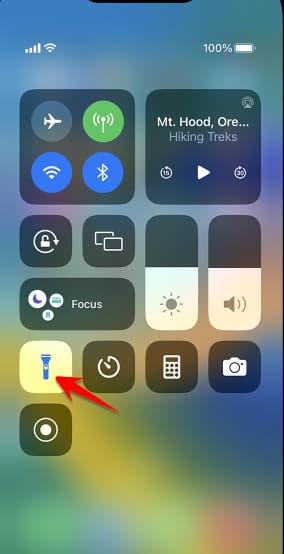
how to use iphone battery

If you don’t see the Flashlight button when you open Control Center, you can change your settings to add it. Go to Settings > Control Center, then tap Flashlight in the list of available controls.

You can also turn on the flashlight from Lock screen: Press and hold the Flashlight button, in the bottom left corner.

Open Flashlight on Android

You can easily access the flashlight from Android’s Quick Settings menu. It allows you to quickly access your flashlight by swiping down on the status bar and tapping an icon. To test the Flashlight Quick Settings shortcut on your phone, do the following:

  1. Swipe down on your status bar, then tap the . icon Pencil.
  2. Scroll down and find the box Flashlight.
  3. Press and hold umbrella and drag the cell to the position you want.
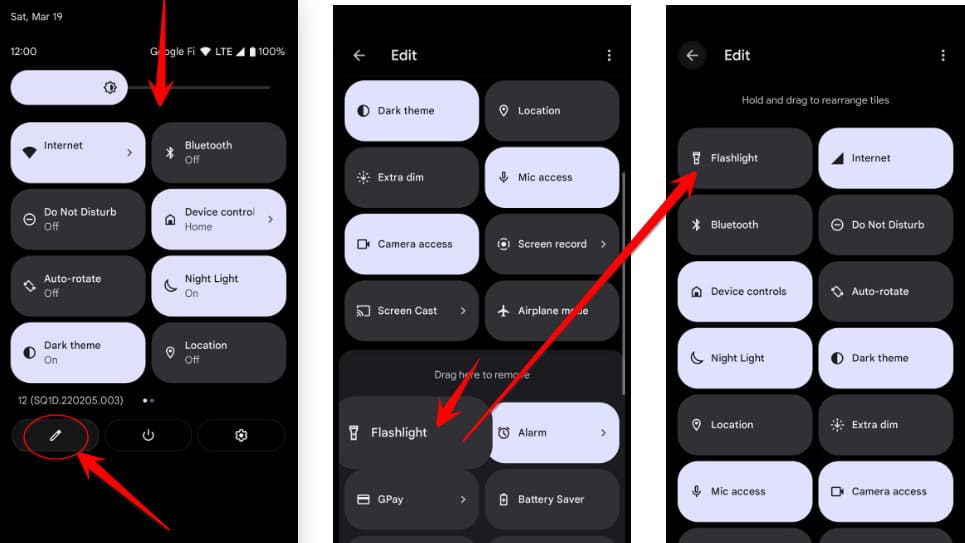
no battery on android

The article achieved: 5/5 – (1 vote)

Tags: applicationFlashlightphone
Previous Post

License Key VMWare vSphere 8 – Key VMWare Esxi 8

Next Post

What is act fool? What is the meaning of the word act fool?

AnonyViet

AnonyViet

Related Posts

Instructions on how to prevent acquaintances from seeing your Tiktok
Software

Instructions on how to prevent acquaintances from seeing your Tiktok

June 2, 2026
TruyenDrive: Turn Google Drive into a professional manga reader
Software

TruyenDrive: Turn Google Drive into a professional manga reader

May 31, 2026
How to extract text from photos using Zalo is super simple
Software

How to extract text from photos using Zalo is super simple

May 29, 2026
HONOR 600 in hand – High-end design, 200MP camera, not cheap price
Software

HONOR 600 in hand – High-end design, 200MP camera, not cheap price

May 28, 2026
Instructions for getting 4 months of Adobe copyright for free
Software

Instructions for getting 4 months of Adobe copyright for free

May 28, 2026
The truth about the 7,000 mAh battery on Xiaomi 17T Pro: What benefits do users get?
Software

The truth about the 7,000 mAh battery on Xiaomi 17T Pro: What benefits do users get?

May 28, 2026
Next Post
What is act fool?  What is the meaning of the word act fool?

What is act fool? What is the meaning of the word act fool?

0 0 votes
Article Rating
Subscribe
Login
Notify of
guest

guest

0 Comments
Oldest
Newest Most Voted
Inline Feedbacks
View all comments

Recent News

Instructions on how to prevent acquaintances from seeing your Tiktok

Instructions on how to prevent acquaintances from seeing your Tiktok

June 2, 2026
How to record reaction videos with Android phones, no app needed

How to record reaction videos with Android phones, no app needed

June 1, 2026
Instructions on how to get Google AI Pro 1 year for free for new accounts

Instructions on how to get Google AI Pro 1 year for free for new accounts

June 1, 2026
Top free AI tools to help write, test and optimize content

Top free AI tools to help write, test and optimize content

June 1, 2026
Instructions on how to prevent acquaintances from seeing your Tiktok

Instructions on how to prevent acquaintances from seeing your Tiktok

June 2, 2026
How to record reaction videos with Android phones, no app needed

How to record reaction videos with Android phones, no app needed

June 1, 2026
Instructions on how to get Google AI Pro 1 year for free for new accounts

Instructions on how to get Google AI Pro 1 year for free for new accounts

June 1, 2026
AnonyViet - English Version

AnonyViet

AnonyViet is a website share knowledge that you have never learned in school!

We are ready to welcome your comments, as well as your articles sent to AnonyViet.

Follow Us

Contact:

Email: anonyviet.com[@]gmail.com

Main Website: https://anonyviet.com

Recent News

Instructions on how to prevent acquaintances from seeing your Tiktok

Instructions on how to prevent acquaintances from seeing your Tiktok

June 2, 2026
How to record reaction videos with Android phones, no app needed

How to record reaction videos with Android phones, no app needed

June 1, 2026
No Result
View All Result
  • Home
  • News
  • Software
  • Knowledge
  • MMO
  • Tips
  • Security
  • Network
  • Office

wpDiscuz
0
0
Would love your thoughts, please comment.x
()
x
| Reply